가사 영상 만들기
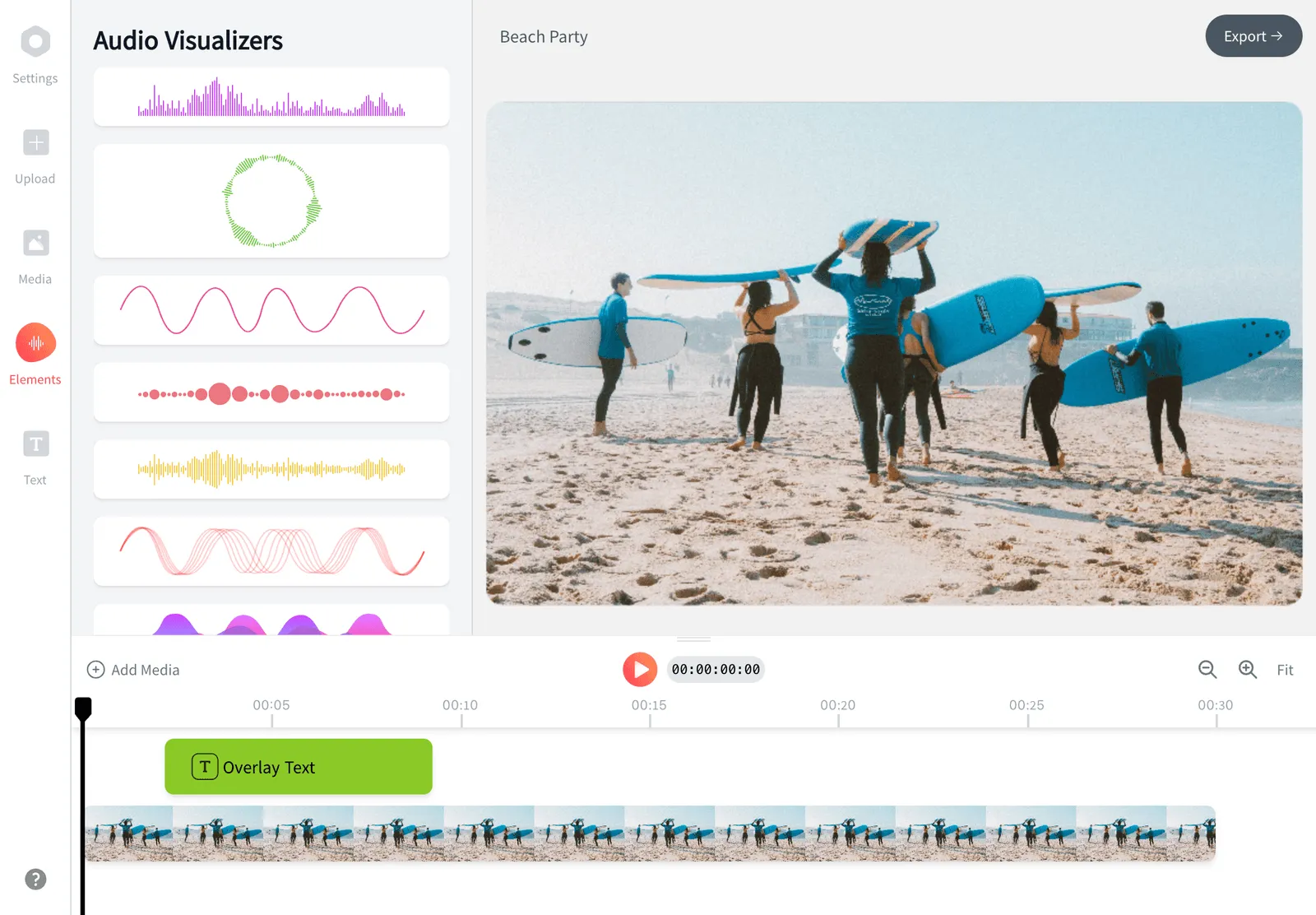
브라우저에서 노래 한 곡을 완성된 가사 영상으로 만들어 보세요. 음원을 올리면 AI 가사 영상 제작기가 영상에 가사를 자동으로 넣고 박자에 맞춰 싱크를 맞춰 줘요. 그다음 글꼴, 애니메이션, 배경이나 파형을 꾸미면 돼요. 편집 실력이 없어도 되고, 무료로 시작할 수 있어요.


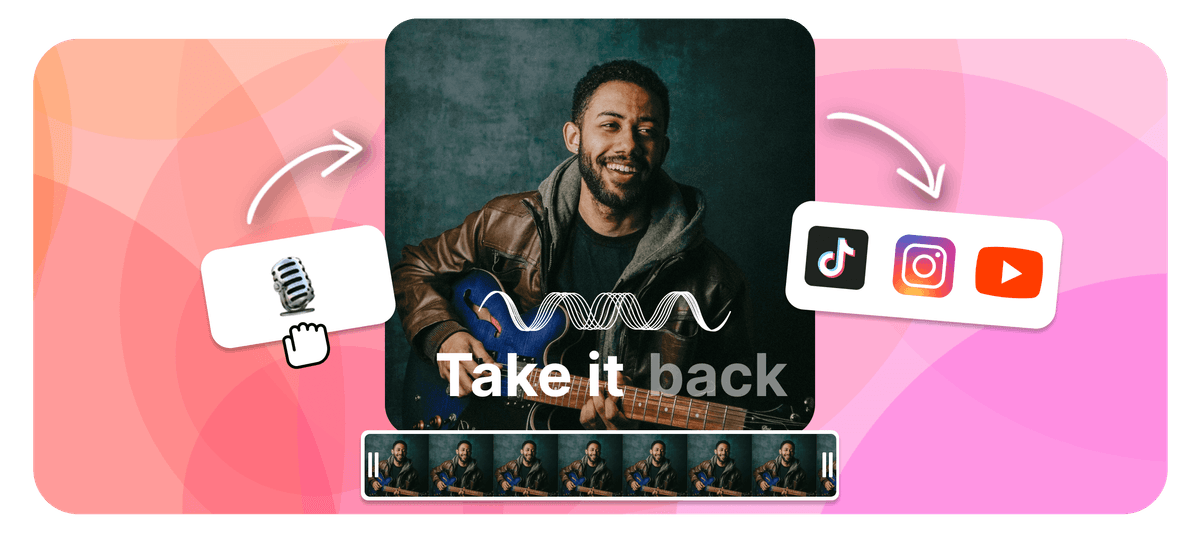
EchoWave is a free lyric video maker that runs online in your browser. To make a lyric video, upload your song, then add the words by typing them in or letting the AI lyric video maker transcribe and auto-sync them to the beat. Style the fonts and animations, add a background image, video, or waveform, set the aspect ratio, then export an MP4 right in your browser. As a lyrical video maker it works the same for any track, and it is free to start.
EchoWave로 노래 가사 영상을 만들어 보세요



가사 영상 만드는 방법
원본 노래에서 완성된 가사 영상까지 네 단계, 모두 브라우저에서 해결해요.
-
1. 노래 업로드
MP3, WAV, M4A, AAC 파일을 올리세요. EchoWave가 오디오를 읽고 가사 작업을 준비해 줘요. 내려받을 프로그램은 없어요.

-
2. 가사 추가 (AI 또는 직접 입력)
AI가 노래를 자동으로 받아 적고 오디오에 맞춰 가사 싱크를 맞추게 하거나, 직접 입력하세요. 어느 쪽이든 줄마다 타이밍을 세밀하게 조절할 수 있어요.
-
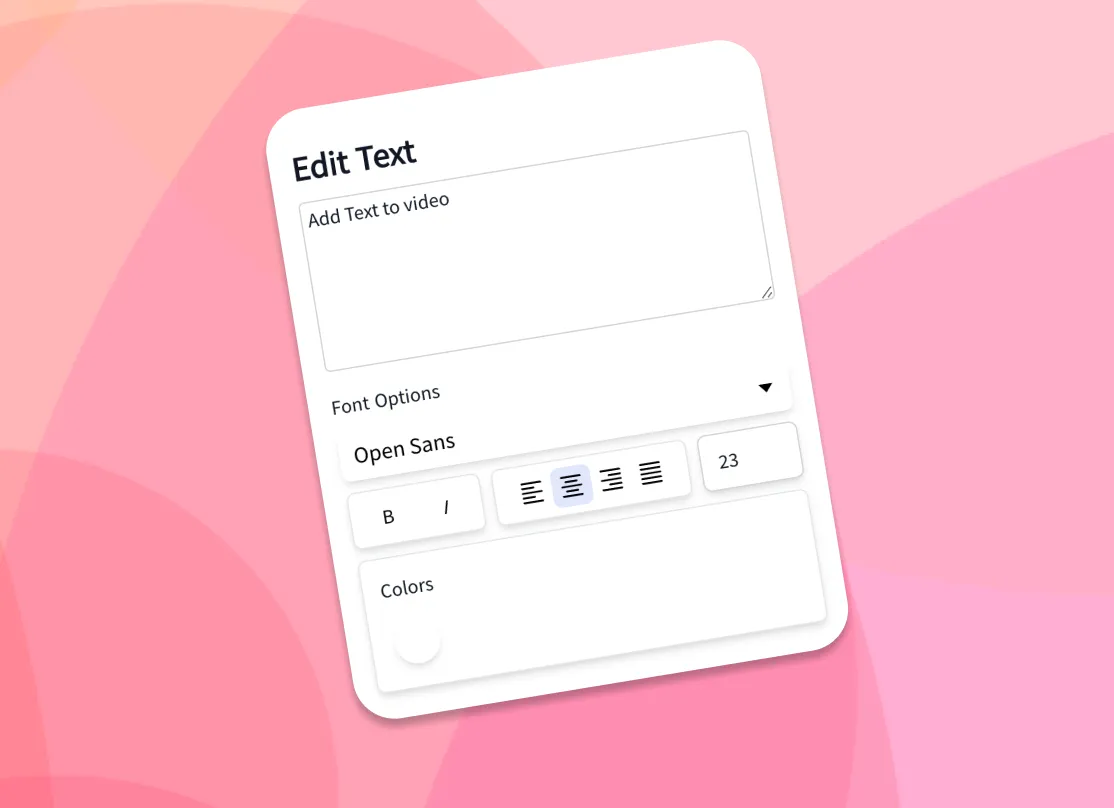
3. 텍스트와 배경 꾸미기
글꼴, 색, 애니메이션 효과를 고른 다음, 내 배경 이미지나 영상, 또는 뮤직 비주얼라이저나 파형을 추가하세요.
-
4. MP4로 내보내기
플랫폼에 맞는 화면 비율을 고르고, 렌더링해서 가사 영상을 MP4로 내려받으면 바로 공유할 수 있어요.
실제 프로젝트에서 EchoWave를 쓰는 방식
AI lyric video maker: auto lyrics generator and beat sync
The slowest part of making a lyric video by hand is typing the words and dragging each line so it lands when it is sung. As an auto lyrics generator, EchoWave's AI handles both. Drop in a song and the AI transcription listens to the vocals, writes out the lyrics, and time-stamps each line so the words appear in time with the audio. This is how you add lyrics to video automatically: the AI does the transcription and the sync, with no manual typing required. If you already have the lyrics, paste them in and the AI still aligns them to the track for you.
That auto-sync is what separates a real lyric video generator from a plain caption tool. You get a full first pass in seconds, then open the timeline to nudge any line that needs adjusting: shift a line a few frames, split a long line in two, or stretch a held note so the word stays on screen as long as the singer holds it. Auto transcription works best on clear lead vocals; dense mixes, heavy effects, or fast rap can need a few manual edits, which is why the line-by-line controls are always there.
Animate the lyrics so they move with the song
Static captions sit flat on the screen. Animated lyrics carry the energy of the track, and that is what people actually watch and share. EchoWave gives you a library of fonts, colors, outlines, and kinetic text effects, so words can fade, slide, pop, scale, or type on in time with the music. Pick a ready-made style to get a polished look in one click, or build your own and reuse it across every line for a consistent look from start to finish.
Because the text is tied to the synced timing, the animations land on the beat automatically. A few practical tips from making a lot of these: keep one or two lines on screen at a time rather than a full verse, use a font size large enough to read on a phone, and add a subtle shadow or outline so the words stay legible over a busy background. High contrast between the text and the backdrop is the single biggest factor in whether a lyric video reads well at a glance.
Backgrounds, waveforms, and visualizers
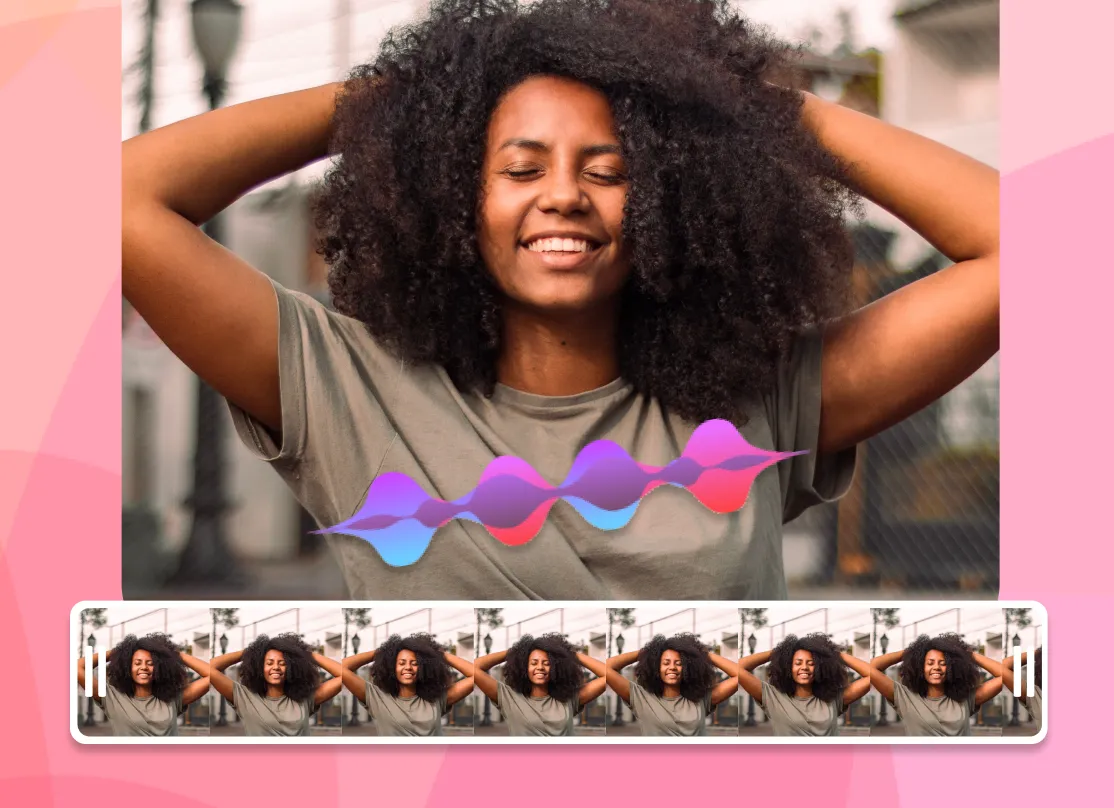
A lyric video is more than text, so EchoWave lets you set the backdrop however you like. Upload your own image or video background, or drop in a music visualizer or animated waveform that reacts to the track. Use album art, a brand color, a looping clip, or a gradient to match the mood of the song. You can layer more than one element too: a video background behind a waveform behind the lyrics. To add song lyrics to a photo online, set a still image as the background and let the words animate over it for a simple photo lyrical video.
For a clean, low-effort look, a single dark background with bright animated text reads well on every platform and keeps file sizes down. For a richer scene, a slow-moving video loop under a reactive waveform gives the frame motion even during instrumental sections. Everything renders into one MP4 with the audio baked in, so what you preview is exactly what you download.
무료로 시작
Supported formats and export specs
EchoWave accepts the common audio formats for your song, including MP3, WAV, M4A, and AAC, plus image backgrounds (JPG, PNG, WebP) and video backgrounds (MP4, MOV, WebM). The browser cannot always read every exotic codec the way a desktop app can, so if a file does not preview cleanly, re-saving it as a standard MP3 or MP4 usually fixes it.
Exports are H.264 MP4 with the audio muxed in, which plays everywhere and uploads directly to every social platform. Pick your aspect ratio before exporting so the video fills the frame instead of sitting in letterbox bars. Render time depends on the length of the song and the resolution; a typical three to four minute track exports in a couple of minutes. For most songs, 1080p is the right balance of quality and file size.
Sizes for TikTok, YouTube, Instagram, and Reels
Every platform wants a different shape, so set the canvas size up front and your lyric video fills the frame on upload:
- TikTok, Instagram Reels, and Stories: 9:16 vertical, 1080 by 1920.
- YouTube: 16:9 widescreen, 1920 by 1080, or 9:16 for Shorts.
- Instagram feed: 1:1 square (1080 by 1080) or 4:5 portrait (1080 by 1350).
- Facebook and X: 16:9 or 1:1 both work well in-feed.
The workflow is the same for all of them: upload the song, let the AI sync the words, style the text and background, choose the preset, and export. If you are posting the same song to several places, export the vertical 9:16 cut for short-form first, then duplicate the project and switch to 16:9 for the full YouTube version without redoing the timing.
Who uses a lyric video maker, and when
Independent musicians use a lyric video maker as the cheapest way to get a new single onto YouTube while the official music video is still in the works, since a lyric video can go live the same day a track drops. Labels and managers use them to push pre-saves and announce release dates. Creators and fans make them for favorite songs, covers, and karaoke-style clips. Podcasters and brands use the same workflow to turn an audio quote or jingle into a captioned clip for social.
A lyric video earns its place when the words matter and the budget or timeline does not allow a full shoot. It keeps a song discoverable on search and feeds, gives listeners something to watch, and is quick enough to make that you can ship one for every release. EchoWave runs in your browser, and you only pay if you want extras like removing the watermark or exporting at a higher resolution.

EchoWave 팀 소개
EchoWave는 Lemon Vault LLC가 2018년부터 개발해 온 브라우저 기반 영상·오디오 편집기입니다. 편집기를 직접 만드는 팀이 이 가이드를 작성하고, 게시 전에 실제 앱에서 모든 단계를 테스트합니다.
자주 묻는 질문
가사 영상은 어떻게 무료로 만드나요?
EchoWave는 무료로 시작할 수 있는 가사 영상 제작기예요. 노래를 올리고, AI 자동 싱크나 직접 입력으로 가사를 추가하고, 글꼴과 배경을 꾸민 다음 MP4로 내보내 내려받으세요. 무료로 시작할 수 있고, 주요 유료 기능은 워터마크 제거와 더 높은 해상도 출력이에요.
영상에 가사를 자동으로 넣으려면 어떻게 하나요?
EchoWave의 AI가 노래를 받아 적고 각 줄을 오디오에 맞게 자동으로 싱크해서, 노래가 나오는 순간에 가사가 나타나요. 그다음 타임라인에서 원하는 줄의 타이밍을 세밀하게 조절할 수 있어요.
무료 AI 가사 영상 제작기가 있나요?
네. EchoWave의 AI 가사 싱크, 글꼴, 애니메이션, 배경을 무료로 시작할 수 있고, 브라우저에서 작동해서 내려받을 프로그램이 없어요.
가사 영상에 워터마크가 들어가나요?
전체 편집기에서 내보내면 무료 플랜에서는 작은 EchoWave 워터마크가 들어가고, 업그레이드하면 언제든 없앨 수 있어요. 크롭, 트리밍, 압축 같은 전용 빠른 도구는 워터마크 없이 내보내요.
내 배경 이미지나 영상을 넣을 수 있나요?
네. 이미지(JPG, PNG, WebP)나 영상(MP4, MOV, WebM)을 배경으로 올리거나, 음악에 반응하는 애니메이션 파형이나 뮤직 비주얼라이저를 쓸 수 있어요.
가사를 음악에 맞게 싱크하려면 어떻게 하나요?
AI가 노래를 받아 적을 때 모든 줄을 자동으로 싱크해 줘요. 조정하려면 타임라인을 열어 줄을 옮기거나 나누거나 늘려서 보컬에 정확히 맞추세요.
글꼴, 색, 애니메이션을 바꿀 수 있나요?
네. 다양한 글꼴, 색, 외곽선, 키네틱 텍스트 효과가 있고, 클릭 한 번으로 적용해서 모든 줄에 재사용할 수 있는 기본 스타일도 있어요.
EchoWave는 어떤 오디오와 영상 형식을 지원하나요?
MP3, WAV, M4A, AAC 오디오와, 배경용 JPG, PNG, WebP 이미지, MP4, MOV, WebM 영상을 지원해요. 내보내기는 오디오가 포함된 H.264 MP4예요.
TikTok, YouTube, Instagram용 가사 영상은 어떤 크기가 좋나요?
TikTok, 릴스, 쇼츠에는 9:16(1080 x 1920), YouTube에는 16:9(1920 x 1080), Instagram 피드에는 1:1이나 4:5를 쓰세요. EchoWave에는 각각의 프리셋이 있으니 내보내기 전에 하나를 고르세요.
가사 영상을 만드는 데 얼마나 걸리나요?
AI 자동 싱크를 쓰면 3분에서 4분짜리 노래의 초안이 몇 분 안에 나와요. 스타일링과 타이밍 조정은 얼마나 공들여 다듬느냐에 따라 조금 더 걸려요.
유튜브용 가사 영상을 만들 수 있나요?
네. 일반 YouTube 업로드에는 캔버스를 16:9로, 쇼츠에는 9:16으로 설정한 다음 MP4로 내보내 업로드하세요. 가사 영상은 뮤직비디오를 제작하는 동안 신곡을 YouTube에 빠르게 올리기 좋은 방법이에요.
소프트웨어를 내려받거나 설치해야 하나요?
아니요. 가사 영상 제작기는 데스크톱과 모바일 브라우저에서 작동하니 설치할 것이 없어요.