Convert audio to text free online
Turn recordings, interviews, podcasts and voice notes into accurate written text right in your browser. Upload your file, pick the spoken language, and EchoWave transcribes it automatically so you can edit, clean up and download the transcript in minutes.

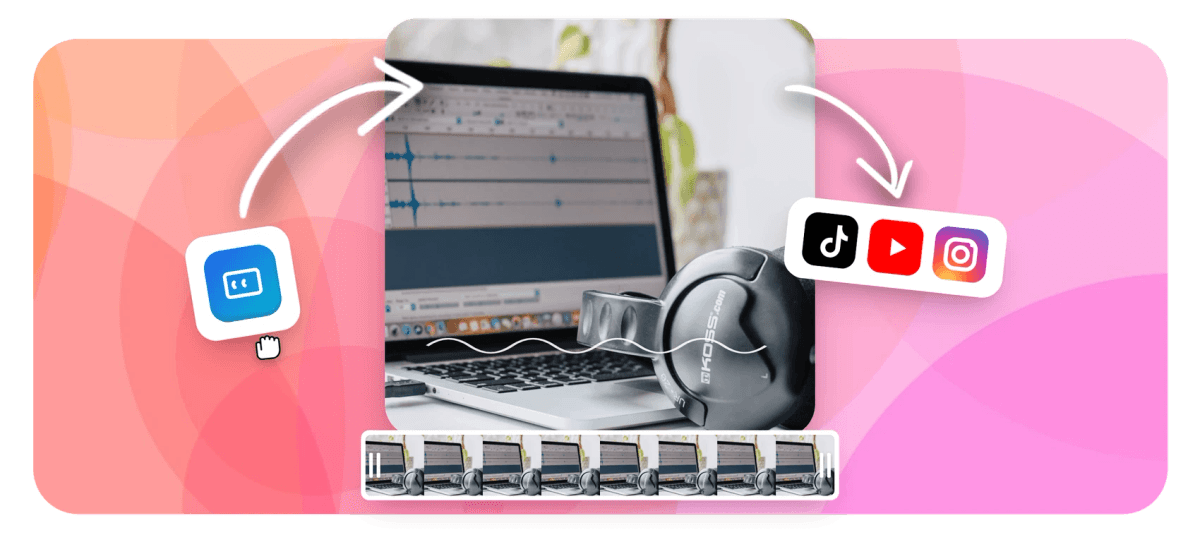
Convert audio to text free online Features
Echowave is used by thousands of businesses around the world



To convert audio to text, open EchoWave in your browser, upload an audio or video file (MP3, WAV, M4A, MP4 and more), and select the spoken language. The free online audio to text converter transcribes the speech automatically, usually in a couple of minutes, then lets you edit the words and download the finished transcript as text or subtitles. It is a fast way to transcribe audio to text without any software to install.
Why use EchoWave to convert audio to text
Most transcription happens by ear: you scrub back and forth, type a sentence, rewind, and lose half an hour to a ten minute clip. An automated audio to text converter does the first pass for you. EchoWave listens to the speech, writes out what it hears with sensible punctuation, and lines the words up against the timeline so you can read and correct in one place instead of jumping between a player and a blank document.
It runs entirely in the browser. There is nothing to install, no desktop app, and no account needed to start. You drop in a file, choose the language, and get editable text back. Because EchoWave is built as a full video and audio editor, the transcript is not a dead end: you can fix mistakes inline, split the text into readable lines, turn it into on-screen captions, or keep it as a plain document for notes and articles.
How to transcribe audio to text
The tool uses automatic speech recognition. When you transcribe audio to text, the audio is analysed for spoken words, the words are matched to a language model, and the result comes back as time-coded text. Each line carries a start and end time, which is what makes it easy to jump to any moment in the recording and check a phrase against what was actually said.
A few things shape how clean that first draft is:
- Audio quality. A clear voice recorded close to the microphone transcribes far better than a phone left on a table across the room. Reducing background noise before you upload pays off.
- Number of speakers. One person talking is the easiest case. Overlapping voices, crosstalk and interruptions are where any transcriber, human or automated, has to guess.
- Accent and pace. Strong accents, fast speech and heavy jargon raise the chance of a missed word, so plan to proofread technical or specialist recordings.
- Language match. Picking the correct spoken language before you transcribe matters. The wrong setting produces nonsense, so set it deliberately rather than leaving a default.
No automated tool is perfect. Treat the output as a strong first draft, then read it through and fix the handful of words it got wrong. That is still many times faster than typing from scratch, and it works the same way each time you transcribe an audio file.
Real ways people use it
- Interviews and research. Journalists and students transcribe an audio file from a recorded interview into searchable text so they can quote accurately and find a moment by reading instead of scrubbing.
- Meetings and lectures. Turn a recorded call or class into notes you can skim, highlight and share, rather than re-listening to the whole thing.
- Podcasts and YouTube. A transcript becomes show notes, a blog post, or the basis for captions that make a video accessible and easier to find in search.
- Voice memos and dictation. Long voice notes become tidy written documents you can paste into an email, a report or a script.
- Accessibility. A written record helps anyone who is deaf or hard of hearing, and gives every viewer a way to follow along with the sound off.
Supported formats and what to expect
You can upload the common audio formats people actually record in: MP3, WAV, M4A, AAC, FLAC and OGG. Drop in any of these and EchoWave will transcribe the audio file to text in the same few steps. Because EchoWave is a video editor too, you can also feed it video files such as MP4, MOV, WebM and AVI and pull the spoken text straight out of the soundtrack, which is handy for converting video audio to text without a separate extract step.
The transcript itself comes back as editable text on the timeline, so you turn an audio file to text you can actually work with rather than a locked PDF. From there you can copy it out as plain text for a document, or keep it as caption lines and export them burned into a video. If your recording is mostly silence or music with no clear speech, expect little or nothing back: the tool transcribes spoken words, not melodies or sound effects.
Accuracy, speed and limits
On a clean recording of one clear speaker, automatic transcription is genuinely good and gets the large majority of words right on the first pass. Quality drops with noise, distance from the mic, crosstalk and very specialist vocabulary, which is normal for every speech recognition engine. The practical workflow is to let the tool do the heavy lifting, then spend a few minutes correcting names, technical terms and any line it misheard.
Speed depends on the length of the clip and your connection, since the file uploads and processes in the cloud. Short clips come back quickly; a long recording takes longer to upload and transcribe. For very long files, trimming the recording down to the part you actually need first will save time.
Privacy, price and watermark
EchoWave is a free audio to text converter and you can start without creating an account. The transcription itself does not add a watermark to your text. Because this page opens the full EchoWave editor, any video you export on the free plan carries a small EchoWave watermark, which a paid plan removes. Plain transcripts and captions you copy out as text are unaffected. If you only need a watermark-free video and not transcription, EchoWave's dedicated quick tools for cropping, trimming, compressing and converting export with no watermark.
Device and browser support
The tool works in any modern browser on Windows, macOS, Linux, ChromeOS, and on Android and iPhone. There is nothing to download, so a Chromebook or a phone works the same way a laptop does: open the page, upload a file from your device or cloud storage, and transcribe. On mobile this is a quick way to convert an audio message or voice memo to text without installing an app.
Convert audio to text in 3 steps
Follow our guide to learn how to convert audio to text
-
1. Upload your file
Choose Select File to browse, or drag and drop your audio or video. MP3, WAV, M4A, MP4 and more are all supported.
-
2. Transcribe the audio
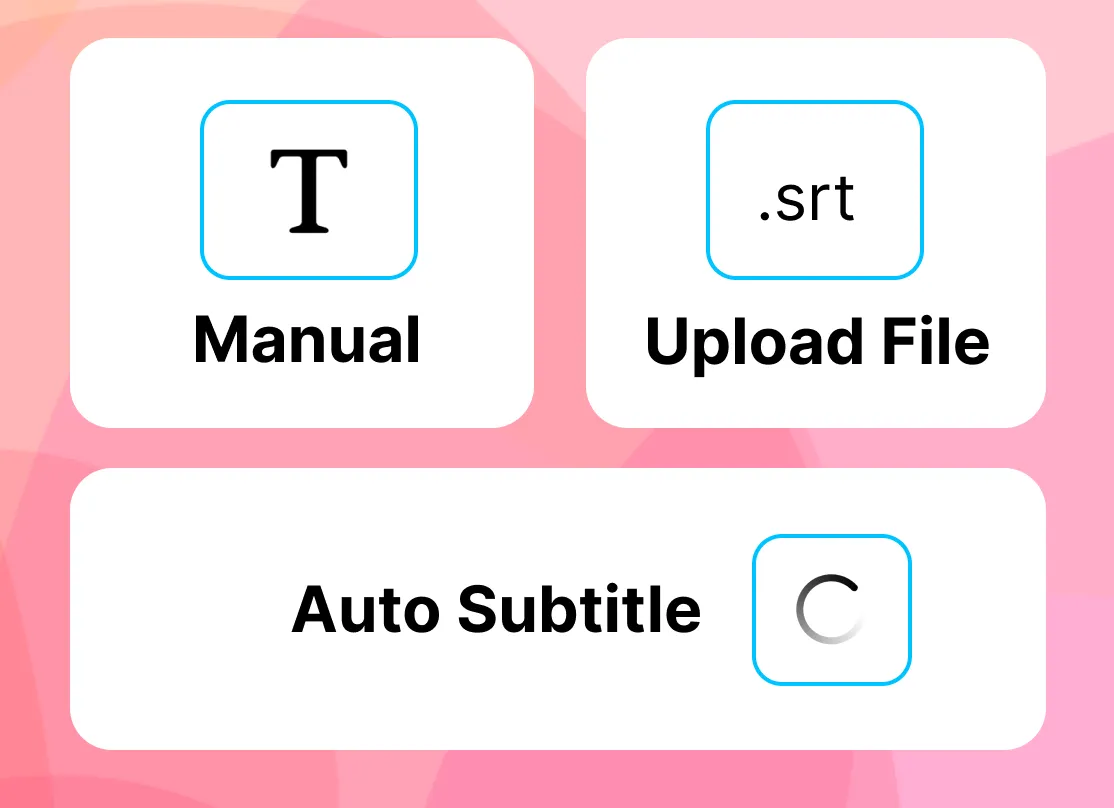
Select the language spoken in the recording and let EchoWave transcribe the speech to text automatically.
-
3. Edit and download text
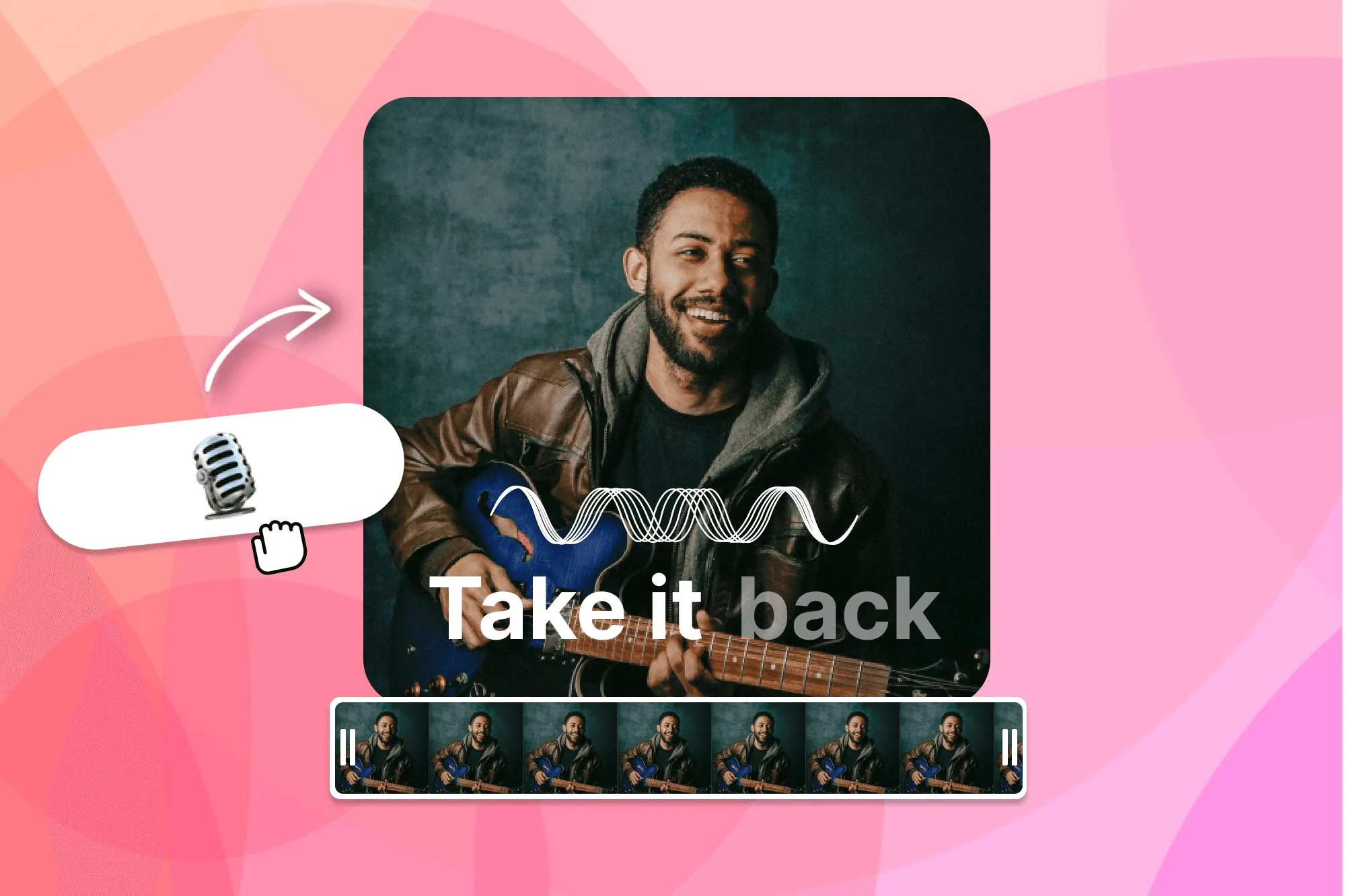
Read through the transcript, fix any misheard words, then download it as text or keep it as captions.
What people are saying about EchoWave

About the EchoWave team
EchoWave is a browser-based video and audio editor built by Lemon Vault LLC since 2018. The people who build the editor write these guides and test every step in the production app before publishing.
Ready to convert audio to text? We have a free plan!
No credit card required, our free plan includes a small Echowave.io watermark.
Get Started →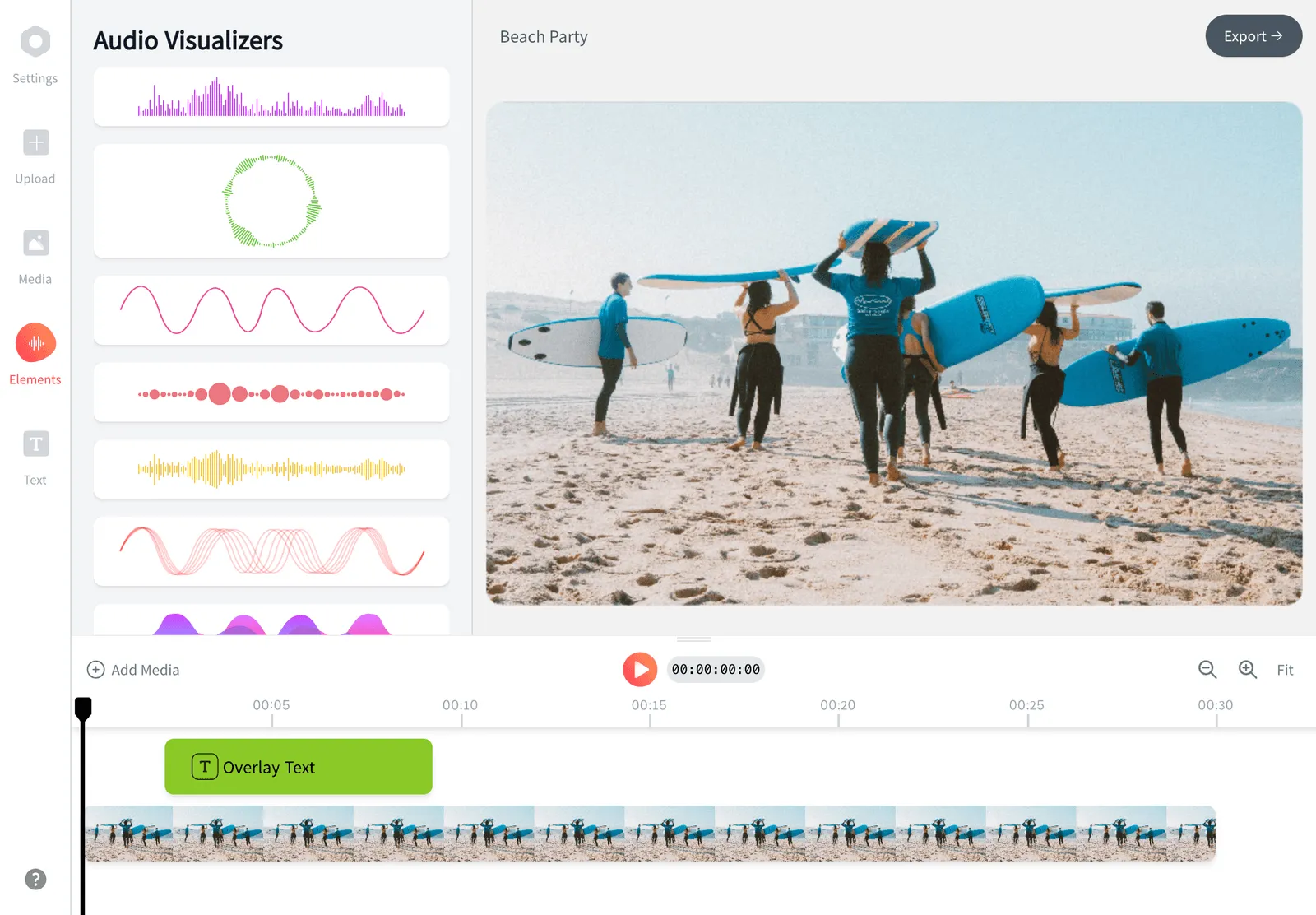
Frequently Asked Questions
How do I convert audio to text?
Open EchoWave, upload your audio or video file, and choose the spoken language. The tool transcribes the speech automatically, then you can edit the text and download it. No software install or account is needed to begin.
Is it free to convert audio to text?
Yes. EchoWave is free to use and you can start without an account. Plain transcripts and captions you copy out as text have no watermark, while videos exported on the free plan carry a small EchoWave watermark that a paid plan removes.
What audio formats can I transcribe?
You can upload common audio formats including MP3, WAV, M4A, AAC, FLAC and OGG. Video files such as MP4, MOV, WebM and AVI also work, since EchoWave can transcribe the speech directly from a video soundtrack.
Can I convert an MP3 to text?
Yes. MP3 is one of the most common files people transcribe. Upload the MP3, select the language, and EchoWave converts the spoken audio to editable text you can clean up and download.
How accurate is the transcription?
On a clear recording with one speaker, automatic transcription gets the large majority of words right on the first pass. Accuracy drops with background noise, crosstalk, strong accents or specialist jargon, so plan to proofread tricky recordings.
How long does it take to transcribe a file?
It depends on the length of the recording and your connection, since the file uploads and processes in the cloud. Short clips come back in a minute or two, while long recordings take longer to upload and transcribe.
Can I transcribe the audio from a video?
Yes. Upload an MP4, MOV or other video file and EchoWave pulls the spoken text straight from the soundtrack, so you can convert video audio to text without extracting the audio first.
Can I edit the transcript after it is generated?
Yes. The transcript appears as editable lines you can correct, split and reword. This is the recommended workflow: let the tool produce a first draft, then fix names, technical terms and any misheard words.
Does it work on my phone?
Yes. The tool runs in any modern browser on Android and iPhone as well as Windows, macOS, Linux and ChromeOS. There is nothing to install, so a phone or Chromebook works the same way a laptop does.
Can I turn the transcript into subtitles?
Yes. Because each line is time-coded, you can keep the transcript as on-screen captions for a video and burn them in, or copy the words out as plain text for a document. See the EchoWave add subtitles tool for caption styling.
Is my audio kept private?
Your file is uploaded to be transcribed and is not used to train models. If privacy is critical for sensitive recordings, transcribe only the portion you need and remove files when you are finished.
Can it transcribe languages other than English?
Yes. Select the language spoken in your recording before transcribing. Choosing the correct language is important, because the wrong setting produces inaccurate text.