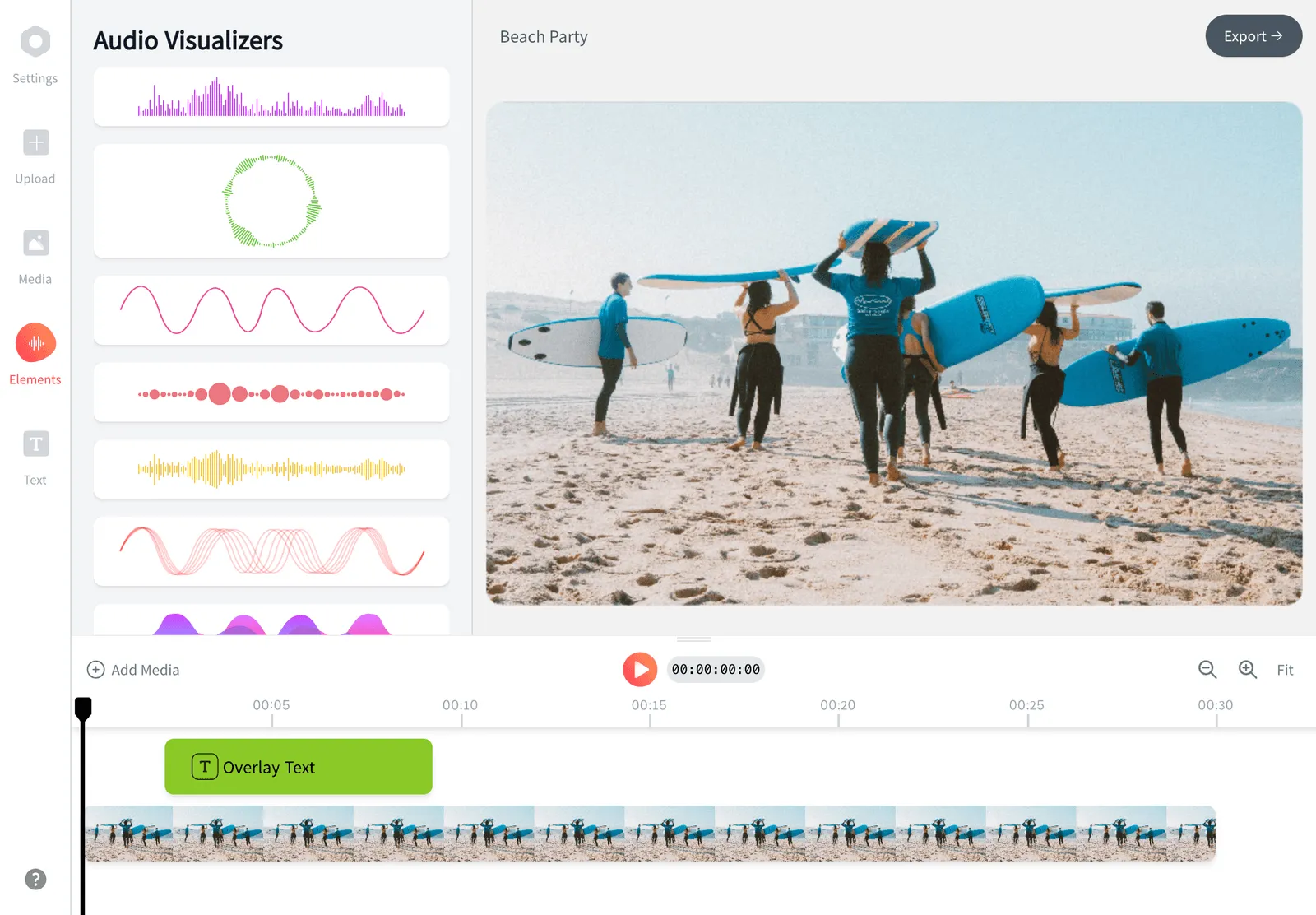
Add Subtitles to Video Online, Free
Upload your clip, click Auto-Subtitle to transcribe the speech automatically, then edit, restyle, and reposition the captions. Export a burned-in MP4 or download an SRT, VTT, or TXT file, free in your browser with no signup and nothing to install.


Add Subtitles to Video Online, Free Features
To add subtitles to video online free, upload your clip to EchoWave, click Auto-Subtitle to transcribe the speech automatically, then edit any wording and restyle the captions. Export a burned-in MP4 or download an SRT, VTT, or TXT file. Everything runs in your browser, with no signup and no software to install.
Subtitles follow the speech. For standalone titles, labels, or a call to action, you can also add text on top of your video in the same editor and time each layer independently.
Echowave is used by thousands of businesses around the world





How to add subtitles to a video
Wondering how to add subtitles to video without fiddly software? In EchoWave it takes three steps. Here is the full process to add subtitles to a video, from upload to export.
-
1. Upload your video
Open EchoWave in your browser and upload your video file by dragging it onto the page or picking it from your device. The tool reads pretty much every common format, including MP4, MOV, WebM, MKV, and AVI, so whatever clip you have, you can caption it here. No software to install and no signup.

-
2. Auto-subtitle and edit
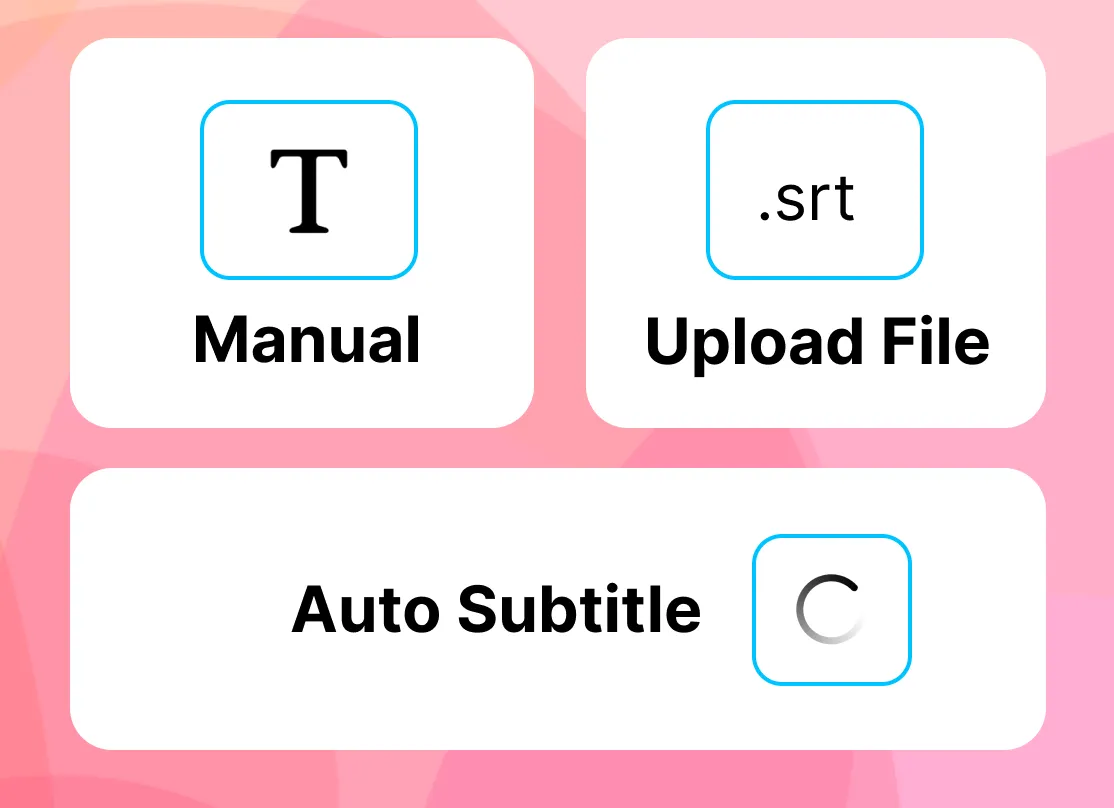
Click Auto-Subtitle and the AI transcribes the speech into timed caption lines in seconds. Fix any wording, merge or split lines, retime where needed, then set the font, color, size, and position. You can also type subtitles in by hand or upload an existing SRT or VTT file.
-
3. Export your captioned video
Export a burned-in MP4 with the captions baked into the frames, or download an SRT, VTT, or TXT file to attach as a separate track. Your subtitled video is then ready to post to YouTube, TikTok, Reels, or anywhere else.

What creators say after trying EchoWave
How to add subtitles to a video free, on iPhone, Android, or desktop
The three steps above are the short version. Here is the longer walkthrough, plus the exact route on each device, because EchoWave runs in a browser rather than as an app, so the process is the same everywhere.
- Open EchoWave in your browser. Go to echowave.io and click Upload Video. There is nothing to install and no signup.
- Add your video. Drag in your file or pick it from your device. MP4, MOV, WebM, MKV, and AVI all work.
- Click Auto-Subtitle. The AI transcribes the speech into timed caption lines in seconds. You can also type the subtitles in by hand, or upload an SRT or VTT file you already have.
- Fix the wording and timing. Correct any misheard words, split a long line or merge two short ones, and nudge cues a few frames until they land with the speech.
- Style the captions. Set the font, size, fill and outline color, add a backing box or shadow, then drag the text wherever it reads best on the frame.
- Export. Download a burned-in MP4 with the captions baked into the picture, or export an SRT, VTT, or TXT file to upload alongside your video.
Add subtitles to video free: what free covers
Every step above is free: transcription, editing, styling, translation, and export, with no signup and no cap on how many videos you caption. Free exports from the full editor carry a small EchoWave watermark that an upgrade removes. Caption files are a different story: an SRT, VTT, or TXT download is plain text, so it is free and never watermarked, which makes upload the video, Auto-Subtitle, export SRT the cheapest complete route to a subtitled video.
How to add subtitles to a video on iPhone
There is no app to install. Open echowave.io in Safari or Chrome on an iPhone or iPad, tap Upload Video, and choose the clip from your camera roll. Tap Auto-Subtitle, fix any words with the on-screen keyboard, then export straight back to your device. Because the editor is a website rather than an app, iPhone gets the same transcription, the same caption styles, and the same SRT and VTT export as desktop.
How to add subtitles to a video on Android
The flow is the same on Android. Open echowave.io in Chrome or any modern mobile browser, upload the video from your gallery, tap Auto-Subtitle, edit the lines, and export a burned-in MP4 ready to post to TikTok, Reels, or Shorts. No Play Store download and no account required to start.
How to add subtitles to a video on Windows, Mac, or Chromebook
On Windows, macOS, ChromeOS, or Linux, open echowave.io in Chrome, Edge, Safari, or Firefox and follow the same six steps. There is no editor to install, no project to configure, and no FFmpeg command to memorize. A larger screen mainly buys you a roomier timeline, which makes retiming cues and positioning captions precisely a little quicker.
AI subtitle generator: captions in seconds
EchoWave's auto subtitle generator turns the speech in your video into a fully timed transcript in seconds. Upload your clip, click Auto-Subtitle, and this video subtitle generator listens to the audio and writes synced caption lines for you. There is no manual typing, no signup, and no software to install, and it stays a free subtitle generator however many videos you subtitle.
The AI transcribes speech across a wide range of accents, mic quality, and background conditions, then breaks the text into short, readable lines timed to match the pace of the dialogue. That is the difference between a transcript and real subtitles: the wording is split and timed so each line appears and disappears at the right moment.
How accurate are the auto subtitles?
Accuracy is what decides whether automatic captions save you time, because every misheard word is a word you have to fix by hand. EchoWave's AI reaches 99% accuracy in optimal conditions and 95%+ in most real-world scenarios, transcribing with word-level timing across 50+ languages. Clear, close-mic'd speech in a quiet room sits at the top of that range; heavy background music, strong accents, or two people talking over each other pull it down, as they do for every speech-recognition engine.
Word-level timing is what makes the rest possible. Because the engine knows when each individual word is spoken, it can break the transcript into short readable cues, highlight words one at a time for karaoke-style captions, and keep everything in sync after you change the wording. The same transcript then exports either way: burned into the frames as an MP4, or as a clean SRT, VTT, or TXT file.
Edit the AI captions in seconds
No automatic subtitle generator is perfect, especially with names, jargon, or crosstalk, so EchoWave keeps you in control. Review the generated captions, correct any words, merge two short lines into one or split a long line in two, and nudge the timing a few frames either way. It is the same editor you use to add subtitles to a video manually, so switching between auto and hand editing is instant.
Already have a script or a caption file? You can skip transcription entirely. Type your subtitles in directly, or upload an existing SRT or VTT file and EchoWave will lay the lines onto the timeline ready to style and export.
Caption your videos online, free
Translate captions into 100+ languages
Auto-transcription does the heavy lifting on the original language, but you do not have to stop there. Once the speech is transcribed, you can translate the captions into more than 100 languages in a single click, which is what turns a clip aimed at one audience into a video that reaches viewers worldwide.
This is the practical reason subtitles matter for reach. A captioned, translated video surfaces for searches in other languages, is far more shareable across regions, and reaches people who would otherwise scroll straight past. If you know the languages your audience speaks, add a subtitle track for each one and export a version per language, or attach multiple caption files to platforms that support them.
For incoming foreign-language footage, the same flow works in reverse: transcribe the original audio, translate the lines into English (or any target language), then review the wording before you export. It is a quick way to make interviews, lectures, or clips from abroad watchable for your own audience.
Style and animate your captions
Auto-generated captions are the starting point, not the finish line. In EchoWave you can restyle every caption to match your brand and the platform you are posting to, all without retyping a word.
Fonts, colors, and backgrounds
Pick from a large font library, set the fill and stroke (outline) color, and add a backing box or drop shadow so text stays legible over busy footage. Resize the type so it reads cleanly on a phone screen, and drag the captions anywhere on the canvas: low for a classic look, centered for impact, or tucked inside the safe zone so platform buttons and usernames do not cover them.
Animated, word-by-word captions
Motion keeps captions engaging. Use fade, slide, and pop effects, or highlight each word as it is spoken for the punchy karaoke style that performs well on TikTok, Reels, and Shorts. Keep motion subtle for tutorials and explainers, and turn it up for social promos where you want the eye to stay on the text.
Reusable caption styles
Dial in one look, then reuse it across every clip so your videos stay consistent. Because you are styling the captions you already generated, applying your house style to a new video takes seconds rather than a fresh setup each time.
Burned-in MP4 vs SRT, VTT, and TXT files
When you add subtitles to a video in EchoWave, you choose how they leave the editor, and the right answer depends on where the clip is going.
Burned-in (hardcoded) captions
Burned-in subtitles are drawn permanently onto the video frames, so they are always visible no matter where the file is played, re-uploaded, or re-shared. This is the best option for TikTok, Instagram Reels, YouTube Shorts, and any feed where captions need to show by default. A burned-in MP4 keeps your exact font, color, position, and animation, and it is the only way to guarantee captions appear on platforms that ignore separate subtitle tracks.
SRT, VTT, and TXT files
If you want captions viewers can toggle on or off, download a soft subtitle file instead. An SRT or VTT file uploads alongside your video on YouTube, Vimeo, and similar platforms, where the player overlays it and viewers control whether it shows. You can also export a plain TXT transcript to reuse as show notes, a blog post, or a description, or to feed search engines indexable text from your video.
Subtitles vs captions: the difference
Subtitles assume the viewer can hear the audio and focus on transcribing or translating the spoken dialogue. Closed captions go further: they also note sound effects, music, and who is speaking, which makes them an accessibility feature for deaf and hard-of-hearing viewers. EchoWave produces either, so you can caption dialogue for reach or write full closed captions for accessibility.
Why add subtitles to video: TikTok, Reels, Shorts, YouTube, and accessibility
Captions are one of the few edits that grow reach, engagement, and accessibility at the same time, which is why nearly every successful creator and brand reaches for a subtitle generator for video. Add captions to video once and you serve viewers on mute, in other languages, and with hearing loss all at the same time.
Social video watched on mute
The majority of feed videos autoplay without sound, so captions are what keep viewers watching past the first second. Add bold, animated subtitles to TikTok, Instagram Reels, YouTube Shorts, and Facebook clips so the message reads on silent autoplay. For vertical 9:16 video, keep captions clear of the bottom third where the caption text, music tag, and buttons sit; for square 1:1 and landscape 16:9, the lower-center band is usually safe.
YouTube and long-form video
Upload an SRT to YouTube as a toggleable caption track, or burn captions into clips, ads, and Shorts. YouTube also reads your caption text, which gives the video more indexable content and can help it surface for additional searches. For interviews and webinars, a TXT transcript doubles as searchable show notes.
Accessibility and inclusion
Many millions of viewers are deaf or hard of hearing. Closed captions that include speaker labels and sound cues let everyone follow along, signal that your content is built for everyone, and widen your potential audience at no extra production cost.
Quiet and noisy rooms
Plenty of people just prefer to read along: on a commute, in a shared office, in bed next to someone, or in a loud cafe. Subtitles make your video watchable in any setting, which means fewer dropped views and a message that sticks.
Supported formats, specs, and device support
EchoWave reads the common video containers and codecs you are likely to have, including MP4 (H.264), MOV, WebM, MKV, and AVI. When you transcribe, the tool works from the audio track, so a clean voice recording produces the most accurate captions; heavy music or overlapping speakers will need a little more editing afterwards.
On export you can keep your source aspect ratio or work in the standard social ratios: 9:16 for TikTok, Reels, and Shorts, 1:1 for square feed posts, and 16:9 for YouTube and landscape. Caption files export as SRT, VTT, or TXT, and burned-in captions render into a standard MP4 that uploads anywhere.
Because the editor runs in the browser, it works the same on Windows, macOS, ChromeOS, and Linux, and on iPhone, iPad, and Android in any modern browser such as Chrome, Edge, Safari, or Firefox. There is nothing to download. Your video uploads to EchoWave for processing and export, and your files stay private to your account.
How to add subtitles with FFmpeg
If you prefer the command line, FFmpeg can add subtitles too. Create a .srt subtitle file, then mux it in as a soft (toggleable) track:
ffmpeg -i input.mp4 -i subtitles.srt -c copy -c:s mov_text output.mp4
To burn the subtitles permanently into the frames instead, use the subtitles filter:
ffmpeg -i input.mp4 -vf subtitles=subtitles.srt output.mp4
FFmpeg is powerful but command-line only, with no preview, no styling, and no transcription. EchoWave gives you the same SRT and VTT export plus an AI auto subtitle generator and a visual editor, free in your browser.
Comparing caption tools first? See how EchoWave stacks up in our Submagic alternatives and Captions app alternatives guides.

About the EchoWave team
EchoWave is a browser-based video and audio editor built by Lemon Vault LLC since 2018. The people who build the editor write these guides and test every step in the production app before publishing.
Frequently Asked Questions
How do I add subtitles to an existing video?
Upload the video to EchoWave, click Auto-Subtitle to transcribe the speech (or type the captions in by hand), edit the wording, then export a burned-in MP4 or a separate SRT or VTT file. It runs entirely in your browser.
How do I add subtitles to a video for free?
Open EchoWave in your browser, upload the clip, click Auto-Subtitle, edit and style the lines, then export. Every step is free with no signup: transcription, editing, styling, translation, and export, with no limit on how many videos you caption.
Can I add subtitles to a video automatically?
Yes. Click Auto-Subtitle to generate subtitles for your video automatically: the AI transcribes the audio into timed caption lines in seconds, with word-level timing across 50+ languages. You then review and fix any words in the editor before exporting, so the final AI subtitles read exactly how you want.
What's the difference between subtitles and captions?
Subtitles assume the viewer can hear the audio and transcribe or translate the dialogue. Closed captions also describe sound effects, music, and who is speaking, which makes them an accessibility feature for deaf and hard-of-hearing viewers. EchoWave can produce either.
What subtitle formats can I export?
You can export a burned-in (hardcoded) MP4 with captions baked into the frames, or download a separate SRT, VTT, or TXT file. Burned-in is best for social feeds; SRT and VTT are best when viewers should toggle captions on or off.
Is there a watermark on subtitled videos?
EchoWave is free to use. Exports from the full editor include a small EchoWave watermark on the free plan, which you can remove anytime by upgrading. Our dedicated quick tools, like crop, trim, and compress, export with no watermark.
How do I add subtitles to a video without a watermark?
Export your captions as an SRT or VTT file instead of a burned-in MP4. A caption file is plain text, so it is free, carries no watermark, and uploads alongside your video on YouTube, Vimeo, and similar platforms. If you need the captions burned into the frames without a watermark, upgrade to remove it from full-editor exports.
How do I add subtitles to a YouTube, TikTok, or Reels video?
Caption the clip in EchoWave, then export a burned-in MP4 and upload it directly. For YouTube you can instead download an SRT and attach it as a separate, toggleable caption track inside YouTube Studio.
Can I translate subtitles into other languages?
Yes. After transcribing the original audio, you can translate the captions into more than 100 languages in a single click, then review the wording before exporting a version per language.
How accurate is the AI subtitle generator?
Our AI reaches 99% accuracy in optimal conditions and 95%+ in most real-world scenarios, transcribing with word-level timing across 50+ languages. Accuracy is highest on clear speech and drops a little with heavy background music, strong accents, or overlapping speakers. Because you can edit every line in the same editor, you always have full control over the final wording and timing.
Can I upload my own SRT or VTT file instead of transcribing?
Yes. If you already have a caption file, upload your SRT or VTT and EchoWave lays the lines onto the timeline, ready to restyle, reposition, and export as a burned-in video or a fresh file.
What video formats are supported?
EchoWave reads common formats including MP4, MOV, WebM, MKV, and AVI. Burned-in captions export as a standard MP4 that uploads to any platform.
Do I need an account or software to add captions?
No. The tool is fully browser-based with nothing to download and no signup required to start adding subtitles to your video.
Can I edit the auto-generated subtitles?
Yes, every line stays editable. Correct misheard words, names, or jargon, merge two short lines or split a long one, retime cues a few frames either way, and restyle the font, color, size, and position. It is the same editor whether the captions came from Auto-Subtitle, an uploaded SRT, or your own typing.
How do I add subtitles to a video on iPhone or Android?
Open echowave.io in your phone's browser, tap Upload Video and pick the clip from your camera roll or gallery, tap Auto-Subtitle, fix any words, then export. There is no app to install: because the editor is a website, iPhone and Android get the same transcription, caption styles, and SRT and VTT export as desktop.
Ready to add subtitles? Free, no signup, runs in your browser
Auto-transcribe, edit, and export burned-in or SRT, VTT, and TXT captions, right in your browser.
Get Started