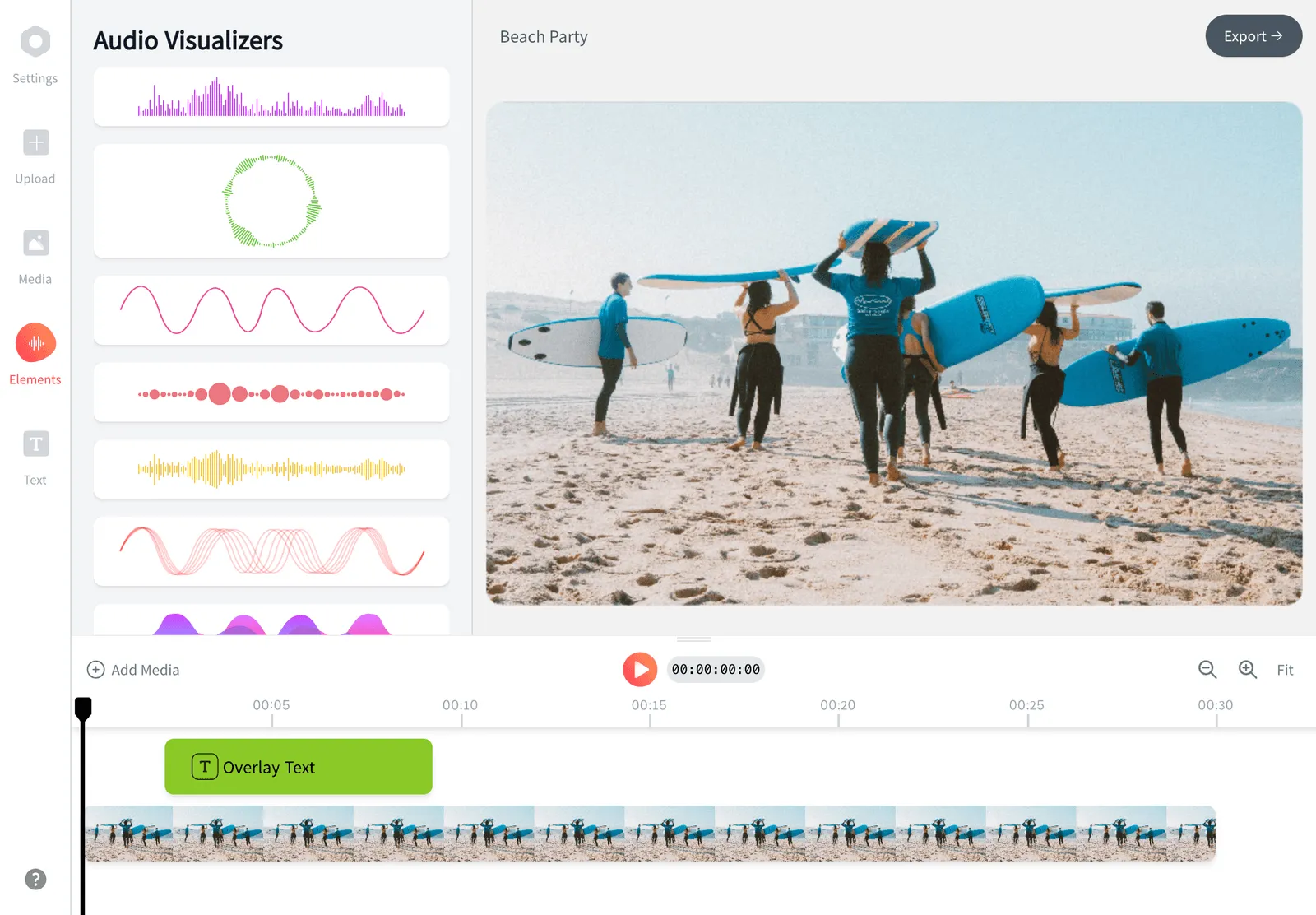
Add Image to Video Online Free
Drop a photo, picture, or logo onto your video, position it anywhere on the frame, and choose exactly when it appears. Free, no account, and it all runs in your browser.

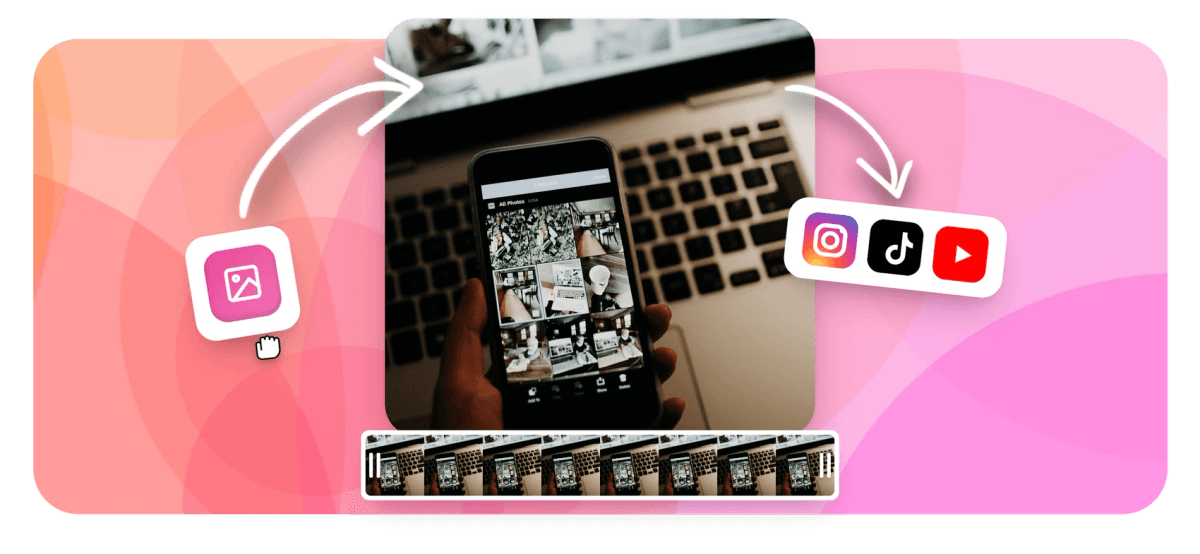
Add Image to Video Online Free Features
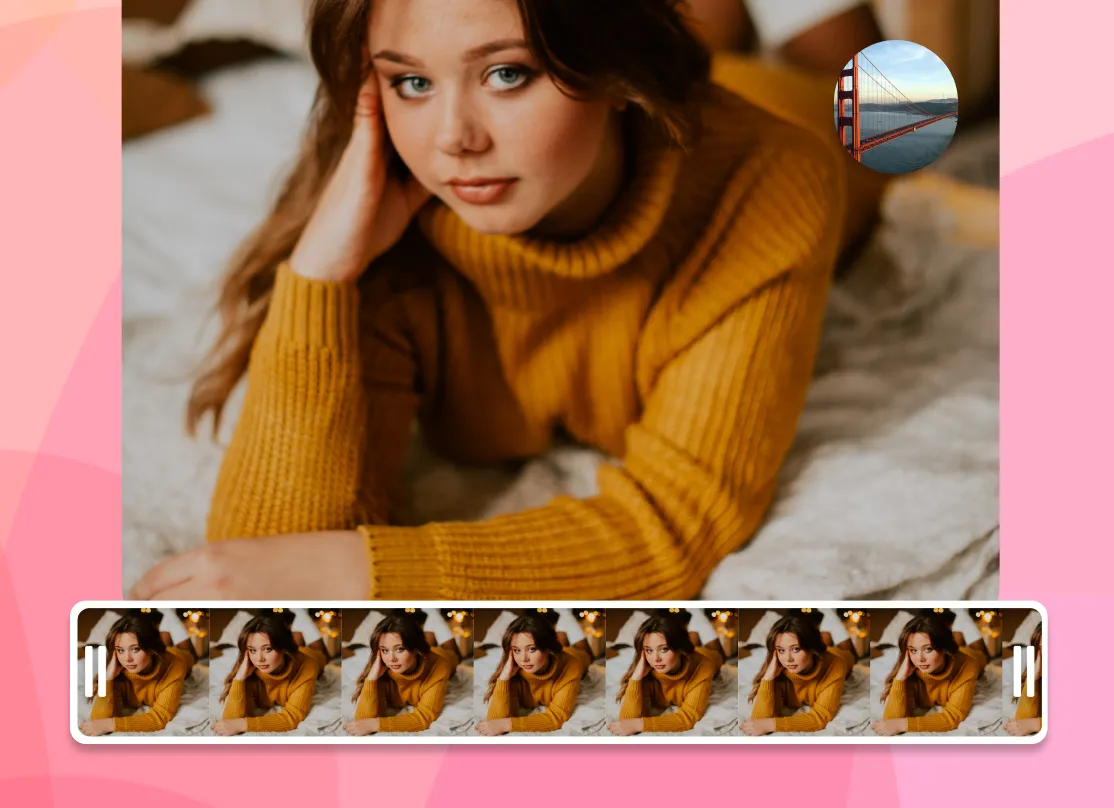
To add an image to a video, upload your clip to EchoWave, then drop a photo, picture, or logo on top as an overlay layer. Drag it anywhere on the frame, scale it, set when it shows and hides, and export. The same workflow lets you add a photo to video, add a picture to video, or add an image to MP4 with no extra steps. It is free, needs no account, and runs entirely in your browser. JPG, PNG, and GIF images work on MP4, MOV, AVI, and WEBM video.
Echowave is used by thousands of businesses around the world





How to add an image to a video
Overlay a photo, picture, or logo onto your video in three steps.
-
1. Upload your video
Drop your MP4, MOV, AVI, or WEBM clip onto the timeline. This becomes the base layer you build on.

-
2. Add your image
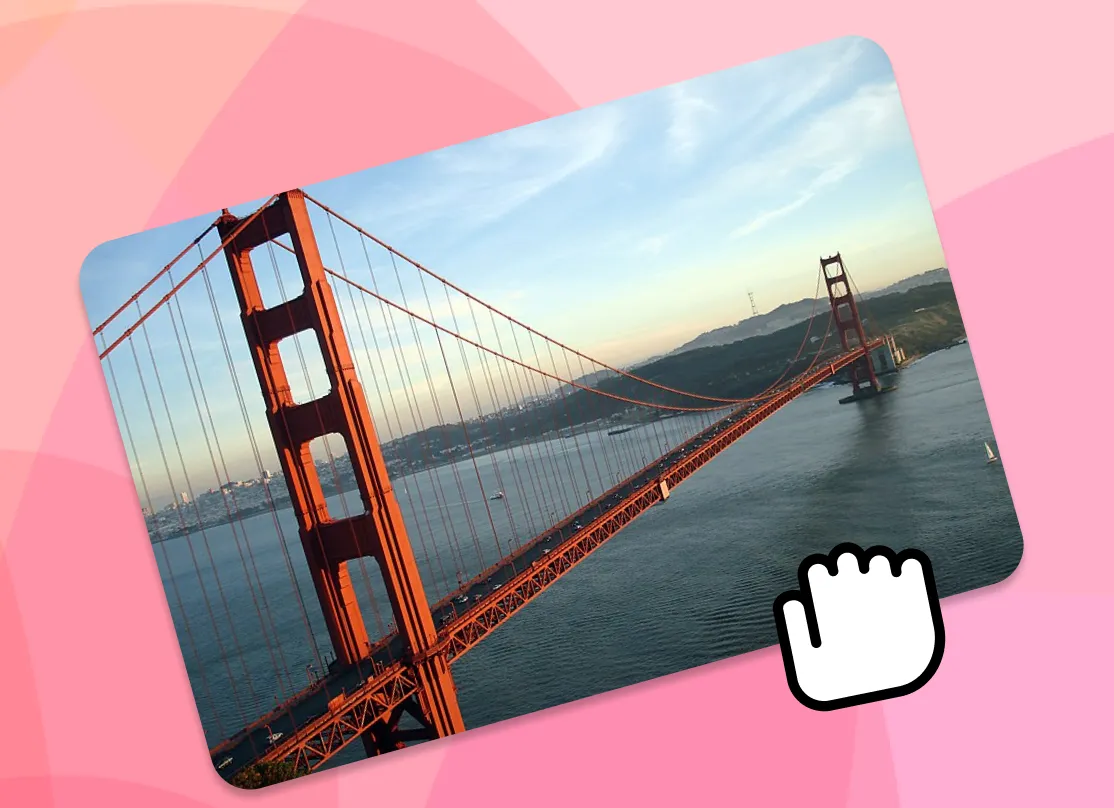
Upload the photo or logo you want to overlay (JPG, PNG with transparency, or GIF), then drag it into position, scale it, and set its start and end time.
-
3. Export your video
Download the finished clip with the image rendered into the footage, ready for YouTube, TikTok, Instagram, or anywhere else.
What people are saying about EchoWave
How to add an image to a video online free
EchoWave is a layer-based editor, so the image you add sits on its own track above the video. That separation is what makes it possible to add an image to video without ever touching the footage underneath: you can move the picture, resize it, fade it in and out, and change exactly when it appears.
After you upload a clip, click to add an image and pick a file from your phone or computer. The picture lands on the canvas where you can drag it to any corner or fill the whole frame. Grab a corner handle to scale it, and use the timeline to drag the start and end points so the image shows for one second or the entire clip, your choice.
When you export, EchoWave flattens the layers and renders the image into the video so it plays back as one file on any device or platform. Nothing you upload is shared with other users; the editing happens in your browser, and your files are only used to produce the export you download.
Add an image at the start, end, or any moment
You are not stuck keeping an image on screen for the whole clip. Because each picture has its own start and end time, you can drop it in exactly where it belongs:
- Start of the video: add a title card or intro image that plays before your footage begins.
- End of the video: finish with an outro card, a website URL, or a subscribe prompt.
- A specific section: set the in and out points so a picture appears only during the part of the clip it relates to, which is ideal for adding an image at a specific time.
Every image lives on a separate layer, so you can stack several pictures and time each one independently. That is how you build a photo slideshow set to music, flash supporting graphics on screen as you talk through a point, or add an image to a green screen video after you key out the background. Adding an image overlay to a video this way keeps each picture editable right up until you export.
Add a logo, picture-in-picture, or photo overlay
The same overlay workflow covers most of the reasons people add image to video projects in the first place:
- Add a logo to a video. Upload a transparent PNG of your logo and tuck it into a corner so every clip you publish is branded. Drop the opacity a little and it sits over the footage without distracting from it.
- Picture-in-picture. Place a smaller image (or a second clip) in a corner over your main footage. This works well for reaction content, product shots, or showing a diagram while you narrate.
- Photo overlay. Lay a full-frame photo over the footage as an intro, an interstitial, or a backdrop, then fade between your picture and your video.
If your main goal is to protect footage and reinforce your brand across a corner of the frame, our dedicated tool to add a watermark is built for exactly that. For mixing two video clips together, the video overlay tool handles picture-in-picture layouts.
Add an image to MP4 (and a photo or picture to MP4)
MP4 is the most common video container online, and EchoWave reads and writes it natively. To add an image to MP4, upload the file, drop your image on top, position it, then export straight back to MP4. The same goes if you want to add a photo to an MP4 or add a picture to an MP4: there is no need to convert your source first, and re-encoding is handled for you so the output plays cleanly on phones, browsers, and social platforms. A still image, a logo, or a full-frame photo all overlay the same way.
The identical steps work for MOV files from iPhone and Mac, AVI clips, and WEBM. Whatever container your source video uses, you can add an image to it and download a web-friendly result. Because the browser cannot always decode every codec a server can, if a clip will not preview, the upload and export still go through, so an unusual file should not stop you.
Supported formats and specs
EchoWave is built around the formats most people already have:
- Images: JPG / JPEG, PNG (including transparent backgrounds for logos), and GIF.
- Video: MP4, MOV, AVI, and WEBM.
A few practical notes from doing this often:
- Use PNG for logos and any graphic that needs a clean edge or transparency. JPG flattens transparency onto a solid background, so a PNG keeps the area around your logo see-through.
- Match your image resolution to your video. For a full-frame overlay on a 1080p clip, an image around 1920 by 1080 pixels stays sharp. Smaller corner logos can be smaller files.
- Mind the aspect ratio. Vertical 9:16 for TikTok and Reels, square 1:1 for feed posts, and widescreen 16:9 for YouTube each frame an overlay differently, so position your image inside the safe area for the platform you are posting to.
Platform tips for YouTube, TikTok, and Instagram
Where your video is headed changes where an image should sit:
- YouTube (16:9): keep logos and end-screen images clear of the bottom-right corner, where the timestamp and end-screen cards appear. Corner logos read best at roughly 10 to 15 percent of the frame width.
- TikTok and Reels (9:16): the right edge holds the like, comment, and share buttons, and captions sit along the bottom. Keep important images centred or in the upper area so the interface does not cover them.
- Instagram feed (1:1 or 4:5): square and portrait both crop tighter than you expect in the grid, so leave breathing room around any image you want fully visible.
Whatever the destination, the steps to add image to video stay the same: export at the resolution you filmed in, drop the finished file straight into the app, and the overlay stays exactly where you placed it.
Quality, privacy, and pricing
When you add an image to a video here, it does not degrade your footage. EchoWave keeps the video at its source resolution and renders the image cleanly on top, so a 1080p clip exports as 1080p with the picture sharp against it.
Everything happens in your browser. There is no separate app to install and your files are not browsed by other users, which makes this a safe way to add a personal photo or an unreleased logo to a clip. The tool is free to use, with no account required to start. The full editor adds a small EchoWave watermark to exports on the free plan, which you can remove on a paid plan. If you only need a quick edit with no watermark, our standalone crop, trim, and compress tools export with no watermark.

About the EchoWave team
EchoWave is a browser-based video and audio editor built by Lemon Vault LLC since 2018. The people who build the editor write these guides and test every step in the production app before publishing.
Frequently Asked Questions
How do I add an image to a video for free?
You can add image to video for free in EchoWave: upload your clip, click to add an image, position it on the frame, set when it appears, then export. It runs in your browser with no account needed.
How do I insert an image onto a video?
Add your image as an overlay layer above the clip on the timeline, then drag it into place and set its start and end time so it shows exactly when you want.
How do I add a photo or picture to a video?
It is the same as adding any image. To add a photo to a video, or add a picture to a video, upload your clip, drop the photo or picture on top as an overlay, position and time it, then export. JPG, PNG, and GIF all work.
How do I add my logo to a video?
Upload a transparent PNG of your logo and drop it into a corner of the frame. Lower the opacity slightly so it brands the clip without blocking your footage.
How do I add a picture to an MP4?
Upload the MP4, add your image on top, position it, and export back to MP4. There is no need to convert the file first, and the output plays on any device.
How do I add an image at a specific time in a video?
Drag the image's start and end points on the timeline so it appears only during the section you choose, whether that is the intro, the outro, or a moment in the middle.
Can I add multiple pictures to one video?
Yes. Each image sits on its own layer, so you can add several pictures and time each one independently, which is how you build a photo slideshow or a sequence of graphics.
Can I mix pictures and video clips together?
Yes. You can combine images and footage on the same timeline, and even place a small image or second clip on top of the main video for a picture-in-picture effect.
How do I add a picture to a video on my iPhone?
Open EchoWave in your phone's browser, no app required. Upload your MOV or MP4 clip, add your photo from the camera roll, position it, and export right from the browser.
How do I add an image to a TikTok or YouTube video?
Add the image in EchoWave, export the finished clip, then upload it to TikTok or YouTube. Keep the image clear of on-screen buttons and captions for the platform you are posting to.
What image and video formats are supported?
Images: JPG, JPEG, PNG (with transparency), and GIF. Video: MP4, MOV, AVI, and WEBM. Use PNG for logos so the area around the graphic stays transparent.
Ready to add an image to your video? We have a free plan!
No credit card required, our free plan includes a small Echowave.io watermark.
Get Started →