Free Audiogram Generator and Maker for Podcasts
Turn an episode clip into a scroll-stopping video with an animated waveform and auto captions in minutes. This free audiogram generator and maker runs in your browser, with no signup and no software to install.

Free Audiogram Generator and Maker for Podcasts Features


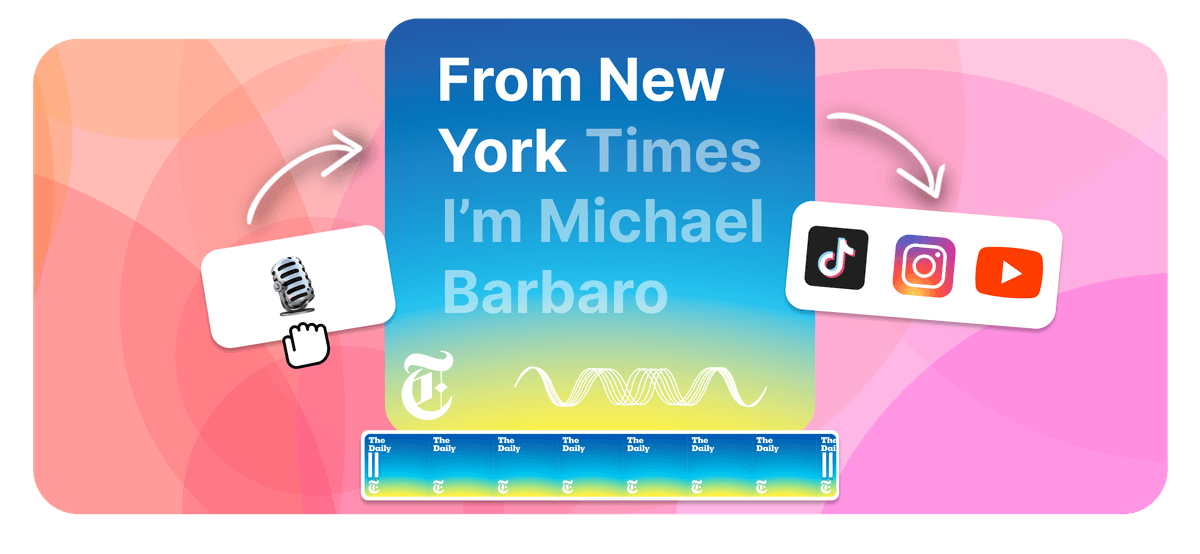
This is the podcast and social audiogram, an audio clip turned into a shareable video with a waveform and captions, not the hearing-test chart used by audiologists. An audiogram generator turns a podcast or audio clip into a short video with an animated waveform that moves to the sound, plus captions of what is being said. With the EchoWave audiogram maker you upload audio, pick a template, let AI auto-generate captions, then export an MP4 sized for any platform. This free audiogram creator is browser-based and needs no account to get started.





How to make an audiogram
Turn audio into a scroll-stopping social video in three steps with the free EchoWave audiogram maker:
-
1. Upload your audio
Drag in your podcast episode or audio clip, or use the built-in search to pull in episodes you have already published. MP3, WAV and M4A all work, and you trim down to the exact soundbite you want.
-
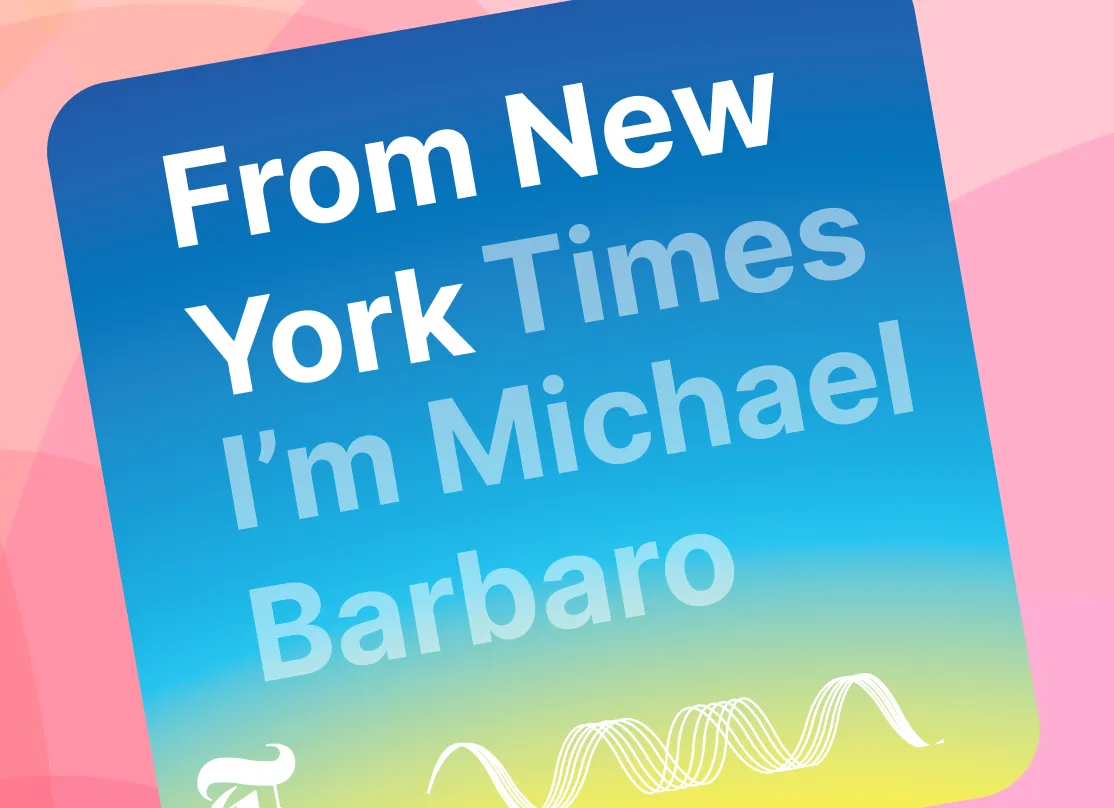
2. Pick a template and style
Choose a template, set your waveform style, drop in your branding, and let EchoWave auto-generate captions. Add text and animations to finish the look.
-
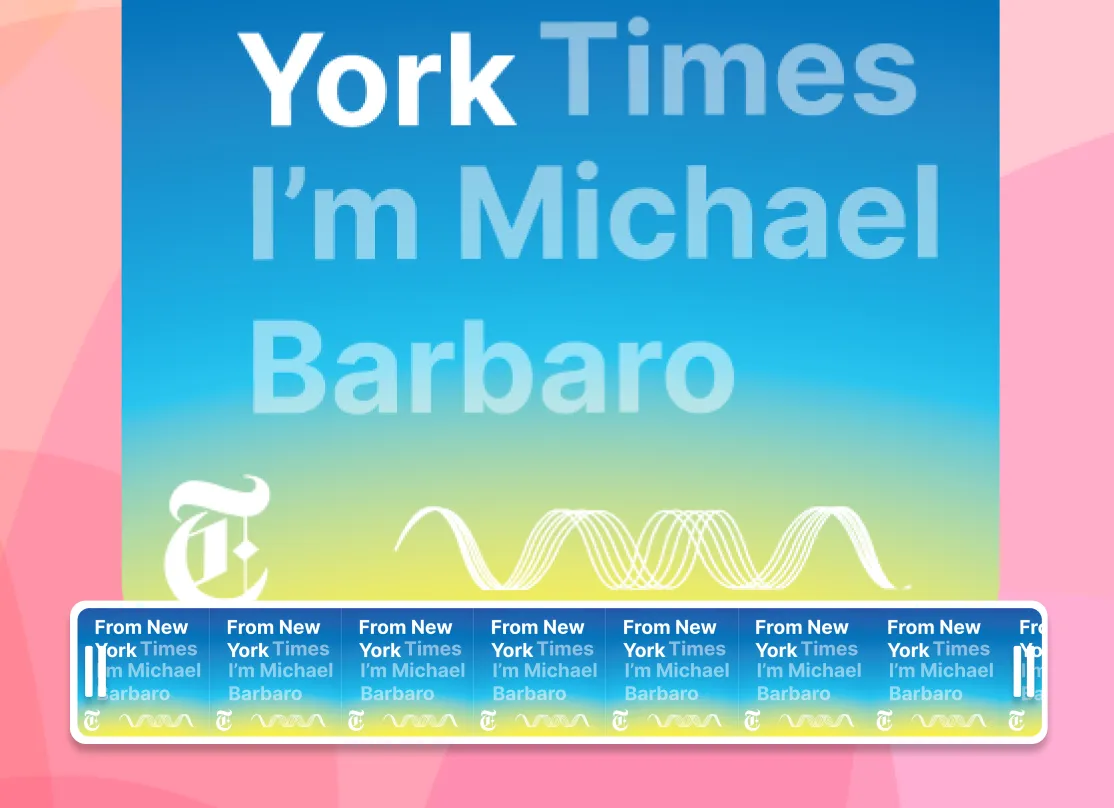
3. Export and share
Export your audiogram as an MP4 in the aspect ratio you need, square, vertical or landscape, then download it and post straight to social media.
What creators say after trying EchoWave
What is a podcast audiogram?
A podcast audiogram is a short video built from a slice of an episode. It pairs an animated waveform that pulses to the audio with on-screen captions of what is being said, usually over a still background, your cover art, or your logo. The point is simple: audio cannot be previewed in a social feed, so an audiogram for podcast promotion turns it into something visual that auto-plays and stops the scroll.
Podcasters reach for an audiogram generator because static cover art gets scrolled past, while a moving waveform with readable captions earns a second of attention. A good 30 to 60 second clip gives a potential listener a real taste of an episode, a sharp quote, a funny exchange, a hot take, and a clear reason to go press play on the full show. It is one of the cheapest, highest-converting ways to promote a podcast, which is why many creators make a fresh audiogram for every episode they publish. If you want podcast audiogram examples to model, look at the shows you already follow: most lead with a single strong line, keep captions large, and stamp the clip with their logo.
What makes a good audiogram
A handful of things separate an audiogram that gets watched from one that gets scrolled past:
- A hook in the first seconds. Open on the sharpest line, the funniest moment, or the boldest claim in the clip. Feeds are unforgiving, and you have about three seconds to earn the next three.
- Captions built for muted feeds. Most people scroll with the sound off, so if the captions cannot carry the message on their own, the clip is not doing its job. Keep them large, legible, and in sync with the words.
- A waveform that actually moves. The animated waveform is what signals "this is audio, tap to hear it" in a feed full of silent images. A flat or barely-reactive wave loses that visual cue.
- Cover art or a logo in frame. Even on mute, recognisable art or a logo tells a viewer whose show this is and gives them a way to find you again.
Get those four right and the rest, templates, branding, aspect ratio, is really just packaging.
AI auto captions and transcription
Most people watch social video on mute, so captions are what make an audiogram work. As an AI audiogram generator, EchoWave automatically transcribes your uploaded audio and turns it into on-screen captions that appear in time with the waveform, so you do not have to type a word. This is the same AI audiogram workflow podcasters look for when they search for an audiogram AI tool, only here it runs free in the browser.
The transcription is fully editable. You can correct a name, drop filler words, adjust the wording, or nudge the timing before you export. Captions also make your audiogram far more accessible: they reach deaf and hard-of-hearing viewers, and anyone scrolling in a noisy place or with the sound off. If you would rather control every detail of the text, you can also use the subtitles tool to style, size and position captions exactly how you want them.
Templates and branding
Every audiogram should look like your show, not a stock template. The EchoWave audiogram maker ships with ready-made podcast layouts you apply in one click, then adjust so each clip stays on-brand:
- Colors. Match your podcast palette for the background, the waveform and the caption text.
- Fonts. Pick typefaces that suit your brand for titles and captions.
- Cover art. Feature your episode artwork or show logo front and centre.
- Logo and handle. Add your logo so your name travels with the clip wherever it gets reshared.
Set your branding once and reuse it across every episode so the feed stays consistent and recognisable, with no design software and nothing to install. Because the whole thing runs in the browser, your audio is processed in your own session rather than sitting on a server you cannot see.
Switching from another audiogram tool
If you currently make audiograms in Wavve, Headliner, or another tool, moving your workflow to EchoWave does not mean starting from zero. Set your show's colors, fonts, cover art and logo once, save it as your branding, and you have a reusable template ready in a few minutes. Every new episode after that follows the same steps: upload the clip, apply your saved branding, let AI generate captions, and export.
EchoWave runs free in your browser with no signup required to start, so it costs nothing to bring an episode over and compare the result with your current tool before deciding to switch for good. For a side-by-side look at pricing, caps and watermarks, see the Headliner alternatives and Wavve alternatives comparisons.
Audiogram maker for every platform
A good audiogram maker exports for wherever your audience actually watches, and EchoWave covers every shape a podcaster needs from the same clip:
- Vertical (9:16), 1080x1920. Full-screen for Instagram Reels and Stories, TikTok, and YouTube Shorts.
- Square (1:1), 1080x1080. The safe all-rounder for the Instagram and Facebook feed. If you only want to export once and use it everywhere, this is the format to pick.
- Landscape (16:9), 1920x1080. The classic wide format for YouTube, X (Twitter) and LinkedIn.
Choose your aspect ratio before exporting and the waveform, captions and branding all reposition to fit, so one episode becomes a clip for every channel without redoing the layout from scratch.
Waveform styles
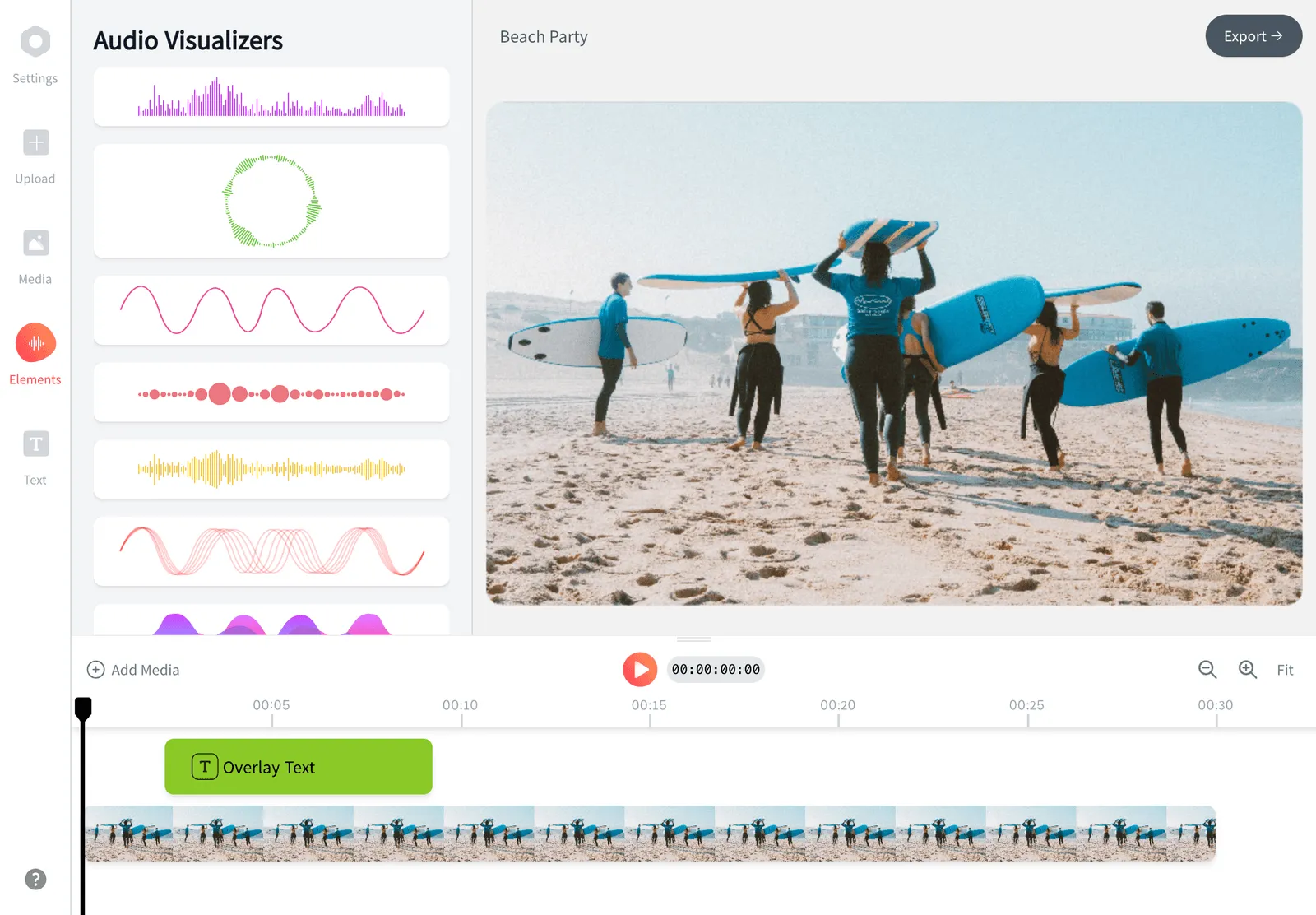
The waveform is the heartbeat of an audiogram, the moving element that signals there is audio here and invites a tap. EchoWave gives you several styles to match your brand and mood:
- Bars. The classic equalizer look, with bars that rise and fall to the beat.
- Line. A smooth, continuous oscilloscope-style wave for a cleaner, minimal feel.
- Circle. A radial waveform that pulses outward from the centre, which works especially well in square and vertical layouts.
These are the same animations that power our music visualizer and audio waveform video generator, so if you also publish music or score you can carry one consistent visual style across spoken-word and musical content.
Supported formats, length and export quality
EchoWave accepts the audio files podcasters actually have on hand, MP3, WAV and M4A among them, so you can drop in an episode export or a recorded clip without converting it first. The export is a standard MP4 (H.264 video with AAC audio) that uploads cleanly to every major social platform and plays on any device.
On length, 30 to 60 seconds is the sweet spot for social feeds. That is long enough to land one complete idea or a strong quote, and short enough that viewers watch to the end, which is exactly what the algorithms reward. Past a couple of minutes you tend to lose people before the payoff, so trim to the single moment that earns the click rather than the whole segment. For best results, start from a clean recording: clear speech and steady levels read far better in captions and on a small phone screen than a muddy or clipped file.
Audiogram best practices that actually move the needle
After making hundreds of these, a few habits separate the clips people watch from the ones they swipe past:
- Lead with the hook. Put the most gripping line in the first three seconds, before anyone has decided to scroll on.
- Pick a self-contained clip. Choose a moment that makes sense on its own, with no missing setup or a punchline that needs context.
- Always keep captions on. Sound is off by default for most viewers, so the captions carry the message. Read them back at phone size to make sure they are legible.
- Stay on-brand. Keep colors, fonts and logo consistent so every clip is instantly recognisable as yours.
- Add a clear call to action. Tell viewers where to find the full episode and tag the show in the caption.
- Repurpose per platform. Export the same clip square, vertical and landscape so one episode feeds Reels, Shorts, TikTok and your feed.
Do this consistently and the audiogram stops being a one-off and becomes a repeatable way to grow your audience from each episode you release. EchoWave runs in any modern browser on desktop, Chrome, Edge, Safari and Firefox, so you can produce a clip from your laptop without a phone app or a download.

About the EchoWave team
EchoWave is a browser-based video and audio editor built by Lemon Vault LLC since 2018. The people who build the editor write these guides and test every step in the production app before publishing.
Frequently Asked Questions
What is an audiogram?
In podcasting, an audiogram is a short video that visualizes an audio clip with an animated waveform and on-screen captions, used to promote episodes on social media. It is not the same as the hearing-test audiogram used in audiology.
Why do audiograms get more engagement than a static post?
A static cover image gives a scroller nothing new to look at, so it is easy to pass over. An audiogram adds a moving waveform and readable captions, which signals there is something to watch even with the sound off, and autoplay in most feeds means it starts earning attention before anyone taps anything. That combination of motion and on-screen text is what tends to hold a scroll longer than a still image.
How do I make an audiogram for free?
Upload your audio to EchoWave, pick a template and waveform style, let it auto-generate captions, then export an MP4. The audiogram generator is free to use with no signup required to start.
How do I create an audiogram for my podcast?
To create an audiogram for your podcast free, upload an episode clip, choose a waveform style and template, let the AI add captions, then export the right aspect ratio for the platform you are posting to. The whole audiogram creator runs online in your browser, so there is nothing to download.
What is the best free audiogram maker?
The best tool is the one that gives you auto captions, on-brand templates and every social aspect ratio without forcing a download. EchoWave does all of that in the browser for free, which is why podcasters use it for both one-off clips and full episode promotion.
How long should a podcast audiogram be?
30 to 60 seconds works best for social feeds. That is long enough to deliver one complete idea or quote, and short enough that people watch to the end.
Can it auto-caption my clip?
Yes. EchoWave auto-transcribes your audio into captions that appear in time with the waveform, and the text stays fully editable so you can fix names or timing before export.
What aspect ratios are supported?
Square (1:1) for Instagram and Facebook feeds, vertical (9:16) for Reels, Stories, TikTok and Shorts, and landscape (16:9) for YouTube, X and LinkedIn. The layout repositions to fit whichever you choose.
What size should a podcast audiogram be for Instagram?
For an audiogram for Instagram, two sizes matter: 1080x1080 (1:1) for the main feed, and 1080x1920 (9:16) for Reels and Stories. If you only want to export once, the square 1:1 size is the safest all-rounder for Instagram specifically.
Can I use my own branding?
Yes. You can set custom colors, fonts, cover art and a logo, save them, and reuse them across every episode so your clips stay consistent.
What audio formats can I upload?
Common podcast formats including MP3, WAV and M4A. The export is a standard MP4 (H.264 with AAC audio) that uploads cleanly to every major social platform.
Is there a watermark?
EchoWave is free to use. Exports from the full editor include a small EchoWave watermark on the free plan, which you can remove anytime by upgrading. Our dedicated quick tools, like crop, trim and compress, export with no watermark.
Do I need to install any software or create an account?
No. The audiogram maker runs entirely in your web browser, so there is nothing to download. You can start building a clip without an account, and only sign in when you are ready to save or upgrade.
What is the difference between an audiogram and a music visualizer?
An audiogram pairs a waveform with spoken-word captions to promote podcasts, while a music visualizer animates visuals to music. EchoWave can do both from the same editor.
Where can I share my audiogram?
Anywhere that takes an MP4: Instagram, TikTok, YouTube and Shorts, Facebook, X (Twitter) and LinkedIn. Export the right aspect ratio for each and post directly.
Ready to make an audiogram? It is free
No signup needed. Build your podcast audiogram right in your browser.
Get Started →