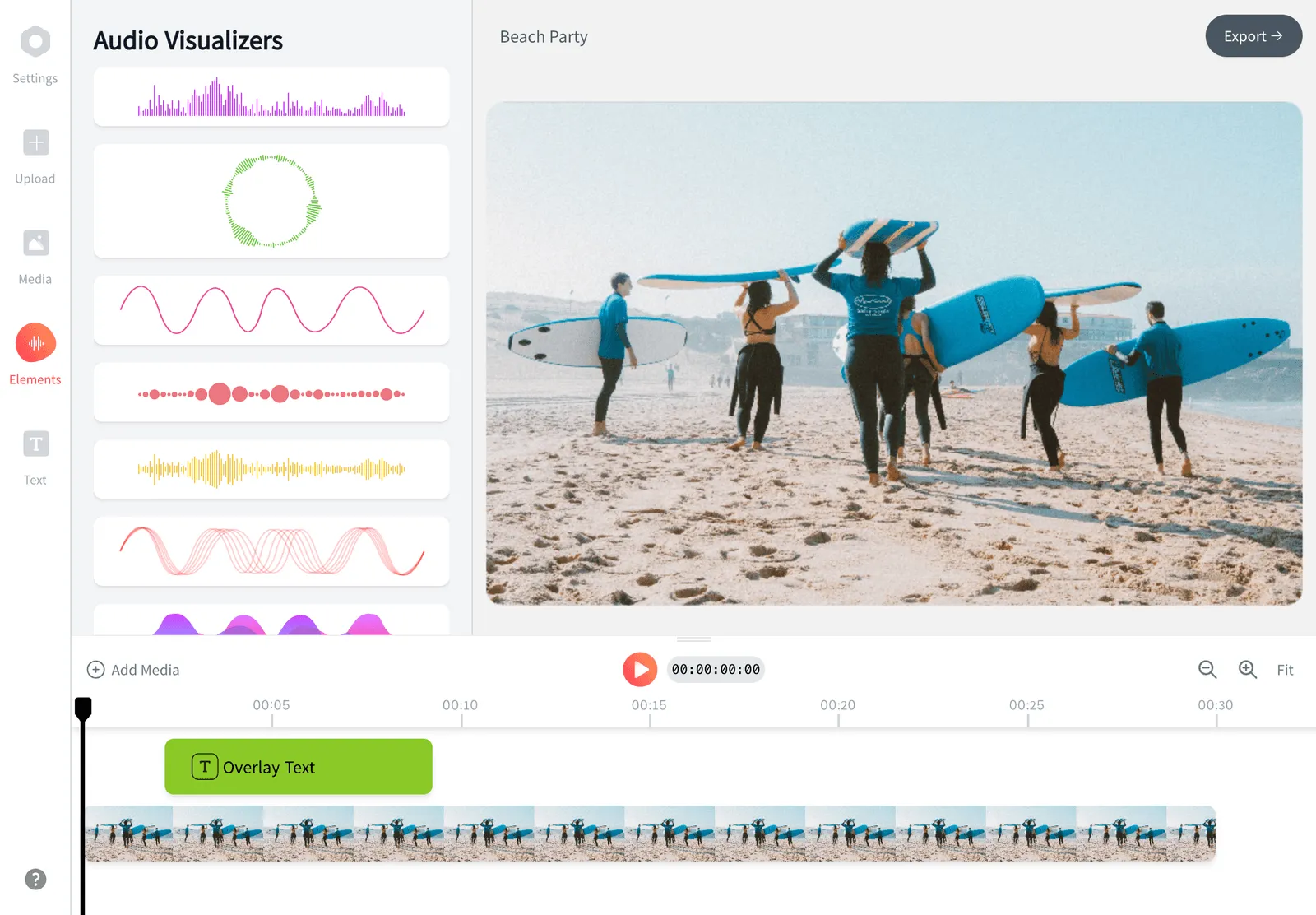
Free Online Video Trimmer
Cut and trim video right in your browser. Drag the handles or type exact start and end times, remove a section from the middle, and export a clean clip with no watermark and no signup.



Free Online Video Trimmer Features
EchoWave is a free online video trimmer that lets you cut video online and trim video right in your browser. Upload an MP4, MOV, MKV or other clip, drag the timeline handles or type exact start and end times, remove a section from the middle, then export a clean video. This online video cutter needs no signup, adds no watermark and has nothing to install.





How to trim a video online
Trimming a video with EchoWave takes three quick steps:
-
1. Upload your video
Click to choose a file or drag and drop it onto the editor. Your video loads straight into the browser, so nothing is sent anywhere until you export.

-
2. Cut and trim
Drag the ends of the clip on the timeline to set where it starts and stops, or type exact times for a frame-accurate cut. To remove a part from the middle, use Split, then delete the piece you do not want.

-
3. Download your clip
Export the trimmed video and save it to your dashboard. Download it ready to post to TikTok, Instagram, YouTube or anywhere else, with no watermark.

What creators say after trying EchoWave
High quality video cutting
How the video trimmer works
The EchoWave video trimmer is a timeline editor that runs in your browser, so you can trim video online without uploading it to a server first. When you upload a clip it appears as a track you can scrub, zoom into and cut. To trim the start or end, grab a handle and drag it inwards: everything outside the handles is dropped from the export. For longer footage, zoom in on the timeline so you can place a cut on the exact frame you want rather than guessing.
Unlike single-action quick tools, EchoWave is a full editor and video clipper, so a trim does not have to be the only thing you do. On the same timeline you can crop the frame, rotate the video, change the speed, layer text or a soundtrack, and stitch several clips together before you download. If you only need a fast cut and nothing else, the trim itself takes a few seconds.
Free online video cutter
Trimmer and cutter are two words for the same job, and EchoWave does both. As a free online video cutter it handles the three cuts people actually need: pull a single clip out of a longer recording, cut a video into several parts, and set a precise start and end so the export lands exactly where you want it.
To cut a clip out of a longer video, drag the playhead to where your clip begins and press Split, do the same where it ends, then delete the pieces on either side. What is left is your clip, ready to export. To cut a video into parts, split at each break point and keep the pieces you want, which is the quickest way to turn one long recording into a set of shorter clips. If you need each part saved as its own file, the split video tool covers that workflow.
Nothing here is locked behind an account: you can cut video online free, with no signup and nothing to install. If you would rather read about the same editor from the cutting angle specifically, the video cutter and cut video pages do exactly that.
Trim vs cut: what is the difference?
In everyday use the two words overlap, and most tools treat them as the same feature. The small distinction worth knowing is where the change happens. Trimming usually means shortening from the outside in: you pull the start forward or the end back, and the middle is left alone. Cutting usually means acting inside the clip, by splitting it at a point, removing a section from the middle, or breaking one recording into several pieces.
EchoWave does not make you choose between them. The same timeline handles both, so you can trim the ends and cut a section out of the middle in one pass, then export once. Whichever word you searched for, the steps are the same: upload, set your points, export.
Cut the middle out of a video
Removing an awkward pause, a blooper or a dead patch from the middle of a clip is one of the most common reasons people reach for a video cutter. You do not have to settle for trimming only the start and end. Move the playhead to where the unwanted part begins and press Split, then split again where it ends. Select the middle piece and delete it. EchoWave joins the beginning and end back together into one continuous video.
You can split as many times as you need, so cutting several gaps out of a long recording is the same simple process repeated. This is the fastest way to cut video online free when the part you want gone is buried in the middle rather than at the edges, and it doubles as a quick video shortener when you just want the whole clip tighter.
Trim a video by exact start and end time
Dragging the handles is quick, but when precision matters you can type the timecodes instead. Set the start at, say, 00:12 and the end at 00:47 and EchoWave keeps exactly that range, with no overshoot. Typing times is the reliable way to grab a specific quote, line a clip up to a beat, or cut a video down to an exact length for an ad slot, a reel or a story.
This matters when a platform enforces a hard cap. Instagram Reels run up to 90 seconds, an Instagram Story plays in 15 second segments, and a TikTok can be far longer, so a precise trim is the difference between an upload that posts cleanly and one that gets cropped or split. Set the end time to match the limit and you know the export will fit the first time.
Does trimming reduce video quality?
No. Trimming with EchoWave does not re-compress your footage just to shorten it, so cutting the start, end or middle keeps the original resolution and clarity. A clip you trim looks the same as the source, only shorter. The trimmer keeps the frames you selected and drops the rest, which means the cut itself adds no quality loss.
If you trim and then also export at a smaller size or a lower bitrate, that step can reduce quality, the same as any export would. A trim on its own does not. When you want the file smaller without touching the picture more than necessary, run the clip through the video compressor after trimming.
Supported formats and platforms
EchoWave's online video cutter reads the formats your phone, camera and screen recorder actually produce: MP4, MOV, MKV, AVI, WEBM and more. As an MP4 trimmer it handles the most common case directly, so you can trim MP4 footage and cut MP4 clips without converting them first. MP4 with H.264 video is the safest choice for sharing because almost every site and device plays it, so it is the format to pick when you export a trimmed clip for the web.
Once a clip is cut to length it is ready to post without an extra conversion step. Trim a vertical 9:16 clip for TikTok, Instagram Reels and YouTube Shorts, a 1:1 square for an Instagram feed post, or a 16:9 widescreen cut for YouTube and X. If the aspect ratio is wrong as well as the length, you can crop the video on the same timeline before you download.
Cut video for Instagram, TikTok and YouTube
Most social cuts come down to the first few seconds. Feeds autoplay, so the strongest moment belongs at the very start: cut the dead air, the countdown and the throat-clearing off the front and the clip earns attention before anyone scrolls past. Cut the tail too, because a clip that ends on the point loops far better than one that trails off.
For TikTok, Instagram Reels and YouTube Shorts a vertical 9:16 frame is the norm, so cut for length first and fix the shape after. A 16:9 cut suits YouTube and X, and a 1:1 square sits well in an Instagram feed post. When the shape needs changing as well as the length, crop the video on the same timeline, or use resize for Instagram to match a preset size before you export.
Long recordings are the other everyday case. Screen captures, webinar exports, lecture recordings and gameplay sessions usually run far longer than anything you would post, and the job is to cut a few good minutes out of an hour. Zoom into the timeline so the cut lands on the right frame, split around the section worth keeping, delete the rest, then export just that piece. Because the clip loads into your browser instead of queueing behind an upload, cutting a large file stays practical.
Trim on any device, with audio too
Because EchoWave runs in the browser, there is no app to install and nothing tied to one operating system. You can trim a video on a Windows PC, a Mac, a Chromebook, an iPhone, an iPad or an Android phone using Chrome, Safari, Edge or Firefox. The interface adapts to a touchscreen, so dragging the handles works the same on a phone as it does with a mouse.
The trimmer is not limited to video either. Upload an MP3, WAV or M4A and cut it the same way, by dragging the handles or typing exact times. You can put audio and video on the same timeline to line up a soundtrack, top and tail a podcast clip, or shorten a voiceover, all in one place and all free.
It also works as a large video cutter: because the clip loads into your browser, you can trim a long or heavy recording without a tight upload cap, which makes it a practical free online video trimmer for large files like screen recordings and full-length exports.

About the EchoWave team
EchoWave is a browser-based video and audio editor built by Lemon Vault LLC since 2018. The people who build the editor write these guides and test every step in the production app before publishing.
Frequently Asked Questions
How do I trim a video online for free?
Upload your video to EchoWave's free video trimmer, drag the timeline handles or type exact start and end times, then export your clip. This free online video trimmer needs no signup, adds no watermark and has nothing to install.
How do I cut a part out of the middle of a video?
Press Split where the unwanted part starts and again where it ends, delete the middle piece, and EchoWave joins the beginning and end back together into one clean video. You can repeat this to remove several sections.
Does trimming a video reduce its quality?
No. A trim only keeps the frames you selected and drops the rest, so it does not re-compress your footage. The exported clip keeps the original quality, it is just shorter.
How do I cut a video without a watermark?
EchoWave's online video cutter exports trimmed clips with no watermark, so you can cut a video and share it clean. No signup is required to trim in the browser.
How do I trim a YouTube video?
Use EchoWave's YouTube cutter to set start and end points and clip a YouTube video right in your browser, with no download and no watermark.
Can I cut audio files as well as video?
Yes. EchoWave trims MP3, WAV and M4A audio the same way it trims video, and you can put audio and video on the same timeline to line them up.
How do I shorten a video?
Trim off the parts you do not need, cut sections out of the middle, or split a long video into shorter clips. You can also speed the video up to reduce its overall duration.
What video formats can I trim?
EchoWave's video trimmer supports MP4, MOV, MKV, AVI, WEBM and more. MP4 with H.264 is the best choice to export when you want the clip to play everywhere.
How do I cut a video to an exact length?
Type your start and end timecodes instead of dragging the handles. For example, set the start at 00:12 and the end at 00:47 to keep exactly that range, which is handy for hitting a platform limit like a 90 second Reel.
Can I trim a video on my phone?
Yes. EchoWave runs in your browser, so you can cut and trim video on an iPhone, Android phone, iPad, tablet or computer, with no app to install.
Are my files private when I trim them online?
Your clip loads into your browser when you start, so it is not handed off to anyone while you edit. Nothing is published or shared, and the trimmed result is yours to download.
How do I trim a large MP4 file?
Upload your MP4 and trim it the same way as any clip. For a big file, zoom into the timeline to place your cut precisely, then export, and run the result through the video compressor if you also need the file smaller.
How do I cut a video online free?
Upload your clip to EchoWave, then either drag the timeline handles to set a new start and end or press Split to cut a section out. Delete the parts you do not want and export what is left. It runs in your browser with no signup and nothing to install.
How do I cut a video into multiple parts?
Move the playhead to each point where you want a break and press Split. One clip becomes several on the timeline, so you can delete the pieces you do not need or export the ones you want to keep. The split video tool walks through the same workflow.
Can I cut a video for Instagram, TikTok or YouTube Shorts?
Yes. Cut the clip to length on the timeline, keeping your strongest moment in the first couple of seconds, then export. If the frame shape also needs to change, crop the video to 9:16 before you download.
Ready to get started? We have a free plan!
No credit card required, our free plan includes a small Echowave.io watermark.
Get Started