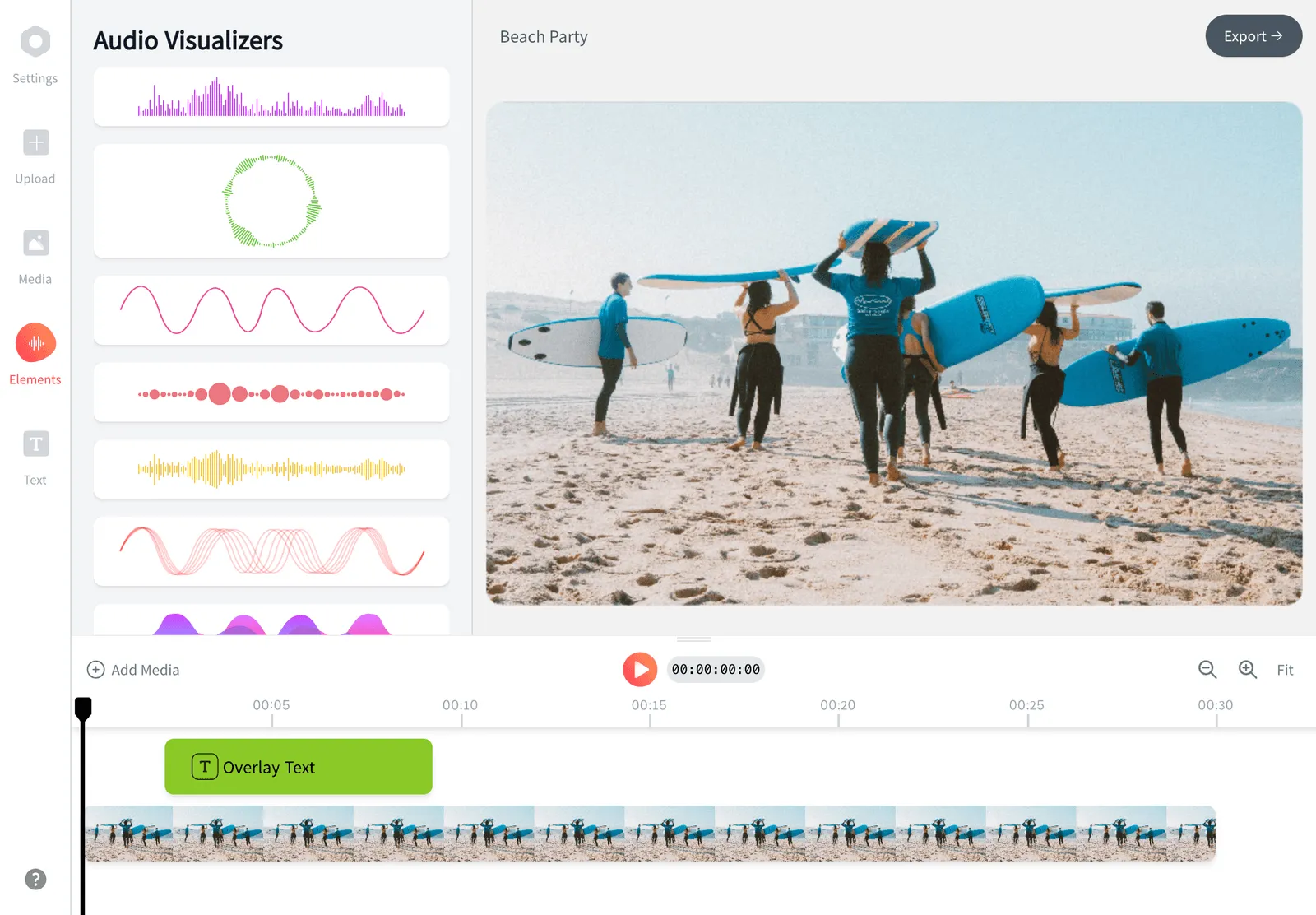
Upload MP3 to YouTube: Convert Audio to Video Free
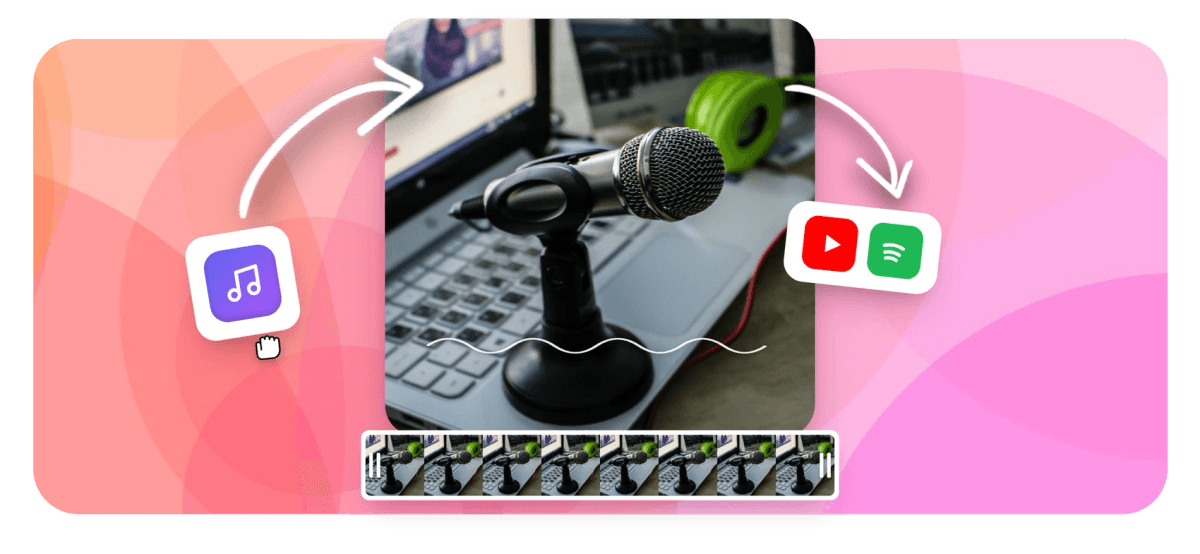
Want to upload MP3 to YouTube? YouTube does not accept audio-only files, so your MP3 has to become a video first. EchoWave does that part for free in your browser: drop in your MP3, add a cover image or an animated waveform, and export a YouTube-ready MP4. Then upload it to your channel like any other video.

Upload MP3 to YouTube: Convert Audio to Video Free Features
To upload MP3 to YouTube, convert it into a video first, because YouTube only accepts video files such as MP4, not audio-only MP3 or WAV. This is the MP3 to YouTube format step every creator does: add a still image or an animated waveform to your audio, export an MP4, then upload that file in YouTube Studio. EchoWave handles the MP3 to YouTube upload conversion free in your browser, with no account needed.





How to upload MP3 to YouTube in 3 steps
YouTube cannot post audio files like MP3 or WAV, so turn your audio into a video (MP4) and then upload it to YouTube. This MP3 to YouTube upload route works the same on phone or desktop, and EchoWave runs right in the browser, so there is nothing to install.
-
1. Upload your MP3
Drag your audio file into EchoWave. MP3, WAV, M4A, AAC and FLAC all work, so whatever track or recording you have, you can drop it straight in.

-
2. Add a cover image or waveform
-
3. Export the MP4 and upload it
Render the finished video, download the MP4, then open YouTube Studio, click Create, select your file and publish. It uploads exactly like any other video.

What creators say after trying EchoWave
Can you upload an MP3 to YouTube directly?
No, you cannot upload an MP3 to YouTube directly. YouTube is a video platform, and its uploader only accepts video container formats such as MP4, MOV, MPEG and WebM. An MP3 (or WAV) is an audio-only file with no video track, so YouTube Studio rejects it before the upload even starts. The fix is the same one every creator uses: wrap your audio in a video by giving it something to show on screen, a cover image or an animated waveform, and export it as an MP4. After that one step it is a normal video, and you upload it the way you would any clip. EchoWave does that MP3 to YouTube conversion for free, right in your browser, so the only real question is what to put on screen. Three ways to get there: the general audio to video converter for a still image, a reactive waveform animation, or a full music visualizer for more motion.
How to upload MP3 to YouTube step by step
Here is the complete MP3 to YouTube upload workflow, from a raw audio file to a published video:
- Upload your MP3. Drag your audio file into EchoWave. MP3, WAV, M4A, AAC and FLAC all work.
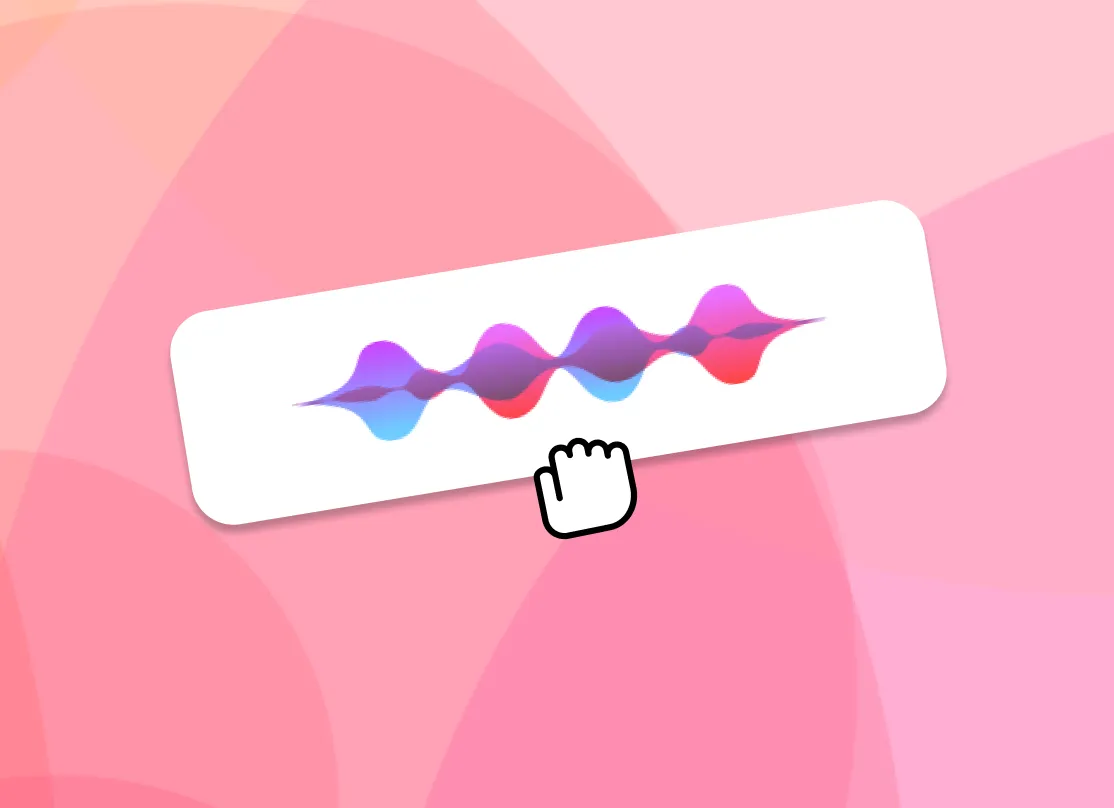
- Add the visual layer. Drop in cover art, a photo or a solid colour background, add a title or track name, and optionally add a waveform that moves in time with the sound. This is what gives YouTube a video track to read. This is also the step that lets you do MP3 to YouTube with an image instead of a blank screen.
- Export an MP4. Render the video and download it. EchoWave outputs MP4 with H.264 video and AAC audio, the combination YouTube recommends.
- Upload it in YouTube Studio. Open studio.youtube.com, click Create then Upload videos, select your MP4, fill in the title, description and thumbnail, set visibility and publish.
That is the whole process. There is no hidden audio-only loophole, because by step three the file is a proper video that YouTube accepts. Acting as a simple MP3 to YouTube video maker, EchoWave turns the track into the format the uploader expects.
What MP3 to YouTube format and specs does YouTube want?
The MP3 to YouTube format you want is MP4 with H.264 video and AAC-LC audio, which is exactly what EchoWave exports by default, so your upload processes quickly and plays cleanly on phones, TVs and desktops. A few specifics worth knowing if you care about audio fidelity:
- Audio quality. YouTube transcodes everything you upload, so it re-encodes your audio no matter what. Starting from a clean source matters more than the container. A 320 kbps MP3 is fine; if you have the original WAV or FLAC, use that for the best result.
- Recommended audio bitrate. YouTube suggests 128 kbps for mono, 384 kbps for stereo and 512 kbps for 5.1, at a 48 kHz sample rate.
- Resolution and aspect ratio. A standard YouTube video is 16:9 at 1920x1080 (1080p). For YouTube Shorts use a vertical 9:16 frame; for a square post use 1:1. EchoWave lets you pick the canvas size before you export.
- Length and file size. Most accounts can upload videos up to 15 minutes; verify your account (a quick phone-number step in YouTube) to go longer, up to 12 hours or 256 GB. A full album or podcast episode is no problem.
You do not have to memorise any of this. EchoWave produces a YouTube-ready MP4 automatically, and the specs above are there if you want to tune the output.
Cover image versus animated waveform
Your video needs something on screen, and you have two strong options that you can also combine. A static cover image (podcast artwork, an album sleeve, a band photo or a branded card) sits behind the audio for the whole runtime and keeps your branding consistent. An animated waveform reacts to the sound in real time, which makes an otherwise still frame feel alive and quietly tells a scrolling viewer there is something to listen to. A common, effective layout is a cover image with a thin waveform along the bottom and the track title in a corner. If you only want to attach artwork to the audio file itself rather than build a video, the add image to MP3 tool does that, and the audio to video guide goes deeper on the visual choices.
Real use cases
The same way to upload audio to YouTube covers a lot of ground:
- Musicians and producers running an MP3 song upload of singles, beats, full albums or lyric-style uploads so fans can stream the track on repeat. A YouTube MP3 song upload like this is the standard way to get a release watchable on the platform.
- Podcasters turning each episode into a watchable video, often with the show artwork and an audiogram style waveform. See the podcast to video workflow for episode-length builds.
- Voiceover artists, audiobook narrators and language teachers who need a recording online and shareable.
- DJs and labels publishing mixes or promo cuts with a logo and tracklist on screen.
If your goal is a richer animated background rather than a single image, the music visualizer creates reactive scenes that move with the beat.
EchoWave is free, private and needs no login
Many tools that upload MP3 to YouTube for you ask you to sign in with Google and grant access to your YouTube channel first, because they upload on your behalf. EchoWave works differently and never touches your channel. You make the MP4 here, download it, and upload it yourself in YouTube Studio, so there are no permissions to grant and nothing connected to your account. The conversion runs in your browser, your audio is processed on your own machine rather than sitting on a third-party server, and the tool is free to start with no sign-up. The one thing to know: exports from the full editor carry a small EchoWave watermark on the free plan, which you can remove on a paid plan. The trade-off is full creative control over the image, waveform, text and canvas size, all in one place.
MP3 to YouTube converter: what it actually converts
Search for an MP3 to YouTube converter and you get two completely different tools sharing almost the same name. One rips the audio out of a YouTube video and hands you an MP3. The other goes the opposite way: it takes the MP3 you already have and builds a video around it so the uploader will accept it. EchoWave is the second kind, and it is the one you need if the goal is getting your own audio onto a channel.
What gets converted is not really the audio. Your track is placed into the MP4 as it is, at the quality you gave it, and the only thing being created is the picture that plays alongside it. So the whole job comes down to one decision, and there are three ways to make it:
- A still cover image. Album art, podcast artwork, a photo or a plain branded card, held for the full runtime. The fastest route, and the right one when the artwork is already the brand. The add image to MP3 tool handles this on its own.
- An animated waveform. The wave is drawn from your own file, so it moves in time with the sound and the frame is never completely still. The audio waveform video generator has bar, line, mirror, radial and circular styles.
- A reactive visualizer. Full animated scenes that respond to the track, for singles, beats and mixes that deserve more than one frame. That is what the music visualizer builds.
All three finish in the same place: a standard MP4 that YouTube treats like any other video upload. Nothing here connects to your channel, and no MP3 to YouTube converter needs to, because you are the one publishing the finished file.
YouTube audio requirements: what the uploader accepts
YouTube does not publish audio requirements as such, because there is no audio-only upload for them to apply to. What it publishes is a list of accepted video containers, and every requirement follows from that.
Accepted: MP4, MOV, MPEG-1/2, MPEG4, MPEGPS, AVI, WMV, FLV, 3GPP and WebM, plus the professional codecs ProRes, DNxHR, CineForm and HEVC.
Rejected: MP3, WAV, M4A, AAC, FLAC, OGG, AIFF, WMA and every other audio-only file. There is no video track inside them, so the upload fails immediately and YouTube usually reports an invalid file format rather than explaining why.
That single rule is the reason the conversion step exists. Once your audio is inside an MP4, the requirements that apply to it are the ones YouTube recommends for sound within a video: AAC-LC at a 48 kHz sample rate, which is what EchoWave writes by default.
A short export checklist for a YouTube upload:
- Container: MP4.
- Video codec: H.264. Audio codec: AAC-LC.
- Frame rate: 24 to 30 fps is plenty. Nothing moves quickly in an audio video, so a higher frame rate only inflates the file.
- Canvas: 16:9 for a standard video, 9:16 for Shorts, 1:1 for a square post.
- Thumbnail: a separate 1280x720 JPG or PNG under 2 MB, uploaded in YouTube Studio. It does not have to match the image playing in the video, and a readable one earns clicks that the video frame never will.
You do not have to set any of this up. EchoWave exports a YouTube-ready file by default, so the list above is a reference rather than a configuration step.
MP3 to YouTube in 2026: the quick version
YouTube Studio gets rearranged every year or so, but the upload path itself has not really changed, and the buttons are close enough to find wherever they have moved to:
- Make the MP4. MP3 in, cover image or waveform on top, export.
- Start the upload. In YouTube Studio it is the Create button, top right on desktop, or the plus button in the mobile app. Choose to upload a video and pick your MP4.
- Write the details while it processes. The upload and the transcode run in the background, so the title, description, thumbnail and playlist can all be filled in while the progress bar moves.
- Set visibility and publish. Public, unlisted, private or scheduled. Unlisted is a useful halfway step: it gives you a link so you can check playback and audio level on a phone before anyone else sees it.
Three things that catch people out:
- Vertical videos become Shorts on their own. A 9:16 upload of up to three minutes is filed as a Short automatically, which is worth knowing before you choose your canvas size rather than after.
- The first few minutes look soft. YouTube serves lower resolutions while the higher-resolution versions are still processing, so judge the picture later rather than straight after publishing.
- Timestamps in the description become chapters. Start the list at 0:00 and give it at least three entries, and an album, mix or podcast episode becomes navigable instead of one long block.
Your audio stays high quality

About the EchoWave team
EchoWave is a browser-based video and audio editor built by Lemon Vault LLC since 2018. The people who build the editor write these guides and test every step in the production app before publishing.
Frequently Asked Questions
Can you upload an MP3 to YouTube?
Not directly. YouTube only accepts video formats like MP4, MOV, MPEG and WebM, so an audio-only MP3 or WAV is rejected. To upload MP3 to YouTube you wrap your audio in an image or waveform, export an MP4, then upload that file.
Why do I have to convert audio to video to upload it?
YouTube is a video platform, so its uploader needs a video track. An MP3 has only audio, so you give it something on screen, a cover image or waveform, and save it as a video file.
How do I convert an MP3 to video for YouTube?
Upload your MP3 to EchoWave, add a cover image or animated waveform and any text, then export an MP4. The conversion runs free in your browser, with no software to install.
Is it free with EchoWave?
Yes. You can convert your MP3 into a YouTube-ready video with EchoWave for free, and no account is required to start.
What video format and specs does YouTube need?
YouTube recommends MP4 with H.264 video and AAC audio, which is what EchoWave exports by default. For audio, YouTube suggests 384 kbps stereo at a 48 kHz sample rate, and it re-encodes whatever you upload.
What audio quality should I start from, MP3 or WAV?
Either works, but YouTube re-encodes your audio on upload, so a clean source helps. A 320 kbps MP3 is fine, and if you have the original WAV or FLAC, use it for the best result.
How long can my video be?
Most YouTube accounts allow uploads up to 15 minutes. Verify your account with a phone number to go longer, up to 12 hours or 256 GB, so full albums and podcast episodes are no problem.
How do I upload an audio file to YouTube?
Convert the audio into a video first. Drop your MP3, WAV or M4A into EchoWave, add a cover image or waveform, then export an MP4. After that you upload the audio file to YouTube as a normal video in YouTube Studio.
Can I do an MP3 to YouTube upload with an image?
Yes. Add cover art, a photo or a branded background, plus an animated waveform and text. You can also set the canvas to 16:9, 1:1 or vertical 9:16 for Shorts, so MP3 to YouTube with an image is the default way EchoWave builds the video.
Does EchoWave upload to my channel for me?
No, and that is on purpose. Unlike tools that ask for Google sign-in and channel access, EchoWave never connects to your account. You make the MP4 here, download it, and run the MP3 YouTube upload yourself in YouTube Studio when you are ready.
Will there be a watermark?
Exports from the full editor include a small EchoWave watermark on the free plan, which you can remove by upgrading. EchoWave's dedicated quick tools, like crop, trim and compress, export with no watermark.
How do I post a song or music on YouTube?
Convert the track to an MP4 by adding cover art or a waveform, export it, then upload it to your channel in YouTube Studio. The audio stays high quality throughout. Tag the song correctly if you want Content ID to recognise it.
Is my audio private during conversion?
Yes. The conversion runs in your browser on your own device, so your MP3 is not uploaded to a third-party server to be processed. You only share the file when you choose to publish it on YouTube.
What image size should I use for an MP3 to YouTube video?
Use 1920x1080 for a standard 16:9 video, 1080x1920 for a vertical Short and 1080x1080 for a square post. Start from artwork at least as large as the canvas, so a 3000x3000 album or podcast cover is ideal because scaling it down stays sharp while scaling a small image up does not. Your thumbnail is a separate 1280x720 image uploaded in YouTube Studio, and it does not have to match what plays on screen.
Can I upload any song to YouTube?
Only if you made it, own it, or have permission from whoever does. YouTube scans uploads with Content ID, and when it recognises a commercial recording the rights holder decides what happens: the video may be claimed and monetised for them, blocked in some countries, or muted. That is a claim rather than a strike, but it takes the revenue and can limit the reach. Covers and remixes count too, because performing a song yourself does not transfer the rights to it. Your own recordings, licensed tracks and royalty-free music are the safe ground.
Is an MP3 to YouTube converter safe to use?
It depends on what it asks for. Converters that want a Google sign-in and channel access can post to your channel on your behalf, which is a lot of trust for a file conversion. EchoWave never asks for it: the conversion runs in your browser, your audio stays on your machine, and you upload the finished MP4 yourself. Also be aware that many results for this search are YouTube-to-MP3 rippers going the other direction, which are a different thing entirely and sit awkwardly with YouTube's terms.
Can I convert an MP3 to a YouTube video on my phone?
Yes. EchoWave runs in the mobile browser, so there is no app to install, and once the MP4 downloads you can upload it from the YouTube app in the same session. Long files such as full albums or hour-long episodes are still easier on a desktop, simply because a phone has less memory to render with.
Why does YouTube say my file format is invalid?
Almost always because the file is audio-only. MP3, WAV, M4A, FLAC and AAC all fail this way, as do a few unusual video containers. Export an MP4 with H.264 video and AAC audio and the same upload goes through. If it still fails, check that the export and the download both finished, because a truncated file is rejected the same way.
Can I upload an MP3 as a YouTube Short?
Yes, if you build the video vertically. Set the canvas to 1080x1920 before you export and keep the clip within the three-minute Shorts limit, and YouTube files it as a Short automatically. Leave room on the right edge and along the bottom, since the buttons and caption sit over that area and will cover your artwork or waveform.
What is the best format for uploading audio to YouTube?
YouTube does not accept an audio-only format at all, so the format that matters is the video you build around your track: an MP4 with H.264 video and AAC audio, which is what EchoWave exports by default and what YouTube processes fastest. For the source audio itself, a 320 kbps MP3 or a lossless WAV or FLAC both work well, since YouTube re-encodes whatever you upload anyway.
How do I upload a whole album or podcast episode?
Upload the full album or episode as a single audio file, add a cover image or waveform, and export the MP4 the same way as any shorter track; EchoWave's cloud rendering handles long files without slowing down your own device. See the podcast to video workflow for episode-length builds with audiogram-style waveforms. YouTube allows uploads up to 15 minutes by default, or up to 12 hours once you verify your account, so a full album or episode fits easily.
Ready to upload your MP3 to YouTube? We have a free plan!
No credit card required, our free plan includes a small Echowave.io watermark.
Get Started →