Audio to Video Converter, Free and Online
Turn any sound file into a shareable video with our free audio to video converter. Upload your MP3, WAV or M4A, add a background image or an animated waveform, and export an MP4 right in your browser. No account and nothing to install.

Audio to Video Converter, Free and Online Features


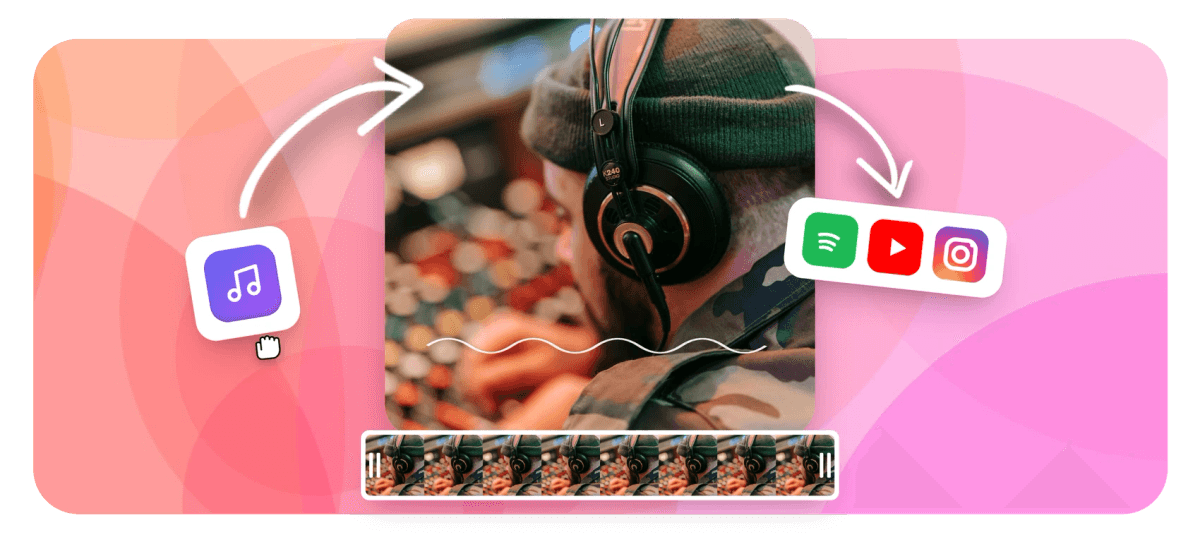
To convert an audio file to video, upload your MP3, WAV, M4A or other sound file, add a background image or an animated waveform so there is something on screen, then export an MP4. EchoWave is a free online audio to video converter that runs in your browser, with no account and no software to install, so you can make a video from audio and post it anywhere in minutes.





How to Convert Audio to Video
Three steps to turn an audio file into a shareable video.
-
1. Upload your audio
Drag in an MP3, WAV, M4A, FLAC, OGG or AIFF file. The converter accepts the formats people actually have, so you rarely need to re-encode anything before you start.
-
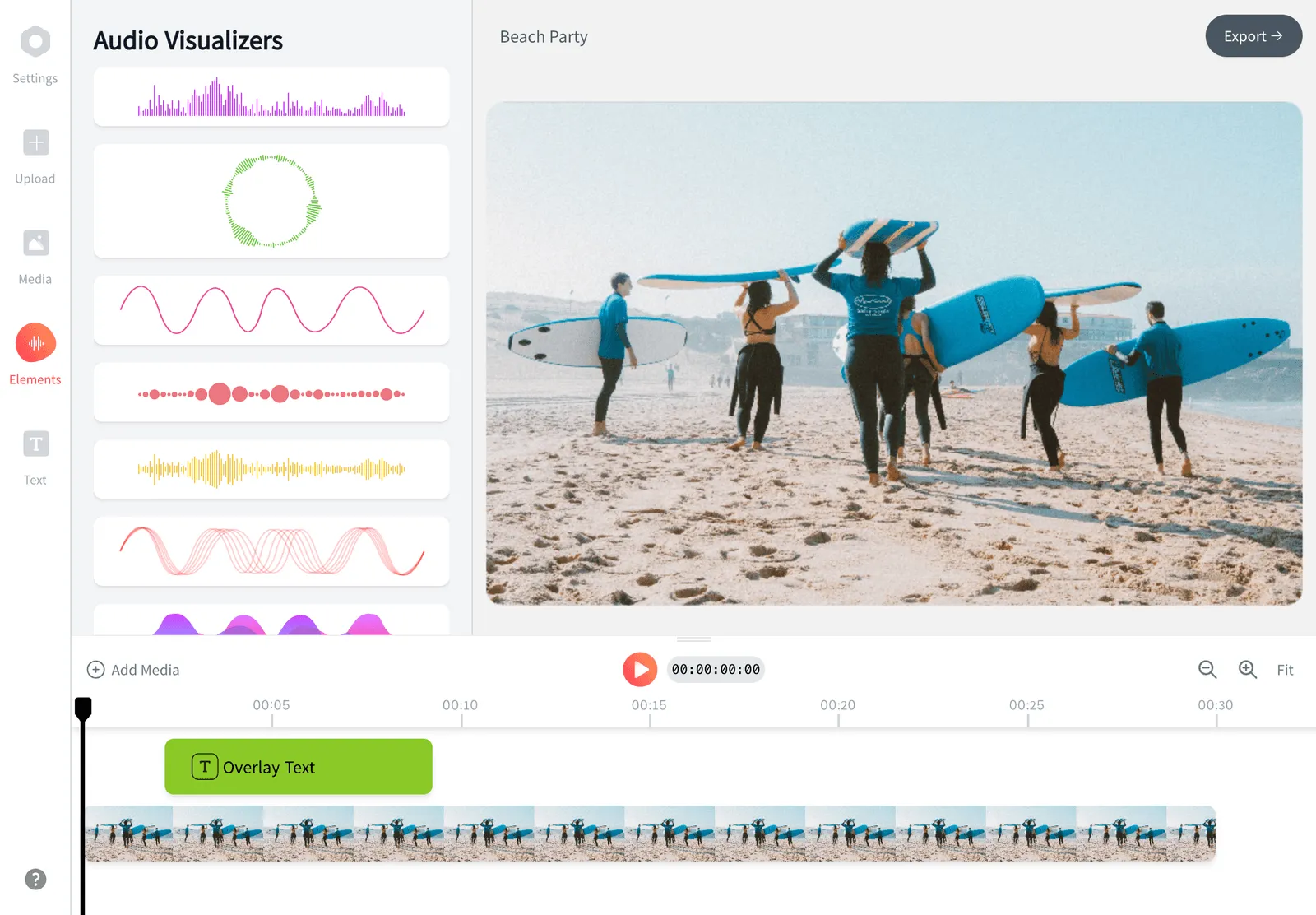
2. Add a background or waveform
-
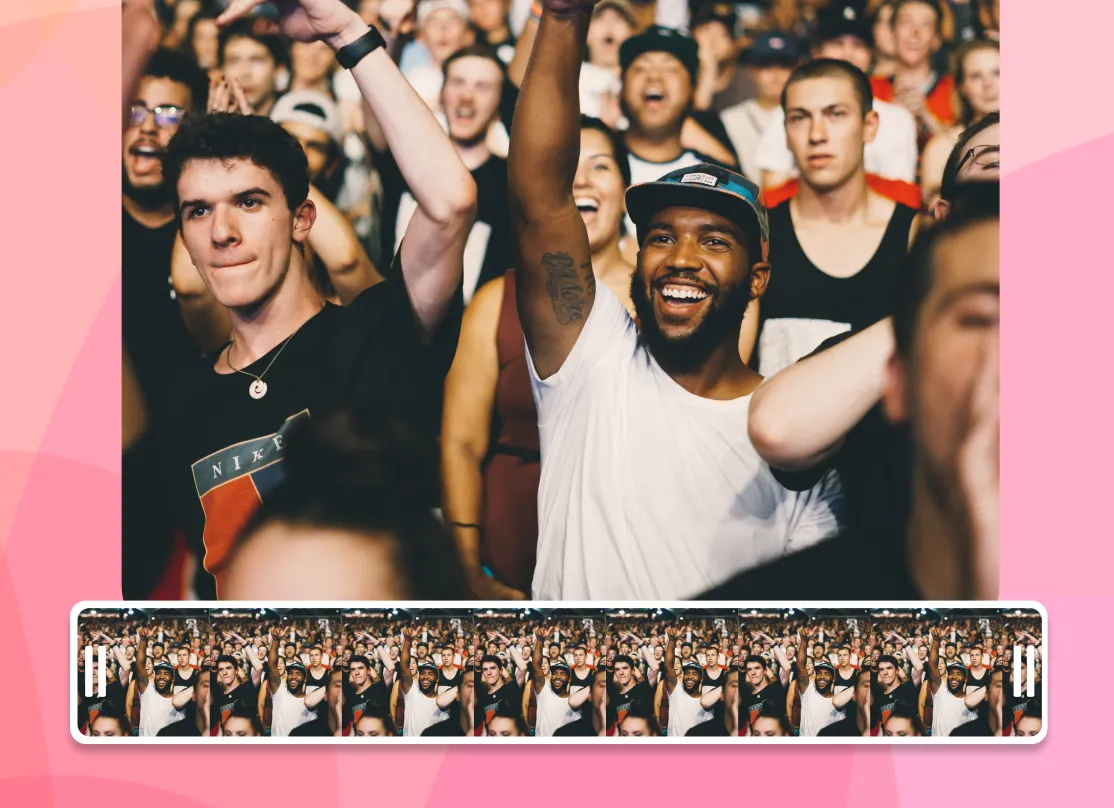
3. Render and download the MP4
Preview the result, then export an MP4 and save it straight to your device, ready to upload to YouTube or any social platform.
What people are saying about EchoWave
How the audio to video converter works
An audio file has no picture track, so platforms like YouTube and Instagram reject it outright. The job of an audio to video converter is to add a visual layer over your sound and wrap both into a standard video container. EchoWave does this in four steps that all run in your browser:
- Upload your audio. Drag in an MP3, WAV, M4A, OGG, FLAC, AIFF or AMR file. The converter reads the duration and audio automatically, so you rarely need to re-encode anything first.
- Add an image or waveform. Drop in cover art, a photo or a solid colour, then optionally layer an animated waveform that moves in time with your sound. This is the visual layer that makes audio watchable on video-only platforms.
- Preview the result. Play it back to check the framing, timing and audio before you commit to a render. You can reposition the image, add text or change the canvas size at this point.
- Render and download. Export the finished MP4 and save it straight to your device.
That is the whole flow: upload, decorate, preview, download. There is no queue email, no account wall and no app to install.
Supported audio and video formats
The converter is deliberately format-agnostic so you can work with whatever you already have on hand.
- Audio in: MP3, WAV, M4A, AAC, OGG, FLAC, AIFF and AMR.
- Video out: MP4 (H.264 video with AAC audio), plus MOV, WEBM and MKV when a specific workflow needs them.
MP4 is the right choice for almost every destination. It plays on every phone, browser and TV, and it is exactly what YouTube, Instagram, TikTok, Facebook and LinkedIn expect on upload. Reach for MOV, WEBM or MKV only when a particular editor or pipeline asks for it. Whichever container you pick, the original audio is preserved at full quality, so converting an MP3 or WAV to video never muddies the sound or drops it to a lower bitrate.
Choosing the right aspect ratio
The shape of your video matters more than most people expect, because each platform crops or letterboxes anything that does not match its frame. Set the canvas before you render rather than fixing it afterwards:
- 16:9 (landscape, 1920x1080) for full YouTube uploads, podcast episodes and anything watched on a desktop or TV.
- 9:16 (vertical, 1080x1920) for YouTube Shorts, Instagram Reels, TikTok and Stories.
- 1:1 (square, 1080x1080) for in-feed posts on Instagram and Facebook, where a square fills more of the screen than a landscape clip.
If you are not sure where the clip will end up, a 1:1 square is the safest all-rounder. It looks acceptable on both a feed and a phone, and you avoid black bars on either side.
Real use cases
Most places where audiences actually find content are video-first, so converting audio to video opens all of them at once:
- Podcast episodes on YouTube. YouTube has become one of the largest podcast directories anywhere, and it only accepts video. Export each episode as a 16:9 MP4 with your show art and publish it as a full episode. Our MP3 to YouTube guide walks through the upload settings.
- Music promo for Reels and Shorts. Convert an MP3 to video by wrapping a single or a snippet in cover art or a moving waveform, set it to 9:16, and post it to promote a release the day it drops. Going from MP3 to video is the quickest way to turn a song into a clip a feed will actually play.
- Voice memos, sermons and interviews. Share a recorded conversation as a clean video link instead of asking people to download a raw audio file that their phone may not open.
- Audiograms. Pull a short, quotable clip out of a longer recording, add captions and a waveform, and you have a scroll-stopping social asset. The audiogram creator is built for exactly this.
Background image or animated waveform
A video needs something on screen, and you have two ways to fill the frame. Drop in a still background image, such as podcast cover art, an album sleeve, a band photo or a simple branded card, and it holds for the full duration. Or add an animated waveform that reacts to the audio in real time, which signals to anyone scrolling past that there is sound to play. You can combine both: cover art behind a waveform, with a title or episode number layered on top, positioned wherever you like. If you only want to embed a single image into the audio file itself, the add image to MP3 tool covers that narrower job.
Quality, length and file size
The converter handles the audio you are most likely to feed it: songs, full podcast episodes, lectures and voice recordings all convert without fuss. A few practical notes from running this thousands of times:
- Audio quality is untouched. The sound is carried straight through, so a 320 kbps MP3 stays crisp in the finished video.
- Longer files take longer to render. A three minute song is near instant, while a ninety minute episode needs more time, since the browser is encoding every frame of the visual layer.
- Keep visuals simple for long files. A static image renders far faster than a busy waveform over an hour of audio, which is worth knowing if you are exporting a long episode.
Privacy and device support
Because the audio to video conversion runs locally in your browser, your files are not parked in someone else's account or queued on a server you do not control. The converter works in any modern browser, including Chrome, Safari, Edge and Firefox, on Windows, macOS, Linux and ChromeOS. It runs on iPhone and Android too, though long renders are noticeably quicker on a laptop or desktop where there is more memory and processing headroom. There is no app to download on any platform.
MP3 to video
Converting an MP3 into a video means giving the audio a visual layer so it can play on platforms that require a picture track. There are three main ways to do it, and you can pick whichever suits the time you have:
- Album art or a still image: the fastest route. Drop in your cover art, a photo or a branded card and it holds for the whole track, which suits singles, podcast clips and voice memos where you just need something on screen.
- An animated waveform: adds motion with no extra design work. A moving waveform synced to the MP3 signals there is sound to play, which helps the clip stand out while someone scrolls past.
- A full music visualizer: reactive bars, spectrums or 3D effects for a more produced look. The music visualizer tool is built for this and includes 50+ effects to match your genre.
If you only want to pair one picture with your MP3 and nothing else to configure, MP3 to MP4 with an image is the more direct tool for that single job.
Whichever visual you choose, size the canvas for where the video is going: 16:9 for YouTube and podcast uploads, 9:16 for Shorts, Reels, TikTok and Stories, and 1:1 for in-feed posts on Instagram and Facebook. The MP3's audio carries through untouched, so converting MP3 to video never re-encodes or degrades your sound.
Repurpose Audio as Video

About the EchoWave team
EchoWave is a browser-based video and audio editor built by Lemon Vault LLC since 2018. The people who build the editor write these guides and test every step in the production app before publishing.
Frequently Asked Questions
How can I convert audio to video?
Upload your audio file to EchoWave, add a background image or an animated waveform so there is something on screen, preview it, then export an MP4. The whole conversion runs in your browser, with no account and nothing to install.
How do I convert MP3 to MP4 for free?
Drop your MP3 into the editor, choose cover art or a waveform for the visual, and download the result as an MP4. There is no paywall to convert the file, and EchoWave keeps the audio at full quality so converting MP3 to video never degrades your sound.
Can you turn audio into a video for YouTube?
Yes. YouTube only accepts video, so add an image or waveform, set the canvas to 16:9 and export an MP4, then upload it in YouTube Studio like any other video. See our MP3 to YouTube guide for the full walkthrough.
Is the audio to video converter free?
Yes, EchoWave's audio to video converter is free to use, with no paywall on converting your audio and downloading an MP4.
Do I need an account or software?
No. EchoWave runs entirely in your browser, so there is nothing to install and no sign-up required to convert audio to video on Windows, Mac, Chromebook or phone.
Will there be a watermark?
Exports from the full editor include a small EchoWave watermark on the free plan, which you can remove at any time by upgrading. Our dedicated quick tools, such as crop, trim and compress, export with no watermark.
What audio formats can I convert?
You can convert MP3, WAV, M4A, AAC, FLAC, OGG, AIFF and AMR, among others. The converter is format-agnostic, so most common audio files work without any pre-conversion. WAV to video and M4A to video both work the same way.
Can I add a background image to the audio?
Yes. Add a still background image such as cover art or a photo, an animated waveform synced to your audio, or both together with text layered on top.
Can I use an audio to video converter on mobile?
Yes. EchoWave runs in the browser on iPhone and Android, so you can convert audio to video on a phone without an app. Long files render faster on a laptop or desktop, where there is more memory available.
Is it safe and private to convert my audio?
The conversion runs locally in your browser, so your audio is not queued on a public server or tied up in someone else's account. EchoWave is free and built around standard MP4 output, with no bundled software or ads to dodge.
Can I convert audio to video for Facebook or Instagram?
Yes. Export a square 1:1 MP4 for in-feed posts or a 9:16 vertical clip for Reels and Stories, then upload it like any other video. The same file works for TikTok and LinkedIn too.
What is the maximum file size or length?
EchoWave handles typical podcast episodes, songs and voice recordings comfortably. Very long files take longer to render, and a simple static image renders faster than a busy waveform over a long episode.
How do I convert audio to video?
Upload your audio file, choose a visual layer such as a background image, an animated waveform or a full visualizer, then export an MP4. EchoWave handles the whole conversion in your browser, so there is no software to install and no account required to start.
Can I turn an MP3 into an MP4?
Yes. Add a picture, waveform or visualizer to your MP3 inside the editor, then export the result as an MP4. The audio carries through at full quality with no re-encoding needed.
Is the audio to video converter free, and does it add a watermark?
Yes, converting audio to video with EchoWave is free, with no paywall on exporting your MP4 and no signup required to start. Exports from the full editor include a small watermark on the free plan, which you can remove anytime by upgrading.
What backgrounds can I use, an image, a video or a waveform?
You can use a still image such as cover art or a photo, a background video, an animated waveform, or a full music visualizer effect, and layer text or a logo on top of any of them. Pairing a background image with a waveform on top is a popular combination for podcast clips.
Ready to convert audio into a video? We have a free plan!
No credit card required, our free plan includes a small Echowave.io watermark.
Get Started →