Add Voice Over to Video Online Free
Add voice to video the easy way: record narration, upload an audio file, or generate an AI voiceover, then line it up with your footage on a simple timeline and export. It all runs in your browser, with no software to install and no account required to start.

Add Voice Over to Video Online Free Features
Echowave is used by thousands of businesses around the world





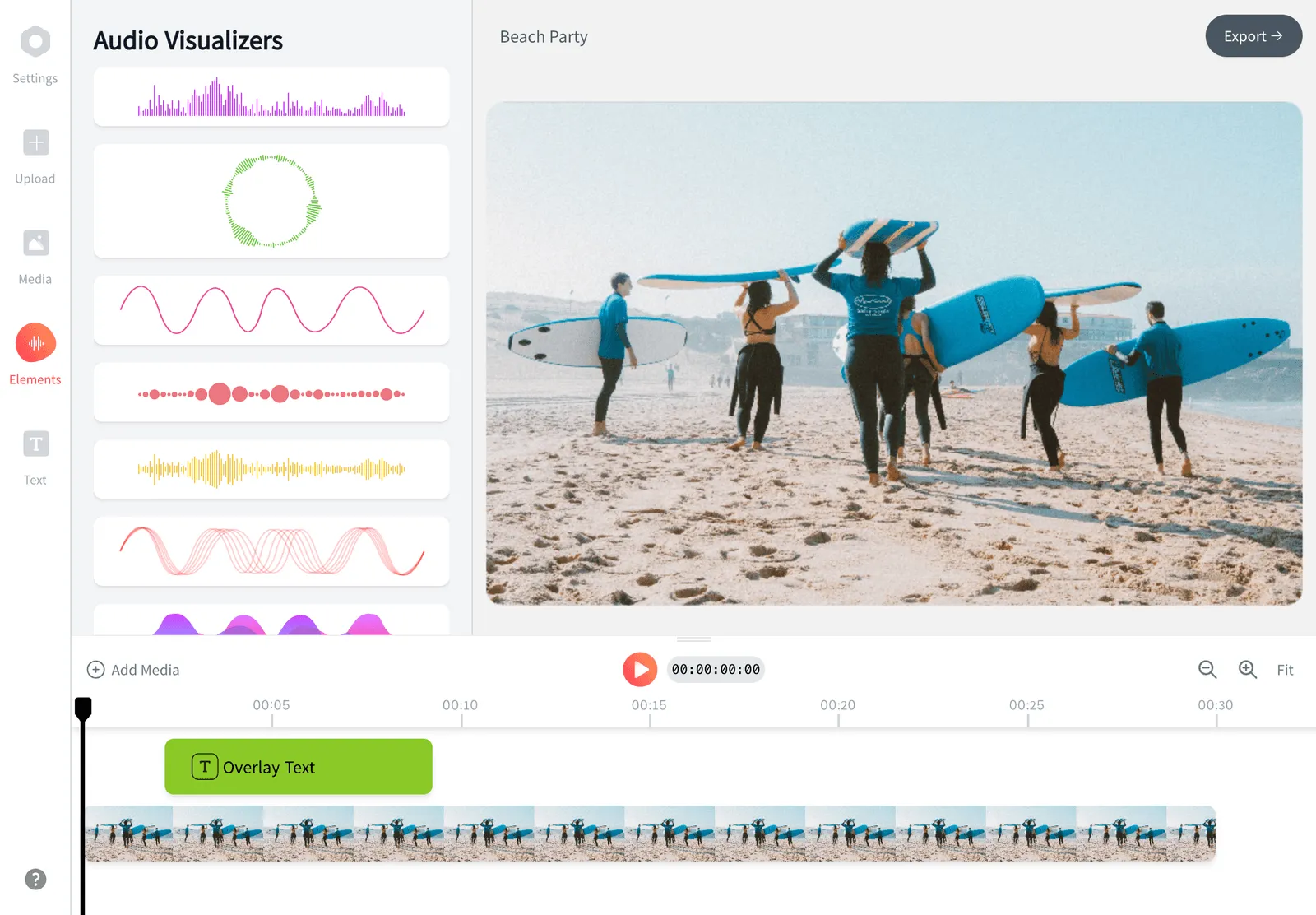
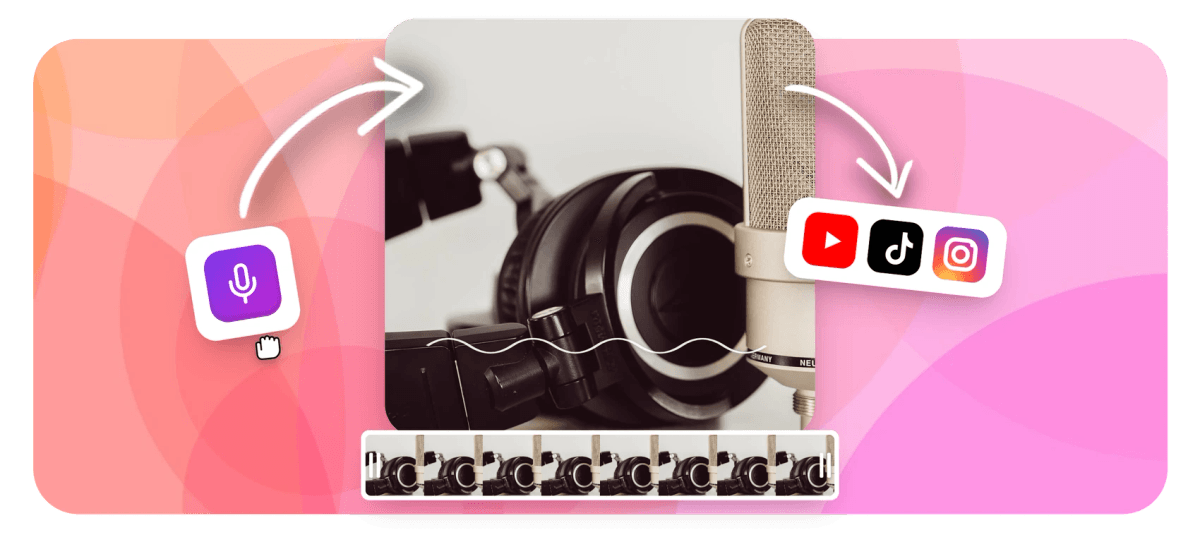
To add a voice over to a video online free, open the EchoWave editor, upload your clip, then record your narration on the timeline, upload an existing audio file, or generate an AI voice from text. Drag the voice track to line it up with the picture, balance it against the original audio, and export. Everything happens in your browser. Whether you write it as a voice over or a voiceover, this is the fastest way to add voice to video online free, with no account required to start.
How adding a voice over actually works
A voice over (or voiceover) is a separate audio track that plays on top of your footage. When you add one in EchoWave, your original video and its sound stay on their own layer, and the narration sits on a track above it. Because they are independent, you can move the voice clip left or right to land a line exactly where you want it, change its volume without touching the picture, and trim or split it if a take runs long.
There are three ways to add a voiceover to your video and get it onto the timeline. You can record straight from your microphone while the video plays, so you watch the action and speak in time with it. You can upload a recording you made elsewhere, which is the route most people take when they record in a quiet room or use a podcast mic. Or you can type a script and let the AI voiceover generator read it aloud, which is handy for a first draft, a placeholder, or when you would rather not use your own voice. AI voice over for video is also the quickest way to test pacing before you commit to a final take.
The usual question is what comes first, the footage or the voice. Both orders work. Many creators cut the video first and narrate to picture so the words match the cuts. Others write and record the script first, then edit the visuals to the audio. EchoWave supports either approach because the voice track is fully movable after you add it.
Keep, duck, or replace the original audio
The original sound in your clip does not disappear when you add narration. You decide what happens to it. If the footage has useful ambience, music, or interview audio, leave it in and lower its volume so the voice over sits clearly on top. A practical starting point is to drop the background audio to roughly 20 percent and listen back, then nudge from there.
If the original audio fights your narration, mute that track entirely and let the voice over carry the video. And if you only want to swap the soundtrack rather than narrate, the companion add audio to video tool is the faster route. To strip the existing sound completely before you start, use remove audio from video.
Add voice to video free, for any project
Voice overs do a lot of quiet work across very different videos. Tutorials and how-to clips use narration to explain each step while the screen recording plays. Product demos and explainers walk a viewer through a feature without an on-camera presenter. Faceless social videos for TikTok, Reels, and Shorts pair stock or screen footage with a scripted voice, which is one of the most common formats on those platforms right now.
Narration is also the backbone of slideshow and photo videos, real estate walkthroughs, training and onboarding material, and YouTube essays. Educators add commentary to lecture recordings. Marketers dub ad creative into a second language. In every case the job is the same: put a clear spoken track over the picture and time it well. Because a free voice over for videos costs nothing here, it is an easy way to add voice to video for a quick test, a client draft, or a finished post.
Supported formats and specs
For video, EchoWave handles the common containers you are likely to have: MP4, MOV, WebM, MKV, and AVI. MP4 with H.264 is the safest choice because it plays everywhere and uploads quickly. For the voice over itself you can bring in MP3, WAV, M4A, AAC, or OGG audio. WAV is uncompressed and best if you recorded in another app and want to preserve quality before the final export.
When you record inside the browser, your microphone audio is captured directly and added as a clip you can edit like any other. Exports come out as MP4, which is the format social platforms, messaging apps, and websites accept without re-encoding. There are no hard length caps for typical projects, though very long files take longer to process.
Platform-specific guidance
Match your canvas to where the video is going. Vertical 9:16 is the frame for TikTok, Instagram Reels, and YouTube Shorts, and a clear voice over matters even more there because many viewers watch with sound on and captions running. Square 1:1 suits in-feed Instagram and Facebook posts. Widescreen 16:9 is the standard for YouTube, course platforms, and embedded site videos.
For short-form, front-load the message: say the most important thing in the first two or three seconds before anyone scrolls past. For longer YouTube pieces, leave small gaps between sentences so the narration breathes and is easy to follow. If you plan to publish in more than one place, set your aspect ratio before you record so your timing decisions hold up at the final size.
Recording a clean voice over
Good narration is mostly about the recording, not the editing. Record somewhere quiet with soft furnishings that soak up echo, a bedroom or a room with a sofa and curtains beats a bare kitchen. Keep the microphone a hand span from your mouth and slightly off to the side to avoid harsh popping sounds on words like "p" and "b". Speak a little slower than feels natural; people rush when they read aloud.
Read from a short script or bullet points rather than improvising, and record in takes so a stumble only means redoing one line. If you make a mistake, pause, then say the line again; you can trim the bad take out on the timeline afterwards. A wired headset mic or any standalone USB microphone will sound noticeably cleaner than a laptop's built-in mic.
Privacy, device, and browser support
Editing happens in your browser, so your video and your recordings are not posted to a public gallery or shared with other users. The tool works in current versions of Chrome, Edge, Firefox, and Safari on Windows, macOS, Linux, and ChromeOS. To record narration you will be asked for microphone permission once; grant it and your browser remembers the choice for the site.
On iPhone and Android you can upload a clip and a voice file and arrange them on the timeline in mobile Safari or Chrome, though most people find detailed timing easier on a larger screen with a real keyboard. The full editor is free to use. Free exports include a small EchoWave watermark, which you can remove on a paid plan.
How to Add Voice Over to Video
Adding a voiceover to your video takes three steps in EchoWave:
-
1. Upload Your Video
Click "Upload Video" and choose the clip you want to narrate. MP4, MOV, WebM, MKV, and AVI all work, and your file loads straight into the editor.

-
2. Record, Upload, or Generate the Voice Over
Record narration from your microphone while the video plays, upload an audio file, or type a script and generate an AI voice. Drag the voice track to line it up, then balance it against the original sound.

-
3. Export Your Video
Preview the result, fine-tune the timing if needed, then export an MP4 with your voice over baked in, ready to post anywhere.
What people are saying about EchoWave
Features

About the EchoWave team
EchoWave is a browser-based video and audio editor built by Lemon Vault LLC since 2018. The people who build the editor write these guides and test every step in the production app before publishing.
Frequently Asked Questions
How do I add a voice over to a video for free?
Open the EchoWave editor, upload your clip, then record your narration on the timeline, upload an audio file, or generate an AI voice. Line it up with the picture and export. It runs in your browser and is free to start, with no account needed, so you can add voice to video online free in a few minutes.
Can I add a voice over without losing the original sound?
Yes. When you add a voiceover to video here, it goes on its own track, so the original audio stays put. Keep it and lower the volume so the narration sits on top, or mute it entirely if it gets in the way.
Can I add an AI voice over to my video?
Yes. Type a script and the AI voiceover generator reads it aloud, so you can add an AI voice to your video without recording yourself. It is useful for a placeholder, a first draft, or a quick pacing test before a final take.
Can I edit the voice over after I add it?
Yes. The voice over editor lets you move the clip to retime it, adjust the volume, and trim or split takes after the narration is on the timeline.
What comes first, the video or the voice over?
Either works. Many creators cut the footage first and narrate to picture, while others record the script first and edit visuals to the audio. The voice track stays fully movable, so you can change your mind.
Can I record my voice over directly in the browser?
Yes. Grant microphone permission when asked, then record while the video plays so you can speak in time with the action. The recording is added as a clip you can edit like any other.
What audio and video formats are supported?
Video imports include MP4, MOV, WebM, MKV, and AVI. For the voice over you can upload MP3, WAV, M4A, AAC, or OGG. Exports come out as MP4.
How do I add a voice over to a video on my iPhone?
Open the tool in mobile Safari, upload your clip, and either record narration or add a voice file, then arrange both on the timeline. Detailed timing is usually easier on a larger screen.
Can I add a voice over for vertical TikTok, Reels, and Shorts videos?
Yes. Set the canvas to 9:16 before you record so your timing holds at the final size. Front-load the key line in the first few seconds since short-form viewers decide quickly.
Does the free version add a watermark?
The full editor adds a small EchoWave watermark to free exports, which you can remove on a paid plan. EchoWave's dedicated quick tools for trimming, cropping, and compressing export with no watermark.
Is my video private?
Yes. Your video and recordings are edited in your browser and are not posted to a public gallery or shared with other users.
More Tools From EchoWave

Ready to get started? We have a free plan!
No credit card required, our free plan includes a small Echowave.io watermark.
Get Started →