
Screen Recorder With Audio That Proves You're Being Heard
Record your screen with mic and computer sound captured together in one clean track, and a live level meter that shows you are actually being picked up. Free, in the browser, no install.


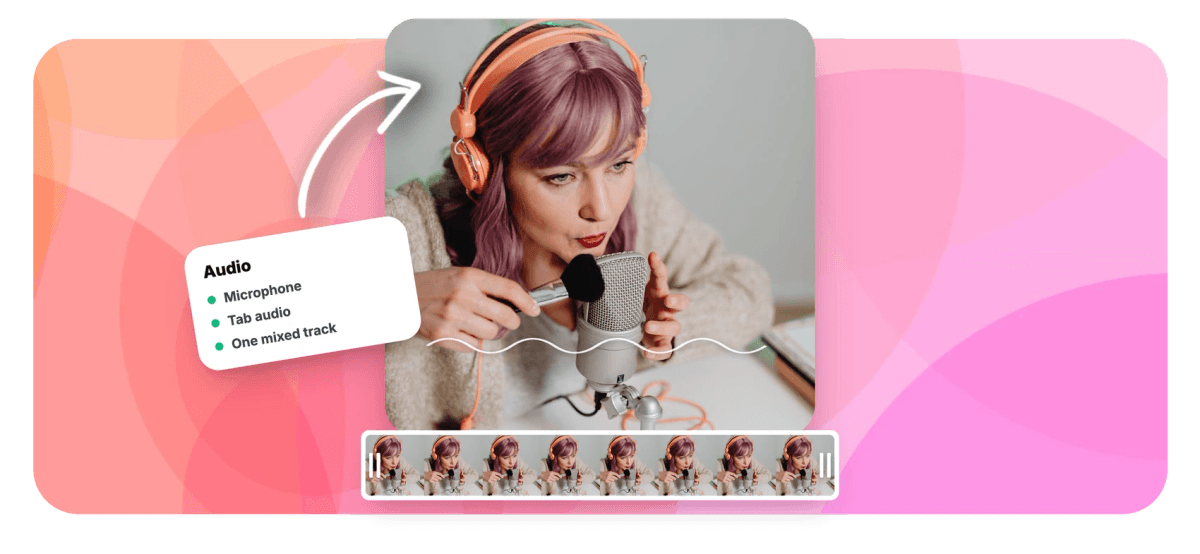
Screen Recorder With Audio That Proves You're Being Heard Features
EchoWave's recording tools are used by course creators, support agents and product reviewers worldwide





Audio-first recording
Silent screen recordings end here.
A screen recorder with audio should treat sound as the point, not an afterthought. EchoWave captures your microphone and the tab or system audio together, mixed into one clean track that is already in sync, while a live level meter confirms you are actually being heard. Mute for the phone call, unmute, keep rolling. Chrome and Edge can capture computer sound from a shared tab; Safari and Firefox record mic only, and the recorder is upfront about it. Afterward the take opens in the video editor, where you can trim the flubs, balance the volume and lay music underneath, so the version you publish sounds deliberate.
-
2 audio sources
Your microphone and the tab or system sound, captured in the same take
-
1 mixed track
Voice and computer audio land together, already in sync, no lining up clips
-
60 minutes
The per-take ceiling, and pausing the recorder does not spend it
-
Live meter
A mic level bar moves as you speak, so you never narrate into a dead input
What you get
Everything the sound side of a recording needs
Capture both sources, verify your levels while you talk, and fix the rest in the editor.
-
Mic and Computer Sound Together
Capture narration from your microphone and the audio your screen is making, tab or system, in the same take. Both arrive mixed into one clean track, in sync, with nothing to line up afterward.
-
Live Mic Level Meter
A level bar moves as you speak, before and during the take. A dead headset, a muted input or the wrong device gets caught in seconds instead of after twenty minutes of silent narration.
-
Mute and Unmute Mid-Take
Kill the mic for a cough, a doorbell or a stretch where the tab's sound should stand alone, then come back in, all without stopping the recording or splitting the take in two.
-
Honest About Browser Support
Chrome and Edge capture tab or system audio through a checkbox in the share dialog. Safari and Firefox record your mic only during screen shares. The recorder tells you upfront, rather than letting a silent file tell you later.
-
Sound You Can Edit After
Your take lands in the editor with the audio fully editable: trim the false start, cut the dead air, adjust clip volume, or detach the audio from the screen video entirely.
-
Music, Voiceover and Sound Effects
Lay a music bed under your narration, drop in sound effects from the built-in stock library, or record a separate voiceover against the finished cut using the recorder's live project monitor.
-
Long Takes Without Anxiety
Record up to an hour per take with a 3, 5 or 10 second countdown to get set. Pauses do not count against the cap, and takes are chunked locally as you go, so a crashed tab is recoverable.
-
Narration Becomes Captions
Because your voice is on the track, one click transcribes it: auto-captions with word-level timing keep the recording watchable on mute, which is how half your audience will watch it anyway.
How it works
How to record your screen with audio
Record screen with sound in four steps, no install.
-
Choose Mic and Mode
Open the recorder, pick screen or screen plus camera bubble, and select your microphone. Say a test sentence and confirm the level meter moves.
-
Share With Audio On
In the browser's share dialog, pick the tab or screen to record and tick the audio checkbox. In Chrome and Edge, sharing a tab is the most reliable way to capture computer sound.
-
Record, Mute, Resume
Start after the countdown and speak naturally, keeping an eye on the meter. Mute and unmute the mic mid-take when needed, or pause entirely. Up to 60 minutes per take.
-
Fix the Sound, Then Ship
Open the take in the editor to trim, balance volume, add music and captions, then export. Or download the raw recording immediately, no account needed.
Who uses it
For anyone whose screen needs a voice
-
Tutorial Narrators
Walk through the product while the meter confirms every word landed, then caption it for viewers on mute.
-
Support Agents
Answer a ticket with a spoken walkthrough where the customer hears both the app and the explanation.
-
Educators
Record the slides with narration once, and students who missed class hear the lesson exactly as delivered.
-
Bug Reporters
Capture the repro with the error chime on the track, plus your commentary on what should have happened.
-
Reaction and Review Creators
Record the video playing in the tab and your take on it, both sides on one track.
-
Async Teammates
Replace the meeting with a two-minute narrated screen share the team plays back at double speed.
Record with the sound on
Mic and computer audio in one clean take, and an editor waiting to polish it.
What creators say after trying EchoWave

About the EchoWave team
EchoWave is a browser-based video and audio editor built by Lemon Vault LLC since 2018. The people who build the editor write these guides and test every step in the production app before publishing.
Screen recorder with audio FAQ
How do I record my screen with audio?
Open EchoWave's screen recorder in your browser, choose the screen or screen-plus-camera mode, and pick your microphone. Say a test line and watch the live level meter move, then hit record. To capture computer sound as well, choose a tab in the browser's share dialog and tick the share-tab-audio box (Chrome and Edge). Both sources are mixed into one clean track as you record. When you stop, download the file straight away or open it in the editor to trim, adjust volume and add music.
Why is there no sound in my screen recording?
Nine times out of ten, the audio checkbox in the browser's share dialog was left unticked. When you pick what to share, Chrome and Edge show a small toggle, usually labelled "Also share tab audio" or "Also share system audio"; if it is off, you get a silent screen. The other usual suspects: the wrong microphone selected, or a browser that cannot capture system sound at all (Safari and Firefox record mic only during screen shares). EchoWave's live mic meter helps you spot a dead input before the take, not after it.
Can I record my microphone and computer audio at the same time?
Yes. Enable your mic, tick the tab or system audio option when you pick what to share, and the recorder captures both together, mixed into a single track that stays in sync. That means you can narrate over a video playing in a tab, talk through an app that beeps and chimes, or comment on a song without lining anything up afterward. If the balance is off, adjust the clip volume in the editor after the take.
Which browsers support screen recording with internal audio?
Chrome and Edge can capture internal audio: choose a tab and tick the share-audio checkbox, or share the whole screen with system audio where the operating system allows it. Sharing a tab is the most reliable route and works across platforms. Safari and Firefox do not expose computer audio during screen shares, so recordings there capture your microphone only. If internal sound matters for your recording, use Chrome or Edge and share the specific tab that is making the sound.
Can I mute my microphone in the middle of a recording?
Yes. The mic can be muted and unmuted mid-take without stopping the recording, handy for a cough, a ringing phone, or a stretch where the tab's own sound should play uninterrupted. The take keeps rolling and the meter shows plainly whether you are live or muted. For longer breaks, pause the recording entirely and resume when ready; pauses do not count against the 60-minute cap.
How do I know my mic is actually being recorded?
The recorder shows a live level meter that bounces while you speak, both before and during the take. If the bar is not moving, the mic is muted, the wrong device is selected, or the browser was never given permission, and you find that out in five seconds rather than after a twenty-minute recording. The live device picker lets you switch microphones on the spot, so a dead headset does not end the session.
Is there a time limit when recording with audio?
Each take can run up to 60 minutes with audio the whole way through, and pausing does not spend the limit. For anything longer, record in parts and join them on one timeline in the editor. Takes are chunked locally while you record, so an interrupted session can be recovered instead of lost.
Is this screen recorder with audio free, and is there a watermark?
Recording is free and works without an account: capture your screen, mic and tab audio, then download the raw take immediately. If you finish the video in the editor, free exports carry a small watermark and are capped at 720p; paid plans remove the watermark and export at 1080p, 4K and beyond on the top tier. For most people the free flow covers the record-download-share loop entirely.
Sound on. Record it all.
Mic plus tab audio in one take, with a meter that proves you're being heard.
Record screen with audio























































