
Round Video Corners for a Soft, Modern Look
Give any clip rounded corners, then dial the radius from a gentle curve to a full pill or circle. Drop it on a color, image or video background so the softened edges read. Free, in your browser.


Round Video Corners for a Soft, Modern Look Features
EchoWave's framing tools are used by social editors, app marketers and course creators worldwide





Rounded corners
The soft-edged look modern video wants
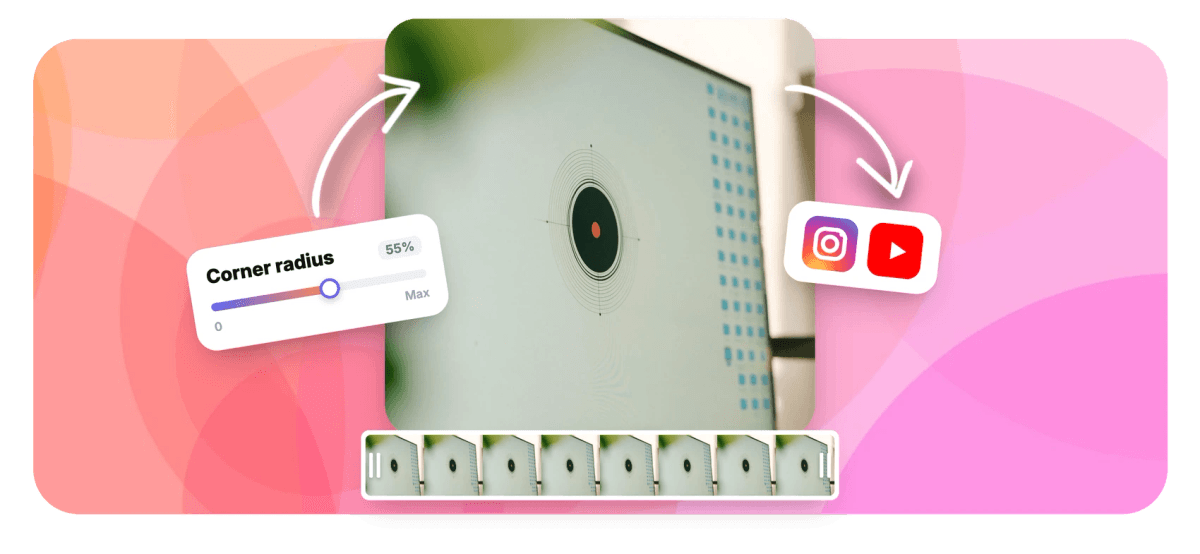
To round video corners in EchoWave, you add a corner-radius control to the clip and turn it up: low values soften the rectangle into a card, high values on a square clip round it all the way into a circle. It is a radius setting, not a freeform mask, so everything from a barely-there curve to a full pill lives on one slider. Rounded corners only read when there is something behind them, so the clip sits on a background: a solid color, an image layer or another video. That is the app-style overlay look, the rounded picture-in-picture facecam, the product clip that feels designed rather than dropped in. Open it in the video editor and the whole scene stays editable.
-
1 control
corner radius handles everything from a soft card to a full circle
-
Any backdrop
place the clip on a color, an image or another video layer
-
16:9 to 1:1
aspect presets, so a square clip rounds cleanly into a circle
-
720p free
free exports at 720p with a small watermark, up to 4K on paid
What you get
A corner-radius control that actually reads
Six things that make rounded corners look intentional.
-
One Corner-Radius Control
Round all four corners of any video clip with a single radius control. Low values give a gentle card curve, higher values round harder, and the same slider carries you all the way to a circle on a square clip.
-
Card to Full Circle
There is no separate circle mask to wrangle. Push the radius to its maximum on a square clip and the rectangle becomes a perfect circle, which is exactly how you get a round facecam bubble or a coin-style logo.
-
Reads On Any Background
Rounded corners only show against something behind them. Drop the clip onto a solid color, an image or another video, and the softened edges suddenly pop instead of blending into empty black bars.
-
App-Style Overlays
Stack a rounded clip over a background layer to get the embedded-in-an-app look: a soft-cornered screen recording, a floating product card, a picture-in-picture inset that feels built into the interface.
-
Square, Story or Wide
Set the canvas to 1:1, 9:16 or 16:9 before you round, so the corners curve against the exact frame you are posting. A square canvas is the shortcut to a clean circular crop from a high radius.
-
Stays Fully Editable
The rounded clip is still a normal clip. Trim it, add captions, keyframe its position, or resize the whole canvas afterward, and the corner radius rides along without any re-rendering by hand.
How it works
How to round video corners
Four steps from a hard rectangle to a soft, framed clip.
-
Add Your Video
Drag your clip into the editor. It lands on the timeline as its own layer and the canvas sizes to match, with 16:9, 9:16, 1:1 and other aspect presets to choose from.
-
Put a Background Behind It
Set a background color, or drop an image or another video on the layer beneath the clip. This is what the rounded corners will show against, so pick something with contrast.
-
Increase the Corner Radius
Open the clip's Round Corners control and raise the radius until the edges look right. Nudge it low for a subtle card, or max it out on a square clip for a full circle.
-
Export
Preview the composite and render. Free exports are 720p with a small watermark; paid plans remove it and unlock 1080p, 4K and beyond. MP4 has no transparency, so the background bakes in.
Who uses it
Where rounded corners earn their keep
-
App Demo Makers
Frame a screen recording with soft corners on a brand color so the clip looks like it lives inside the product.
-
Facecam Streamers
Round a square camera clip into a circle and float it over gameplay for a clean, modern bubble.
-
Social Feed Editors
Give product and promo clips rounded edges on a colored card so they stop the scroll in a busy feed.
-
Course Creators
Soften the corners of a slide capture or talking head so lessons feel designed rather than screen-grabbed.
-
Product Marketers
Drop a rounded product clip into a mockup or landing hero where hard rectangles would look unfinished.
-
Picture-in-Picture Editors
Round the small inset in a stacked layout so the overlay reads as a designed card instead of a pasted-on box.
Round your video's corners
Add the radius, set a background, export the soft-cornered look. Free to start in your browser.
What creators say after trying EchoWave

About the EchoWave team
EchoWave is a browser-based video and audio editor built by Lemon Vault LLC since 2018. The people who build the editor write these guides and test every step in the production app before publishing.
Round video corners FAQ
How do I round video corners?
Add your clip to EchoWave, then place a background behind it: a solid color, an image, or another video on the layer below. Open the clip's Round Corners control and raise the corner radius until the edges look the way you want, from a slight curve to a heavy round. Preview the composite so you can see the corners against the background, then export. The whole thing is one radius slider per clip, so there is nothing to mask by hand. Free exports render at 720p with a small watermark.
Why do the rounded corners need a background to show?
Rounding trims the four corners of the clip to a curve, which leaves empty wedges where the sharp corners used to be. If there is nothing behind the clip, those wedges just fill with black or the empty canvas and the effect is hard to see. Put a background layer underneath, a brand color, a photo or another video, and the curves suddenly read because there is contrast around them. That is why the rounded-corner look is really a two-layer look: the rounded clip on top, something to frame it below.
How do I make a rounded facecam or inset?
Stack the camera clip on a layer above your main footage so it becomes an inset, shrink it into a corner, then raise its corner radius to soften the box into a card. For the classic round bubble, crop the camera to a square first and push the radius to maximum. This is the picture-in-picture workflow with rounding added, and because the inset is a normal clip you can also keyframe it to move or resize partway through. The rounding rides along wherever the inset goes.
How do I make a circular video crop?
A circle is just a very high corner radius on a square clip. Set the canvas or the clip to a 1:1 square, or crop the video to square first, then push the Round Corners radius all the way up: the four corners curve in until they meet and the whole clip reads as a circle. Place it on a background so the round shows. Be honest with yourself about the shape, though: this is a corner-radius circle on a square, not a freeform mask, so it is always a true circle rather than an oval or a custom outline.
Does the export keep transparency around the rounded corners?
A standard MP4 export cannot, because MP4 has no alpha channel: the corners are filled with whatever background sits behind the clip, and that background bakes into the file. That is by design, and it is why you put a color, image or video layer underneath before exporting. If you genuinely need transparent corners to overlay the clip elsewhere, use the video background remover, which can export an alpha WebM. For most uses, a matching background color is simpler and looks identical once the video is posted.
Can I round just one corner or use a custom shape?
Not with this control. Round Corners applies one radius to all four corners at once, so it rounds them evenly rather than letting you curve a single corner or draw a custom outline. It is a corner-radius setting, the same idea as rounding a box in a design tool, not a freeform mask or a shape cutter. If you need an irregular cutout, that is a different job: the background remover cuts a subject out of its scene, which is the closest thing to a custom-shaped clip EchoWave offers.
Which platforms does rounded video look good on?
Rounded corners suit anywhere the clip sits inside a larger layout: an embedded player on a landing page, an app-style card in a Story or Reel, a product inset in a feed post, a soft-cornered screen recording in a slide deck. On a square 1:1 canvas the rounded or circular clip works well as a profile-style bubble. If you are sizing for a specific network, resize the video to that aspect first, then round, so the corners curve against the exact frame you will publish.
Is the rounded corner tool free?
Yes. You round corners and preview the whole composite free in your browser with nothing to install. Free exports render at 720p with a small EchoWave watermark, which is fine for many social and internal clips. Paid plans remove the watermark and raise the ceiling to 1080p, then 4K and beyond on the top tier. Rounding itself is never gated: the radius control, the background layers and the aspect presets are all available before you decide whether to upgrade for a bigger, cleaner export.
Soft corners, sharp result
Set a background, raise the radius, export the modern rounded look. Free to start.
Get Started →























































