
Add Music to Your Video, Free and Online
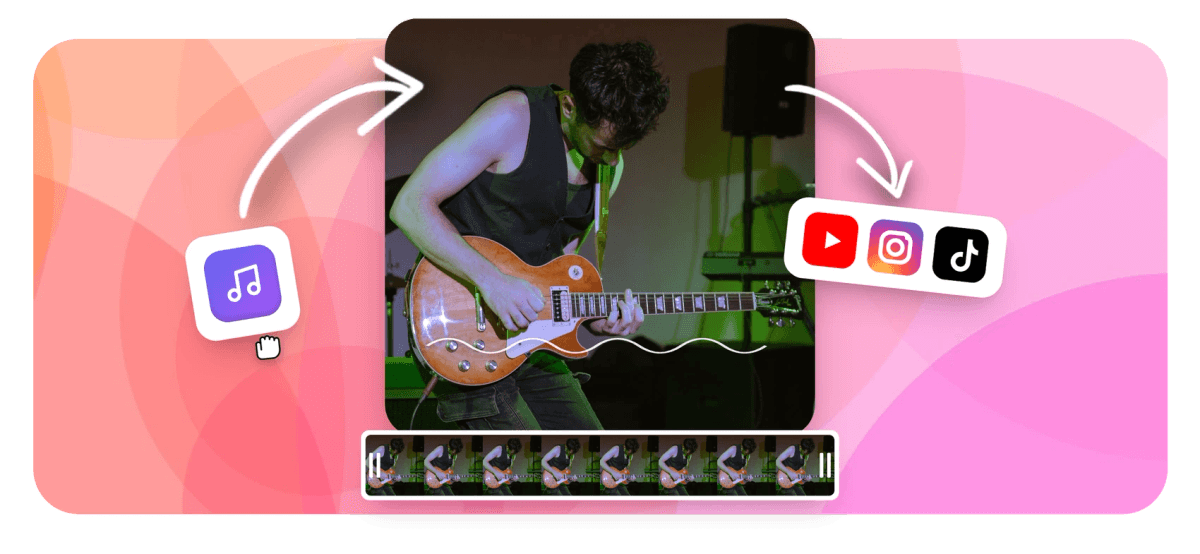
Drop a song or audio file onto your clip, trim it to length, set the volume so it sits right, and export an HD MP4: all in your browser. No downloads, no signup needed to start.


Add Music to Your Video, Free and Online Features


Add music to video projects in minutes with EchoWave's free online editor. Upload your clip, add a song to a video by dropping in an MP3, WAV or other audio file, trim it to length, set the volume so it sits right against any dialogue, and export an HD MP4 ready for YouTube, TikTok or Instagram. It runs in your browser, so there is nothing to install and no account needed to start, a fast way to add background music for video projects like vlogs, ads, slideshows and promos.
How to add music to a video
Get a track onto your video and exported in three steps, free and in your browser.
-
1. Upload Your Video
Open the editor and upload the video clip you want to add music to (MP4, MOV, WebM and more).

-
2. Add, Trim and Set the Volume of Your Track
Upload an MP3, WAV or other audio file onto the timeline, trim it to length, and set the volume so it sits right against the picture.

-
3. Export Your HD MP4
Pick your aspect ratio (9:16, 1:1 or 16:9), then render and download a finished HD MP4 ready to upload anywhere.
How creators use EchoWave in real projects
Timing and volume: make the drop land
However you plan to put music on a video, from a quick vlog to a full montage, getting it to feel intentional rather than just present comes down to three controls:
- Trim the track: cut your song down to the length of your clip, or to just the section you want, a chorus, a drop or an intro, rather than uploading the whole file and hoping it fits.
- Set the volume: bring music down under any dialogue or voiceover so words stay clear, then bring it back up during quiet or visual-only sections. A level of roughly 15-25% under clear speech is a safe starting point.
- Position it on the timeline: drag the track left or right so a beat, drop or chorus lands exactly on a cut, a reveal or a key moment, instead of drifting in wherever the upload happened to start.
If you also need voiceovers, narration or sound effects layered in alongside the music, EchoWave's broader add audio to video tool handles all three on the same timeline.
The right size for Instagram, TikTok and YouTube
Adding music to a video is usually one of the last steps before you post, so it helps to export in the shape each platform expects:
- Instagram and TikTok (9:16 vertical): fills a phone screen for Reels, Stories and TikTok, where a strong music hook in the first second or two helps hold attention.
- YouTube (16:9 widescreen): the standard shape for regular uploads, vlogs and longer videos with a full soundtrack.
- Square posts (1:1): a safe fit for Instagram feed posts and Facebook, where the frame needs to work without cropping on either side.
Build the edit once, then export it again at a different aspect ratio for each platform, so the same track covers every channel without re-cutting the video.
Where to get music you can use
For music, you bring your own audio file, EchoWave's built-in stock library covers sound effects rather than full songs. In practice that means one of a few sources:
- Your own recordings: music you wrote or performed yourself, or audio you recorded on the spot. There's no licensing question at all.
- Properly licensed tracks: a royalty-free library or stock-music subscription you've paid for, used within the terms of that license.
- Creative Commons and free-use tracks: some artists release music under a Creative Commons license. Check what it actually allows, attribution, no commercial use, and so on, before you post.
A simple rule of thumb covers most of the confusion: if you didn't create the track and don't hold a license for it, don't post it publicly. Popular commercial songs are protected, and platforms like YouTube, Instagram and TikTok run automated matching that can mute, block or demonetize an upload that uses one without permission, whether or not the video makes money. This is general guidance rather than legal advice, so check the actual license terms that apply to your track before you publish.
Add music to part of a video
You don't have to score the whole thing. To add music to only part of a video, drop the track onto the timeline, then trim its start and end points so it plays across just the section you want, an intro, a montage, or one specific scene, leaving the rest of the video with its original sound or in silence. Add a short fade-in and fade-out at each edge so the music starts and stops cleanly instead of cutting in or out abruptly. The same trim-and-position controls work whether you're placing a few seconds under a title card or a full verse under a longer sequence.
Add Music to Your Video Now

About the EchoWave team
EchoWave is a browser-based video and audio editor built by Lemon Vault LLC since 2018. The people who build the editor write these guides and test every step in the production app before publishing.
Frequently Asked Questions
How do I add music to a video for free?
Open the EchoWave editor, upload your video clip, then upload an audio file and drop it onto the timeline. Trim it to length, set the volume, and export an MP4. It's free to start and runs in your browser, with no account needed to begin.
How do I add music to a video without downloading an app?
EchoWave runs entirely in your browser, so there is no app or software to install on any device. Upload your clip and track, edit them together on the timeline, and export the finished video straight from the browser tab.
How do I add music to a video on my phone?
Open EchoWave in your phone's browser, upload the video and audio files from your device, then place the track on the timeline the same way you would on a desktop. Export works the same way on iPhone and Android, with no app required.
Is there a watermark on the exported video?
Videos exported from the full editor carry a small EchoWave watermark on the free plan, which you can remove anytime by upgrading. No credit card is required to start using the free plan.
What audio formats work for adding music to a video?
You can upload MP3, WAV, FLAC, M4A, AAC and OGG audio files. Lossless formats like WAV and FLAC keep the most detail, source files up to 192 kHz are supported, and MP3 or AAC work fine for quick social uploads.
Can I add music to only part of the video?
Yes. Drop your track onto the timeline, then trim its start and end so it only plays across the section you want, rather than the whole clip. Add a short fade-in and fade-out at each edge so it starts and stops cleanly.
Can I lower the music under a voiceover?
Yes. Each audio layer has its own volume control, so you can bring the music down under a voiceover or narration and bring it back up once the speaking stops. A level of roughly 15-25% under clear speech is a good starting point.
What are the copyright basics for adding music to a video?
Stick to music you're licensed to use: your own recordings, tracks you've properly licensed, or audio released under a Creative Commons license you've checked the terms of. Popular commercial songs are protected, and platforms can mute, block or demonetize an upload that uses one without permission. This is general guidance, not legal advice, so check the license terms that apply to your specific track.
Can I add more than one song or track to a video?
Yes. Each track is its own layer on the timeline, so you can place several songs back to back, or run a music bed alongside a voiceover and sound effects. Every layer keeps its own timing and volume.
What video formats can I upload?
EchoWave accepts common video formats including MP4, MOV, WebM, MKV, AVI and M4V. The finished export comes out as an HD MP4 with H.264 video, ready to upload to YouTube, TikTok, Instagram or anywhere else.
Ready to add music to your video? We have a free plan!
No credit card required, our free plan includes a small Echowave.io watermark.
Get Started →























































