Webinar to Clips: Demos, Takeaways and Q&A, Found for You
Upload the recording after the session ends. EchoWave surfaces the demo moments, takeaways and Q&A exchanges, keeps slides readable with a Presenter + slides layout, and captions every clip.


Webinar to Clips: Demos, Takeaways and Q&A, Found for You Features
EchoWave's clipping tools are used by B2B marketers, product teams and webinar hosts worldwide




Webinar repurposing
One recording, a month of content
Turning a webinar to clips used to mean scrubbing a 60-minute recording for the three moments worth posting. Upload the file after the session ends, pick the Webinar genre preset, and EchoWave reads the word-timed transcript alongside audio energy, speaker turns and scene cuts to surface demos, takeaways and Q&A moments. Because the engine is screen-share aware, slide-heavy sections get a Presenter + slides layout instead of a crop that loses the chart. Every clip opens as a full project you can polish in the text-based video editor, with captions from the same engine behind add subtitles. Need the full transcript for a recap post? Run video to text on the same file.
-
7 layouts
Smart camera framings including Presenter + slides, built for screen-share recordings
-
0-100
Viral Score per clip with Hook, Clarity, Emotion, Value and Trend sub-scores
-
~99 languages
Transcription auto-detects the language, clip titles come back in it too
-
30 min free
Analysis minutes included every month on the free plan, no card required
What you get
Built for recordings where the slides matter
Generic clip tools frame for talking heads and crop the screen share out. This one treats the slide as part of the story.
-
No Bot, No Calendar Access
Work from the uploaded recording, a direct media link, or a project already in your library. Nothing joins the live session, so there is no permission prompt or attendee privacy question to manage.
-
Presenter + Slides Layout
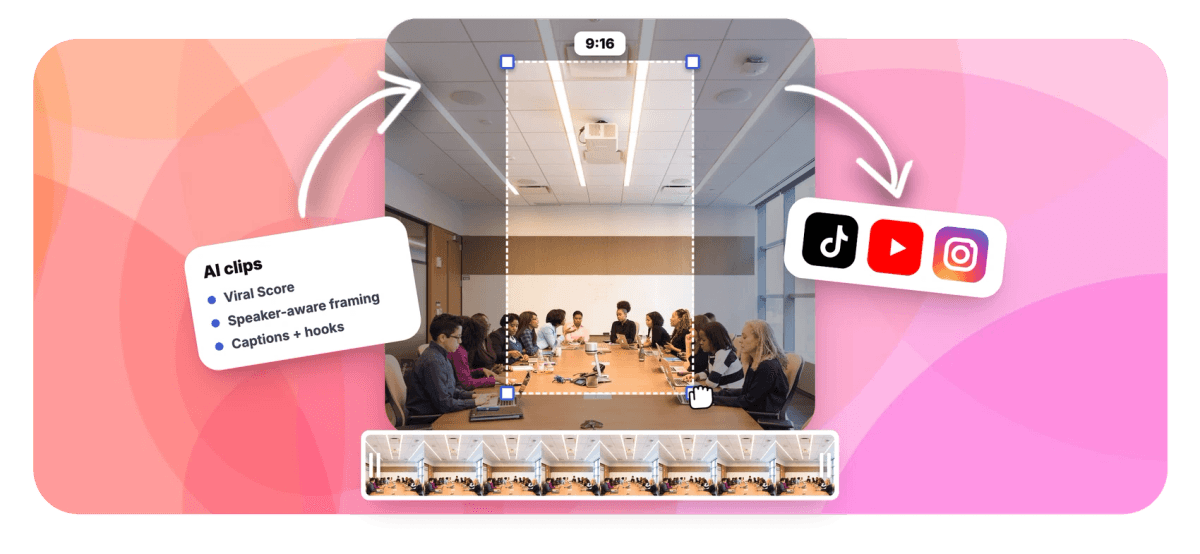
When the recording contains a screen share, the smart camera stacks the shared screen on top with the speaker framed below, so demo clicks and chart labels survive the move to a 9:16 vertical clip.
-
Webinar Genre Preset
Set genre to Webinar and highlight detection leans toward what these recordings actually contain: demo walkthroughs, clear takeaways, audience questions and the host's answers, not punchline hunting tuned for comedy or gaming VODs.
-
Viral Score on Every Clip
Each candidate gets a 0-100 score with Hook, Clarity, Emotion, Value and Trend sub-scores, plus plain-English reasons, so you can explain why the demo clip beat the intro in the content standup.
-
Prompt Search Over the Transcript
Type "find moments about pricing objections" or a feature name and the engine pulls every matching passage from the word-timed transcript, ready to turn into clips. Keyword boosts nudge the ranking too.
-
Scene-Cut Aware Camera
Slide changes register as scene cuts, and the camera never pans across one. Movement follows operator rules: dead zones, capped pan speed, smoothing, and every move is saved as ordinary keyframes you can edit shot by shot.
-
Captions Sized for Portrait
Word-timed captions in any of 60+ presets, from word-punch to karaoke to boxed, stay readable over a busy slide. Each clip also gets an AI title under 60 characters, a hook line and hashtags.
-
Ask for the Q&A Answer You Need
Ask Echo, EchoWave's AI editor, for "the answer about SSO from the Q&A" and that stretch becomes a clip. Follow up with "make #2 shorter" to trim it, or ask it to undo the last change.
How it works
How to turn a webinar into clips
From uploaded recording to a folder of captioned vertical clips in four steps.
-
Upload the Recording
Drag in the webinar recording, paste a direct media link, or pick a file from your library. Video and audio both work, and transcription auto-detects the language automatically.
-
Pick the Webinar Preset
Set genre to Webinar, choose a clip length from Short 15-30 s to Long 60-90 s or a custom range, pick an aspect ratio, and set how many clips you want, up to 30.
-
Review the Ranked Grid
Scan clips by Viral Score, read the reasons behind each one, then open any clip in the editor to trim, swap the layout, restyle captions or focus the camera on a chosen speaker.
-
Export in Bulk
Select the keepers and create projects and exports in one pass. Free exports carry a small watermark with a 720p cap, Creator renders 1080p, Pro goes up to 4K.
Who uses it
Teams that stopped letting recordings gather dust
-
B2B marketers
Turn one webinar recording into a week of LinkedIn posts: three takeaways, one demo clip, one sharp Q&A exchange.
-
Product teams
Pull the exact demo moment where a feature clicks and drop it onto a landing page or into an ad test.
-
Sales enablement
Answer a common objection with a 45-second clip of the host handling the same question live, instead of another PDF.
-
Webinar hosts
Send registrants who missed the session a set of highlight clips instead of a 60-minute replay nobody finishes.
-
Educators and trainers
Break a training webinar into short captioned lessons, each titled and ready for a course hub or newsletter.
-
Panel producers
Multi-speaker panels without slides switch to Grid or Follow speaker layouts, matching what the recording actually shows.
Your webinar already has the clips in it
Upload the recording, pick the Webinar preset, and get ranked, captioned clips in minutes. 30 analysis minutes free every month.
What people are saying about EchoWave

About the EchoWave team
EchoWave is a browser-based video and audio editor built by Lemon Vault LLC since 2018. The people who build the editor write these guides and test every step in the production app before publishing.
Webinar to clips FAQ
How do I turn a webinar into clips?
Upload the webinar recording to EchoWave after the session, or paste a direct media link. Set the genre preset to Webinar, choose a clip length and an aspect ratio, then run the analysis. The engine reads the word-timed transcript along with audio energy, speaker turns and scene cuts, and returns a ranked grid of clips, each with a Viral Score, title, hook line, hashtags and word-timed captions. Open any clip in the editor for final tweaks, then export the keepers in bulk. A 45-minute recording typically produces a full week of postable clips.
How do you make a webinar clip that still shows the slides?
Use the Presenter + slides layout. EchoWave's smart camera is screen-share aware: when the source recording contains slides or a demo, it places the shared screen on top of the vertical frame with the speaker framed below. Chart labels, code and demo clicks stay legible instead of being cropped out by a talking-head crop. Slide changes register as scene cuts, and the camera never pans across one, so transitions stay clean. Every camera move is stored as ordinary keyframes, so you can adjust any shot in the editor afterward.
How do you clip the Q&A section from a webinar?
Two ways. The Webinar genre preset already weights question-and-answer exchanges, using who-is-speaking turns to catch the back-and-forth between host and audience, so strong Q&A moments show up in the ranked grid on their own. For a specific topic, use the "Find moments about" prompt search: type the question subject and the engine pulls every matching passage from the transcript with timestamps. You can also drag a custom clip from any range on the source strip if you already know roughly where the exchange happened.
Can AI find the key takeaways in a webinar recording automatically?
Yes. EchoWave runs a language model over the word-timed transcript and combines it with what the audio and picture show: energy and reaction peaks, silences, speaker turns and scene cuts. Candidate moments are scored 0-100 with five sub-scores for Hook, Clarity, Emotion, Value and Trend, plus plain-English reasons such as "strong hook" or "back-and-forth". For webinars, the Value and Clarity sub-scores tend to surface the clean takeaway statements and demo explanations, which is exactly what performs in B2B feeds and nurture emails.
What size should webinar clips be for LinkedIn or Instagram?
Pick the aspect ratio per job in EchoWave: 9:16 for Instagram Reels, YouTube Shorts and TikTok, 4:5 or 1:1 for LinkedIn and Instagram feed posts, and 16:9 for embedding on a landing page or in an email. The Presenter + slides layout is designed for the vertical ratios, stacking the screen share above the speaker so nothing important gets cut. Captions are sized for portrait viewing, which matters since most feed viewers watch with sound off.
How many clips can you get from one webinar?
You choose: let EchoWave decide automatically or request a specific number from 1 to 30 per run. Length presets shape the output too, Short 15-30 seconds for feed teasers, Medium 30-60 for takeaways, Long 60-90 for a demo walkthrough, or set a custom range. In practice a 45 to 60 minute webinar with a demo and live Q&A yields more strong candidates than most teams can post in a week, and the Viral Score ranking makes the shortlist quick.
Is there a free tool to repurpose webinar recordings?
Yes. EchoWave's free plan includes 30 minutes of analysis each month, enough for a shorter webinar or the best segment of a longer one, selected with the time-range control. Free exports carry a small watermark and are capped at 720p. Paid plans raise the ceiling: Creator includes 180 analysis minutes a month with 1080p exports, Pro includes 600 minutes with 4K, and Ultra includes 3,000 minutes with workspace-scoped jobs the whole team can see.
Do webinar clip tools work from a recorded file or a live call?
EchoWave works only from a recording: an uploaded file, a direct media link, media in your library, or an existing project. No bot joins the live webinar, and there is no calendar or meeting-account connection to set up, which removes the permission friction attendees and IT teams object to. Record the session however you like, then bring the file over.
Webinar to clips in minutes
Upload the recording and get ranked, captioned clips with slides kept in frame.
Get Started →