
Increase Video Volume: Boost Quiet Audio up to 500%
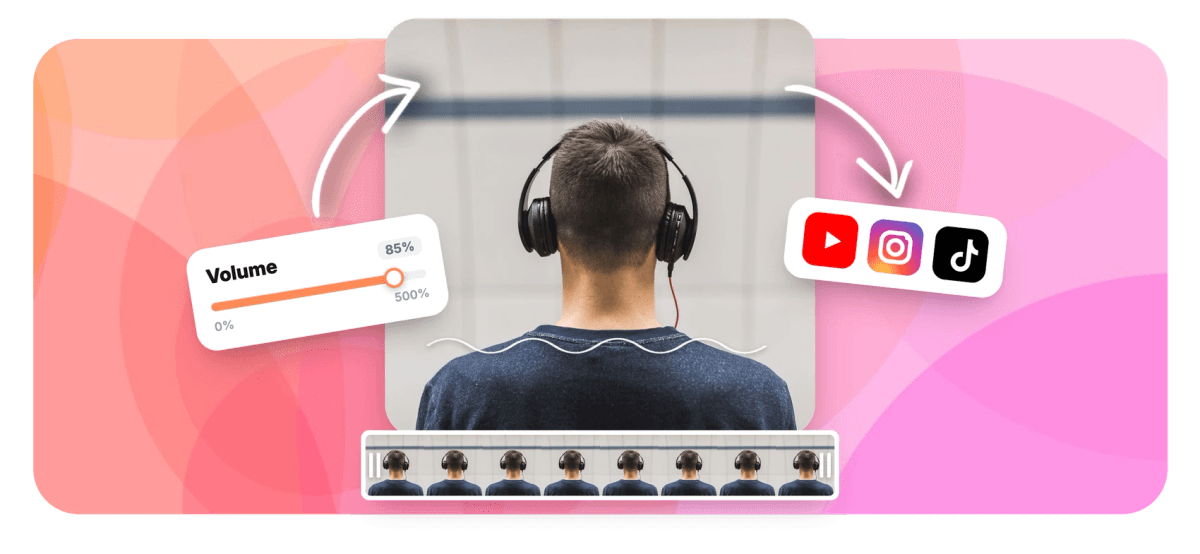
Make a quiet video loud again. Boost volume up to 500%, normalize loudness to a professional target or add clean fades, then export. Free, in your browser, no download.


Increase Video Volume: Boost Quiet Audio up to 500% Features
EchoWave's audio tools are used by creators, podcasters and social teams worldwide





Volume booster
Quiet audio is a solved problem
Phone recordings from the back of the room, screen captures with whisper-level narration, concert clips that peak too low: all of them just need gain, applied cleanly. EchoWave boosts a video's volume up to five times the original, or better, normalizes it to a loudness target so it sits at the same level as professional content. Preview before you render, add automatic fades, and export a file whose audio finally matches its picture. Need the opposite? Mute the video or extract the audio instead.
-
0 to 500%
Full gain range, from mute to a 5x boost
-
LUFS normalize
Target loudness from -30 to -6 LUFS, default -16
-
Auto fades
Fade in and out, up to 10 seconds each
-
Live preview
Audition the new level before you export
What you get
More than a louder slider
Gain, loudness normalization and fades, the three controls that fix almost every volume problem.
-
Boost up to 500%
Drag the slider or hit the quick-set buttons at 50, 100, 200 and 400 percent. Five-percent steps give you precision; the 5x ceiling rescues even badly under-recorded clips.
-
Loudness Normalization
Instead of guessing a percentage, normalize to a LUFS loudness target, the same measurement streaming platforms use. The default of -16 LUFS lands your video at a comfortable, consistent level; the range runs from -30 to -6.
-
Automatic Fade In and Out
Add up to ten seconds of fade at either end so boosted audio does not slam in at full level, a small touch that makes loud clips feel produced rather than amplified.
-
Preview Before You Render
Audition the clip at the chosen level in the browser. Boosts beyond 100 percent preview at maximum device volume with a note showing the extra gain the export will apply.
-
Mute at Zero
Set the slider to zero and the export ships silent, the quick way to strip audio when you plan to add new music on top.
-
Part of the Tool Suite
Chain the boosted clip straight into trim, compress or the full video editor without re-uploading.
How it works
How to increase the volume of a video
Four steps from too quiet to just right.
-
Upload Your Video
Drag and drop the clip into the volume tool. The player loads so you can hear the current level immediately.
-
Set the Volume
Boost up to 500 percent with the slider or quick buttons, or switch to normalize mode and pick a LUFS target for automatic leveling.
-
Preview
Play the clip at the new level, optionally adding fade in and fade out so the louder audio enters and exits smoothly.
-
Export and Download
EchoWave re-renders the audio at the new level and gives you a standard MP4 that is loud everywhere it plays.
Who uses it
Every quiet clip has a story
-
Phone Footage
Speeches, gigs and family moments recorded from too far away get boosted back to watchable levels.
-
Screen Recordings
Narrated demos recorded with a quiet mic ship at presentation volume instead of forcing viewers to max their speakers.
-
Social Reposts
Normalize clips to a consistent LUFS target so your feed does not whiplash between whisper and blast.
-
Podcast Clips
Match interview snippets recorded on different setups before publishing them as a series.
-
Old Archives
Rescue low-level digitized tapes and legacy exports without opening a full editing suite.
-
Silencing, Too
Zero the volume to strip bad audio entirely before replacing it with music or a voiceover.
Boost your video volume now
Up to 500 percent louder, or perfectly normalized. Free, in your browser.
What people are saying about EchoWave

About the EchoWave team
EchoWave is a browser-based video and audio editor built by Lemon Vault LLC since 2018. The people who build the editor write these guides and test every step in the production app before publishing.
Video volume booster FAQ
How do I increase the volume of a video?
Upload the video to EchoWave's volume tool, drag the slider above 100 percent, up to a maximum of 500, preview the result and export. The gain is applied to the video's audio track during rendering, so the downloaded file is genuinely louder everywhere it plays, not just in one player.
How much louder can I make a video?
Up to 500 percent, five times the original amplitude. Quick-set buttons at 50, 100, 200 and 400 percent cover the common cases, and the slider moves in five-percent steps for fine control. Very large boosts can expose noise or clip loud peaks in the source, so preview at your chosen level first.
What does loudness normalization do?
Instead of multiplying the volume blindly, normalization measures the clip's perceived loudness and adjusts it to a target measured in LUFS, the unit streaming platforms and broadcasters use. EchoWave defaults to -16 LUFS, a comfortable standard for online video, and lets you choose anywhere from -30 to -6. It is the right tool when clips from different sources need to sit at the same level.
Boost or normalize, which should I use?
Use a percentage boost when one clip is simply too quiet and you want it louder by feel. Use normalization when consistency matters: batches of clips, podcast excerpts, or anything that will play next to professionally leveled content. Normalization also protects you from over-boosting, since it targets a measured level rather than a multiplier.
Why does the preview not get louder past 100 percent?
Browsers cap media playback at the element's maximum volume, so boosts beyond 100 percent cannot be auditioned literally in the player. EchoWave previews those at full device volume and shows the extra gain that will be applied during export. The exported file carries the real boost.
Can I mute a video with this tool?
Yes. Setting the slider to zero exports the video with silent audio. If muting is all you need, the dedicated mute tool does the same job with one fewer decision.
Will boosting the volume distort my audio?
Boosting amplifies everything, including noise, and pushing already-loud audio far past 100 percent can clip its peaks. The preview exists precisely to catch that before rendering. For sources with wildly varying levels, normalization to a sensible LUFS target usually sounds better than a large flat boost.
Is the volume booster free?
Yes, the tool is free to use online with no download. Upload the video, set the level, preview and export.
Ready to turn it up?
Boost, normalize or mute any video's audio in your browser. Free to use.
Get Started →























































