
Image to Video Converter
Image to video converter that turns photos into a smooth video with music and motion. Drag in your pictures, set the timing and export. Free, no watermark.


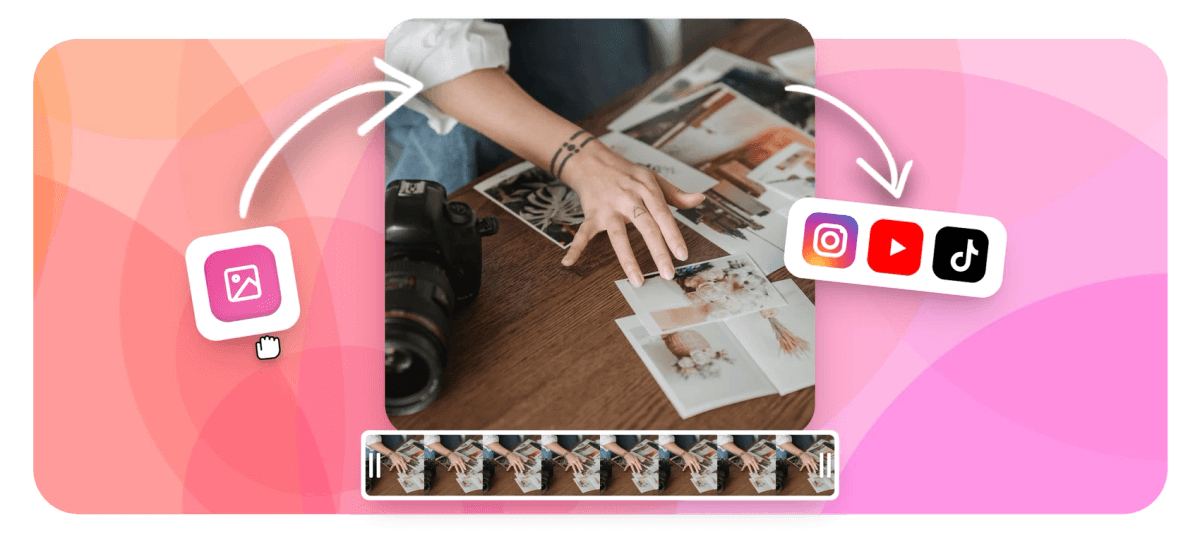
Image to Video Converter Features
EchoWave's image to video converter is used by content creators, educators, marketers, and social media teams around the world.





Photos in, video out
From still images to a finished video clip
This page covers converting images into video clips: either a single photo stretched to a clip with music, or a multi-photo slideshow. If you want to drop a photo on top of an existing video, see tools/add-photo-to-video. For a full slideshow builder with transitions, try tools/slideshow-maker. If you are pairing an image with an audio track specifically, tools/add-image-to-mp3 is the direct route.
-
JPG, PNG, WebP
image formats accepted
-
9:16, 1:1, 16:9
aspect ratio presets built in
-
MP4, WebM, GIF
export formats available
-
0
installs, plugins, or sign-ups needed to start
What you get
A full image-to-video workflow in the browser
EchoWave renders in the cloud, so even a long slideshow exports without taxing your device.
-
Upload one image or a whole set
Drag in a single JPG, PNG, or WebP to make a static image video clip, or upload multiple photos to build a slideshow sequence. Each image lands on the timeline as its own clip. Reorder by dragging. No limit on the number of images per project.
-
Add your own music or audio
Upload an MP3, WAV, M4A, or any common audio file and it appears as a dedicated audio track. Trim the music to match your image sequence or loop a shorter clip to fill the full duration. EchoWave does not include a built-in royalty-free music library, so bring your own track.
-
Pick the right aspect ratio before you export
Choose 9:16 for TikTok or Reels, 1:1 for Instagram feed posts, or 16:9 for YouTube and presentations. The canvas resizes automatically and your images scale to fill the frame. For custom dimensions, type in exact pixel values.
-
Control how long each image shows
Set the duration of each clip individually: two seconds, five seconds, whatever fits your pacing. Drag the clip edge on the timeline to adjust. Keyframe animation on position, scale, and opacity is available if you want a slow zoom or fade between images.
-
Add captions or text overlays
Drop a text layer on any image clip to label a photo, add a date, or caption a product shot. EchoWave includes 160+ caption presets if you want styled subtitles. For a lyric-video style, the AI auto-caption tool can transcribe spoken audio and sync text to the timeline automatically.
-
Export to MP4, WebM, or GIF
Free-plan exports render in HD with a small EchoWave badge. Paid plan removes the badge and adds 4K H.264. Output formats include MP4, WebM, MOV, and GIF. All rendering happens in the cloud, so a low-end laptop exports the same quality as a workstation.
-
Layer images, stickers, and overlays
Place a logo, sticker, or watermark on top of your image clips using EchoWave's overlay tools. Blend modes and opacity keyframes let you fade a brand mark in and out. Green screen removal is available if any of your images have a solid background you want to key out.
-
Crop and resize individual images
Each image clip can be cropped, flipped, or rotated independently. If one photo is portrait and the rest are landscape, adjust the crop per clip so everything sits cleanly in the frame without black bars on the sides.
How it works
How to convert images to video
Four steps from your photo folder to a finished video file.
-
Upload your images
Click the upload area or drag JPG, PNG, or WebP files into the editor. EchoWave places each image on the timeline in the order you upload them. Reorder by dragging clips left or right.
-
Set timing and motion
Drag the edge of each clip to set how long it displays. Add a slow zoom or cross-fade transition between images if you want movement. Set the total project duration by adjusting the last clip or the timeline end marker.
-
Add music or voiceover
Drop an audio file onto the audio track lane. Trim the waveform so it starts and ends with the video. If you want a spoken voiceover instead of music, use EchoWave's built-in text-to-speech tool with 63 natural voices.
-
Export your video
Choose your format (MP4 is the most compatible) and resolution. Hit Export and the cloud render farm processes the file. Download the finished video in seconds. Free users get HD with a small badge; paid users get 4K and no badge.
Sized to post
The right shape for every platform
-
9:16 Vertical
- TikTok
- Reels
- Shorts
-
1:1 Square
- Threads
-
16:9 Landscape
- YouTube
- Presentations
Who uses it
What people make with this tool
-
Product photo ads
Sequence three or four product shots, add upbeat music, and export a 9:16 clip ready for a paid social ad. No video crew needed.
-
Single-image lyric or music video
Pair one album cover or artist photo with an audio track to make a YouTube upload or a visual backing for a podcast clip.
-
Event recap slideshow
Stack photos from a wedding, birthday, or conference, set each slide to three seconds, and add a song to create a shareable recap video.
-
Localized social content
Use EchoWave's subtitle translation to add captions in a second language over your image video, then export separate cuts for different markets.
-
Mood board or brand video
Assemble brand photography into a short looping clip with a logo overlay. Export as MP4 for website hero videos or as GIF for email headers.
-
Before-and-after comparison clip
Place a before photo and an after photo side by side in time, add a brief transition, and narrate with a text-to-speech voiceover. Works well for fitness, design, and home renovation content.
Ready to turn your photos into a video?
Open EchoWave, drop in your images, add a music track, and export a finished MP4 in minutes. Free to use in any browser with no install.
What people say after converting with EchoWave

About the EchoWave team
EchoWave is a browser-based video and audio editor built by Lemon Vault LLC since 2018. The people who build the editor write these guides and test every step in the production app before publishing.
Image to Video Converter FAQ
How do I convert an image to video online for free?
Open EchoWave in your browser, upload one or more JPG, PNG, or WebP files, set the duration per image, optionally add an audio track, and hit Export. The free plan produces an HD MP4 with a small EchoWave badge. No account or install is needed to start.
Can I add music to my image to video project?
Yes. Upload any common audio file (MP3, WAV, M4A) to the audio track lane. Trim the clip to match the length of your images or loop it to fill the duration. EchoWave does not include a built-in music library, so you need to supply your own track or use a royalty-free source.
What image formats does EchoWave accept?
JPG, PNG, and WebP are all accepted. Upload a single image for a static clip or multiple images to build a slideshow sequence. There is no hard limit on the number of images per project.
What video formats can I export?
EchoWave can export MP4 (H.264), WebM, MOV, and GIF. MP4 is the most compatible choice for sharing to social platforms or embedding on a website. GIF works well for short looping clips and email headers.
What is the difference between this and the add-photo-to-video tool?
This page is for creating a video from images: photos are the primary input and the output is a new video clip. The add-photo-to-video tool is for placing a photo on top of an existing video file as an overlay or watermark. Different intent, different workflow.
Can I make a slideshow video with transitions between photos?
Yes. Place your images on the timeline, set the duration of each clip, then add a cross-fade or other transition at the cut point between them. For a more fully featured slideshow builder with preset themes, see tools/slideshow-maker.
How long can the output video be?
There is no fixed maximum length. The duration is determined by the total time of your image clips plus any audio. Longer projects take more time to render on the cloud farm but your device hardware is not the constraint.
Does the free plan add a watermark?
Free exports include a small EchoWave badge in the corner of the video. It is not burned into your images; it sits as a separate overlay. Upgrading to the paid plan removes the badge and adds 4K H.264 output.
Can I add text or captions to my image video?
Yes. Drop a text layer on any image clip to add titles, dates, or labels. EchoWave also includes 160+ caption presets. If your audio track has spoken content, the AI auto-caption tool can transcribe it and sync subtitles to the timeline automatically.
Images ready your video is one click away
EchoWave is free to use in any browser. Free exports include a small badge; paid plan removes it and adds 4K.
Get Started →























































