Free Online Video Cutter, Cut Out Any Section Instantly
Video cutter that trims clips to the perfect length in seconds. Cut the start, end or any section on a simple timeline, then export. Free, in your browser.


Free Online Video Cutter, Cut Out Any Section Instantly Features
EchoWave's video cutter is used by creators, educators, marketers, and agencies around the world





Cut video in your browser
Remove any section from your video, including the middle
Most simple trimmers only let you cut the start or end of a clip. EchoWave's video cutter gives you a full multi-track timeline where you can split, isolate, and delete any section from the middle of your video. Cut out a blooper, remove dead air from a Zoom recording, or carve a 30-second highlight from a longer file. Then add AI auto-captions or background music without leaving the editor.
-
50+ formats
Accepts MP4, MOV, AVI, MKV, WebM, and 50+ other video formats for upload
-
Up to 4K
Export at up to 4K H.264 resolution with no quality degradation via server-side ffmpeg
-
160+ caption presets
AI auto-captions with word-level animation presets, add subtitles right after cutting
-
Free to start
Cut, split, and preview at no cost. Paid plans remove the watermark and enable 4K export
The toolkit
A full editor built around precise cutting
Every tool you need to cut, clean up, and finish your video in one place.
-
Split and Delete Any Section
Place cut points anywhere on the timeline to isolate and remove a section, including the middle. Cut out bloopers, dead air, or unwanted segments from anywhere in your video. Need to trim edges instead? See the video trimmer.
-
Magnetic Multi-Track Timeline
A full drag-and-drop timeline lets you manage multiple clips, reorder segments after cutting, and snap edits to frame boundaries so your cuts are always clean.
-
No Quality Loss on Export
Export up to 4K H.264 MP4. EchoWave renders on a dedicated server-side ffmpeg farm, so your cut video is not degraded by browser-based re-encoding shortcuts. Need a smaller file? Compress your video in the same editor.
-
Add Captions After Cutting
Once you have cut your video, add AI-generated subtitles in one click. Over 160 caption presets include TikTok and MrBeast-style karaoke word-level animations. Open the auto subtitle generator right from the timeline.
-
Crop and Resize for Any Platform
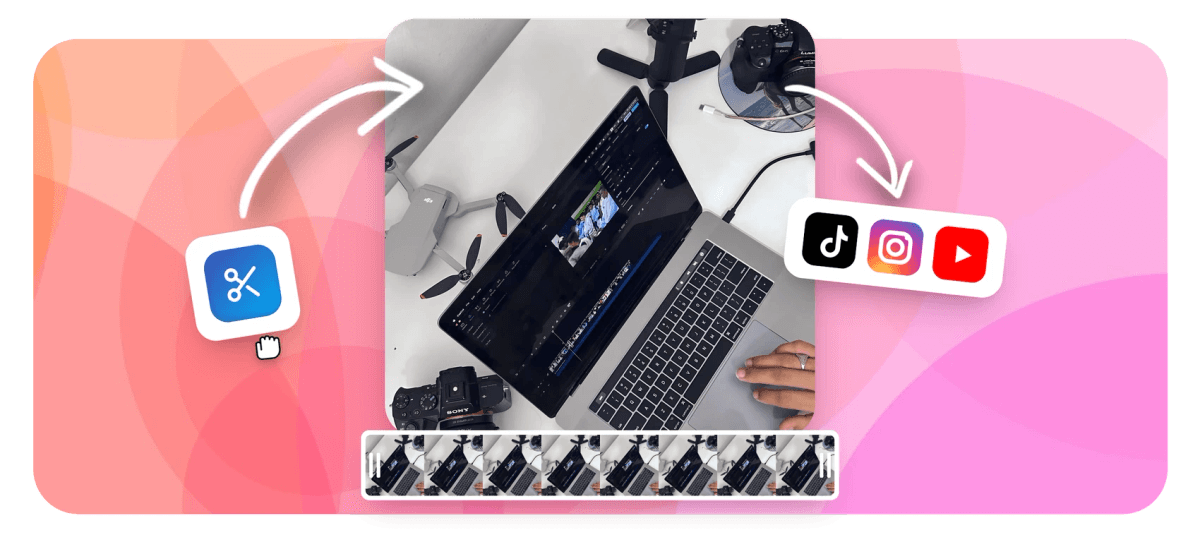
After cutting, resize your video for TikTok (9:16), YouTube (16:9), Instagram (1:1), or any custom ratio. No extra steps, resizing lives right next to your cut tools. Or go deeper with the crop video tool.
-
Add Music, Voice, or Sound
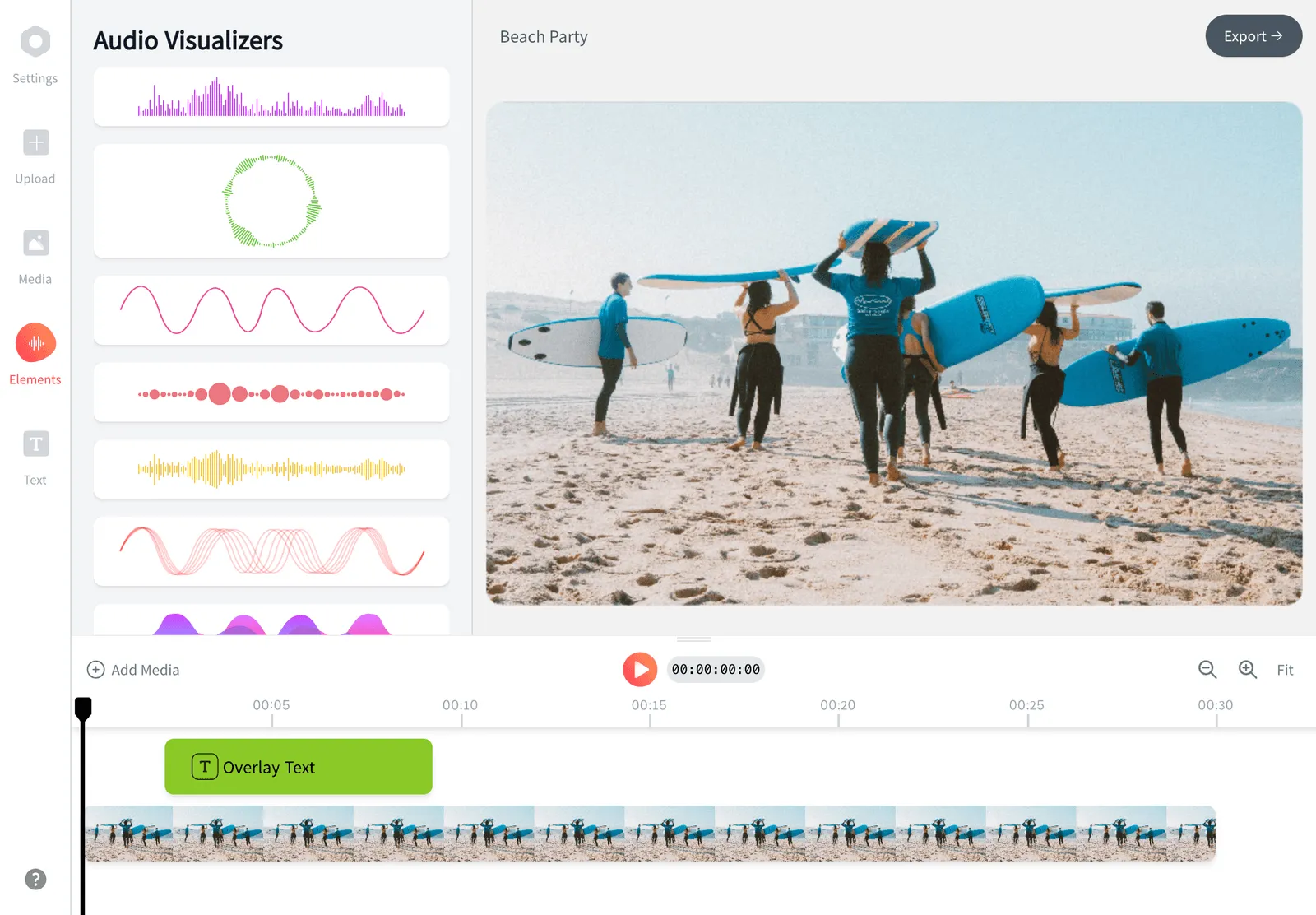
Layer background music, a voiceover, or a waveform visualizer over your cut footage. EchoWave's audio-first engine keeps audio perfectly in sync after every edit. Add audio to your video without leaving the session.
-
Add Text and Watermarks
Drop titles, lower-thirds, logos, or emoji stickers onto your cut clip. Keyframe animations let you animate text on or off screen at any point in the timeline. Add text to video with full font and color control.
-
Works on Any Device, No Install
EchoWave runs entirely in your browser on Mac, Windows, Chromebook, or mobile. No app download, no account required to start cutting.
How it works
How to cut a video online
Four steps from raw footage to a clean, finished cut.
-
Upload Your Video
Click Upload or drag your video file onto the editor. MP4, MOV, AVI, MKV, WebM, and dozens of other formats are accepted. Your file is processed securely and deleted from our servers after your session.
-
Mark Your Cut Points and Remove Sections
Drag the playhead to where you want to cut, then click Split. Repeat to isolate the unwanted segment, select it on the timeline, and press Delete. The remaining clips snap together automatically. Trim the start or end of any clip by dragging its edges.
-
Preview and Refine
Hit Play to preview the full cut video in real time. Drag clip edges to fine-tune timing, adjust audio levels, or add a title card or captions if needed.
-
Export and Download
Click Export to render your cut video on EchoWave's server-side ffmpeg engine. Download your finished MP4 (up to 4K) in seconds. Free plan exports include a small watermark; paid plans remove it and enable full 4K resolution.
Use cases
What people cut with EchoWave
-
Remove a Blooper or Dead Air
Split at the start and end of a mistake, delete the isolated segment, and your video plays through without a gap. Useful for Zoom recordings, webinars, and talking-head videos.
-
Cut a Highlight Clip for Social
Extract the best 30 to 60 seconds from a longer stream, podcast, or event recording. Resize to 9:16 for TikTok or Reels in the same session.
-
Shorten a YouTube or Lecture Video
Professors, educators, and YouTubers can cut long pauses, repeated takes, or off-topic tangents to produce a tighter, more watchable final cut.
-
Prepare a Video Reel or Montage
Cut several source clips down to key moments, arrange them on the timeline, add music, and export a finished reel without leaving the browser.
-
Cut and Caption for Accessibility
Content creators and businesses can cut their video and immediately add AI auto-captions, making content accessible and readable on muted feeds.
-
Process Client or UGC Footage
Marketers and agencies can cut raw client footage to spec, apply a logo watermark, and export without a desktop software license.
Cut your video now
Start free. Upload your video and make your first cut in seconds.
What creators say after trying EchoWave

About the EchoWave team
EchoWave is a browser-based video and audio editor built by Lemon Vault LLC since 2018. The people who build the editor write these guides and test every step in the production app before publishing.
Video cutter FAQ
What is the difference between a video cutter and a video trimmer?
A video trimmer adjusts the start or end of a clip, shortening it from either side. A video cutter lets you remove sections from anywhere in the video, including the middle. EchoWave does both: drag the edges of any clip to trim it, or use the Split tool to cut out an unwanted segment from within.
How do I cut out the middle of a video online?
In EchoWave, move the playhead to where the unwanted section begins and click Split. Move the playhead to where it ends and click Split again. Select the isolated segment on the timeline and press Delete. The clips on either side snap together, and you can preview the result instantly before exporting.
Does EchoWave add a watermark when I cut a video?
The free plan adds a small EchoWave watermark to exports. Upgrading to a paid plan removes the watermark entirely and also enables 4K resolution exports and additional features.
What video formats can I upload to the video cutter?
EchoWave accepts MP4, MOV, AVI, MKV, WebM, and over 50 other video formats. You do not need to convert your file before uploading.
Will cutting my video reduce its quality?
No. EchoWave renders your cut video on a server-side ffmpeg processing farm rather than doing lossy browser-based re-encoding. The output quality matches your source file, and you can export up to 4K H.264 on paid plans.
Is EchoWave's video cutter safe, and what happens to my uploaded file?
Your files are transferred over HTTPS and processed on secure servers operated by Lemon Vault LLC. Files are deleted from our servers after your session. We do not share your content with third parties.
Do I need to download or install anything to cut a video online?
No. EchoWave runs entirely in your browser on Mac, Windows, Chromebook, and most modern mobile browsers. No app or plugin installation is required.
Can I cut a video and add captions in the same session?
Yes. After cutting your video on the timeline, you can trigger AI auto-captioning in one click. EchoWave transcribes the audio and places subtitle cues on the timeline with over 160 style presets including animated karaoke-style captions.
How is the video cutter different from the video trimmer tool?
EchoWave's video trimmer is optimized for quickly clipping the start and end of a single clip, great for shortening a raw recording. The video cutter (this page) is built around the full multi-track timeline where you can split, rearrange, and delete multiple sections. Use the trimmer for a fast single-clip job; use the cutter when you need to remove sections from within a longer video or work across multiple clips.
Ready to cut your video online?
No credit card required. The free plan includes a small EchoWave watermark.
Get Started →