
Record a Presentation: Slides, Camera and Script in One Take
Share your slides and float your webcam in a corner bubble while a teleprompter scrolls your script, all in the browser. The take lands in an editor as separate layers to caption and export.


Record a Presentation: Slides, Camera and Script in One Take Features
EchoWave's recorder is used by presenters, lecturers and founders worldwide





Slides and camera
Slides explain. You persuade. Record both in one take.
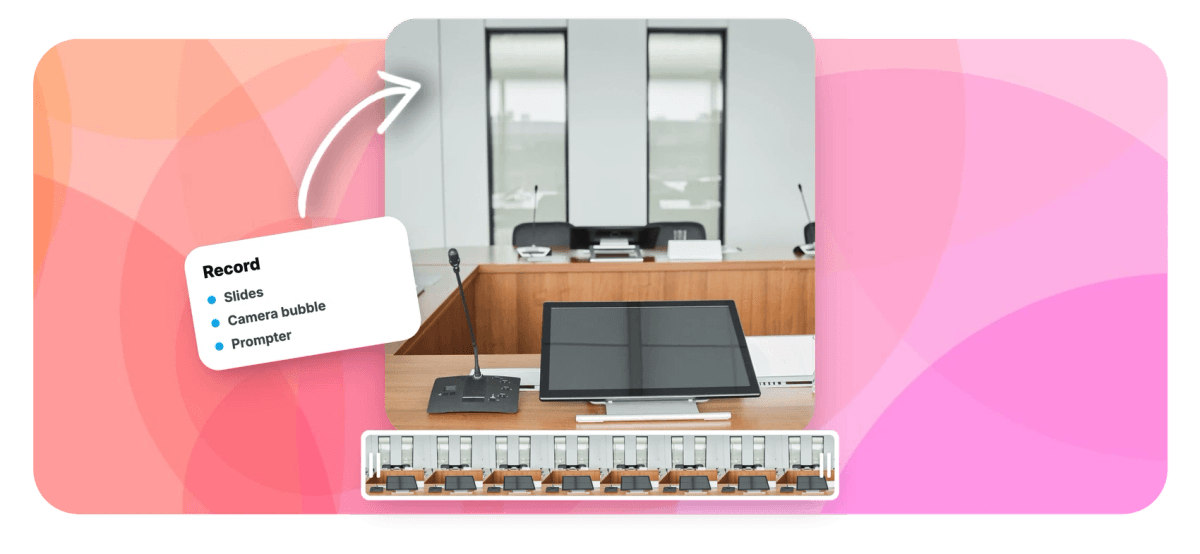
EchoWave's presentation recorder captures your slides and your webcam together in the same take, right in the browser. Pick the screen-plus-camera mode, share the window or tab holding your deck, and your camera floats in a corner bubble while a teleprompter scrolls your script near the lens. Turn on system audio to catch sound from embedded slide videos. Takes run up to 60 minutes with pause and resume, then open in a full video editor as separate layers, so you can resize the camera, cut the slide you fumbled, add captions and export an MP4. No install, and no signup to record and download.
-
60 minutes
Maximum per take; pauses are free and uncounted
-
Up to 1080p
Camera bubble records at 480p, 720p or 1080p
-
Separate layers
Slides and camera arrive as individual editable clips
-
No install
Browser screen-share and camera APIs, nothing to download
What you get
The whole talk, from first slide to final export
Capture, script and cleanup, without gluing three apps together.
-
Share the Deck, Any Way
Share the exact window or browser tab your slides run in, so Google Slides, PowerPoint, Keynote or a PDF all record the same way. The recorder captures whatever is on that surface.
-
Camera in a Corner Bubble
Float your webcam over the slides in any corner, go large, or sit side-by-side. Switch camera and mic with live device pickers, and mirror the preview while you frame the shot.
-
Teleprompter for Your Script
Paste your talking points and a floating prompter scrolls them near the lens, font size 18 to 72px. It is not captured into the recording, so only you see it while you present.
-
System Audio for Slide Media
Toggle system audio to record the sound from a video embedded in your slides alongside your narration. Browsers capture tab audio most reliably, so run the deck in a browser tab for embedded clips.
-
Slides and Camera as Layers
The take imports as separate clips, not one baked file. Resize or reposition the camera, cut a slide you flubbed, or hide the bubble for a full-screen chart, all after recording.
-
60-Minute Takes, Pause and Resume
Record up to an hour per take with a 3, 5 or 10 second countdown. Pause to gather your thoughts and resume without eating the clock. Chunks save locally, so a crashed tab does not lose the take.
-
Caption the Talk Automatically
In the editor, auto-captions transcribe your narration with word-level timing in 50+ languages. Burn them in for silent autoplay feeds, or keep them as an on-off track.
-
Cut the Ums and Long Pauses
The filler-word and silence cleanup reads your transcript and offers to delete every um, uh and dead gap, so a rambling take tightens into a crisp presentation.
How it works
How to record a presentation
From open deck to captioned video in four steps.
-
Open the Recorder and Share Your Slides
Go to the recorder, choose screen-plus-camera mode, and share the window or tab your slides are in. Turn on system audio if a slide plays video.
-
Add a Camera Bubble and Load Your Script
Position your webcam bubble in a corner, pick your camera and mic, and paste your script into the teleprompter at a comfortable size and speed.
-
Record With Pause and Resume
Count in, present your deck, and pause between sections whenever you need. Record up to 60 minutes; pauses do not count against the limit.
-
Caption and Export
Open the take in the editor, where slides and camera are separate layers. Trim mistakes, add captions, then export an MP4 to share.
Who uses it
Made for every kind of narrated deck
-
Conference Speakers
Rehearse the talk with your slides and your delivery on camera, watch it back, and tighten the pacing before the real thing.
-
Async Proposals and Pitches
Send a recorded walkthrough of the deck instead of scheduling another call, with your face in the corner to keep it personal.
-
Flipped-Classroom Teachers
Record the lecture over your slides for students to watch at home, then caption it so everyone can follow along.
-
Online Course Creators
Turn a slide deck into a narrated lesson module, resize the camera per scene, and export ready for your platform.
-
Sales and Onboarding
Record a product walkthrough deck once and reuse it for every prospect or new hire, captions included for muted viewing.
-
Analysts and Researchers
Narrate a findings deck for stakeholders across time zones, with system audio for any embedded data clips.
Record your presentation now
Slides, camera and script in one take, with an editor waiting to caption and cut.
How creators use EchoWave in real projects

About the EchoWave team
EchoWave is a browser-based video and audio editor built by Lemon Vault LLC since 2018. The people who build the editor write these guides and test every step in the production app before publishing.
Presentation recorder FAQ
How do I record a presentation with my face on it?
Open EchoWave's recorder, choose the screen-plus-camera mode, and share the window or browser tab holding your slides. Your webcam appears in a bubble you can drop into any corner, so your slides and your face record together in one take. Advance your deck as you normally would while you talk. When you stop, the recording opens in the editor with the slides and camera as separate layers, ready to caption, trim and export. Nothing installs, and you can record and download without an account.
How do I share my slides, a window or a tab?
When you start a screen-plus-camera recording, the browser asks what to share: your entire screen, a single application window, or one browser tab. Pick the window your slide app runs in, or the tab if your deck lives in Google Slides or a PDF viewer. The recorder captures whatever appears on that surface, so any slide tool works. Sharing a specific window keeps notifications and other apps out of the frame, which is the cleanest option for a polished presentation.
Can I read my notes or script while presenting?
Yes. The built-in teleprompter floats near your camera lens and auto-scrolls your script while you record, with speed and font size adjustable from 18 to 72 pixels. Because it sits close to the lens, you keep eye contact instead of glancing down at notes. The prompter is an overlay for your eyes only: it is not captured into the recording, so viewers see a confident, scripted delivery and never the words you are reading. It works alongside the slide share in presentation mode.
Can it record the audio from my slides?
Yes, through the system-audio option. Alongside your microphone narration, toggle system audio to capture sound playing on the shared surface, such as a video embedded in a slide. Browsers capture this most reliably when you share a browser tab, so if your deck plays clips, running it in a tab is the safest route. Your voice and the slide audio both land in the take, and in the editor they arrive on the audio track where you can balance the levels.
Is there a time limit on a presentation recording?
Each take can run up to 60 minutes, which covers most talks, lectures and demos in a single recording. Time spent paused does not count toward that hour, so you can stop between sections, gather your thoughts, and resume without burning the clock. For a session longer than an hour, record it as two takes; the editor drops both onto one timeline so they play back as one. Recording, pausing and resuming are all free with no account.
How do I edit out mistakes after recording?
The take imports into the editor as separate layers: the slide capture on one, your camera on another. Because they are not flattened together, you can split the timeline where you fumbled a slide and delete that stretch, and the captions stay glued to the words that remain. You can also resize or reposition the camera bubble, hide it for a full-screen chart, or swap in a re-recorded section. Nothing about the layout is locked in at capture time.
Can I add captions to the recording?
Yes. In the editor, auto-transcription turns your narration into word-level captions in 50-plus languages, with 170-plus styling presets and animated options. Burn them in so the presentation plays with captions on muted autoplay feeds, or keep them as a toggleable track. You can also translate the captions into another language for a wider audience, and export a plain SRT file if a platform wants subtitles uploaded separately.
Is the presentation recorder free, and do I need to install anything?
The recorder runs entirely in your browser on its built-in screen-share and camera APIs, so there is nothing to download or install and no extension to add. Recording and downloading your take are free and work without an account. Editing is free too: free exports are capped at 720p with a small watermark, while paid plans remove the watermark and export up to 4K. You can record, caption and download a finished presentation without ever paying.
Ready to record the whole talk?
Slides, camera and teleprompter in the browser, with the editor one click away.
Get Started →























































