
Picture in Picture Video Editor: Put One Clip Inside Another
Stack a second video over your main clip, shrink it, snap it into a corner and round its edges. Keyframe it to move when the action starts. Free, in your browser.


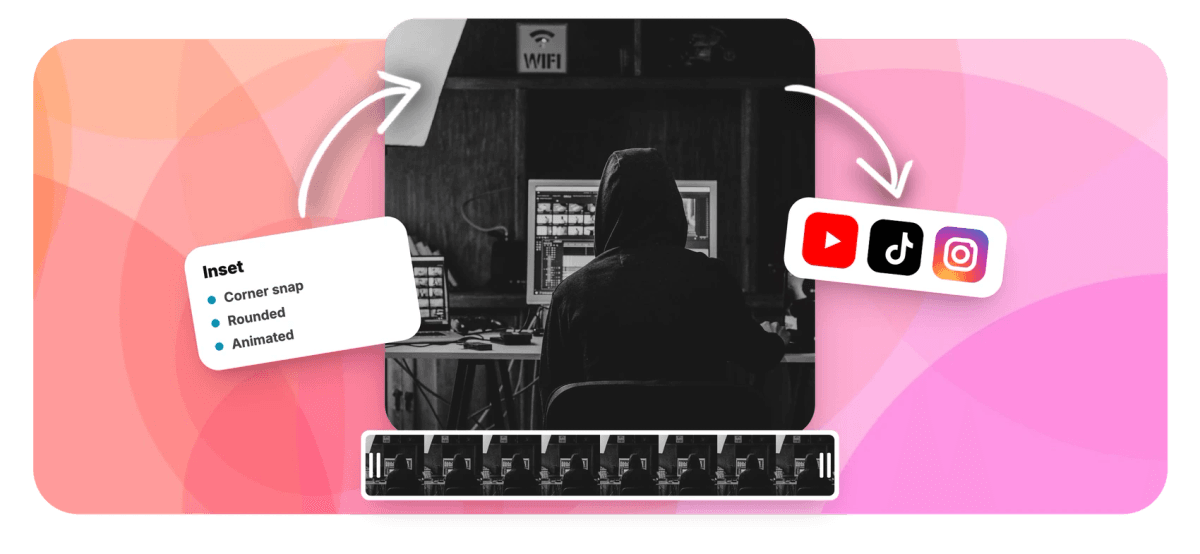
Picture in Picture Video Editor: Put One Clip Inside Another Features
EchoWave's layering tools are used by streamers, course creators and reaction channels worldwide





Video inside video
Real control over the clip on top
A picture in picture video, PiP for short, puts a second, smaller clip inside your main footage: a facecam over gameplay, a demo over a talking head, an interpreter in the corner of a briefing. EchoWave's video editor treats that inset as a full timeline layer, so you control its position, scale, width and height directly instead of picking from a fixed template. Smart snap guides pull it flush to canvas edges, an align toolbar places it with two clicks, and a rounded-corners control softens the box. When the moment changes, keyframes move or shrink the inset mid-clip. It is the deep end of video overlay editing, and it pairs naturally with the built-in screen recorder.
-
6
align actions: left, center, right, top, middle, bottom
-
~30
easing curves for keyframed inset moves and resizes
-
3
snap targets: canvas edges, canvas center, other objects
-
Alt
hold to bypass snapping and place the inset freehand
What you get
Place it, style it, move it
Six controls for the video inside the video.
-
True Video Layers
Stack as many video tracks as the edit needs. The clip on the upper layer renders in front, so your inset is a real clip you can trim, split and swap at any time. The same stack holds images and logos too.
-
Full Position and Scale Control
Drag the inset anywhere in the frame, scale it from the corner handles, or set width and height directly. Nothing is locked to a template: a quarter-frame facecam and a half-frame demo are both a few seconds apart.
-
Smart Snap Guides
Drag near an edge and guides light up: the inset pulls flush to canvas edges, the canvas center and other objects in the scene. Snapping is toggleable, and holding Alt bypasses it for a moment of freehand placement.
-
Two-Click Alignment
Skip the pixel nudging. Align left, center or right, then top, middle or bottom, straight from the toolbar. Two clicks corner the inset identically on every video, which is what makes a series look consistent.
-
Rounded Corners and Opacity
A rounded-corners control turns the hard rectangle into a softer card, and pushing it further rounds a square inset into a circle. An opacity control lets the main footage read through when the inset should sit back.
-
Keyframed Moves and Resizes
Keyframe the inset's position and size so it travels or shrinks mid-clip: keep the facecam big for the intro, then tuck it into the corner when gameplay starts. Around 30 easing curves shape how the move lands.
How it works
How to make a picture in picture video
Four steps from two clips to one frame.
-
Add the Main Video
Drag your primary footage into the editor. It becomes the base layer, and the canvas sizes itself to match, with 16:9, 9:16, 1:1 and other presets available.
-
Stack the Second Clip
Add the inset video and place it on the layer above the main clip. Layers higher in the timeline render in front, so it now sits inside your footage.
-
Resize and Snap It Into a Corner
Scale the inset down and drag it toward a corner: snap guides seat it flush against the canvas edges, or two align clicks place it exactly. Round the corners if you like.
-
Export
Preview the composite, then render. Free exports are 720p with a small watermark; paid plans remove it and unlock 1080p, 4K and beyond.
Who uses it
Who puts one video inside another
-
Gameplay Facecams
Corner a webcam over the run, then keyframe it smaller the moment the boss fight needs every pixel of the screen.
-
Software Tutorials
Keep your face in the frame while the app demo plays full screen, so the explanation stays human and watchable.
-
Reaction Channels
Sit inside the clip you are reacting to, sized and placed so the source stays readable behind you.
-
Sign Language Insets
Give an interpreter a clean, rounded box that lands on the same mark in every episode, thanks to the align toolbar.
-
Product Walkthroughs
Float a close-up over the wide shot at the exact second you mention the stitching, the port or the button.
-
Commentary and Analysis
Break down a play with the analyst boxed in the corner and the footage running untouched behind them.
Build your picture in picture
Stack the clips, snap the inset, round the corners. Free to start in your browser.
What people are saying about EchoWave

About the EchoWave team
EchoWave is a browser-based video and audio editor built by Lemon Vault LLC since 2018. The people who build the editor write these guides and test every step in the production app before publishing.
Picture in picture FAQ
How do I make a picture in picture video?
Add the main video to the timeline, then add the second clip and place it on the layer above so it renders in front. Scale the inset down with its corner handles and drag it toward a corner: smart snap guides pull it flush against the canvas edges, or two clicks on the align toolbar (right, then bottom, for example) put it there without any dragging. Add a corner radius if you want a softer card, check the preview, and export. That is the whole workflow for putting a video inside another video.
Can the inset move or resize partway through the video?
Yes. Select the inset, set a keyframe on its position or size, move the playhead to where the change should finish and adjust the clip: the editor animates between the two states. The classic move is a facecam that plays big through the intro, then shrinks into the corner the moment gameplay starts. Around 30 easing curves shape the motion, from sharp and snappy to slow and smooth, and keyframes survive later trims and speed changes, so you can keep editing after the animation is set.
How do I make the inset rounded or circular?
Use the rounded-corners control on the inset clip. A small radius softens the rectangle into a card, and pushing the radius all the way up on a square inset rounds it into a circle, which is how you get the circular facecam bubble. There is no separate circle mask to manage: it is one corner-radius setting, so everything between a sharp rectangle and a full circle is the same control at different values.
How do I add a facecam to gameplay or a screen recording?
Put the screen footage on the base layer, stack the camera clip above it, shrink it, and snap it into whichever corner covers the least. If you have not captured anything yet, EchoWave's screen recorder records your screen and camera in one take and imports them as separate layers, so the facecam arrives already stacked over the screen and ready to resize. Keyframes can then tuck it away whenever the on-screen action needs the full frame.
What if I want the two videos side by side instead?
Then you want equal billing rather than an inset: keep both clips on their own layers and give each one half the frame, or start from the split screen tool, which is built for side-by-side and stacked layouts. Picture in picture is the better shape when one video should dominate and the other comments on it, which is the grammar of every facecam clip and reaction video.
Does the inset video keep its own audio?
Yes, both clips play their audio together by default, which is exactly what you want for commentary over gameplay. If the two soundtracks fight, mute either clip or lower its volume: each layer has its own audio controls, so you can keep the facecam's voice and silence the background clip, or the reverse. The mix you hear in the preview is the mix that exports.
How many video layers can I stack?
There is no fixed cap: video layers stack the same way at two clips or at six, and every one gets the same position, scale, snap, opacity and corner controls. That covers a facecam plus a second inset, or a full multi-box layout with several sources at once. In practice the ceiling is how smoothly your device previews several videos playing simultaneously, not a limit in the editor itself.
Is the picture in picture editor free?
Yes. You edit free in the browser with nothing to install, and free exports render at 720p with a small EchoWave watermark. Paid plans remove the watermark and raise the export ceiling to 1080p, then 4K and beyond on the top tier. If you only need a quick corner facecam for a draft or an internal cut, the free export is usually enough.
Two videos, one frame
Corner the facecam, round its edges, keyframe the move. Free to start.
Get Started →























































