
Blur Faces in Video Automatically: AI Face Blur, Pixelate and Blackout
Anonymize any video in one pass. On-device AI finds every face, tracks it as it moves and hides it with blur, pixelation or a censor bar. Free to try, no download.


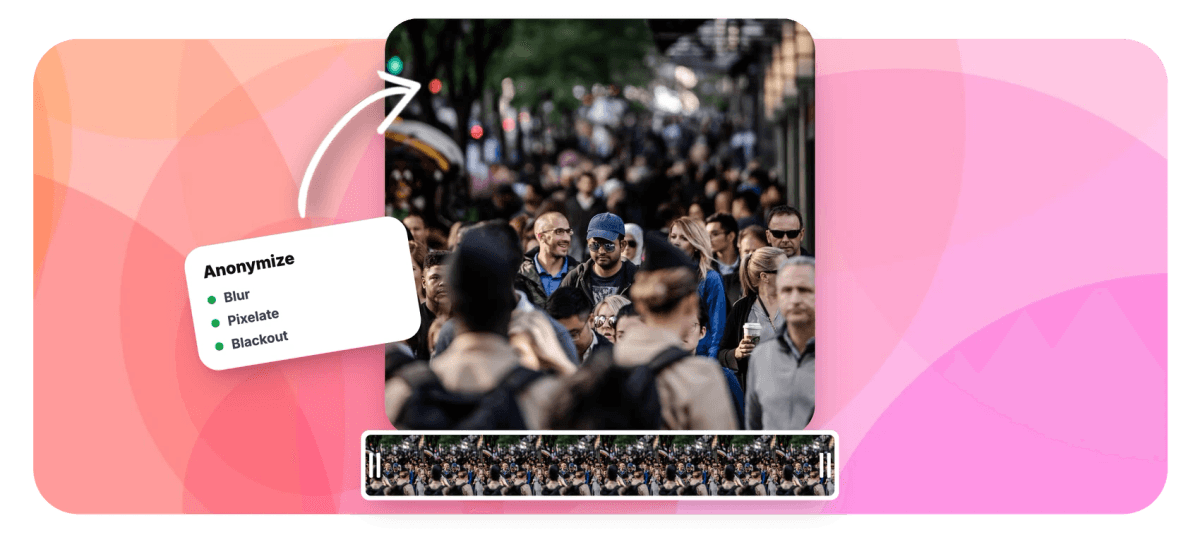
Blur Faces in Video Automatically: AI Face Blur, Pixelate and Blackout Features
EchoWave's privacy tools are used by journalists, educators and creators worldwide





Automatic anonymization
Face blurring that keeps up with moving people
Blurring faces by hand means keyframing a shape over every person in every scene. EchoWave does it automatically: an on-device face detector finds every face in the clip, and a two-pass tracker follows each one smoothly between frames so the mask never flickers or lags behind. Pick blur, pixelate or blackout, choose an oval that hugs the head or a classic censor box, and fine-tune coverage, softness and tracking. Need to hide a screen or license plate too? Pair it with the region blur tool, or drop emoji over faces for a lighter touch.
-
Every face
Detects and covers all faces in the frame automatically
-
3 styles
Gaussian blur, pixelate mosaic or solid blackout
-
On-device AI
Face detection runs in your browser, not on a server
-
Motion tracking
Two-pass tracking keeps masks glued to moving faces
What you get
A complete face anonymizer, not just a blur filter
Detection, tracking and rendering are built in, with the controls professionals ask for.
-
Automatic Face Detection
A fast on-device face detector scans every frame and finds every visible face, wide shots and small faces included. A minimum-size filter lets you ignore distant background faces when you only need foreground people covered.
-
Smooth Motion Tracking
A two-pass detect-then-track pipeline with look-ahead keeps the mask steady while people walk, turn and gesture, avoiding the flickering boxes single-pass tools produce. A tracking slider controls how tightly masks stick versus how smoothly they glide.
-
Blur, Pixelate or Blackout
Choose the anonymization style that fits the context: a soft Gaussian blur, a chunky pixel mosaic, or a solid blackout bar for absolute certainty. Strength and pixel size are adjustable from 1 to 100.
-
Oval or Box Masks
Use an oval that hugs the head for a natural documentary look, or a rectangular region for the classic censor-bar style. Edge softness and coverage sliders control how far beyond the face the mask extends.
-
Private by Design
Face detection happens on your own device with GPU acceleration. At export, EchoWave generates the face-region matte locally and uploads only that matte so the server can apply the effect at full source quality. Sensitive footage is never shipped off for AI analysis.
-
Part of a Full Editor
Face blur is a per-clip effect inside the video editor, so you can trim the clip, censor audio and regions, add captions and export in one session.
How it works
How to blur faces in a video
Automatic anonymization in four steps.
-
Upload Your Video
Drag your clip into the EchoWave editor and select it on the timeline. Interviews, street footage, classroom recordings and bodycam-style clips all work.
-
Turn On Face Blur
Open the clip's effects and enable the face anonymizer. The on-device AI detects every face and shows the masks in the live preview.
-
Pick a Style and Tune It
Choose blur, pixelate or blackout, oval or box, then adjust strength, coverage, edge softness and tracking until the masks sit exactly right.
-
Export the Anonymized Video
EchoWave bakes the face masks into the export at full quality. Faces stay hidden in the final file, not just in the preview.
Who uses it
Anywhere identity needs protecting
-
Journalists and Documentarians
Protect sources and bystanders in interviews and field footage while keeping the story watchable and the motion natural.
-
Teachers and Schools
Share classroom moments and school events publicly while keeping every student's face hidden, a common consent requirement.
-
HR, Legal and Compliance
Anonymize training footage, incident recordings and internal videos before wider distribution, in line with GDPR-style obligations.
-
Street and Travel Creators
Post vlogs filmed in public without exposing passers-by, especially in regions where publishing recognizable faces needs consent.
-
Researchers and Healthcare
De-identify study sessions, user tests and observational recordings before archiving or presenting them.
-
Real Estate and Security
Publish walkthroughs and camera footage with any captured faces pixelated, keeping listings and evidence shareable.
Blur every face in your video now
Automatic detection, smooth tracking, three anonymization styles. Free to start.
How creators use EchoWave in real projects

About the EchoWave team
EchoWave is a browser-based video and audio editor built by Lemon Vault LLC since 2018. The people who build the editor write these guides and test every step in the production app before publishing.
Face blur FAQ
How do I blur faces in a video automatically?
Upload your video to EchoWave, enable the face anonymizer on the clip, and the AI does the rest: it detects every face, tracks each one across frames and applies your chosen mask style. You review the result in the live preview and export. There is no manual keyframing or frame-by-frame masking involved.
Does the blur follow faces as people move?
Yes. EchoWave runs a two-pass pipeline: a detection pass finds faces, then a tracking pass with look-ahead smooths their paths so masks stay locked on while people walk, turn or lean. A tracking slider lets you trade responsiveness against smoothness for difficult footage.
Can I pixelate faces instead of blurring them?
Yes. Three styles are built in: Gaussian blur, pixelate and blackout. Pixelation renders a chunky mosaic over each face, and the pixel size is adjustable. Blackout draws a solid censor region for cases where nothing may remain visible.
Does it blur all faces or can I pick one?
The anonymizer covers every detected face uniformly, which is what privacy workflows normally require. You can exclude small background faces with the minimum face size filter. If you need to hide one specific person or object instead, use EchoWave's region blur tool, which pins a blur, pixelation or blackout box to an area you position yourself.
Is the face detection private?
Yes. The face detector downloads to your browser and runs on your device with GPU acceleration and an automatic fallback. Your footage is not uploaded for analysis. At export, a face-region matte generated on your device is uploaded so the server can apply the blur to the full-quality video.
Can the blur be removed or reversed by someone else?
The mask is rendered into the exported video's pixels, so a viewer cannot toggle it off. For maximum protection choose blackout or strong pixelation: extremely light blur settings on high-resolution footage are theoretically easier to attack, which is why the strength ranges go well beyond what is recoverable.
Does it work on group shots and busy scenes?
Yes, the detector handles multiple faces per frame and the sensitivity slider helps in tricky lighting. Like any detector, extreme angles, heavy occlusion or very tiny faces are harder; the preview makes misses obvious, and you can raise sensitivity or lower the minimum face size to catch them.
Is the face blur tool free?
You can upload footage, run detection and preview the anonymization for free. Free exports include a small watermark and are capped at 720p; paid plans remove the watermark and export up to 4K and beyond. No credit card is needed to try it.
What about blurring license plates, screens or documents?
Use the region blur tool for those: it lets you draw a blur, pixelate or blackout box over any area, feather its edges and restrict it to a time range. Many privacy edits combine both tools, automatic face blur plus a manual region or two.
Ready to anonymize your footage?
Automatic face detection and tracking, right in your browser. Free to start.
Get Started →























































