
Add a Filter to Your Video: One Click, Then Fine-Tune
Pick a one-click look, Vivid, Warm, Cool, Punchy or Mono, then refine it with seven color controls. Here a filter is a launch point, not a lock-in. Live preview, free, no download.


Add a Filter to Your Video: One Click, Then Fine-Tune Features
EchoWave's color tools are used by content creators, social editors and video marketers worldwide





Video filters
A filter is a starting point, not a lock-in
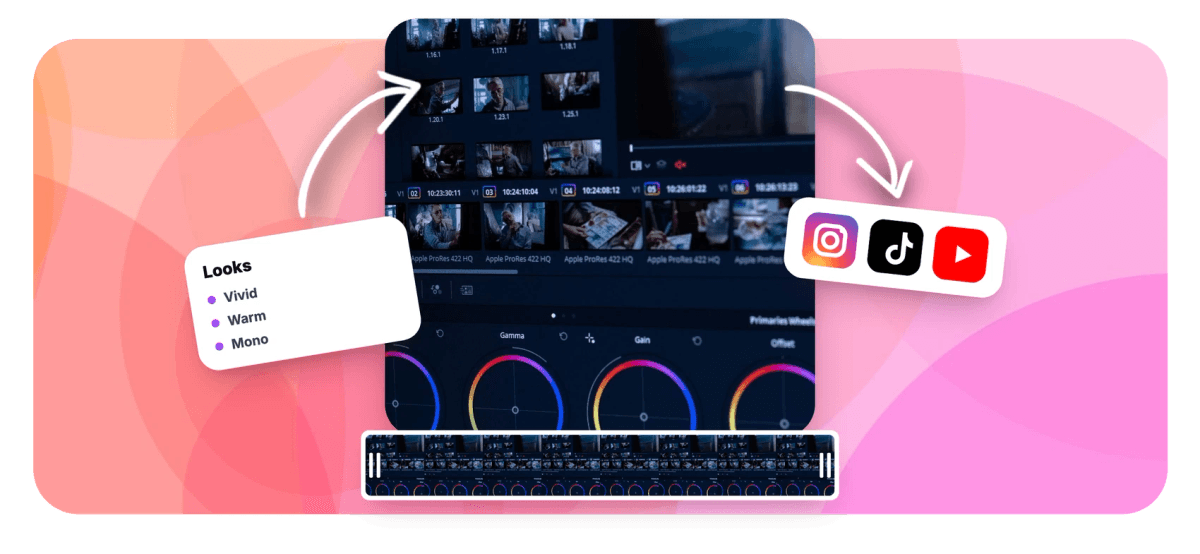
Most video filters lock you into someone else's look. EchoWave takes the opposite approach: the color tool ships five one-click looks, Vivid, Warm, Cool, Punchy and Mono, plus Original to reset, and each one just sets a balanced combination of the underlying color controls. Apply the filter you like, then open all seven sliders, brightness, contrast, gamma, saturation, vibrance, temperature and hue, and take it wherever you want. Nothing is baked in until you export. To be clear about what these are: color and tone looks, not textured vintage overlays or AI style transfer. For pure monochrome see black and white video, for methodical fixes see color correction, and to finish the cut open the online video editor.
-
5 filters
Vivid, Warm, Cool, Punchy and Mono, plus Original to reset
-
7 controls
Brightness, contrast, gamma, saturation, vibrance, temperature, hue
-
Live preview
Switch looks and drag sliders, the clip updates instantly
-
Free
Apply a filter and export in your browser, no signup
What you get
Looks to start from, sliders to finish with
The filter picks a direction. The controls make it yours.
-
Five One-Click Looks
Vivid deepens color and contrast, Warm and Cool shift the mood, Punchy adds bite for high-energy edits, and Mono goes black and white. One click sets each; Original brings you back.
-
Every Look Is Editable
A filter here is not a sealed preset. Applying one just positions the seven color sliders, so you can nudge any of them afterward and keep tuning until the look is yours, not the template's.
-
Seven Controls Underneath
Brightness, contrast and gamma shape the light; saturation and vibrance shape the color intensity; temperature and hue shape the tint. Every filter is just a preset arrangement of these seven.
-
Live Preview, Per-Slider Reset
The look renders on your footage as you switch filters and drag, so you never guess. Overshot one control? Reset just that slider, or hit Original to clear the whole grade and start over.
-
One Clip or the Whole Video
This tool filters one file end to end. Inside the online video editor the same looks apply per clip, so one shot can run Warm while the next runs Mono, all on one timeline.
-
Match Clips to One Look
Shooting on different cameras or lighting? Apply the same filter to each clip as a shared baseline, then fine-tune per clip so a mixed shoot reads as one consistent, deliberate style.
How it works
How to add a filter to a video
From upload to a finished look in four steps.
-
Upload Your Video
Drag your clip into the color tool. It opens in the player with the row of one-click looks and the seven sliders beside it.
-
Apply a Look
Click Vivid, Warm, Cool, Punchy or Mono to set an instant look. The live preview shows the filter on your own footage, not a sample.
-
Fine-Tune the Controls
Adjust brightness, contrast, gamma, saturation, vibrance, temperature and hue until the look is yours. Reset any single slider if you push too far.
-
Export and Download
EchoWave renders the filtered video at source quality and hands you a standard MP4 with the look baked in.
Who uses it
Where a one-click look earns its keep
-
Short-Form Creators
TikTok and Reels editors who want a consistent Vivid or Warm look across a series without opening a grading suite.
-
Product and Ecommerce
Punchy makes products pop in ads and listing videos, then a quick temperature nudge keeps the color true to the real item.
-
Travel and Vlog
Warm for golden-hour montages, Cool for moody city nights: pick the mood, then match every clip to it.
-
Podcast Clips
Give talking-head clips a clean, consistent Vivid or Cool base so every episode's cutdowns look like they belong together.
-
Music and Performance
Mono for a timeless performance cut, Punchy for the hype edit: a look sets the tone before the first beat drops.
-
Brand and Marketing
Lock a house look across a campaign, apply the same filter to every asset, then tune each clip so the set stays on brand.
Add a filter to your video now
Five looks, seven controls, live preview. Free, in your browser.
What people are saying about EchoWave

About the EchoWave team
EchoWave is a browser-based video and audio editor built by Lemon Vault LLC since 2018. The people who build the editor write these guides and test every step in the production app before publishing.
Video filters FAQ
How do I add a filter to a video?
Upload your clip to EchoWave's color tool and click one of the looks, Vivid, Warm, Cool, Punchy or Mono. That applies the filter instantly, and the live preview shows it on your actual footage. From there you can fine-tune with the seven color sliders or leave it as is, then export. The look is baked into a standard MP4, and Original resets everything if you change your mind. No signup or download is needed to try it.
What do the five looks do?
Each look sets a balanced combination of the underlying color controls. Vivid deepens saturation and contrast for a rich, punchy image. Warm pushes the temperature toward gold for a cozy, sunlit feel. Cool shifts it toward blue for a crisp, modern mood. Punchy adds strong contrast and bite for high-energy edits. Mono drops all color for black and white. Original is the reset: one click returns the clip to its untouched state. None of them are locked; every look is a starting point you can adjust.
Can I customize a filter after applying it?
Yes, that is the whole idea. A filter here is not a sealed preset, it is a shortcut that positions seven sliders: brightness, contrast, gamma, saturation, vibrance, temperature and hue. Once a look is applied, every one of those controls stays live, so you can warm it further, pull back the contrast, or lift the shadows with gamma. Each slider has its own reset if you overshoot, and the live preview tracks every change. Start from a look, end somewhere that is yours.
Can I filter one clip or the whole video?
Both. The standalone tool on this page filters one file from start to finish, which is perfect for a single clip or a finished cut. For a multi-clip project, open the online video editor: there the same looks and controls apply per clip on the timeline, so one shot can run Warm while the next runs Mono. Grade each clip independently, preview the whole sequence, then export once. The filter is a per-clip effect, not a single setting stamped over the entire video.
How do I get a black and white look?
Click the Mono look and the clip converts to black and white in one click. Because Mono is just a look, you can then shape the monochrome with the same sliders, raising contrast for punch or adjusting gamma to protect shadow detail. If black and white is your main goal and you want the full recipe for a filmic result, the dedicated black and white video tool walks through it. Either way it is the same one-click Mono under the hood.
Does it have vintage, VHS or glitch filters?
No, and it is worth being clear about that. EchoWave's filters are color and tone looks: they move brightness, contrast, saturation, temperature and the other color controls. They do not add film grain, VHS scan lines, light leaks, glitch artifacts or any textured overlay, and there is no AI style transfer or cartoon effect. What you can build is a strong graded look, warm and faded, cool and cinematic, or high-contrast mono. For stylized shot-to-shot motion, look at transitions and effects instead; for a graded color look, this is the tool.
How do I match several clips to one look?
Apply the same filter to each clip as a shared starting point, then fine-tune each one so they truly match. Footage from different cameras, lenses or lighting rarely lines up on the first click, so use Warm or Cool to set the direction, then nudge temperature and brightness per clip until the skin tones and exposure agree. The live preview makes it quick to compare against the clip beside it. Doing this in the editor lets you keep every clip on one timeline while you match them.
Are the video filters free?
Yes. The color tool runs in your browser with no signup and no download: apply any of the looks, fine-tune all seven controls, preview live and export at no cost. It is part of EchoWave's free tools suite, so once your clip is filtered you can send it straight on to another tool, trim it, resize it or add music, without re-uploading. When a project needs more than a look, the same controls are waiting for you in the full video editor.
























































