YouTube Intro Maker
YouTube intro maker for branded channel openers. Add your logo and name, pick an animation and music, then export in HD. Free, in your browser, no watermark.

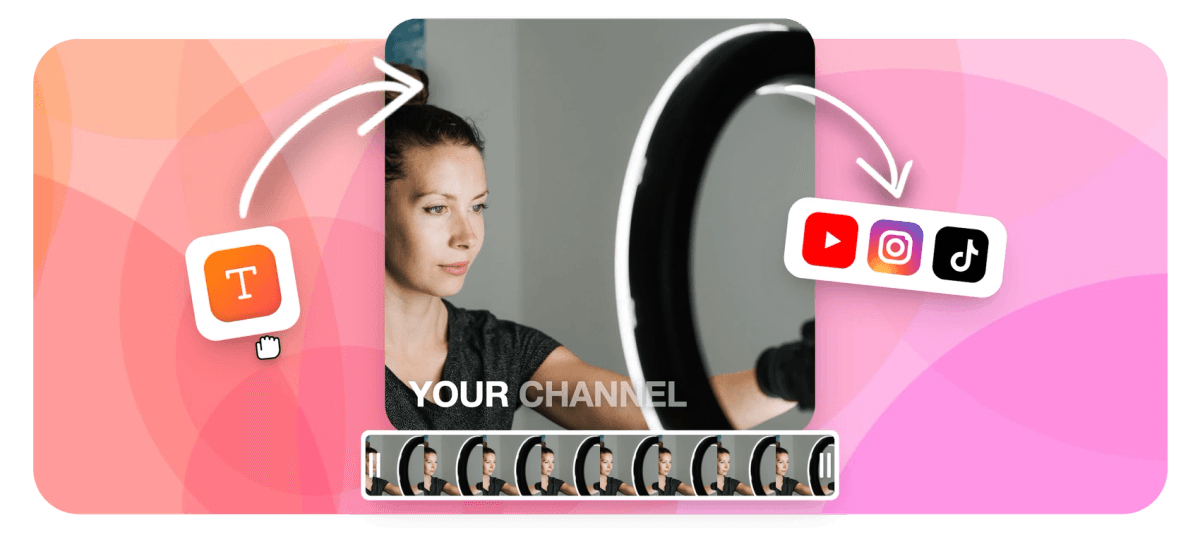
YouTube Intro Maker Features
EchoWave's browser-based video editor is used by content creators, small business owners, and indie YouTubers around the world.




Channel branding tool
A YouTube intro built for channel branding, not generic clips
Most intro tools drop you into a fixed template and call it done. EchoWave gives you a real timeline with keyframe control over position, scale, opacity, and rotation on every text or logo layer. Need a full-length video after your opener? Head to YouTube Video Maker. Want to close the video too? Pair it with Credits Maker. For non-YouTube platforms, see Intro Maker.
-
3-10s
ideal YouTube intro length
-
4K
max export on paid plan
-
160+
caption and text presets
-
63
AI voice options for voiceover
What you get
Every tool you need to build a channel intro
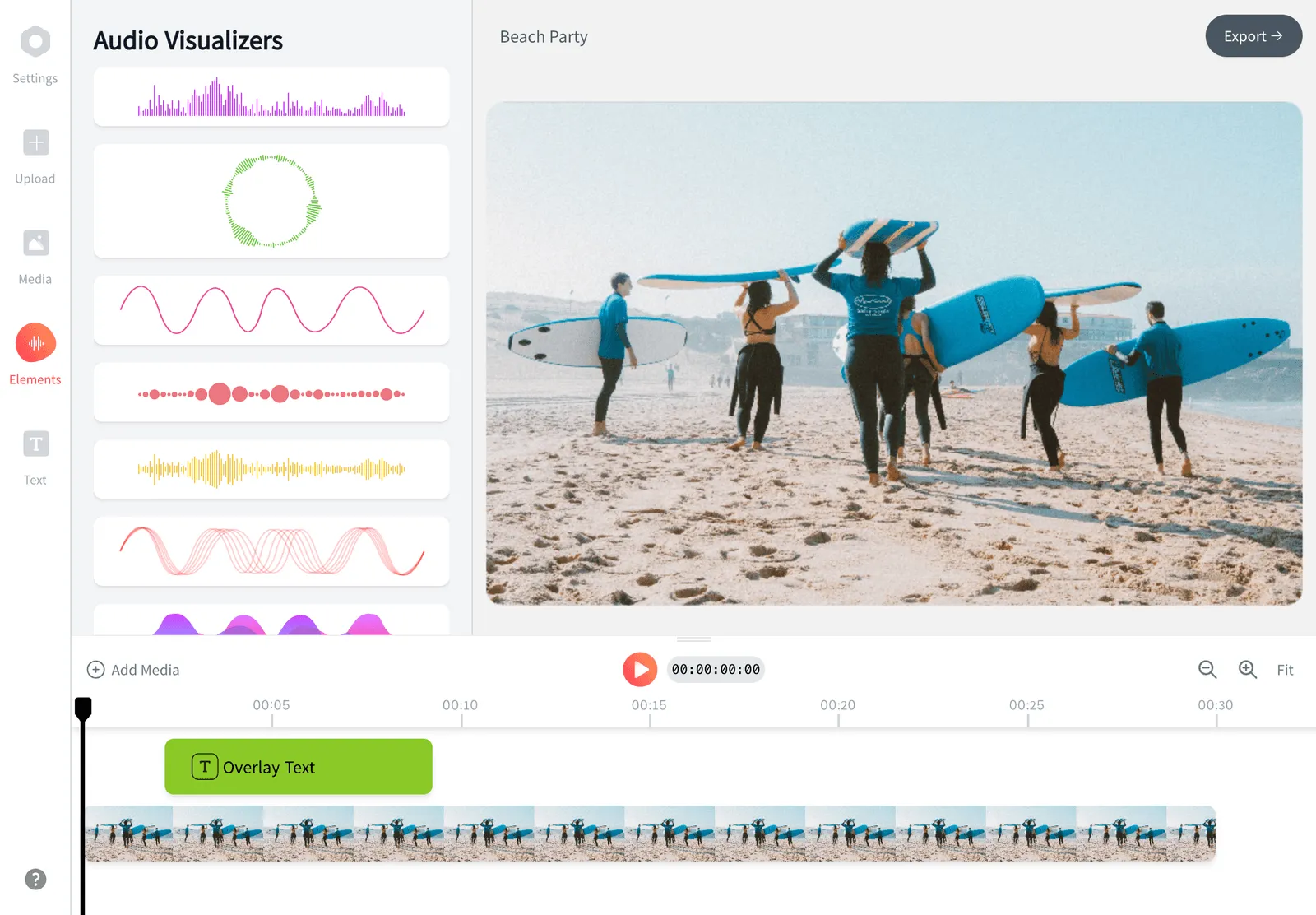
EchoWave combines a keyframe timeline, text animation, logo overlay, and cloud rendering so your YouTube intro comes together in one place.
-
Keyframe animation on every layer
Set keyframes on position, scale, opacity, and rotation for any text or image layer. Animate your logo sliding in, your channel name fading up, or both at once on a shared timeline. Two keyframes are enough for a clean scale-in or fade-up reveal.
-
Branded text with 160+ style presets
Type your channel name, pick a font, and apply one of 160+ caption and text presets including bold kinetic styles and clean title cards. Adjust color, size, tracking, and outline directly on the canvas. No install, and you can build a logo reveal with two keyframes. For a full video with styled subtitles, see YouTube Video Editor.
-
Logo and overlay import
Upload a PNG or WebP logo with transparency and place it on any layer. Resize and reposition it with handles, then keyframe it for a reveal animation. You can stack multiple overlays for a layered look without any file conversion step.
-
Music track with trim and fade
Drop an audio file onto the timeline and trim it to fit your 3-to-10-second intro window. Apply a fade-in or fade-out in a drag. EchoWave does not include a built-in royalty-free music library, so bring your own track from a source like Pixabay or Epidemic Sound.
-
Multi-aspect canvas: 16:9, 1:1, 9:16
Choose a canvas size to match your delivery format before you start. A 16:9 intro is standard for YouTube, but a square or vertical version lets you reuse the same branding across YouTube Shorts and social clips. Canvas auto-sizes to your first imported media.
-
AI text-to-speech for voiceover
Add a spoken channel name or tagline using one of 63 natural TTS voices. Stream the generated audio directly into your intro clip and trim it to length. Voice cloning is available on the paid plan if you want to match your own voice.
-
Cloud render, no device limit
Renders run on EchoWave's cloud farm, so your laptop CPU is not the bottleneck. Free exports deliver HD MP4 with a small EchoWave badge in the corner; the paid plan removes the badge and raises the cap to 4K H.264. Output also includes WebM, MOV, and GIF if needed.
-
Multi-track timeline for precise timing
Stack video, image, text, and audio tracks and nudge each clip frame by frame. This matters for short intros where a 4-frame mis-sync between the logo pop and the music hit is obvious. The magnetic timeline snaps layers to each other to keep things clean.
How it works
How to make a YouTube intro
Four steps from a blank canvas to a finished branded opener you can prepend to every video.
-
Upload your logo and set the canvas
Open EchoWave in your browser and create a new project. Choose 16:9 for a standard YouTube intro or 9:16 for Shorts. Upload your logo PNG and your background image or video clip. The canvas auto-sizes to your first imported media so you do not have to set dimensions manually.
-
Animate your logo and channel text
Add a text layer with your channel name. Open the keyframe panel and set start and end keyframes for scale or opacity to create a fade-in or zoom reveal. Do the same for your logo layer. Use the timeline scrubber to preview the motion and adjust timing until the beat lands where you want it.
-
Add music and set the out point
Drag your music file onto the audio track and trim the clip to match your target length, usually 5 to 8 seconds. Apply a short fade-out at the tail so the cut to your main video is clean. If you want a spoken tagline, generate one from the TTS panel and place it on a second audio track.
-
Export and add to your video
Click Export, choose MP4, and let the cloud render finish. Download the file and use EchoWave's merge tool or the YouTube Video Maker to prepend the intro to your main footage. Free exports include a small badge in the corner; upgrading removes it.
Sized to post
The right shape for every platform
-
16:9 Landscape
- YouTube
- Standard intro
- Bumper
-
1:1 Square
-
9:16 Vertical
- YouTube Shorts
- TikTok
- Reels
Who uses it
Common reasons to build a YouTube intro
-
New channel launch
A consistent 5-second opener makes a new channel feel deliberate from the first upload. Creating one before your first video sets a professional baseline from day one.
-
Logo reveal animation
Animate your existing logo with a scale-in or fade-up keyframe sequence so it appears to build on screen. Two keyframes are enough for a clean scale-in or fade-up reveal.
-
Rebrand an existing channel
Updating your channel name, color scheme, or logo? A new intro file is the fastest way to make every future video reflect the rebrand without re-editing old content.
-
Brand consistency across series
Creators running multiple series on one channel use a shared intro with a color or text variant per series. Swap the text layer and export a separate version per series.
-
YouTube Shorts bumper
A 2-to-3-second vertical opener on a 9:16 canvas works as a bumper for Shorts, giving your short-form content the same branded feel as your long-form uploads.
-
Podcast-style video show
Talking-head creators and podcast-to-video producers often want a clean title card with channel name and episode count rather than a motion animation. Build a static title card or an animated reveal from the same project.
Build your channel intro today
Open EchoWave in your browser, upload your logo, animate it with keyframes in minutes, and export a finished MP4. Free to start, no credit card required.
How creators use EchoWave in real projects

About the EchoWave team
EchoWave is a browser-based video and audio editor built by Lemon Vault LLC since 2018. The people who build the editor write these guides and test every step in the production app before publishing.
YouTube Intro Maker FAQ
How long should a YouTube intro be?
Most creators keep intros between 3 and 10 seconds. Intros longer than 10 seconds push regular viewers to skip. For a branded logo reveal, 5 to 7 seconds is a good target. YouTube Shorts bumpers are typically 2 to 3 seconds. Keep it short enough that returning subscribers do not start watching on mute.
Can I use EchoWave as a youtube intro maker without downloading anything?
Yes. EchoWave runs entirely in your browser on Mac, Windows, or Linux. There is no desktop app to install. Open the editor, upload your files, and your rendered intro downloads directly from the cloud.
Will my intro have a watermark on the free plan?
Free plan exports include a small EchoWave badge in the corner of the video. It is not baked into your design, just added at render time. Upgrading to the paid plan removes the badge and raises the export ceiling to 4K H.264.
What file format should I export my YouTube intro as?
MP4 with H.264 is the format YouTube recommends for uploads. EchoWave exports MP4 by default. If you need a transparent-background intro to composite over footage in another editor, export as WebM and use a tool that supports alpha channel playback.
Can I animate my logo with keyframes in EchoWave?
Yes. Select your logo layer, open the keyframe panel, and set values for position, scale, opacity, or rotation at different time points on the timeline. EchoWave interpolates between the keyframes. A simple scale from 0% to 100% over 8 frames gives a clean pop-in effect.
Does EchoWave have royalty-free music I can use in my intro?
No, EchoWave does not include a built-in music library. You need to bring your own audio file. Good free sources include Pixabay Music, ccMixter, and YouTube's own Audio Library for tracks licensed for use on YouTube.
How is this different from the generic Intro Maker tool on EchoWave?
The Intro Maker page covers intros for any platform and general use cases. This page is specifically about YouTube channel branding: 16:9 canvas, keyframe logo animation, and an output optimized to prepend to a YouTube upload. The YouTube-focused angle also connects to the YouTube Video Maker for your full video workflow.
Can I make a YouTube Shorts intro with EchoWave?
Yes. Switch the canvas to 9:16 before you start and your intro will be vertical. Keep it to 2 or 3 seconds for Shorts, where the format moves fast. The same keyframe animation tools work on any canvas aspect ratio.
What formats can I import for my logo or background?
EchoWave accepts PNG and WebP for image layers including logos with transparent backgrounds. For video backgrounds, MP4, MOV, WebM, and AVI are all supported. Audio can be dropped in as MP3, WAV, or other common formats.
Ready to make your channel intro?
Start free in your browser, animate your logo and channel name with keyframes, and export a finished HD intro. The free plan adds a small badge; the paid plan removes it.
Get Started →