
Resize Video for Instagram: Exact Sizes for Reels, Stories and Feed
Get any video into Instagram's exact shapes: 9:16 (1080x1920) for Reels and Stories, 1:1 or 4:5 for the feed. Pick a preset, position the shot, export. Free, no install.


Resize Video for Instagram: Exact Sizes for Reels, Stories and Feed Features
EchoWave's video resizing tools are used by Instagram creators, social media managers, and small brands worldwide





Wrong shape, fixed
Shot in the wrong shape? Reframe it for Instagram
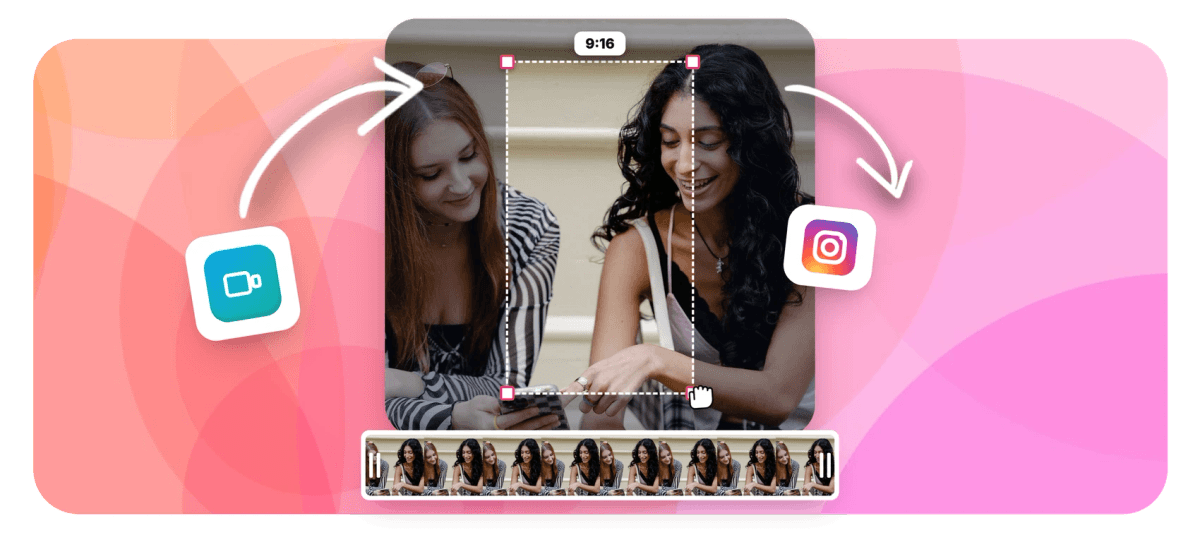
Resize video for Instagram by picking the surface first: EchoWave's presets set the canvas to 9:16 (1080x1920) for Reels and Stories, 1:1 (1080x1080) for square feed posts, or 4:5 (1080x1350) for portrait feed. Then comes the part most resizers skip: you position and scale the video inside that frame yourself, so the decision about what stays in shot is yours, made precisely, not guessed by software. Keep faces and text clear of the edges where Instagram stacks its buttons and caption, add vertical-sized captions, and export a post-ready MP4. Building the whole post? The Instagram video editor and Reels maker pick up where resizing ends.
-
1080x1920
The exact Reels and Stories resolution: the 9:16 preset sets it in one click
-
3 Instagram presets
9:16 for Reels and Stories, 1:1 and 4:5 for the feed, each at Instagram's native pixel size
-
170+ caption presets
Vertical-sized caption styles ready to drop on the resized clip before you export
-
Free, no signup
The standalone resizer runs in your browser: upload, reshape, and download with no install
What you get
Exact sizes, and control over what stays in frame
Instagram's three shapes as one-click presets, plus precise manual framing on every clip.
-
One-Tap Instagram Presets
Reels and Stories at 9:16 (1080x1920), feed posts at 1:1 (1080x1080) or 4:5 (1080x1350). Pick the surface you are posting to and the canvas snaps to Instagram's exact dimensions.
-
Position the Shot Yourself
Drag the video anywhere inside the new frame and scale it until the subject sits exactly where you want. Repositioning is manual and precise, so you decide what the frame keeps, not an algorithm.
-
Fill or Fit, Never Stretch
Scale up until the clip fills the vertical frame and the sides fall away, or fit the whole shot with room above and below for captions. Proportions stay locked either way. Need a hard edge trim first? Use crop video.
-
Frame for the Safe Zones
Instagram lays its interface over your video: username and caption along the bottom, action buttons stacked on the right. Free positioning keeps faces and on-screen text clear of both, so the frame stays readable once posted.
-
Captions Cut for Vertical
Once the clip is vertical, add word-timed captions from 170+ presets sized for 9:16, so lines break cleanly instead of sprawling across the frame. Styles, colors, and karaoke effects live in animated captions.
-
Finish the Post in One Place
The resized clip can open straight into EchoWave's timeline: trim it, add music, stack a logo or title, and export the finished post from the video editor without uploading twice.
How it works
How to resize a video for Instagram
Four steps from the wrong shape to a post-ready file.
-
Upload Your Video
Drag any clip into the resizer: landscape, square, or vertical. MP4, MOV, WebM, and other common formats all work, and no account is needed.
-
Pick the Instagram Preset
Choose 9:16 for Reels and Stories, 1:1 for square feed posts, or 4:5 for portrait feed. The canvas snaps to 1080x1920, 1080x1080, or 1080x1350.
-
Position and Scale the Shot
Drag the video inside the new frame and scale it to fill or fit. Keep faces and text away from the edges where Instagram's buttons and caption sit.
-
Export and Post
Download the resized MP4 and upload it to Instagram. If the clip is headed for Reels, add vertical-sized captions or music before you export.
Who uses it
Who resizes for Instagram
-
Fitness Coaches
Reframe landscape workout demos as 9:16 Reels, scaling in so the full movement stays visible and clear of the caption overlay.
-
Podcasters Clipping Reels
Turn a widescreen podcast recording into a vertical clip with the guest's face centered and every word captioned.
-
Ecommerce Brands
Post product demos at 4:5 so they claim the tallest feed slot, product centered, edges free of clutter.
-
Wedding Videographers
Cut 1:1 grid teasers from horizontal client films, framed so the couple or subject stays dead center.
-
Restaurants and Cafes
Reshape kitchen and countertop clips into 9:16 Stories with the dish framed clear of Instagram's top and bottom overlays.
-
Social Media Managers
Ship one campaign video three ways: a 9:16 Reel, a 4:5 feed cut, and a 1:1 square for carousel slots.
Reshape it for Instagram
Upload once, pick 9:16, 1:1, or 4:5, position the shot precisely, and export. Free, no signup.
What people are saying about EchoWave

About the EchoWave team
EchoWave is a browser-based video and audio editor built by Lemon Vault LLC since 2018. The people who build the editor write these guides and test every step in the production app before publishing.
Resize video for Instagram FAQ
How do I resize a video for Instagram?
Upload your video to EchoWave's resizer, then pick the Instagram preset that matches where you are posting: 9:16 for Reels and Stories, 1:1 or 4:5 for the feed. The canvas snaps to the exact dimensions, 1080x1920, 1080x1080, or 1080x1350. Drag and scale the video inside the new frame until the subject sits where you want it, then export. You get a post-ready MP4 you can upload straight to Instagram, and the whole flow runs in your browser with nothing to install.
What size is an Instagram Reel?
Reels are 9:16 vertical at 1080x1920 pixels, and Stories use the same size. The video plays full screen on phones, but Instagram lays its interface on top: your username and caption along the bottom, the like, comment, and share buttons stacked on the right. That is why sizing alone is not enough. When you resize with EchoWave you can position the shot so faces and on-screen text stay away from those edges, which keeps the frame readable once the Reel is live.
How do I make a landscape video fit Instagram Reels without stretching it?
You have two honest options, and stretching is never one of them. Scale the video up until it fills the 9:16 frame: the height fills completely, the left and right edges fall outside the canvas, and you drag the clip sideways to choose exactly which part survives. Or scale it to fit the frame's width, which keeps the entire shot visible with open space above and below where you can later stack captions or a title. EchoWave keeps proportions locked in both cases, so people never look squashed or stretched.
Is 1:1 or 4:5 better for Instagram feed posts?
4:5 (1080x1350) is the tallest shape Instagram's feed accepts, so it fills more of the screen while people scroll and gives the video more presence. 1:1 (1080x1080) is the classic square: a safer pick when the action sits close to the top or bottom edge, and an easy way to keep a uniform look across a series of posts. If you are torn, resize to 4:5 first and check the outer slivers of the frame; if something important lands there, the square preset is one click away.
Does resizing a video for Instagram reduce the quality?
No. Resizing changes the shape of the canvas and the position of the video inside it; it never stretches or squashes your footage. Exporting at Instagram's own specs, like 1080x1920 for a Reel, also means the platform does not have to force an odd-shaped file into place when you upload. If your source is larger than the target, scaling down keeps it looking sharp. What actually ruins quality is stretching a landscape clip to fill a vertical frame, which EchoWave never does.
Can I add captions after resizing for Instagram?
Yes, and it is the natural next step for a Reel, since plenty of viewers watch muted. Once the video is on the 9:16 canvas, run auto-captions: EchoWave transcribes the clip with word-level timing, and the animated captions presets are sized for vertical video, so lines break cleanly instead of running across the whole frame. You can restyle them, edit the text, and drag the caption block up above Instagram's bottom UI zone before exporting everything as one video.
Is the Instagram video resizer free to use?
Yes. The standalone resize tool is free with no signup and nothing to install: open it in your browser, upload, reshape, and download. If you carry the clip into the full editor for music, overlays, and longer edits, the free plan exports with a small watermark at up to 720p, and paid plans remove the watermark and raise the resolution cap.
Can I use the same resizer for TikTok or YouTube videos?
TikTok also runs on 9:16 vertical, and standard YouTube videos are 16:9 landscape, so one clip often needs three different exports. EchoWave has a dedicated page for each platform: resize video for TikTok and resize video for YouTube walk through those sizes the way this page does for Instagram. For anything else, from 21:9 cinema crops to custom pixel dimensions, the general video resizer covers every ratio.
Every Instagram size from one video
Pick 9:16, 1:1, or 4:5, position the shot, and export a post-ready MP4.
Get Started →























































