
Twitch Video Editor: Turn Your VODs Into Clips and Shorts
Upload a Twitch VOD and let AI pull ranked, captioned clips scored 0 to 100, or trim, punch in and censor chat yourself. Export vertical for Shorts, free to start.


Twitch Video Editor: Turn Your VODs Into Clips and Shorts Features
EchoWave's Twitch editing tools are used by streamers, VOD clippers and highlight editors worldwide





From VOD to clip
The value is in the clips, not the VOD
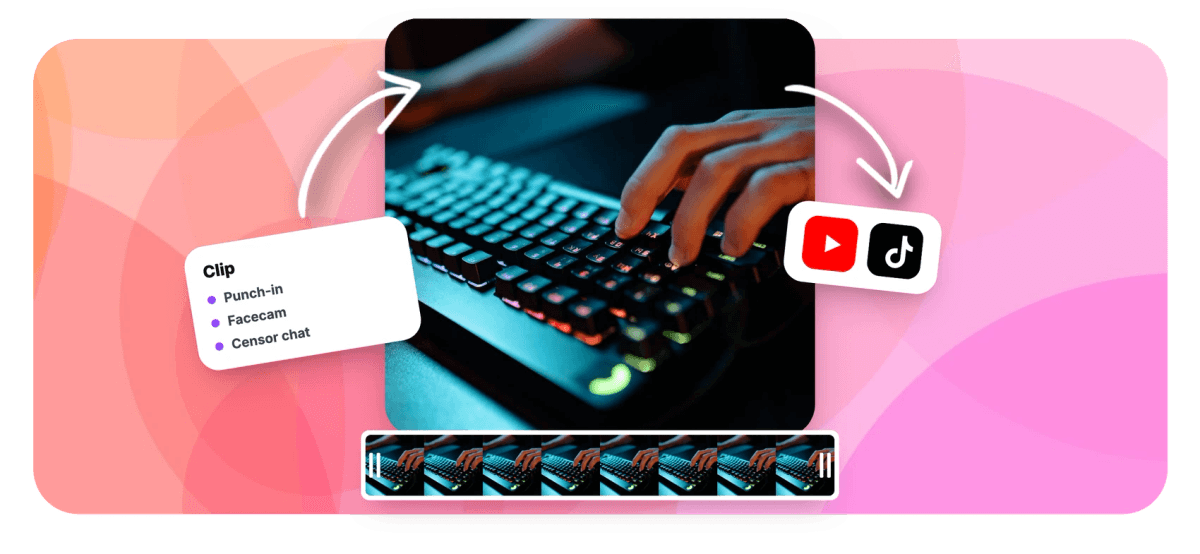
EchoWave is a Twitch video editor that turns a multi-hour VOD into clips two ways. Let the AI clip generator scan the file: every candidate gets a Viral Score from 0 to 100 with Hook, Clarity, Emotion, Value and Trend sub-scores and reasons like "big reactions", and you can ask for 1 to 30 clips per run, reframed by seven camera layouts and captioned in any of 60+ styles. Or cut by hand: trim the moment, add a keyframed punch-in zoom, keep the facecam in picture-in-picture and region blur any usernames before posting. The honest part: EchoWave edits files you upload. It is not a Twitch downloader, so start from your own VOD export or clip download.
-
9:16
One-click vertical canvas for Shorts, TikTok and Reels, plus 16:9, 1:1 and 4:5
-
45
Per-word caption animations, including 10 karaoke styles for muted feeds
-
50+
Languages auto-transcribed with word-level timing
-
3
Region censor modes for chat and usernames: blur, pixelate, blackout
What you get
The whole VOD-to-clip kit in one tab
Everything between last night's stream and a posted highlight, no desktop editor.
-
Trim the Moment From Hours of VOD
A four-hour VOD hides maybe ninety good seconds. Scrub the filmstrip to the moment, set in and out points, delete the range and ripple the gap closed so the clip opens right on the action.
-
Punch In on the Play
Keyframe scale and position to push into the clutch, the fail or the reaction, then hold it while the moment lands. Punch-ins survive trims and speed changes, so slow-motion replays keep their framing.
-
Keep the Facecam On Screen
Stack your camera above the gameplay and tuck it into a corner as a picture-in-picture inset. Scale it, round the corners into a bubble, or keyframe it smaller the second the on-screen action needs the full frame.
-
Captions for the Muted Scroll
Auto-transcribe your commentary with word-level timing, then style it with 170+ presets and 45 per-word animations. The caption generator adds karaoke wipes and highlight pills that keep silent-autoplay viewers reading.
-
Censor Chat, Names and Donations
Drop a region censor over the chat box, a username or an on-screen donation alert and blur, pixelate or blackout it, with a time window so it only hides while the name sits on screen.
-
Reframe Vertical for Every Feed
Flip the canvas to 9:16 and re-frame around the play, then export the same edit as a YouTube Short, a TikTok or a Reel. Keep a 16:9 version for the channel from the same project.
-
Let AI Find the Clip-Worthy Moments
The AI clip generator reads the transcript alongside audio energy, reaction peaks and scene cuts, then hands back a ranked grid of clips, each with a Viral Score from 0 to 100 and reasons like "strong hook" or "big reactions".
-
Search the VOD by Prompt
Type "find moments about the boss fight" and the generator searches the word-timed transcript for matching moments. Ask for 1 to 30 clips per run, pick Short, Medium or Long lengths, and boost keywords chat kept spamming.
How it works
How to make clips from a Twitch VOD
Four steps from a long VOD to a posted vertical clip.
-
Upload the VOD or Clip
Drag your Twitch VOD or an exported clip into the editor. This is your own recording or export, not a rip. Filmstrips and audio waveforms appear so you can find the moment fast.
-
Trim the Highlight and Punch In
Set in and out points around the moment and delete the rest, then keyframe a punch-in zoom so the play fills the frame.
-
Caption and Censor Chat
Auto-transcribe the commentary into captions, then drop a region censor over any username, chat box or donation name you want hidden.
-
Export Vertical or 16:9
Switch the canvas to 9:16 for Shorts, TikTok and Reels, or keep 16:9 for YouTube, then render in the cloud and download your MP4.
Who uses it
Built for streamers sitting on hours of VOD
-
Just Chatting Streamers
Pull the funniest twenty seconds out of a four-hour talk stream and post it before the chat forgets the bit.
-
Variety Streamers
Clip across a mixed night of games and IRL, reframing each moment vertical without opening a desktop editor.
-
Highlight Clip Editors
Edit a streamer's VODs into a highlight channel: trim, punch in, caption and censor names, then hand back the export.
-
Shorts and TikTok Posters
Turn one long VOD into a week of vertical clips, captioned for muted autoplay and sized for every feed.
-
Mods and Community Managers
Cut a channel sizzle reel while blurring usernames, chat and donation alerts so no viewer gets doxxed.
-
Competitive and Speedrun Streamers
Isolate the clutch round or the personal best, punch in on the run and export it for the socials.
Every stream is a week of clips
Trim, punch in, caption and censor, then export vertical. Free to start in the browser.
What creators say after trying EchoWave

About the EchoWave team
EchoWave is a browser-based video and audio editor built by Lemon Vault LLC since 2018. The people who build the editor write these guides and test every step in the production app before publishing.
Twitch video editor FAQ
How do I make clips from a Twitch VOD?
Upload your VOD or an exported clip to the EchoWave editor, which runs in the browser with nothing to install. Scrub the filmstrip to the moment, set in and out points to trim it tight and ripple the gap closed. From there you can keyframe a punch-in zoom on the play, add a facecam, auto-generate captions and censor any usernames in frame. Switch the canvas to 9:16 or keep 16:9, then export. Editing is free to start, and the final render runs on EchoWave's servers rather than your PC.
How do I get my Twitch VOD into EchoWave?
EchoWave edits video files you upload, so first save your own content the normal way: download your past broadcast from Twitch's Video Producer dashboard, or export a clip you own, then drag that file into the editor. To be clear, EchoWave is not a Twitch downloader or a stream-capture driver. It does not pull other people's streams or rip VODs off the site. It edits files you provide, and it can also record your own screen through the browser. Once the file is in, the full editor is available.
How do I make vertical clips for Shorts and TikTok?
Trim to the moment, then switch the canvas aspect to 9:16 and re-frame so the action sits center. Add captions, since most short-form feeds autoplay muted, and export. The same project can also produce a 16:9 version for YouTube, so you are not maintaining two edits. A single VOD usually yields several verticals: find each moment, trim, reframe and export in turn. If you post to Shorts specifically, the YouTube Shorts maker walks through the same vertical flow with format tips.
Can I keep my facecam in the clip?
Yes. If your VOD already has the facecam composited in, it stays as part of the video. If you recorded the camera separately, upload it as its own file, stack it above the gameplay on a higher layer and tuck it into a corner as a picture-in-picture inset. Scale it, round the corners into a bubble, and keyframe it smaller when the on-screen action needs the full frame. Both the game audio and your commentary play together by default, and you can mute or lower either layer if they compete.
How do I censor usernames, chat and donations?
Use the region censor: drop a draggable, resizable rectangle over the chat box, a username or an on-screen donation alert, then choose blur, pixelate or blackout with adjustable strength and edge feathering. Set a start and end time so the censor only appears while the name is visible. Need to cover more than one spot? Run the exported clip through the region blur tool again, since the free tools chain together. For faces in facecam footage, the separate face blur effect detects and tracks every face automatically.
Can EchoWave caption my Twitch clips automatically?
Yes. Auto-transcribe any clip's audio and EchoWave generates word-level captions you can edit, with the source language auto-detected across 50+ languages. Style them with 170+ presets and 45 per-word animations, including karaoke wipes, active-word recolor and highlight pills that suit vertical clips. Captions matter more than usual on Twitch reposts, since Shorts, TikTok and Reels autoplay on mute, and the callouts or the punchline often carry the moment. You can also translate captions into 80+ languages if the clip is heading to an international audience.
Can I get several clips out of one VOD?
That is the normal case. Keep the full VOD on the timeline and work through it moment by moment: set in and out points around the first highlight and export, then move the playhead to the next one, retrim and export again. Each pass is a separate clip from the same source, so a single stream often becomes a week of posts. If your footage is pure gameplay without a Twitch VOD wrapper, the gaming video editor covers the same trim, zoom and caption workflow.
Is the Twitch video editor free?
Editing is free: build the whole clip, preview it and export with a small watermark at up to 720p. Paid plans remove the watermark and lift the ceiling, 1080p on Basic, 4K with 50 and 60fps on Pro, and up to 8K with 120fps on Business. The standalone utilities, like the trimmer and the region blur, are free with no signup at all, so a quick one-off censor or trim costs nothing. For a full captioned, reframed VOD-to-Shorts workflow, the free tier is a real starting point.
Can EchoWave find the best moments in my VOD automatically?
Yes. The AI clip generator reads a word-timed transcript alongside audio energy, reaction peaks and scene cuts, then returns a ranked grid where every clip carries a Viral Score from 0 to 100 with Hook, Clarity, Emotion, Value and Trend sub-scores and plain-English reasons like "strong hook" or "big reactions". Ask for 1 to 30 clips, pick 9:16, 1:1, 4:5 or 16:9, and each one arrives cut, captioned and reframed. Every clip opens as a normal project, so you can still punch in or censor chat. Your first 30 source minutes each month analyse free; free exports carry a small watermark at 720p.
How does the AI reframe gameplay and facecam for vertical?
Smart camera detects faces and who is talking on screen (lip movement matched to the voice) and frames each shot around them. Choose from seven layouts: Follow speaker, Split, Grid, Presenter plus slides, Picture in picture, Fill (a center crop) and Letterbox over blur, which suits pure gameplay. Picture in picture keeps your facecam over the game, and the camera holds subjects at eye level, pans at a capped speed and never pans across a scene cut. Every move is written as ordinary keyframes, so you can adjust any shot in the timeline, or skip the AI and frame it by hand.
Your VOD is full of clips
Trim the moment, punch in, caption, censor chat and export vertical. Free to start.
Get Started →























































