
AI Voiceover Generator for Video
AI voiceover generator that narrates your videos in lifelike voices. Type your script, choose a voice and drop it straight onto the timeline. Free, no watermark.


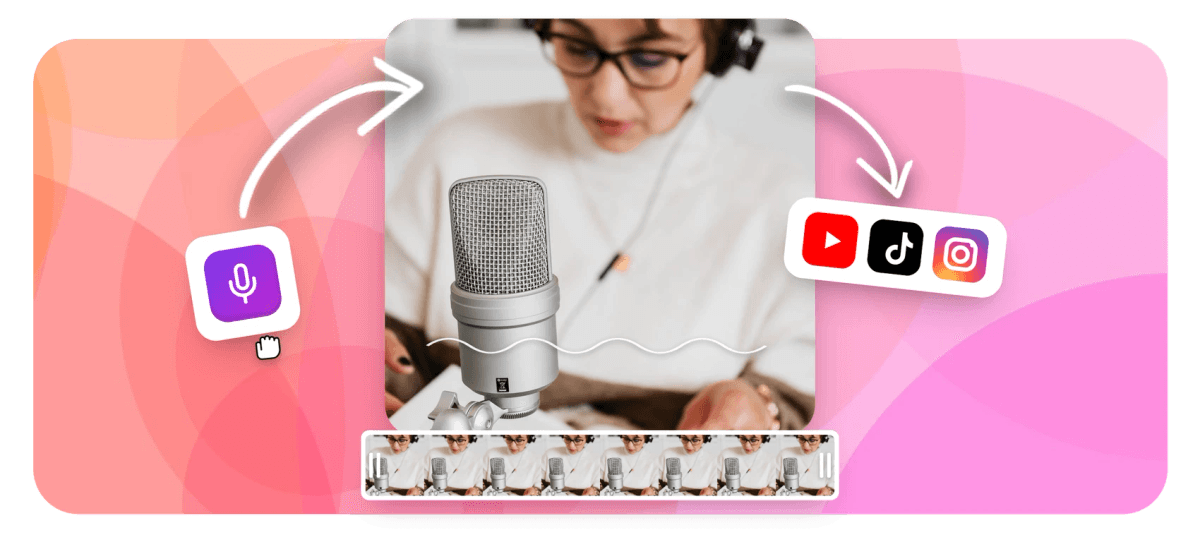
AI Voiceover Generator for Video Features
Used to narrate explainers, tutorials, and short-form video by content creators, educators, and marketing teams who skip the recording booth.





What it does
Type a script, get narration synced to your video
This tool combines text-to-speech with a full timeline editor so the voiceover lands where you need it, not in a separate file you have to import. It is different from recording your own voiceover, which captures your microphone, and from the standalone text-to-speech tool, which exports audio only. For a voice trained on your own recordings, see voice cloning. The AI voiceover generator covers the most common case: script in, narrated video out.
-
63
natural AI voices available free
-
160+
caption presets including karaoke styles
-
4K
cloud export quality on paid plans
-
0
downloads required, runs in any browser
What you get
Voiceover, timeline, captions, all in one place
Every feature below is available inside the same editor, so you move from script to finished video without exporting intermediate files.
-
63 AI voices for your voiceover
Choose from 63 voices across different genders, ages, and accents. Voices stream directly into your project as an audio clip on the timeline. For a voice trained on your own recordings instead of a preset, see the voice cloning tool.
-
Type or paste your full script
Paste a short caption or a full multi-paragraph narration. EchoWave generates the complete audio in one pass and places it as a single draggable clip. Edit the script and regenerate any section without rebuilding the whole project.
-
Voiceover synced to the video timeline
The generated audio clip drops straight onto a dedicated narration track. Drag it to align with any point in the footage, trim the edges, or split it to insert a pause. This is the step that separates an AI voiceover generator from a standalone text-to-speech tool that only exports an MP3.
-
Auto-captions from your voiceover audio
After placing the narration, run auto-captions and EchoWave transcribes the AI voice into word-level subtitles in seconds. Pick from 160+ caption presets including MrBeast, TikTok karaoke, and Kendrick Lamar styles. Captions can be translated into dozens of languages for international audiences.
-
Multi-track audio mixing
Your voiceover sits on its own track alongside the original video audio and any background music. Use keyframe animation to duck background audio under the narration or fade the voice in at a specific frame. Nothing is flattened until you export.
-
Overlays, logos, and green screen in the same session
Add a logo watermark, lower-third text, stickers, or a green-screen background swap to the same project that holds your AI narration. Blend modes, opacity controls, and emoji overlays are all available without leaving the editor.
-
Resize for any platform after narrating
Once your voiceover is placed, switch the canvas to 9:16 for TikTok or Reels, 1:1 for feed posts, or keep 16:9 for YouTube. The canvas auto-sizes to your first media clip so you start at the right dimensions.
-
Cloud rendering, no hardware cap
Exports run on EchoWave's cloud render farm, not your laptop. The free plan outputs HD video with a small EchoWave badge. Paid plans output up to 4K H.264 with the badge removed. Output formats include MP4, MOV, WebM, and GIF.
How it works
How to generate an AI voiceover in EchoWave
From an empty project to a narrated, captioned video takes four steps and no audio equipment.
-
Upload your video or start with a blank canvas
Drag in an MP4, MOV, WebM, or AVI clip. If you are building a narration-first video, start with a blank canvas and add visuals after the voiceover is placed. EchoWave auto-sizes the canvas to your first media file.
-
Open the AI voiceover panel and type your script
Select a voice from the 63 available options, then paste or type your narration script. Once placed on the timeline, trim or split the clip to match the pacing of your footage.
-
Generate the audio and place it on the timeline
Click generate and the narration appears as a clip on the audio track within seconds. Drag it to the right position, trim the head or tail, or split the clip to match a cut in the video. Regenerate individual lines without redoing the whole script.
-
Add captions and export
Run auto-captions to get word-level subtitles synced to the narration. Pick a caption preset, resize for your target platform, then export. The render runs in the cloud, so you can close the tab and come back to the download link.
Who uses it
Where AI voiceover replaces a recording session
-
YouTube explainer and tutorial videos
Script the narration in a doc, paste it into EchoWave, and generate the voiceover directly over the screen recording or b-roll. Skip the microphone setup and noise-reduction step entirely.
-
Social media short-form content
Generate a concise narration for a 30-second Reel or TikTok, place it on the timeline, add karaoke-style captions, and resize the canvas to 9:16 without leaving the editor.
-
Course and training videos
Online educators generate AI narration for each module from a written script. When course content changes, update the relevant script section and regenerate only that clip rather than re-recording the full lesson.
-
Marketing and product demo videos
Marketing teams produce narrated product walkthroughs from a brief without booking a voice actor. Swap the voiceover clip when messaging changes without touching the video footage.
-
Blog and article repurposing
Paste a blog post script into the voiceover panel, lay the audio over a slideshow or looping graphic, add captions, and publish the same content as a video with no extra recording time.
-
Presentation and slide narration
Record a screen capture of your slides, then generate the speaker narration as an AI voiceover synchronized to each slide transition. Export as MP4 and share without needing to host a live presentation.
Generate your first AI voiceover free
Type a script, pick a voice from 63 options, and place narration directly on your video timeline. Add captions, mix your audio tracks, and export in HD on the free plan.
How creators use EchoWave in real projects

About the EchoWave team
EchoWave is a browser-based video and audio editor built by Lemon Vault LLC since 2018. The people who build the editor write these guides and test every step in the production app before publishing.
AI Voiceover Generator for Video FAQ
What is an AI voiceover generator?
An AI voiceover generator converts a text script into spoken audio using synthetic voices built from deep-learning speech models. The output sounds like human narration rather than robotic text-to-speech. In EchoWave, the generated audio is placed directly on the video timeline so you can sync it to footage, mix it with music, and export a finished video without switching to another app.
How many voices does EchoWave's AI voiceover generator have?
EchoWave offers 63 AI voices on the free plan. Voices vary in gender, age, and accent. Select one from the panel, then generate the full narration from your script. If you want a voice trained on your own recordings, the voice cloning tool is a paid upgrade that builds a custom model from a short audio sample.
Is the AI voiceover generator free?
Yes. Generating a voiceover from a script using the 63 preset voices is free. The free plan exports the finished video in HD with a small EchoWave watermark badge on the video. Paid plans remove the badge and enable 4K H.264 export. Voice cloning, which trains a model on your own voice recordings, requires a paid subscription.
How is this different from the text-to-speech tool?
The text-to-speech tool generates audio and lets you download it as an MP3 or audio file. The AI voiceover generator does the same conversion but places the resulting clip on a video timeline where you can trim it, align it to footage, add captions, and export a full video. If you only need an audio file, use text-to-speech. If you need narration synced to a video, use the AI voiceover generator.
How is AI voiceover different from recording my own voiceover?
The add voiceover to video tool captures your microphone in real time so the narration is your actual voice. The AI voiceover generator produces narration from text with no microphone required, which is faster when you have a written script and want to skip the recording and noise-reduction steps. Use recording when your own voice matters to your audience, and AI voiceover when speed or consistency across many videos is the priority.
Can I add captions to an AI voiceover video?
Yes. After placing the AI narration clip on the timeline, run auto-captions and EchoWave transcribes the audio into word-level subtitles. You can choose from 160+ caption presets including MrBeast, TikTok karaoke, and Kendrick Lamar styles. Captions generated from AI narration behave the same as captions from recorded speech, and you can translate them into dozens of languages.
What video formats can I use with the AI voiceover generator?
EchoWave accepts MP4, MOV, WebM, and AVI as video input formats, along with common audio formats. You can also start with a blank canvas, add images or a screen recording, and build the video around the narration. Exports support MP4, MOV, WebM, and GIF.
Does EchoWave support voice cloning for a more personalized voiceover?
Yes. If the preset voices do not match what you need, the voice cloning tool lets you upload a short recording of your voice and train a custom model. Once trained, the cloned voice appears alongside the 63 preset voices in the selector. Cloning is a paid feature. The preset voices are free and suitable for most narration use cases.
How long can the voiceover script be?
You can generate narration for a full video script in one pass. EchoWave's streaming generation handles multi-paragraph scripts and outputs the complete audio as a single draggable clip. For long projects, you can also split the script into sections, generate each part separately, and arrange the clips on the timeline to match the pacing of your footage.
Ready to narrate your video with AI?
Start free with 63 AI voices, HD export, and captions included. A small watermark badge appears on free exports and is removed on paid plans.
Get Started →























































