
Resize Video for YouTube: Perfect 16:9 Uploads and 9:16 Shorts
Switch any clip to YouTube's 16:9 widescreen or the 9:16 Shorts frame, then position and scale it so the crop is yours. Free, in your browser, no install.


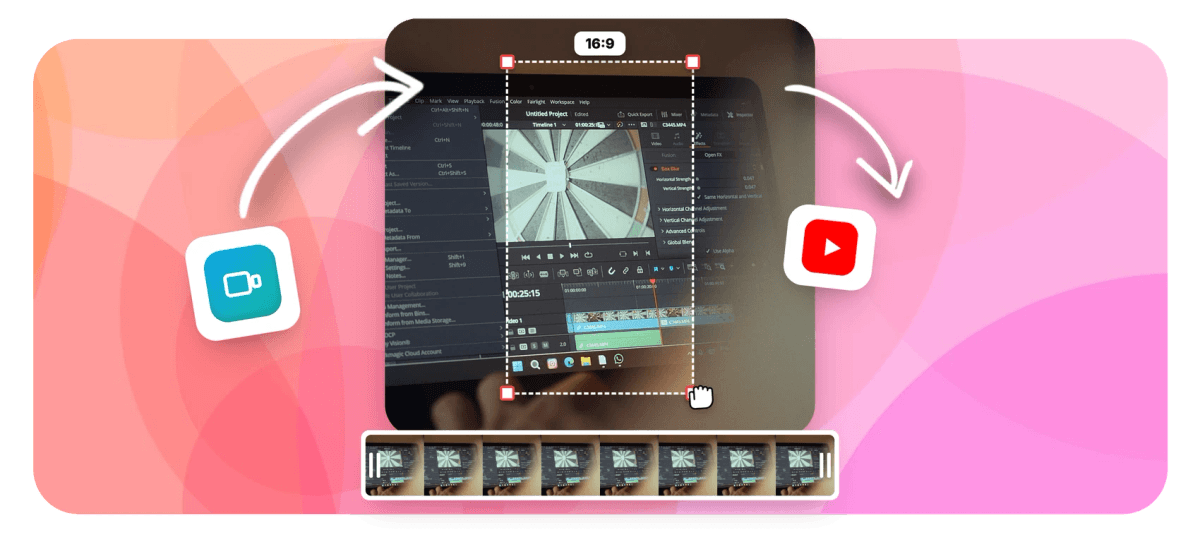
Resize Video for YouTube: Perfect 16:9 Uploads and 9:16 Shorts Features
EchoWave's YouTube tools are used by YouTubers, Shorts creators, and channel managers worldwide





Two formats, one tool
Stop letting YouTube choose your crop
YouTube gives you two shapes: 16:9 widescreen at 1920x1080 for the main watch page and 9:16 vertical at 1080x1920 for Shorts, and when you resize video for YouTube you decide how footage fits each one. Upload a phone-shot vertical clip as a regular video and YouTube pillarboxes it between black bars. Upload landscape footage as a Short and the crop lands wherever it lands. EchoWave's presets set the canvas to either format in one click, then position and scale controls let you choose exactly what stays in frame. Cutting a Short from a long video? Pair the resizer with the YouTube Shorts maker, or polish the full upload in the YouTube video editor.
-
1920x1080
YouTube's standard 16:9 upload size; paid plans export the same shape up to 4K
-
1080x1920
The exact 9:16 Shorts canvas, one preset click from any source clip
-
Free, no signup
The standalone resize tool costs nothing and works without an account
-
Up to 4K
Top export resolution on paid plans; free editor exports are 720p with a small watermark
What you get
Built for both YouTube formats
Presets, framing controls, and export settings tuned to how YouTube actually displays video.
-
16:9 and 9:16 Presets
Set the canvas to YouTube's 1920x1080 widescreen or the 1080x1920 Shorts frame in one click. The preset matches what the platform expects, so no math and no guessed dimensions.
-
Position and Scale Controls
Drag your clip anywhere inside the new canvas and scale it until the subject sits exactly where you want. You choose the crop deliberately instead of hoping YouTube's automatic framing gets it right.
-
Fill or Fit, Never Stretch
Fill crops the edges so footage covers the whole frame; fit keeps every pixel and adds a background instead. Neither option stretches anything. For pixel-precise edge trims, open crop video.
-
Full Editor Underneath
Resizing happens inside a multi-track timeline, so you can trim dead air, stamp a logo, or add music before exporting. Explore the full video editor when a clip needs more than a new shape.
-
Captions for Shorts
Auto-generate word-level captions in the same session after resizing to 9:16. Choose from 170+ styles, including karaoke fills, so your Short still works for the many viewers watching with sound off.
-
HD and 4K Export
Export MP4 in the resolution your plan allows: 720p with a small watermark on the free plan, 1080p on Basic, up to 4K on Pro. Resolution is chosen at export, independent of the ratio you picked.
How it works
How to resize a video for YouTube
Four steps from any source clip to the exact YouTube shape you need.
-
Upload Your Clip
Drag and drop your video file into EchoWave, straight from your phone or desktop. No account needed to start.
-
Pick a YouTube Preset
Choose 16:9 at 1920x1080 for a standard upload or 9:16 at 1080x1920 for a Short. The canvas snaps to the exact dimensions YouTube expects.
-
Position and Scale
Choose fill to crop the edges or fit to keep the whole frame over a background, then drag and scale until your subject sits exactly where you want it.
-
Export and Upload
Export as MP4 and upload straight to YouTube. Free editor exports are 720p with a small watermark; paid plans go up to 4K.
Who uses it
Made for YouTube workflows
-
Gaming Channels Clipping Shorts
Turn 16:9 gameplay recordings into 9:16 Shorts, scaling in on the action instead of letting an automatic crop slice off the HUD.
-
Vloggers Shooting on Phones
Phone clips arrive vertical. Fit them to 16:9 with a clean background for the main channel instead of YouTube's black pillarbox bars.
-
Podcasters Publishing Full Episodes
Frame widescreen episode recordings at 1920x1080 for the watch page, then recut guest highlights vertically for the Shorts feed.
-
Tutorial and Screencast Channels
Keep menus and code readable: fit tall phone screen recordings into 16:9, or zoom into a single window for a vertical Short.
-
Channel Managers Repurposing Archives
Work through the channel's landscape archive and reframe the strongest moments as Shorts to keep the feed active between main releases.
-
Musicians Posting Performance Clips
Resize full-band landscape takes into 9:16 Shorts that stay centered on the vocalist without stretching anyone's proportions.
Frame it for YouTube
Upload a clip, pick 16:9 or 9:16, and decide exactly what stays in frame. Free to start.
How creators use EchoWave in real projects

About the EchoWave team
EchoWave is a browser-based video and audio editor built by Lemon Vault LLC since 2018. The people who build the editor write these guides and test every step in the production app before publishing.
Resize video for YouTube FAQ
How do I resize a video for YouTube?
Upload your clip to EchoWave's free online resizer, then pick a YouTube preset: 16:9 at 1920x1080 for a standard upload or 9:16 at 1080x1920 for a Short. Choose fill to crop the edges or fit to keep the whole frame over a background, drag and scale until the framing looks right, and export as MP4. The tool runs in your browser with no signup, so you can go from source clip to YouTube-ready file in a few minutes.
What size should a YouTube video be?
Standard YouTube videos are 16:9 widescreen, and 1920x1080, also called 1080p, is the size most channels upload. YouTube accepts higher resolutions in the same shape, up to 4K, which EchoWave exports on paid plans. If your source has different dimensions, resize it to 16:9 first so the player fills edge to edge with no black bars. Aspect ratio controls the shape while resolution controls the pixel count; the two are set independently, so pick the ratio first and the resolution at export.
What size is a YouTube Short?
Shorts are vertical: 9:16 at 1080x1920 pixels. Upload landscape footage to the Shorts feed and it gets cropped unpredictably, often cutting off faces or on-screen text. EchoWave's 9:16 preset sets the canvas to the exact Shorts size, and the position and scale controls let you decide which slice of a wider clip fills the tall frame, so the final crop is yours rather than the platform's.
How do I make a vertical video 16:9 for YouTube without stretching it?
Never stretch: a 9:16 clip forced to fill 16:9 looks warped immediately. You have two honest options in EchoWave. Fit keeps the entire vertical frame and fills the space beside it with a background, which works well for talking-head clips. Fill zooms the clip until it covers the 16:9 canvas, cropping the top and bottom, which suits footage with a centered subject and little vertical detail. Both keep pixels in their original proportions, and you can drag the clip to fine-tune what shows.
How do I turn a landscape video into a YouTube Short?
Pick the 9:16 preset, scale the clip until it fills the vertical canvas, and drag it so your subject stays centered; you are choosing one slice of the wide frame on purpose instead of letting an automatic crop decide. EchoWave's keyframes can even move the framing over time if your subject walks across the shot. If you are cutting several Shorts from one long video, the YouTube Shorts maker pairs this resizing with trimming and captions.
Does resizing a video reduce quality?
Changing aspect ratio does not degrade footage by itself: EchoWave repositions and scales your clip on a new canvas rather than re-stretching pixels. Quality is set by your export resolution. Free editor exports are 720p with a small watermark, Basic unlocks 1080p, and Pro exports up to 4K, so a 1920x1080 upload can leave the editor at full quality. Scaling a clip up dramatically to fill a frame can soften it, which is another reason to shoot close or use fit instead.
Do I need a new thumbnail after resizing my video?
Usually, yes. A thumbnail framed for widescreen rarely reads well once the video becomes a vertical Short, and a pillarboxed vertical clip makes a poor auto-generated thumbnail for a standard upload. After resizing, scrub to the strongest frame and capture it with the video thumbnail grabber, which saves a PNG or JPG at the video's own resolution. For standard uploads, set that image as the custom thumbnail in YouTube Studio.
Is the YouTube video resizer free?
Yes. The standalone resize tool is free with no signup: upload a clip and download the resized result. If you finish the job inside the full editor, free exports include a small watermark and cap at 720p, while paid plans remove the watermark and export up to 4K. Posting beyond YouTube too? The same presets cover 1:1, 4:5 and every other shape in the general resize video tool.
Two YouTube shapes, one deliberate frame
Pick 16:9 or 9:16, position your clip, and export an upload-ready MP4.
Resize for YouTube























































