Screen Recorder That Ends in an Editor, Not a File Manager
Record your screen with a camera bubble and mic narration, straight from the browser, no install. Then trim it, caption it and brand it in the same place. Free to start.

Screen Recorder That Ends in an Editor, Not a File Manager Features
EchoWave's recorder is used by tutorial makers, support teams and educators worldwide




In-browser recording
The recording is the easy half. The edit is why EchoWave.
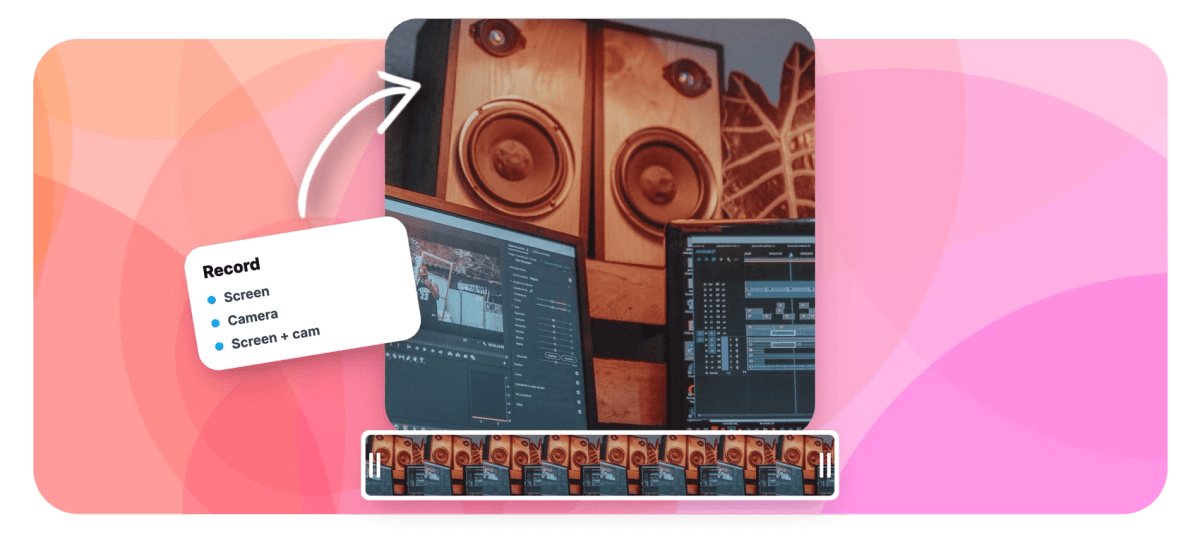
Most screen recorders hand you a file and wish you luck. EchoWave records your screen, window or tab right in the browser, with your webcam floating in a bubble and your microphone or system audio underneath, then drops the take into a full video editor where the screen and camera arrive as separate, individually editable layers. Trim the fumbling, cut the ums, auto-caption it and export. There is even a built-in teleprompter for scripted takes.
-
60 minutes
Maximum length per recording, with pause and resume
-
4 modes
Screen, camera, screen plus camera bubble, or mic only
-
No install
Runs on the browser's own capture APIs, nothing to download
-
Separate layers
Screen and camera import as individually editable clips
What you get
A recording studio in a browser tab
Everything between pressing record and publishing lives in one flow.
-
Screen, Window or Tab
Capture the whole display, a single app window or one browser tab, with an optional system-audio toggle for recording the sound your screen makes.
-
Camera Bubble Layouts
Float your webcam over the screen in any corner, large, side-by-side or screen-only, and switch camera or microphone mid-setup with live device pickers.
-
Layers, Not a Flattened File
A screen-plus-camera take imports as separate clips: move the bubble after the fact, resize it, restyle the background, or cut to camera-only moments in the edit.
-
Built-In Teleprompter
Paste your script and a floating prompter scrolls it near the lens while you record, with adjustable speed and text size. Scripted takes without the thousand-yard stare.
-
Countdown, Pause and Resume
Start with a 3, 5 or 10 second countdown, pause mid-take and resume when ready. Recordings are chunked locally as you go, so a crashed tab does not eat the take.
-
Live Project Monitor
Recording a voiceover or pickup for an existing edit? Watch and scrub your project inside the recorder, and even play it in sync while you record, so the new take lands on time.
-
Straight Into Captions and Cleanup
The take lands in the editor where auto-captions, filler-word removal and silence trimming are one click each, the difference between a recording and a video.
-
Download or Keep Editing
Every recording can be downloaded as a file immediately, or saved into a project. No account is needed to record and download.
How it works
How to record your screen online
From tab to finished tutorial in four steps.
-
Pick a Mode
Choose screen, camera, screen with a camera bubble, or microphone only. Select the display, window or tab to share and your devices.
-
Record
Start with a countdown, pause and resume as needed, and follow the teleprompter if you loaded a script. Up to 60 minutes per take.
-
Review and Save
Play the take back, then download it or send it into the editor, where screen and camera arrive as separate editable layers.
-
Edit and Export
Trim, caption, cut the dead air and export up to 4K on paid plans, all without leaving the browser.
Who uses it
Made for every kind of screen story
-
Tutorial and Course Makers
Record the walkthrough with your face in the corner, then caption and tighten it for students who watch at 1.5x.
-
Support and Success Teams
A 90-second recorded answer beats a 900-word ticket reply, and reuses forever.
-
Product Demos
Record the flow, cut the loading screens, add captions and a logo, ship the demo the same hour.
-
Bug Reports and QA
Show the repro instead of describing it, with system audio when the bug makes noise.
-
Async Standups
Screen plus camera bubble is the native format of remote work updates.
-
Creators
Record reactions, commentary and gameplay-adjacent content without leaving the browser.
Record your screen now
No install, no account to start, and an editor waiting on the other side.
How creators use EchoWave in real projects

About the EchoWave team
EchoWave is a browser-based video and audio editor built by Lemon Vault LLC since 2018. The people who build the editor write these guides and test every step in the production app before publishing.
Screen recorder FAQ
How do I record my screen without downloading software?
Open EchoWave's recorder in your browser, choose the screen mode, pick the display, window or tab to share, and press record. The recorder is built on the browser's own capture APIs, so nothing installs and nothing needs admin rights. When you stop, download the file or continue straight into the editor.
Can I record my screen and webcam at the same time?
Yes. The screen-plus-camera mode floats your webcam in a bubble over the screen, with layouts for any corner, a large bubble or side-by-side. Because the take imports into the editor as separate layers, you can move or resize the bubble, restyle it, or hide it for sections after recording.
How long can I record?
Up to 60 minutes per recording, and pauses do not count against the limit. For longer sessions, record in parts; the editor joins them on one timeline.
Does it record audio, and can it capture computer sound?
Yes on both. Your microphone records narration, with a live device picker to switch mics. A separate system-audio toggle captures the sound from the tab or screen you are sharing, which browsers support best when sharing a tab.
Is there a teleprompter?
Yes, built into the recorder. Paste your script and a floating overlay scrolls it while you record, with adjustable scrolling speed and text size, so you can read naturally while looking near the lens.
What happens if my tab crashes mid-recording?
The recorder saves your take in chunks locally as it records, so an interrupted session can be recovered instead of lost. Pausing and resuming are also supported for intentional breaks.
Do I need an account?
Not to record: recording and downloading the file work without signing up. Saving into the editor creates a lightweight guest session automatically, so you can record, save and edit before ever making an account.
What quality does it record in?
Camera capture offers 480p, 720p and 1080p settings, and screen capture records at the shared surface's resolution. Exports from the editor go up to 4K and beyond on paid plans; free exports are 720p with a small watermark.
Can I record a voiceover for an existing project?
Yes, and this is a standout: the recorder includes a live project monitor that shows your current edit, lets you scrub it, and can play the project in sync while you record, so narration lands exactly on the visuals it describes.
Ready to hit record?
Screen, camera and mic in the browser, with the editor one click away.
Get Started →