
Add SRT to MP4
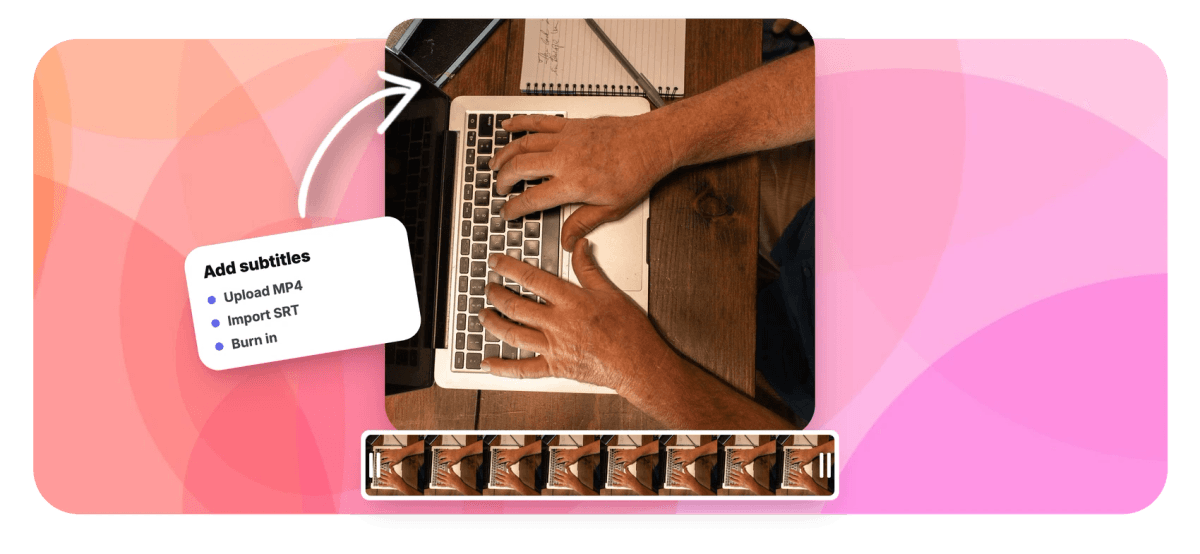
Add SRT to MP4 in your browser: upload the video, import your subtitle file, and every cue lands on the timeline with its original timing. Fix typos, nudge timestamps, restyle the text with 176 caption presets, then burn the subtitles into the picture so they play everywhere, from Instagram to a projector in a meeting room. The free plan exports HD MP4 with a small removable EchoWave watermark badge, and rendering happens in the cloud, so a slow laptop makes no difference.


Add SRT to MP4 Features
EchoWave's subtitle tools are used by video editors, course creators, and social media teams around the world.





SRT meets MP4
What merging an SRT file into an MP4 actually does
An SRT file holds subtitle text and timestamps, nothing else. To make those captions visible on every player, you add SRT to MP4 by burning the text into the frames. EchoWave imports the SRT, lets you edit each cue before export, then hardcodes the subtitles permanently. Working with MOV or WebM instead? Use the general add SRT to video page.
-
176
caption presets
-
86
subtitle translation languages
-
4
subtitle export formats
-
4K
MP4 export on Pro plans
Why EchoWave
Everything between importing the SRT and exporting the MP4
Most SRT mergers stop at gluing two files together. EchoWave gives you a full subtitle workspace first.
-
Add SRT to MP4 without installing anything
Upload your MP4, drop in the .srt, and the cues appear on the timeline at their original timestamps. No FFmpeg commands, no codec flags, no desktop install. It works in Chrome, Edge, Firefox, and Safari on Mac, Windows, Linux, and Chromebooks.
-
Edit every cue before you burn it in
Click any subtitle to fix spelling, split a long line in two, or retime it against the audio waveform. Downloaded SRT files often drift by a second or run lines too long for mobile screens. Correcting that on a visual timeline beats hand-editing timestamps in a text editor.
-
176 caption presets, or your own style
Pick from 176 named presets, including word-by-word karaoke styles like hormozi and Beast Mode with active-word fill, or set your own font, size, color, and background. Brand fonts uploaded through the brand kit show up in the style picker too.
-
Translate the imported subtitles into 86 languages
Once the SRT is on the timeline, translate the cues into any of 86 languages, or run bilingual dual-language captions for learners. Export the translated version as a new SRT, or burn it straight into a second MP4 for that market.
-
No SRT file yet? Generate one
If all you have is the video, the SRT generator transcribes the speech automatically with word-level timestamps in dozens of languages. Review the transcript, correct any names, and treat it exactly like an imported file from that point on.
-
Export the subtitle file as well as the video
Alongside the burned-in MP4, you can export the corrected subtitles as SRT, VTT, TXT, or JSON. That matters when YouTube wants a sidecar file for search indexing but Instagram needs the same text baked into the pixels.
-
A full editor around the captions
The same project can trim dead air, add a logo watermark, drop in transitions, or resize the canvas to 9:16 for Reels. If you want to build captions from scratch with full styling control, see add subtitles to video.
-
Cloud rendering at full quality
Exports render on EchoWave's cloud farm, so burning subtitles into a long MP4 does not tie up your machine. Bitrate, fps, and codec controls are there when you need them, and paid plans reach 4K, with 8K on the top tier.
How it works
How to add an SRT file to an MP4
Four steps take you from two separate files to one finished video.
-
Upload your MP4
Drag the video into the editor at echowave.io. The canvas sizes itself to the footage automatically, and MOV, WebM, and AVI files work the same way if your source is not an MP4.
-
Import the SRT file
Open the Subtitles panel and import your .srt. Every cue is placed on the timeline at its original timestamp, ready to preview against the audio so you can spot drift immediately.
-
Style and correct the captions
Choose one of the 176 presets or set fonts and colors manually, then click through the cues to fix text or timing. This is also where you can translate the subtitles into 86 languages or add a second language below the first.
-
Export the MP4 with subtitles burned in
Hit Export and the cloud render farm hardcodes the captions into every frame. Download the finished MP4 free in 720p with a small EchoWave watermark badge, or up to 4K on paid plans, and the subtitles stay visible on any player, forever.
Who needs this
When burning an SRT into an MP4 is the right call
-
Instagram, TikTok, and Reels
Social platforms ignore sidecar subtitle files on standard uploads. Burned-in captions are the only way to guarantee your SRT text shows in every viewer's feed.
-
Client deliverables
Freelance editors often get an approved SRT back from a client and need one final file. Import it, match the brand style, burn it in, and send a single MP4 that plays anywhere.
-
Translated versions of one video
Import the original SRT once, translate it into any of 86 languages, and export a separate MP4 per market. The picture never has to be re-edited for each language.
-
Podcast clips and interviews
Clips watched on mute need readable text from the first frame. Word-by-word karaoke presets keep the active word highlighted as it is spoken, which holds attention on talking-head footage.
-
Course and training videos
LMS players and locked-down office laptops handle a plain MP4 better than anything with separate tracks. Hardcoded captions survive every download, re-upload, and screen share.
-
Accessibility requirements
Burned-in captions cannot be switched off or stripped by transcoding, so the video stays readable for deaf and hard-of-hearing viewers wherever the file ends up. You can still export a corrected SRT alongside it for players that accept one.
Compare
How EchoWave compares
| Feature | EchoWave | Kapwing | VLC | HandBrake |
|---|---|---|---|---|
| Runs in the browser, no install | Yes | Yes | No | No |
| Import SRT files | Yes | Yes | yes (playback) | Yes |
| Burn subtitles into the MP4 | Yes | Yes | limited (convert menu) | Yes |
| Style captions before burn-in | yes (176 presets) | Yes | No | limited |
| Edit cue text and timing on a timeline | Yes | Yes | No | No |
| Auto-generate captions from speech | Yes | yes (limits on free) | No | No |
| Translate subtitles | yes (86 languages) | yes (paid) | No | No |
| Export corrected SRT, VTT, TXT | Yes | Yes | No | No |
| Embed a selectable soft subtitle track | no (burn-in only) | No | No | Yes |
| Full video editor (trim, transitions, keyframes) | Yes | Yes | No | No |
| Cloud rendering (no fast computer needed) | Yes | Yes | No | No |
| Free downloads | yes (720p, watermark badge) | yes (watermark) | Yes | Yes |
Based on each tool's public pages as of July 2026. VLC and HandBrake are free desktop software; their subtitle features live inside conversion menus rather than an editing timeline.
Merge your SRT and MP4 in one pass
Upload both files, check every cue against the audio, style the text, and let the cloud render the finished video. Export free in HD with a small removable watermark badge; paid plans remove it and reach 1080p up to 4K.
How creators use EchoWave in real projects

About the EchoWave team
EchoWave is a browser-based video and audio editor built by Lemon Vault LLC since 2018. The people who build the editor write these guides and test every step in the production app before publishing.
Add SRT to MP4 FAQ
How do I add SRT to MP4 online?
Upload the MP4 to the EchoWave editor, open the Subtitles panel, and import your .srt file. Each cue appears on the timeline at its original timestamp, where you can correct text, fix timing, and apply one of 176 caption styles. Export, and the subtitles are burned into the finished MP4.
What is the difference between soft subtitles and hardcoded subtitles?
Soft subtitles are a separate text track inside the container (MP4 stores them as mov_text) that viewers can toggle on and off, but many players and every major social platform ignore them. Hardcoded subtitles are drawn into the pixels, so they display everywhere and cannot be turned off. EchoWave hardcodes; it does not mux a soft track into the MP4 container. If you specifically need a toggleable track, HandBrake or FFmpeg can add one.
Can I add an SRT to an MP4 without re-encoding the video?
Only if you embed it as a soft track, for example with FFmpeg's stream copy plus the mov_text codec. Burning subtitles in always requires a re-encode, because the text becomes part of the image. EchoWave handles that re-encode on its cloud render farm with bitrate, fps, and codec controls, so your own hardware is not doing the work.
Does MP4 support SRT subtitles?
Not directly. The MP4 container stores embedded subtitles in the mov_text format, so tools convert SRT on the way in, and player support for those tracks is patchy. Burning the SRT into the video sidesteps compatibility entirely, which is why it is the default for social and client work.
Can VLC permanently add subtitles to an MP4?
VLC overlays an SRT during playback if the file sits next to the video with the same name, but that only affects your screen. Permanently burning them in requires VLC's convert workflow, which is fiddly, offers no styling, and fails silently for many users. A browser tool with a preview is the faster route for a one-off job.
Can I edit the subtitles before burning them into the MP4?
Yes. Click any cue to rewrite the text, split it, or drag its edges to retime it against the waveform. You can also recolor or emphasize individual words, translate the whole track into 86 languages, and swap styles with one click across all cues.
What if my SRT timing does not match the video?
This usually happens when the SRT was made for a different cut of the footage. Because every cue sits on the timeline next to the audio waveform, you can spot the offset in seconds and drag cues into place. Fix one section at a time rather than trusting a blanket offset.
Is it free to add SRT to MP4 with EchoWave?
Yes. Upload the MP4, import the SRT, style everything, and export a free HD MP4 (up to 720p) with a small removable EchoWave watermark badge and a short branded end card. Paid plans remove the badge and end card and add 1080p from Basic, 4K from Pro, and 8K on Business, plus more export formats.
What if I do not have an SRT file for my video?
Generate one inside the same editor. EchoWave's auto-captions transcribe speech in dozens of languages with word-level timestamps, and you can export the result as SRT, VTT, TXT, or JSON. From there the workflow is identical: review, style, and burn in.
Ready to caption your next MP4?
Import the SRT, style it with 176 presets, and export free in HD with a small watermark badge.
Get Started →























































