Voice Cloning for Video Creators
Voice cloning that recreates a voice from a short sample, then speaks any script you type. Natural, expressive and fast. Free, in your browser, no signup.

Voice Cloning for Video Creators Features
Built for content creators, educators, and brand teams who need consistent voice narration across their videos.



What it does
One recording, unlimited narration
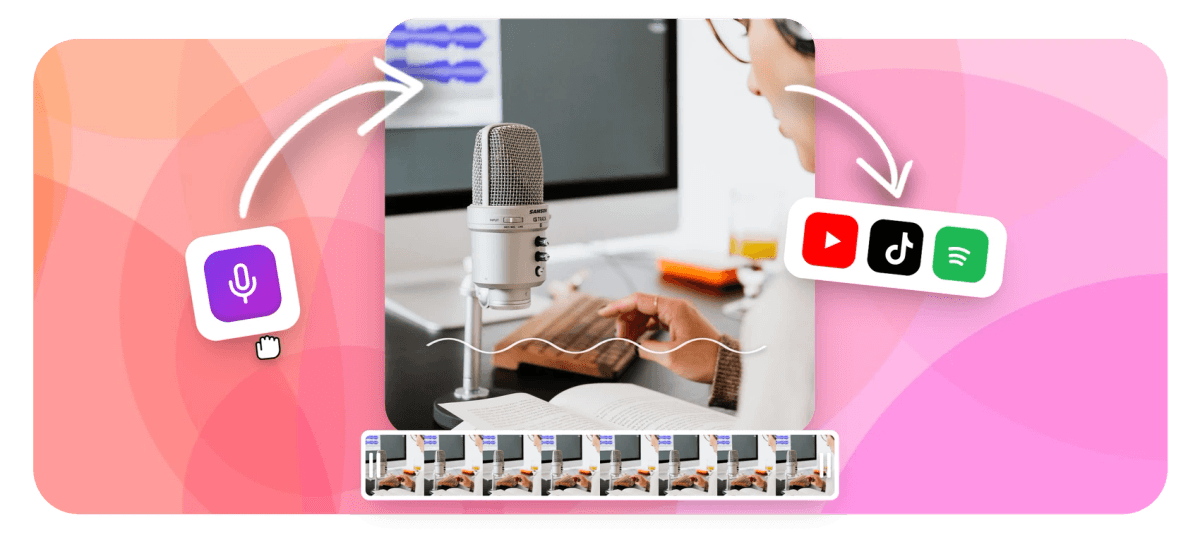
Upload a clean audio sample and EchoWave trains a voice model that sounds like you. Type any script and the model speaks it. Use it for YouTube intros, course modules, or branded social clips without re-recording. This is different from the preset AI voices and text-to-speech tool, which use built-in voices and are free. Voice cloning requires a paid plan because it stores and runs a personal model tied to your account.
-
63
preset AI voices on the free plan
-
4K
export quality on paid plans
-
160+
caption presets including karaoke styles
-
1
voice sample upload to create your clone
How it works
Everything built into one editor
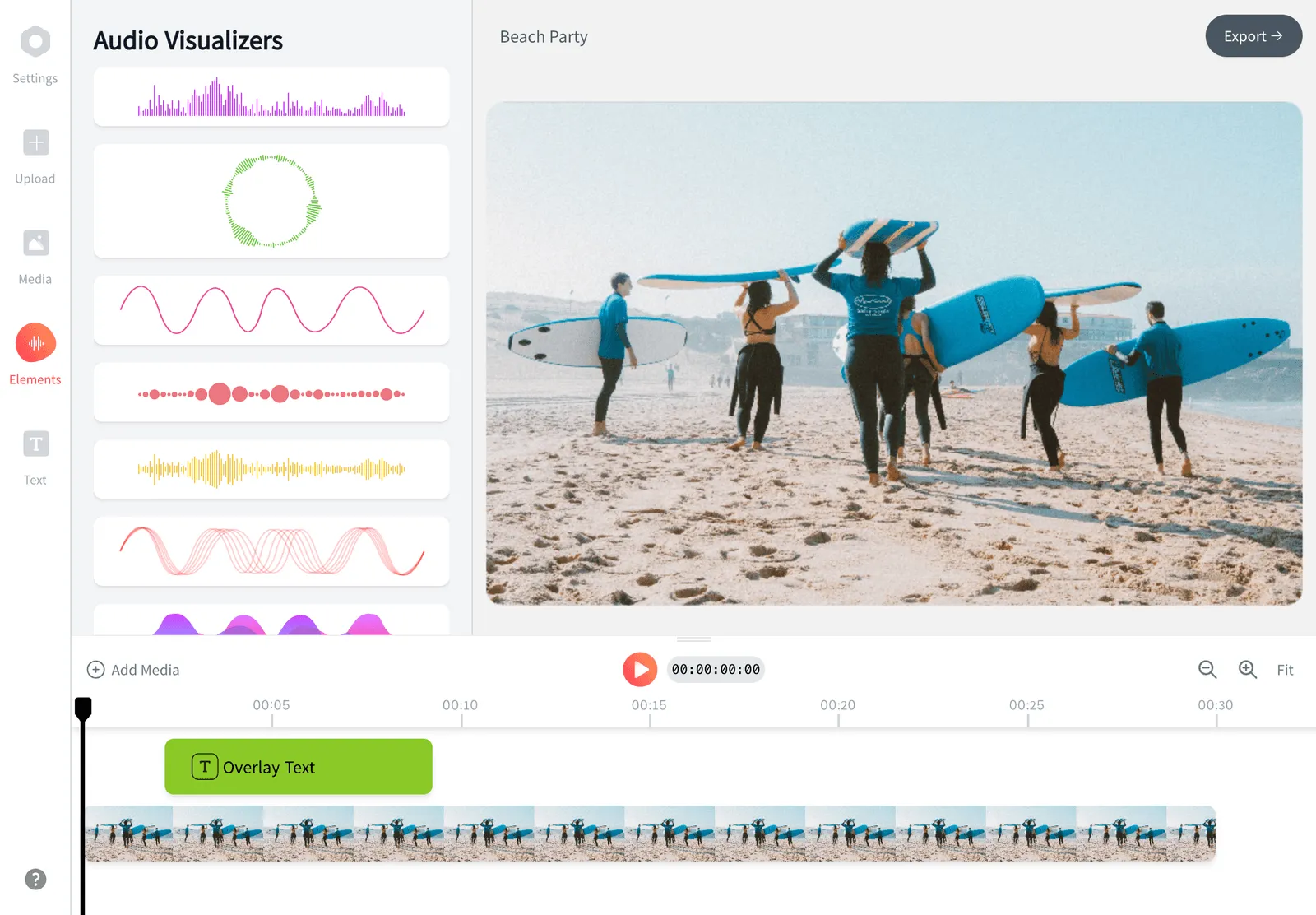
Voice cloning in EchoWave is not a standalone app, it lives inside the full video editor so your narration, cuts, and captions all stay in sync.
-
Voice cloning from a short sample
Record or upload a clean audio clip and EchoWave builds a voice model from it. The model captures your pitch, cadence, and tone. Once trained, it stays in your account and you can generate new lines from text at any time. This is a paid feature.
-
Text-to-speech with your cloned voice
Type a script, choose your cloned voice, and the audio generates in seconds. Drag the clip straight onto the timeline. You can generate multiple takes and keep the best one without re-recording anything. For preset voices without cloning, see the AI voiceover generator.
-
Multi-track timeline editing
Your cloned narration sits on its own audio track alongside music, sound effects, and original video audio. Trim, split, and keyframe the volume of each track independently. Nothing is locked or flattened until you export.
-
Auto-captions synced to your narration
After placing your cloned voice clip, run auto-captions to get word-level subtitles in seconds. Choose from 160+ presets including MrBeast and TikTok karaoke styles. Captions can be translated into dozens of languages for international audiences.
-
Brand overlays on the same canvas
Add your logo, a color-matched lower third, or a watermark sticker to the same project that has your cloned voice track. Green screen removal, blend modes, and emoji overlays are all available in the same editing session.
-
Resize for every platform
After recording narration with your cloned voice, resize the canvas to 9:16 for Reels, 1:1 for feed posts, or keep 16:9 for YouTube. The canvas auto-sizes to your first media clip so the dimensions are set for you.
-
Cloud rendering, no hardware limit
Exports run on EchoWave's cloud render farm, not your device. Free plan exports in HD with a small watermark badge. Paid plans export up to 4K H.264 with the badge removed. Output formats include MP4, MOV, WebM, and GIF.
-
63 preset voices when you want variety
Voice cloning is for consistent brand narration. When you want a different accent, age, or style, switch to the 63 built-in AI voices on the free plan. The text-to-speech tool covers those use cases without needing a paid account.
How it works
How to clone your voice in EchoWave
The whole process, from uploading your sample to a finished video with your cloned narration, takes a few minutes.
-
Upload a clean voice sample
Record yourself speaking naturally for at least 30 seconds, ideally a minute or two of varied sentences. Upload the file in EchoWave's voice cloning panel. MP3, WAV, and M4A all work. A quiet room with no background noise gives the best clone quality.
-
Train and save your voice model
EchoWave processes the sample and creates a voice model tied to your account, then saves it so you can generate narration in future projects without re-uploading.
-
Type your script and generate audio
Open any project, select your cloned voice, and type or paste your script. Click generate and the audio appears as a clip on your timeline. Edit the script and regenerate a line any time without starting over.
-
Export your finished video
Add captions, trim your footage, drop in a logo, then export. Free plan exports HD with a small badge. Paid plan exports up to 4K with no badge. The render runs in the cloud, so closing your laptop does not stop it.
Who uses it
Where consistent voice narration matters
-
YouTube channel narration
Record your voice once, then generate new episode narrations from text scripts. Your audience hears a consistent voice across every video.
-
Course and tutorial videos
Online educators use cloned voice narration to update a module when information changes, generating only the revised sentences rather than re-recording the whole lesson.
-
Brand video series
Marketing teams clone a presenter's voice so multiple editors can produce branded videos simultaneously. The brand voice stays consistent even when the presenter is unavailable.
-
Social media content at volume
Creators who post daily use cloned narration to script and generate audio for several clips in one session, then cut and caption each in the same editor before scheduling.
-
Blog-to-video repurposing
Paste a blog article script into the cloned voice generator, place the audio on a screen recording or b-roll timeline, add captions, and publish a video with no voiceover booth needed.
-
Multilingual narration with translation
Generate a narration track in your cloned voice, then add translated captions for international viewers. The voice stays yours while the subtitles reach audiences in their language.
Ready to narrate with your own voice?
Clone your voice once inside EchoWave and reuse it across every video you make. Add captions, resize for any platform, and export up to 4K, all from the same editor. Start with the free plan to try the 63 preset voices first.
What people are saying about EchoWave

About the EchoWave team
EchoWave is a browser-based video and audio editor built by Lemon Vault LLC since 2018. The people who build the editor write these guides and test every step in the production app before publishing.
Voice Cloning for Video Creators FAQ
Is voice cloning free in EchoWave?
Voice cloning is a paid feature in EchoWave. The free plan gives you access to 63 preset AI voices for text-to-speech narration, which covers most casual use cases. If you need a voice model trained on your own recordings, you will need a paid subscription. You can try the preset voices on the free plan before deciding.
How long does it take to clone a voice?
A short recording is enough to create your voice model, and longer, varied samples produce more natural-sounding results because the model has more pitch and cadence patterns to learn from. A quiet recording with no background noise matters more than length.
How is voice cloning different from the text-to-speech tool?
The text-to-speech tool uses EchoWave's built-in library of 63 preset AI voices. Voice cloning trains a custom model on your own recordings so the output sounds like you specifically. The preset voices are free and available immediately. Cloning requires a paid plan and an uploaded voice sample.
What audio format do I need for the voice sample?
EchoWave accepts MP3, WAV, and M4A for the voice sample upload. The most important factor is audio clarity, so record in a quiet space without fans, traffic, or reverb. A standard USB microphone or a smartphone in a still room works well. Avoid Bluetooth recordings, which often have compression artifacts.
Can I use my cloned voice across multiple projects?
Yes. Once you train a voice model, it is saved to your account and appears as an option in the voice selector for any new project. You do not re-upload or re-train each time. This is the key advantage for brand teams and regular creators who want a consistent sound across a series.
Does EchoWave do AI background removal with voice cloning?
EchoWave does not have AI background removal. For background isolation in video, the tool supports green screen and chroma key removal. For audio, placing your cloned narration on its own track and muting or lowering the original video audio gives you control over what the audience hears.
How is EchoWave voice cloning different from ElevenLabs?
ElevenLabs is a dedicated voice AI platform with very high output quality and professional cloning options that require longer audio samples. EchoWave is a video editor that includes voice cloning as one feature alongside timeline editing, captions, and export. If you only need audio files, ElevenLabs is a strong choice. If you need the narration to land directly on a video timeline with captions and overlays, EchoWave keeps everything in one place.
Can I add captions to videos narrated with my cloned voice?
Yes. After placing your cloned narration clip on the timeline, run auto-captions and EchoWave transcribes the audio into word-level subtitles. You can pick from 160+ caption presets, including karaoke and TikTok styles, and translate the captions into dozens of languages. The caption generator works with any audio source, recorded or cloned.
What export quality does voice cloning support?
EchoWave renders in the cloud so your device hardware does not limit quality. The free plan exports HD video with a small watermark badge. Paid plans export up to 4K H.264 with the badge removed. Output formats include MP4, MOV, WebM, and GIF. Voice cloning itself is a paid feature, so if you are on a paid plan, you automatically have access to 4K export.
Clone your voice and narrate every video faster.
Start on the free plan with 63 preset voices, then upgrade to add voice cloning, 4K export, and badge removal when you are ready.
Get Started →