
Audio Cutter: Trim and Split Audio Right on the Waveform
Cut MP3, WAV, AAC and more in EchoWave's timeline editor. See the waveform, split and trim exactly where the sound changes, add a fade, and export clean audio.


Audio Cutter: Trim and Split Audio Right on the Waveform Features
EchoWave's audio tools are used by podcasters, musicians and video creators worldwide





Waveform-precise cutting
Cut where the sound changes, not where you guess
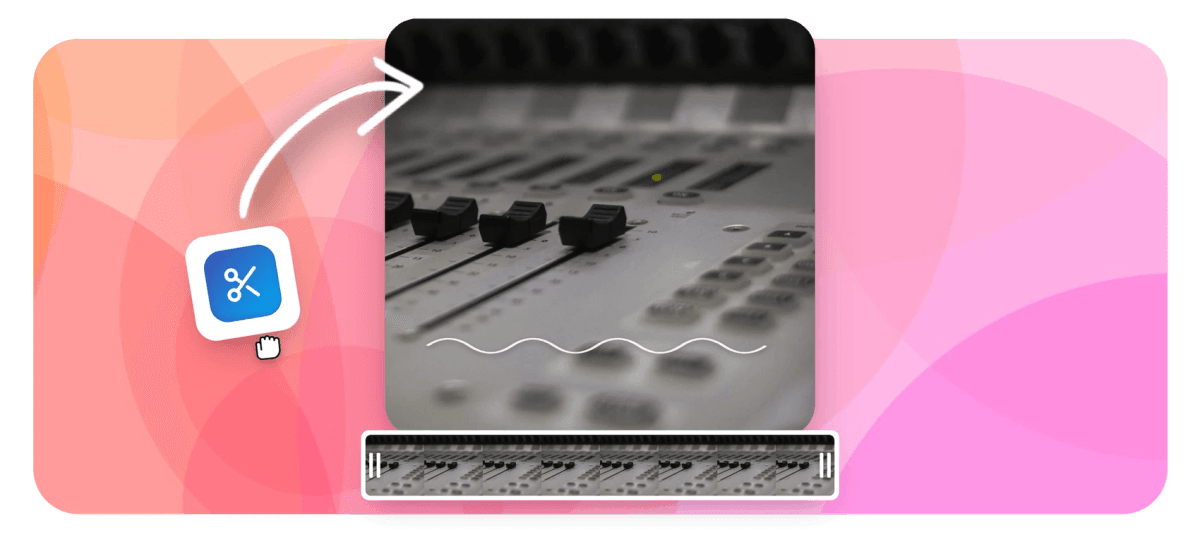
An audio cutter is only as accurate as what it lets you see, so EchoWave cuts on a real editing timeline with the waveform drawn across every clip. Upload an MP3, WAV, AAC or FLAC file, zoom in until a single breath is visible, then trim the edges or split out exactly the section you want. This is not a one-button widget, and that is deliberate: the editor gives you multiple segments, ripple delete and per-clip fades, the moves a basic cutter cannot make. Clip a hook for a ringtone, tighten tracks before you merge them, then export audio and convert the format afterwards if a device needs something specific.
-
6+ formats
MP3, WAV, AAC, FLAC, M4A and OGG all open on the same timeline
-
Ripple delete
Cut a section out of the middle and the gap closes itself
-
Per-clip fades
Fade in and fade out sliders on every audio clip
-
Audio-only export
Render the finished cut as a clean audio file, not a video
What you get
A cutter with a full editor behind it
The timeline is what turns close enough into exact.
-
Waveforms You Can Read
Every audio clip draws its waveform on the timeline, so silences, beats and breaths are visible before you commit to a cut. Zoom in and drop the playhead exactly where the sound changes.
-
Split, Delete, Ripple
Split the track at the playhead as many times as you need, delete the pieces you don't want, and ripple delete pulls the remaining audio together so nothing is left hanging.
-
Edge Trimming With Snap
Drag either end of a clip to shave off dead air, count-ins or trailing noise. Magnetic snapping keeps segments butted cleanly against each other while you work.
-
Fades at the Cut Points
Every clip has fade in and fade out duration sliders, so a hard cut becomes a smooth ramp. A short fade on each side of a join takes the click out of the seam.
-
Multiple Segments, One Timeline
Keep as many pieces of the original as you like and rearrange them freely. You can even cut sound you pulled from footage with the audio extractor.
-
Record, Cut, Ship
Capture a take with the voice recorder, send it to the editor and cut the stumbles out on the same timeline, no downloads or format juggling in between.
How it works
How to cut audio online
Four steps from full track to finished clip.
-
Upload Your Audio
Open the EchoWave editor and drop in your file. MP3, WAV, AAC, FLAC, M4A and OGG all land on the timeline as a clip with its waveform drawn in.
-
Trim and Split on the Waveform
Drag the clip edges to trim the start and end, or place the playhead and split. Zoom in for fine cuts, delete the segments you don't need, and let ripple delete close the gaps.
-
Add Fades If You Want Them
Select a clip and set fade in and fade out durations with the sliders, so every cut point ramps in smoothly instead of clicking.
-
Export the Audio
Preview the cut, then export as audio. EchoWave renders your edit into a clean file that is ready for phones, podcast hosts or another project.
Who uses it
Cuts people make every day
-
Podcasters
Cut cold opens, tighten rambling intros and drop the failed takes before an episode ships to listeners.
-
Musicians and Producers
Isolate a verse, loop a bar of a demo, or trim the silence off bounced stems before sharing.
-
Ringtone Makers
Trim the hook of a favorite song down to a few seconds and export it for a custom tone.
-
Students and Journalists
Pull the one quotable minute out of an hour of interview tape or a full lecture recording.
-
Video Editors
Cut music beds and effects to length here, then lay them under footage on the same timeline.
-
Event Hosts and DJs
Shorten walk-up songs, build tight segues and prep clean intro stingers for sets and ceremonies.
Cut your track now
Waveform timeline, ripple delete, per-clip fades. Free to start in your browser.
How creators use EchoWave in real projects

About the EchoWave team
EchoWave is a browser-based video and audio editor built by Lemon Vault LLC since 2018. The people who build the editor write these guides and test every step in the production app before publishing.
Audio cutter FAQ
How do I cut an MP3 online?
Open the EchoWave editor, upload the MP3, and it appears on the timeline as a clip with its waveform visible. Drag the clip's edges inward to trim the start and end, or place the playhead and split to remove a section. When the cut sounds right in the preview, export as audio and download the result. The process is identical for WAV, AAC, FLAC, M4A and OGG files, and you can start for free without installing anything.
How do I cut a section out of the middle of a song?
Split twice, then delete. Place the playhead where the unwanted part begins and split, move it to where the part ends and split again, then delete the middle segment. Use ripple delete and the two remaining pieces pull together automatically, with no gap left behind. Add a short fade out on the first piece and a fade in on the second if the join lands mid-note, and it will play through cleanly.
Can I add a fade in or fade out at the cut points?
Yes. Every audio clip in the editor has its own fade in and fade out duration sliders, so you can ramp into the start of your cut and out of the end instead of stopping dead. Fades matter most at joins: cutting in the middle of a waveform can leave an audible click, and a fraction of a second of fade on each side removes it. Set the durations per clip, preview, and adjust until the transition disappears.
Can I make a ringtone with the audio cutter?
Yes, that is one of the most common cuts. Trim your track down to the hook, the chorus bar or whatever few seconds you want to hear when your phone rings, add a quick fade in so it does not start with a jolt, and export as audio. Transfer the file to your phone and set it as a tone. For a walkthrough built around this exact job, see the ringtone maker.
How precise can I get with a cut?
As precise as you can see, and the timeline lets you see a lot. Zoom in until the waveform stretches wide enough to show individual drum hits or the gap between two words, then place the playhead on the exact transient and split there. Clip edges can be adjusted after the fact, so if a cut clips the first syllable you drag the edge back a hair rather than redoing anything. Magnetic snapping keeps neighboring segments tight while you adjust.
What audio formats does the cutter support?
Upload MP3, WAV, AAC, FLAC, M4A or OGG, and more besides; if a browser can decode it, the timeline can usually cut it. You can even mix formats in one project, trimming a WAV recording and an MP3 download side by side. The export is a standard audio file that plays everywhere, and if a specific app insists on a particular container you can run the result through the converter in a few seconds.
Does cutting audio re-encode it? Will I lose quality?
Exporting renders a new file rather than copying bytes out of the original; that is what makes fades, joins and mixed formats possible. One clean render from a good source is not something most listeners can pick out, but re-encoding is still re-encoding, so two habits keep quality high: start from the best copy you have, ideally a WAV or high-bitrate MP3, and make all your cuts in one project instead of repeatedly exporting and re-cutting the output.
Is the audio cutter free to use?
You can upload, cut, fade, preview and export while getting started for free, with nothing to install. EchoWave's free plan adds a small visual badge to video exports and caps them at 720p, but a standalone audio export has no picture to stamp, and there is no audible watermark or branding sound in the file. Paid plans lift the video limits, remove the badge and unlock exports up to 4K when your project grows beyond audio.
Ready to cut your audio?
Waveform-accurate cutting in your browser. Free to start, no install.
Get Started →























































