Extract Audio from Video
Extract audio from video and save it as MP3 or WAV. Grab the soundtrack, dialogue or music from any clip in seconds. Free, in your browser, no signup.


Extract Audio from Video Features
EchoWave's audio extraction tool is used by podcasters, educators, musicians, and video creators around the world.





How it works
Get the audio track out, keep the sound
When you extract audio from video you are pulling the sound track out as a standalone file you can keep, edit, or republish. That is different from removing audio from a video, which mutes the picture and discards the sound. If you want a specific audio format, see video to MP3 or video to audio in the converter. This page is for getting the audio file out while keeping the sound.
-
MP3 + WAV
output formats for extracted audio
-
No install
runs entirely in your browser
-
HD free
high-definition output on the free plan
-
4K cap
maximum render quality on paid plan
What you get
More than an audio ripper
EchoWave pairs audio extraction with a full timeline editor: trim, clean, and export without leaving the page.
-
Extract audio from video in two clicks
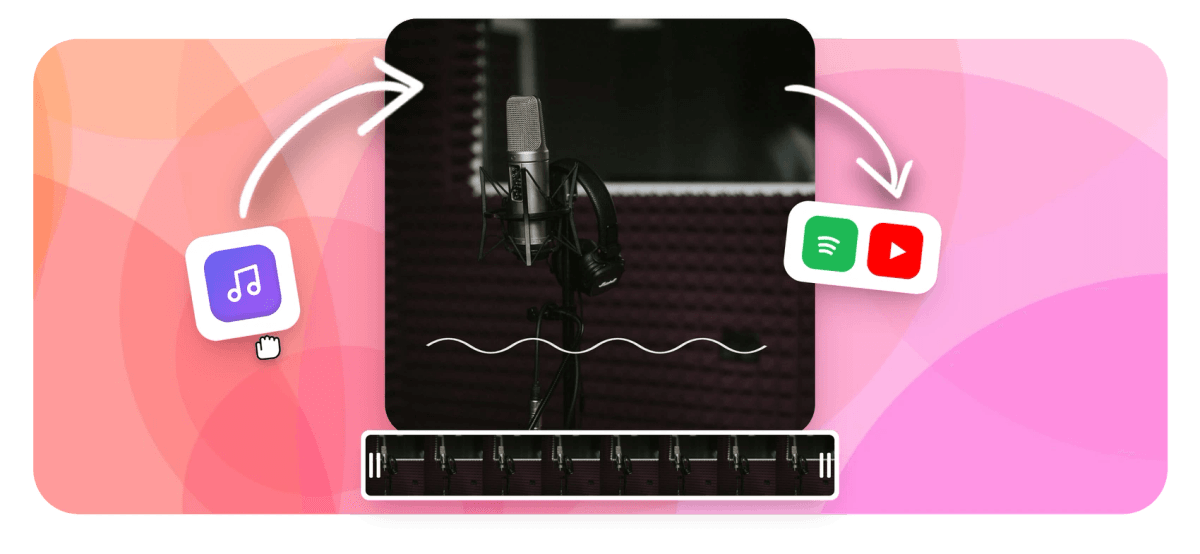
Upload your MP4, MOV, WebM, or AVI file, select MP3 or WAV as the output format, and click export. The cloud render farm processes the file and returns the audio track ready to download. No conversion queue wait times on standard clips.
-
MP3 and WAV output
MP3 works for podcasts, social audio, and anywhere file size matters. WAV gives you an uncompressed track for further editing in a DAW or audio software. Pick whichever format your next step needs.
-
Trim before you extract
For just a clip, use the timeline editor to cut the section you want, then export only that portion as audio. You can split and merge segments before the final audio export so you get exactly the range you need.
-
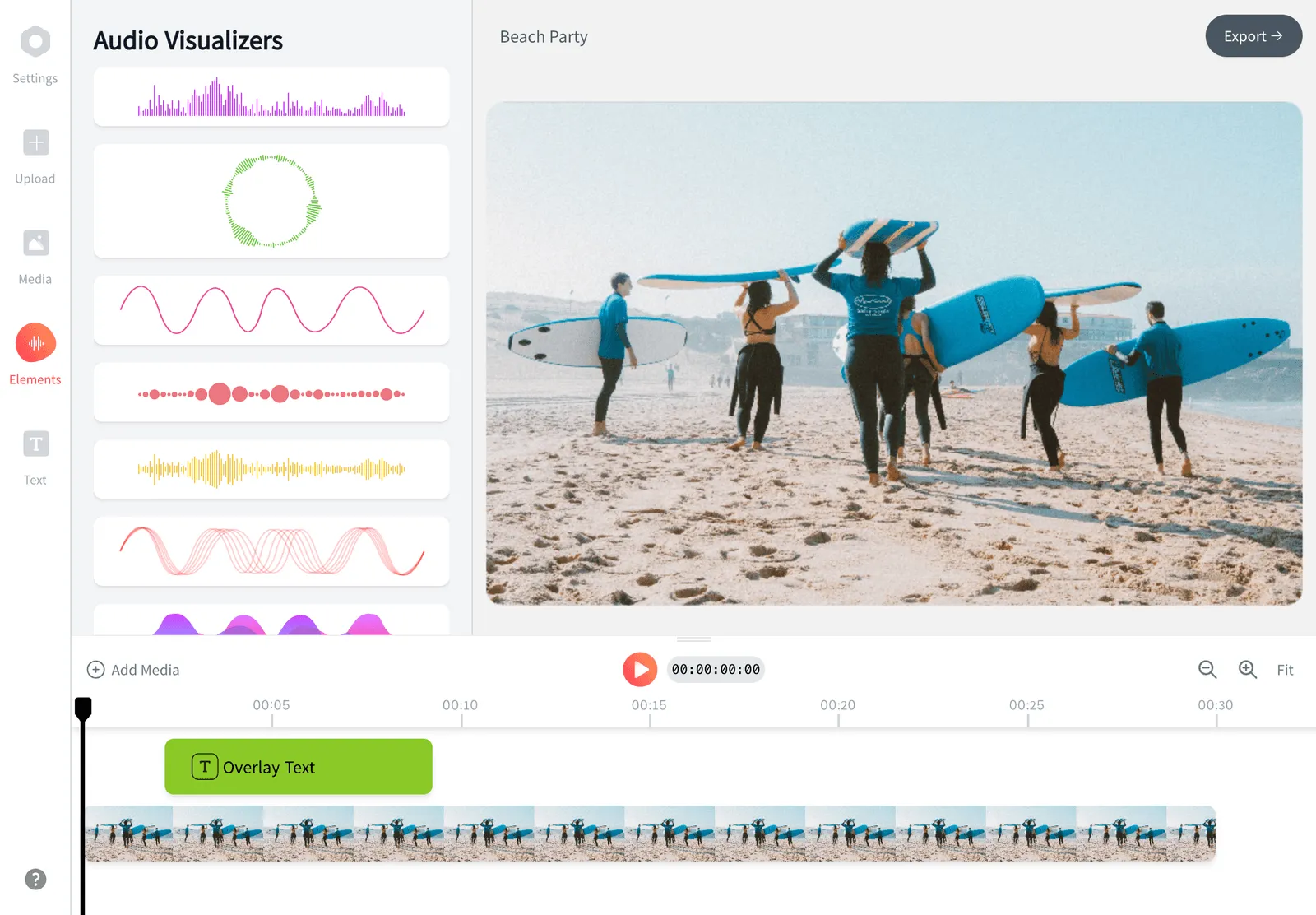
Waveform view while you edit
The timeline shows a live waveform so you can see where speech, music, or silence falls before you commit to a cut point. Scrub the playhead to audition the audio track against the original video before exporting.
-
Multi-track editing after extraction
Once extracted, you can bring the audio back in alongside other tracks. Layer voice-overs, background music, or sound effects on separate timeline lanes with keyframe volume control. When done, you can add the audio back to a video or export as a standalone audio file.
-
AI captions from the extracted audio
After extraction, run AI auto-captions on the original video to get a transcript of the same audio. The speech-to-text engine supports 160+ caption preset styles and subtitle translation into dozens of languages. Useful if you plan to repurpose the audio as a podcast episode with a text transcript.
-
Record or add a voice-over too
The built-in screen recorder and voice-over tool let you replace or supplement the extracted audio without switching apps. Record directly in the browser, place it on the timeline, and export the new mix as MP3 or WAV.
-
Secure cloud processing
Files upload over an encrypted connection and are processed on EchoWave's cloud render farm, not on your device. Your video content is not used for training or shared with third parties. The free plan renders with a small EchoWave badge on video exports; audio-only exports do not carry a visual badge.
How it works
How to extract audio from video
Four steps from raw video file to downloaded audio track, all in your browser.
-
Upload your video
Click the upload area or drag your MP4, MOV, WebM, or AVI file into the editor. EchoWave loads the video onto the timeline automatically. No file size limit is advertised, and common lengths like interview recordings or lecture videos load in a few seconds on a decent connection.
-
Trim to the section you want (optional)
If you only need part of the audio, drag the in and out points on the timeline or use the split tool to isolate the segment. You can remove silences, cut out dead air at the start or end, or pull a single segment from a longer recording. Skip this step if you want the full track.
-
Choose MP3 or WAV and export
Open the export panel, select audio-only output, and pick MP3 (compressed, smaller file) or WAV (uncompressed, lossless). Confirm and EchoWave sends the job to the cloud render farm. You do not need to keep the browser tab active while rendering.
-
Download your audio file
When rendering finishes, a download link appears in the render panel. Click to save the extracted audio to your device. The file is ready for podcast hosting, audio editing software, or direct sharing. Free plan exports include HD audio quality.
Who uses this
Common reasons to extract audio from video
-
Podcast production
You recorded an interview on video and want to publish the audio as a podcast episode. Extract the audio track as MP3, then upload it to your podcast host without re-recording or screen-capturing the output.
-
Saving original music from a performance video
A live performance or rehearsal was captured on camera and the audio is the keeper. Extract it as WAV for lossless quality, then mix or master it in your DAW without converting multiple times.
-
Transcription and subtitles
Some transcription services accept audio files rather than video. Extract the audio track first to reduce upload size, then send the MP3 to your transcription tool or run AI captions in EchoWave directly on the original video.
-
Dubbing and localization
Pull the original language audio out of a video before replacing it with a translated voice-over. Having the source audio as a separate file makes timing comparisons much easier when you add the new voice-over back.
-
Repurposing social video as audio content
Short-form video clips often contain standalone commentary or tutorials that work as audio content. Extract the track, trim any silent sections in the editor, and publish the audio on a different platform without re-recording.
-
Reusing music and sound effects
If you shot a video with a great ambient track or sound effect in the background, extract the audio, isolate the section you want, and add it to the video editor as a new audio layer in another project.
Extract your audio track now
Upload any video, pick your format, and download the audio in seconds. No software, no waiting for a desktop export, and no account needed to start.
How creators use EchoWave in real projects

About the EchoWave team
EchoWave is a browser-based video and audio editor built by Lemon Vault LLC since 2018. The people who build the editor write these guides and test every step in the production app before publishing.
Extract Audio from Video FAQ
How do I extract audio from a video for free?
Upload your video to EchoWave, open the export panel, and select audio-only output in MP3 or WAV format. The cloud renderer processes the file and you download the audio track. No account is required to start, and the free plan produces HD audio.
What is the difference between extracting audio and removing audio from a video?
Extracting audio means taking the sound track out of the video and saving it as a separate audio file (MP3 or WAV) you can keep and use elsewhere. Removing audio means muting the video so the picture remains but the sound is gone. See the EchoWave remove audio from video tool if you want the muted video, not a downloadable audio file.
Can I extract just a portion of the audio, not the whole video?
Yes. Use the timeline editor to trim the clip before exporting. Drag the in and out handles to the section you want, or use the split tool to isolate a segment, then export only that range as audio. The cloud renderer processes only the trimmed section.
Should I export as MP3 or WAV?
MP3 is compressed and produces smaller files, which is fine for podcasts, social audio, and voice recordings where lossless quality is not critical. WAV is uncompressed, so it preserves every detail of the original audio and is the better choice if you plan to edit the extracted track further in a DAW or audio editing application.
What video formats can I extract audio from?
EchoWave accepts MP4, MOV, WebM, and AVI as input formats. These cover the most common video files from cameras, phones, screen recorders, and video platforms. If your file is in a less common container, try re-wrapping it as MP4 first using the EchoWave video to audio converter.
Does extracting audio reduce the audio quality?
When you export as WAV the output is uncompressed, so quality matches the source audio exactly. When you export as MP3 there is some encoding compression, but at standard high-quality bitrate settings most listeners will not hear the difference. The source video's original audio quality sets the ceiling regardless of format.
Is there a file size limit for extraction?
EchoWave does not publicly advertise a strict per-file size cap. Typical video files used for audio extraction, such as interview recordings and lecture videos, upload and process without issues. Very large raw video files may take longer to upload depending on your internet connection speed.
How is this different from the video-to-MP3 converter?
The video to MP3 converter is a single-purpose tool focused on MP3 format conversion with minimal setup. This audio extraction tool sits inside the full editor, so you can trim, layer, add captions, or mix other audio before exporting. Use the converter for quick one-click jobs and the editor when you need to do anything beyond a straight extraction.
Does EchoWave add a watermark to audio files?
Audio-only exports do not carry an audible watermark or branding sound. The EchoWave badge that appears on free-plan video exports does not apply to standalone audio files. If you export a video with the extracted audio still embedded, the free plan adds a small visual badge to the video track; upgrading to the paid plan removes it.
Ready to extract your audio track?
Start free in your browser, no download needed. The free plan gives you HD audio output; a small EchoWave badge appears on video exports but not on audio-only files.
Get Started →