Free Online Video Editor
EchoWave is a free online video editor and video sound editor in your browser: trim clips, add text, music, subtitles, and effects, edit the audio, then export and share. No download, no install, and it runs on any computer, phone, or tablet.

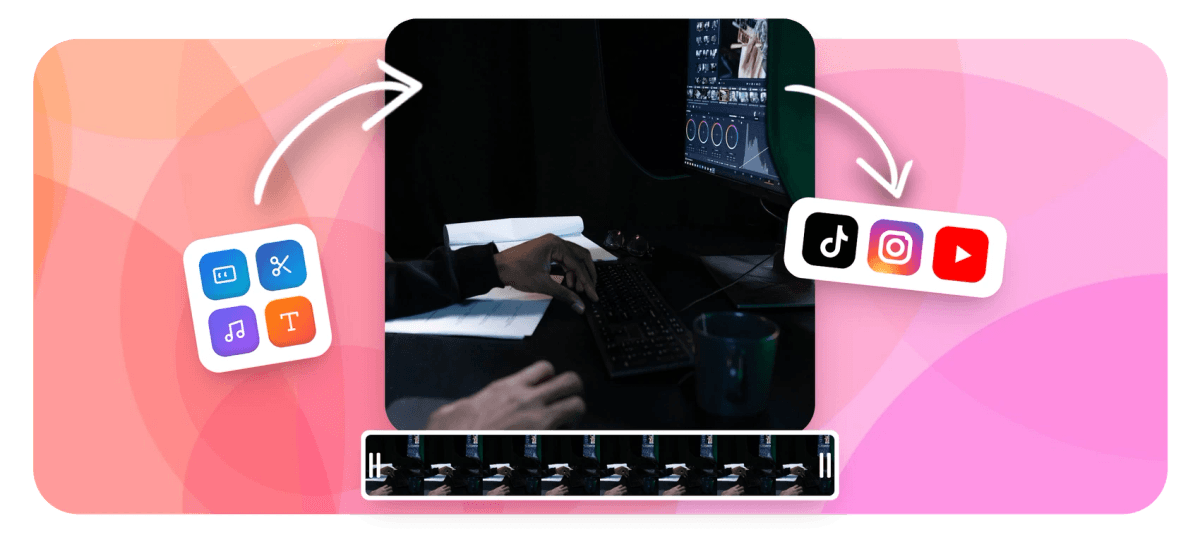
Free Online Video Editor Features
EchoWave's Online Video Editor is trusted by thousands of creators and businesses around the world





EchoWave is a free online video editor that runs entirely in your web browser, so you can trim and cut clips, add text and titles, layer music or a voiceover, generate subtitles, and apply effects without downloading or installing anything. It also doubles as a video sound editor and audio editor, which is where EchoWave started, so editing the audio is as easy as editing the picture. Open the editor, drop in your footage, edit on the timeline, and export an MP4 to keep or share. It works on Windows, Mac, Chromebook, and most phones and tablets.
How the online video editor works
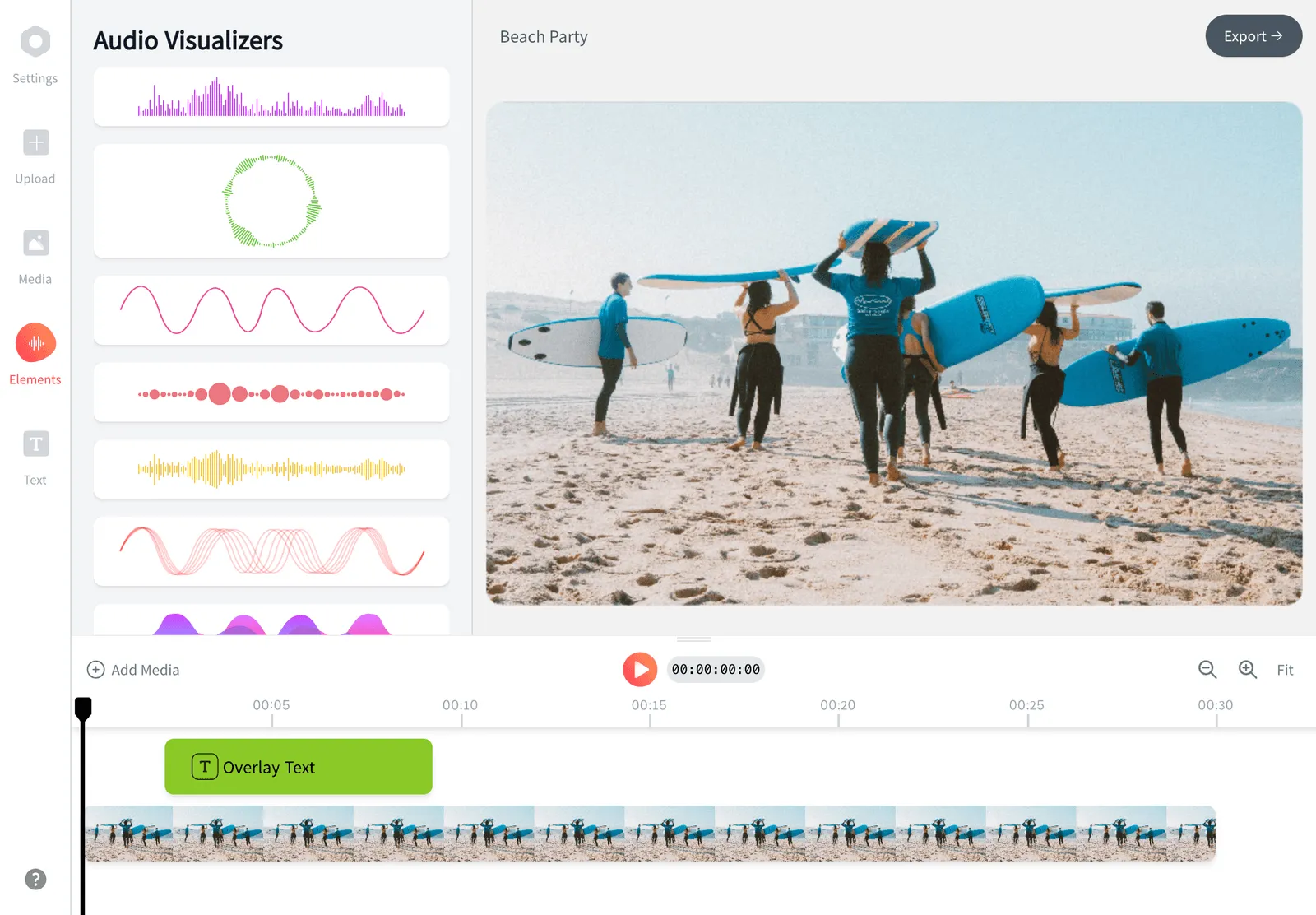
EchoWave loads in any modern browser and gives you a multi-track timeline, a preview canvas, and a tool sidebar, the same layout you would expect from desktop editing software. You upload your video, then arrange clips on the timeline: drag the ends to trim, split a clip at the playhead to cut out a section, and reorder pieces by dragging them. Above and below the main video track you can stack extra layers for text, images, logos, stickers, and separate audio, which is how you build titles, lower thirds, captions, and background music.
Editing happens live in the preview so you can see changes as you make them. When you are done, EchoWave renders the final file on its servers rather than tying up your laptop, then gives you a download link. Because the heavy lifting runs in the cloud, an older or low-powered machine can still export a clean HD video.
What you can do with it
The toolset covers the everyday jobs most people open a video editor for. You can cut and trim footage, crop and resize the frame, rotate or flip a clip, change playback speed, and merge several clips into one sequence. On the visual side you can add styled text and animated titles, overlay a logo or watermark, drop in images and stickers, and apply filters.
Edit the audio, not just the video
EchoWave grew out of audio tooling, so as a video sound editor it is genuinely strong. Use it as a video audio editor to add a music bed or a voiceover, mix and adjust levels, fade audio in and out, replace or remove the original sound, and clean up a clip where the sound matters as much as the picture. There is a voice editor side too: tweak a recorded voiceover, add an echo or a touch of reverb, and balance speech against background music. You can also edit the audio on its own and turn a track into a shareable waveform or audiogram video. If you mostly want to edit audio in a video rather than the visuals, EchoWave works as a free video sound editor without the steep learning curve of desktop software.
Subtitles and captions are built in, which matters because most social video is watched on mute. You can add and time captions to keep viewers engaged in a feed where sound is off by default.
Real use cases
Creators use the editor to cut long recordings into short clips for TikTok, Instagram Reels, and YouTube Shorts, then add captions and a hook on screen. Small businesses put together product demos, promos, and social ads without hiring an editor. Podcasters use it as a YouTube audio editor, turning an audio episode into a captioned audiogram or a static-image video for YouTube and editing the sound before they post. Teachers and course creators trim screen recordings and add titles and arrows to explain a step. Anyone with a phone full of clips can stitch a quick highlight reel for a birthday, trip, or event.
Because nothing installs, it is also handy on a work or school computer where you cannot add software, or on a borrowed machine where you just need to get one edit done and move on.
Supported formats and export specs
You can upload the common formats people actually have: MP4, MOV, M4V, WebM, AVI, MKV, and more, plus image files like JPG and PNG and audio files like MP3, WAV, and AAC for your soundtrack. The most reliable input is H.264 MP4, the same format your phone records, and it is also the recommended export format because it plays everywhere and uploads cleanly to every social platform.
EchoWave exports to MP4 (H.264 video with AAC audio) in standard sizes and aspect ratios. Use 9:16 vertical for TikTok, Reels, and Shorts, 1:1 square for feed posts, and 16:9 widescreen for YouTube and presentations. You set the canvas size before you export, so you can repurpose the same project into multiple aspect ratios without starting over.
Quality, watermark, and limits
Editing is free, and so is exporting. Free exports include a small EchoWave watermark in the corner; a paid plan removes it and unlocks higher export limits. If you only need a quick one-off job and want a clean file with no mark, EchoWave's dedicated quick tools for cropping, trimming, and compressing export with no watermark at all.
Render time depends on the length, resolution, and how many layers and effects you have added. A short social clip usually finishes in well under a minute, while a long multi-track project takes longer. Because rendering runs in the cloud, your own device speed barely affects the export, though your upload speed does affect how quickly your footage reaches the editor.
Device and browser support
The online video editor runs in Chrome, Safari, Firefox, and Edge on Windows, macOS, Linux, and ChromeOS, and it works in mobile browsers on iPhone, iPad, and Android, so there is no separate app to install. A keyboard and a larger screen make timeline work more comfortable, but you can record on your phone, open EchoWave in the phone browser, and edit on the same device. Your projects are saved to your account, so you can start an edit on your laptop and pick it up later from another machine.

Instant Editing
A live preview timeline that updates as you trim, cut, and arrange clips, with no lag and no install.

Full Toolset
Trim, crop, rotate, merge, add text, music and sound, subtitles, logos, and effects, all in one video and sound editor that keeps growing.

Cloud Rendering
Final exports render on our servers, not your laptop, so even an older device can produce a clean HD video.

Safe and Secure
Encrypted uploads keep your footage private. Your videos stay yours and are not shared.

Easy to Learn
A clean, familiar layout with a timeline, preview, and tool sidebar means you can start editing in minutes.

Anywhere Access
Edit from any computer, phone, or tablet with a browser and an internet connection, with nothing to download.
How to edit a video online
-
1. Upload your video
Open the EchoWave editor in your browser and start a new project. Drag and drop your clips onto the timeline, or use the Upload button. You can add several files at once and pull in images and audio too.
-
2. Edit and improve
Trim and cut clips on the timeline, then reorder them. Add titles and captions with the Text tool, drop in a logo or images, and apply effects. Use the Audio tab to add background music or a voiceover, set levels, and fade sound in and out.
-
3. Export and share
Pick your size and aspect ratio, then click Export. EchoWave renders your video in the cloud and gives you a download link. Save the MP4 or post it straight to YouTube, social channels, or wherever you need it.

What creators say after trying EchoWave
Frequently Asked Questions
Is the online video editor free?
Yes. EchoWave is a free video editor online: you can edit and export video for free with no time trial. Free exports carry a small EchoWave watermark, which a paid plan removes along with higher export limits.
Do I need to download or install anything?
No. EchoWave runs entirely in your web browser, so there is nothing to download, install, or update. Just open the editor and start editing.
Can I edit video without a watermark?
The free editor adds a small removable EchoWave watermark, and a paid plan exports with none. For a quick one-off job, EchoWave's dedicated tools for cropping, trimming, and compressing export with no watermark.
What video formats can I upload and export?
You can upload MP4, MOV, M4V, WebM, AVI, MKV, and other common formats, plus images and audio for your soundtrack. EchoWave exports to MP4 (H.264) so your finished video plays and uploads everywhere.
Can I edit videos on my phone or tablet?
Yes. The editor works in mobile browsers on iPhone, iPad, and Android with no app to install. A larger screen and keyboard make timeline editing more comfortable, but you can record and edit on the same phone.
Which browsers does it work in?
It runs in current versions of Chrome, Safari, Firefox, and Edge on Windows, macOS, Linux, and ChromeOS. Keeping your browser up to date gives the smoothest editing experience.
What aspect ratios can I export?
You can set the canvas to 9:16 vertical for TikTok, Reels, and Shorts, 1:1 square for feed posts, or 16:9 widescreen for YouTube. You can reuse the same project to export multiple sizes.
How long does it take to export a video?
A short social clip usually renders in under a minute, while long, multi-layer projects take longer. Rendering happens in the cloud, so your device speed has little effect, though your upload speed does.
Can I add text, music, and subtitles?
Yes. You can add text to video with styled titles, layer music or a voiceover, and add subtitles to keep mute viewers engaged.
Can I edit the audio and sound in my video?
Yes. EchoWave works as a video sound editor and video audio editor: add music or a voiceover, mix levels, fade sound in and out, replace or remove the original audio, and add an echo or reverb. You can also edit audio in a video on its own and export a waveform or audiogram, so it doubles as a YouTube audio editor for podcasters.
Are my videos private and secure?
Uploads are encrypted in transit and tied to your account, and your footage is not shared or made public. Your projects stay private to you.
Can I edit a video without losing quality?
Yes. Trimming and arranging clips keeps your footage as-is, and EchoWave exports a high-quality H.264 MP4. Exporting at the same resolution as your source keeps the result sharp.
Ready to start editing videos?
No credit card required, our free plan includes a small Echowave.io watermark.
Get Started