
The Video Editor for Teachers
EchoWave is a free browser video editor for teachers who need a lesson recorded, cleaned up, and posted before the next bell. Record your screen and webcam, trim the flubs, add auto-captions students can read with the sound off, and let the cloud handle rendering. It runs on school Chromebooks and old staff laptops with nothing to install, and your account works the same at school and at home.


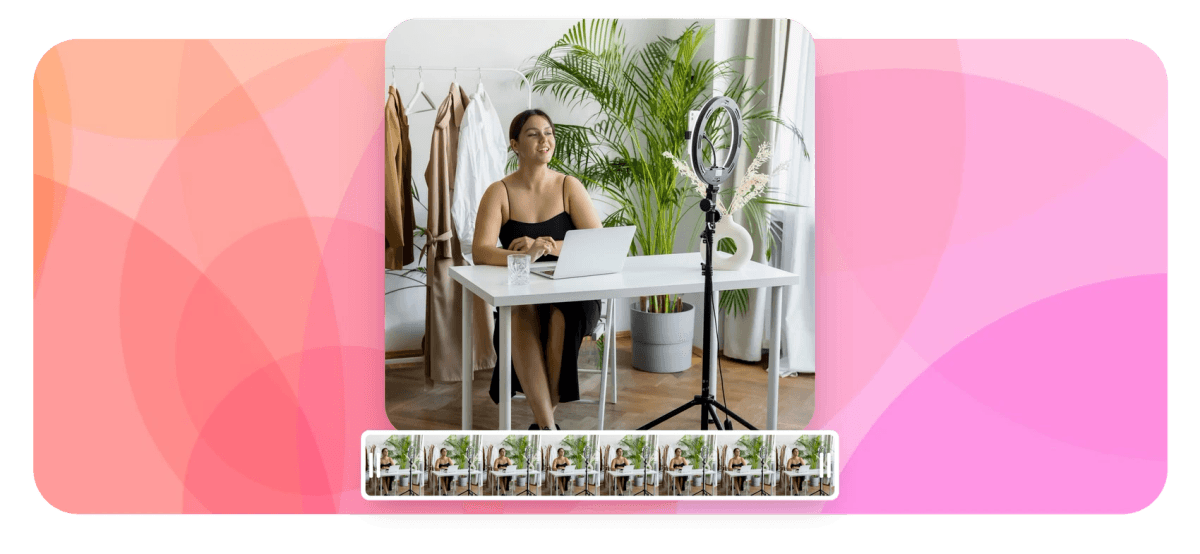
The Video Editor for Teachers Features
EchoWave's video editor is used by teachers, professors, and school media teams around the world.





Built for the classroom
A video editor for teachers, not for film school
Most editing software assumes you have a fast computer, admin rights, and hours to learn it. Teachers usually have none of those. EchoWave runs in a browser tab, so it works as a Chromebook video editor on district-managed devices, and rendering happens in the cloud instead of on your machine. Record a lesson, cut the mistakes, caption it, and post it to Google Classroom the same afternoon.
-
176
caption style presets
-
86
subtitle translation languages
-
63
AI voice-over voices
-
4K
cloud-rendered exports on Pro
What you get
Everything a teaching video needs, in one browser tab
Record, tidy, caption, and annotate a lesson without installing anything or filing an IT ticket.
-
Record lessons with the built-in recorder studio
Capture your screen with audio, your webcam, or both at once, and use the presentation recorder with its built-in teleprompter to read from your notes while you talk. Everything lands straight on the timeline, ready to trim. The screen recorder page covers the full setup.
-
A video editor for teachers on school Chromebooks
EchoWave runs in Chrome, Edge, Firefox, and Safari with nothing to install, so it works on district-managed Chromebooks where you cannot add software. Rendering happens on a cloud render farm, which means a five-year-old staff laptop produces the same output as a new workstation.
-
Auto-captions for accessibility and silent viewing
Automatic speech-to-text generates captions with word-level timestamps, and you pick from 176 caption styles or keep them plain and readable. Captions help deaf and hard-of-hearing students, English learners, and anyone watching homework videos on a bus with the sound off. The caption generator page shows the full workflow.
-
Cut mistakes by editing the transcript
EchoWave transcribes your recording, then you delete a sentence in the transcript and the matching video disappears from the timeline. It also removes ums, uhs, and long silences automatically, which routinely tightens a rambling first take into something students will actually finish.
-
Annotate with text, arrows, and zoom
Drop text callouts and arrows on the exact step you want students to notice, then keyframe a zoom so the working shows up even on a phone screen. There are 81 text animations if you want labels to appear on cue. See annotate video for examples.
-
Transcribe lectures and export the text
Turn a recorded lecture into a searchable transcript, then export it as TXT for study notes or as SRT and VTT for your LMS caption slot. Subtitles translate into 86 languages, and bilingual subtitles show two languages at once for multilingual families. Full details on the lecture transcription page.
-
Blur student faces and names
Draw a blur or pixelate box over anything you should not publish, like a student's face, a name on a worksheet, or an email address on screen. If the subject moves, keyframe the box to follow. It is a small feature that saves a lot of re-recording.
-
Resize for wherever your class watches
Start in 16:9 for YouTube, Google Classroom, and most LMS players, then resize the same project to 9:16 or 1:1 for a school social account. Resizing is a manual crop and zoom, so you control exactly what stays in frame.
How it works
How to edit a lesson video
From recording to a link in Google Classroom, here is the whole loop.
-
Record or upload your footage
Record your screen and webcam in the browser, or upload MP4, MOV, WebM, or AVI files from a phone, camera, or an old lecture capture. The canvas sizes itself to your first clip automatically.
-
Trim the mistakes
Split and cut on the multi-track timeline, or open the transcript and delete the sentences you fumbled. Run filler-word and silence removal to tighten the pacing without hunting through the waveform.
-
Caption and annotate
Generate auto-captions, correct any names or subject terms with word-level editing, and pick a readable style. Add text callouts, arrows, and a zoom on the step that matters, and blur anything that should stay private.
-
Render in the cloud and share
Render on EchoWave's cloud servers, which keeps a Chromebook from breaking a sweat. Free exports are HD 720p MP4 with a small removable EchoWave watermark badge and a short branded end card, ready for Classroom, YouTube, or your LMS. Paid plans remove the badge and raise quality to 1080p, 4K on Pro, and 8K on Business.
Sized to post
The right shape for every platform
-
16:9 Widescreen
- YouTube
- Google Classroom
- LMS
-
9:16 Vertical
- Shorts
- Reels
- TikTok
-
1:1 Square
- School feed
- Newsletters
In the classroom
How teachers actually use it
-
Flipped classroom lessons
Record a ten-minute explainer with the presentation recorder and teleprompter, trim it, and post it so class time goes to practice instead of lecture. Captions mean students can watch anywhere, including on a quiet phone at home.
-
Cleaning up lecture capture
Upload the raw recording from your lecture hall or video call, then let silence removal and transcript editing cut a full period of footage down to the parts worth rewatching. Export an SRT alongside it for the LMS caption slot.
-
Support for multilingual students
Translate subtitles into any of 86 languages, or show bilingual subtitles so a newcomer reads their home language under the English audio. Parent-facing videos and announcements get the same treatment.
-
Software and lab tutorials
Screen record a walkthrough of the grading portal, a graphing calculator, or a lab procedure, then zoom in on each click and label it with an arrow. Short, captioned how-tos cut down repeated questions all term.
-
Feedback on student work
Record your screen while you talk through an essay or project, which is faster than writing comments and easier for students to take in. Blur names before using any student example with the whole class.
-
Announcements and school events
Cut together morning announcements, a sports recap, or concert highlights, and resize the same edit to 9:16 for the school's social pages. Overlay the school logo from your brand kit so everything looks consistent.
Compare
How EchoWave compares
| Feature | EchoWave | Canva | Clipchamp | WeVideo |
|---|---|---|---|---|
| Runs in a browser on Chromebooks | Yes | Yes | Yes | Yes |
| Cloud rendering on low-spec devices | Yes | Yes | no (local export) | Yes |
| Auto captions | yes (176 styles) | Yes | Yes | yes (paid) |
| Edit video by editing the transcript | Yes | No | No | No |
| Automatic filler-word and silence removal | Yes | No | No | No |
| Subtitle translation | yes (86 languages) | yes (paid) | No | No |
| Blur region to hide student names | Yes | No | No | No |
| Screen and webcam recorder | yes (plus teleprompter) | Yes | Yes | Yes |
| Free video downloads | yes (720p, watermark badge) | Yes | yes (1080p) | yes (480p, watermark) |
| Stock music library | No | Yes | Yes | Yes |
| Classroom accounts for students | No | yes (Education) | yes (M365 Education) | Yes |
| Real-time collaboration | No | Yes | No | Yes |
Based on each tool's public pages as of July 2026. Education plans and free-tier limits change often, so confirm current details before rolling a tool out to your class.
Make your next lesson video in a browser tab
The free plan covers the whole workflow on a school Chromebook, from recording to a finished 720p MP4 with a small removable EchoWave watermark badge. Paid plans remove the badge and raise export quality to 1080p and up to 4K.
What people are saying about EchoWave

About the EchoWave team
EchoWave is a browser-based video and audio editor built by Lemon Vault LLC since 2018. The people who build the editor write these guides and test every step in the production app before publishing.
The Video Editor for Teachers FAQ
What is the best free video editor for teachers?
EchoWave is a strong pick because it runs in a browser on Chromebooks and includes auto-captions, transcript editing, and a screen recorder. The free plan exports finished lessons as HD 720p MP4 with a small removable EchoWave watermark badge and a short branded end card. Clipchamp and Canva are also worth a look if a badge-free export matters more to you than caption tooling.
Does EchoWave work on school Chromebooks?
Yes. It runs entirely in the browser, so there is nothing to install and no admin rights needed, which matters on district-managed devices. Rendering happens on cloud servers rather than the Chromebook itself, so low-spec hardware does not limit output quality.
How do I add captions to a lesson video?
Upload or record your video, then run auto-captions. Speech-to-text generates cues with word-level timestamps in dozens of languages, and you can correct student names or subject vocabulary word by word. Pick one of 176 caption styles, burn the captions into the video, or export them as an SRT or VTT file for your LMS.
Can I remove ums and long pauses without re-recording?
Yes. EchoWave finds filler words like um and uh, plus dead air, and removes them automatically. You can also open the transcript and delete any sentence, and the matching footage comes off the timeline, so a stumbling first take is usually salvageable.
How much does EchoWave cost for a teacher?
The free plan covers the full loop: upload, edit, caption, and export finished videos as HD 720p MP4 with a small removable EchoWave watermark badge and a short branded end card. Paid plans remove the badge and raise quality, with 1080p from Basic, 1440p and 4K on Pro, and 8K on Business. See the pricing page for current rates.
Can my students use EchoWave for class projects?
Students can use it anywhere a modern browser runs, including school Chromebooks. EchoWave does not have classroom management features like student rosters, teacher dashboards, or shared class libraries, so if you need those, WeVideo or Canva for Education fit better. For individual projects, the free plan is enough to build a finished piece and export it as a 720p MP4 with a small watermark badge.
What video format works best for Google Classroom?
MP4 with H.264 is the safest choice, and it is EchoWave's default export. Post lessons to Google Classroom by uploading the MP4 to Drive or YouTube and attaching the link. Keep 16:9 for Classroom and LMS players; vertical 9:16 only makes sense for social posts.
Can I transcribe a whole lecture?
Yes. Upload the recording and EchoWave transcribes it with word-level timestamps. You can edit the text, export it as TXT for study notes, or as SRT, VTT, or JSON for captions. Subtitle translation into 86 languages works from the same transcript.
Can I hide a student's face or name in a video?
Yes. Draw a blur or pixelate region over the face, name, or screen area, and keyframe its position if the subject moves. Placement is manual rather than automatic face tracking, which keeps you in control of exactly what gets covered.
Ready to record your next lesson?
Free HD exports with a small watermark badge in any browser; paid plans remove the badge and go up to 4K.
Get Started →























































