
Online Video Recorder: One Studio for Camera, Screen and Voice
Record your camera, your screen, both together or just your mic in one free browser studio. Countdown, pause and resume, 60-minute takes, no install, no account.


Online Video Recorder: One Studio for Camera, Screen and Voice Features
EchoWave's recording tools are used by founders, teachers and content teams worldwide





One studio, four modes
Four recorders would be three too many
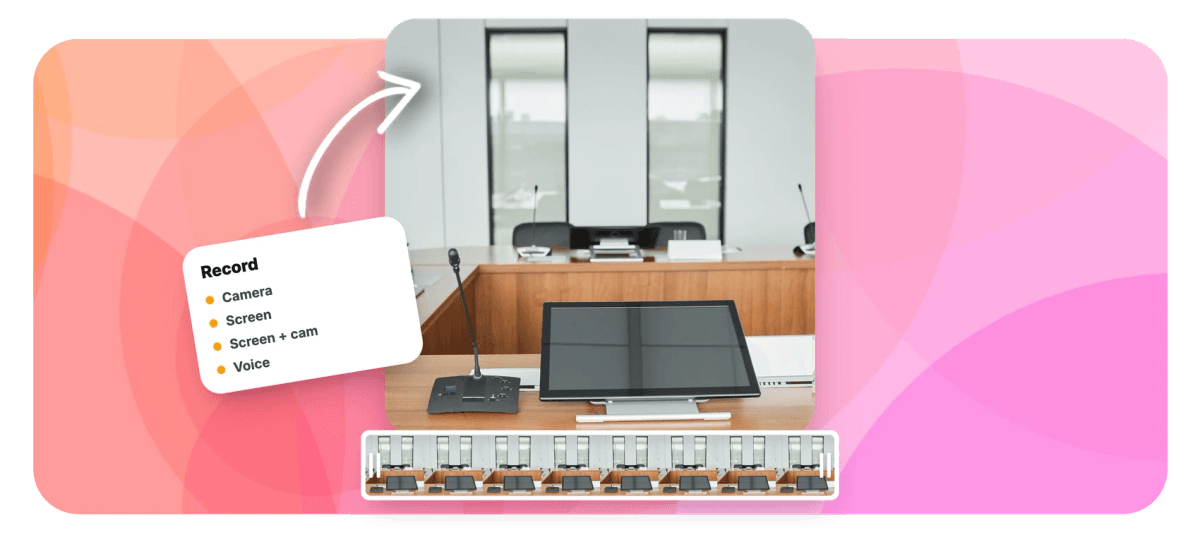
EchoWave's online video recorder is one browser studio with four ways to point it: camera, screen, screen with a camera bubble, or microphone only. Whichever mode the job needs, the controls stay the same: a 0, 3, 5 or 10 second countdown, pause and resume, up to 60 minutes per take, live device switching and crash recovery that saves your work in chunks as you go. Frame the shot as 16:9, 1:1, 4:5 or 9:16, set camera quality to 480, 720 or 1080p, and read from the teleprompter in any mode. Download the take free with no account, or save it to the editor, where screen and camera arrive as separate editable layers.
-
1 recorder
Camera, screen, screen plus camera bubble and mic-only share one studio
-
60 minutes
Per take in every mode, and the clock stops whenever you pause
-
0 / 3 / 5 / 10s
Countdown choices, from instant start to a ten-second settle-in
-
4 aspects
16:9, 1:1, 4:5 and 9:16 framing, chosen before you press record
What you get
The same studio behind every mode
Shared controls that work identically wherever you point them.
-
Camera, Screen, Both or Mic Only
Pick the mode the job needs: a straight camera take, a capture of a display, window or tab, a screen recording with your camera in a movable bubble, or audio alone.
-
Countdown, Pause and 60-Minute Takes
Count yourself in with 3, 5 or 10 seconds, or skip the countdown entirely. Pause for interruptions and resume without restarting; every take holds up to 60 minutes of rolling time.
-
Aspect and Quality Set Before You Roll
Frame the take as 16:9 for YouTube, 9:16 for Shorts and Reels, or 1:1 and 4:5 for feeds, and set camera quality to 480, 720 or 1080p so the file matches its destination.
-
Switch Devices Without Stopping
Plug in the good microphone halfway through, or jump to another camera, and the recorder follows the new device live instead of making you scrap the session and start again.
-
Crash Recovery in Every Mode
Every mode saves to your browser in chunks while you record. If the tab crashes or closes by mistake, the studio recovers the take instead of handing you a blank slate.
-
Teleprompter in Any Mode
Load a script into the floating teleprompter, set the scroll speed and a font size from 18 to 72px, and read while you record. It sits near the lens and never appears in the capture.
-
Takes Arrive as Editable Layers
Save a screen-plus-camera take to the editor and the screen, the camera and the background land as separate layers, so you can move the bubble or crop the capture after the fact.
-
Free Download, No Account
Stop recording and the download button is right there: your raw file, free, with no watermark and no signup. Saving into a project is optional and only happens when you choose it.
How it works
How to record a video online
Four steps from blank tab to finished take.
-
Open the Recorder and Pick a Mode
Go to the recorder and choose camera, screen, screen plus camera, or mic only. Your browser asks only for the permissions that mode needs.
-
Set Up the Take
Pick your camera and microphone, choose an aspect ratio and quality, set a countdown, and paste a script into the teleprompter if the take is scripted.
-
Record, Pause, Resume
Press record and deliver. Pause when life interrupts, switch devices live if you need to, and use up to 60 minutes per take.
-
Download or Keep Editing
Download the file free with no account, or save the take into the editor, where each source arrives as its own editable layer.
Who uses it
One record button, every recording job
-
Solo Founders
Pitch on camera Monday, demo the product on screen Wednesday, narrate a changelog Friday, without leaving one studio.
-
People and HR Teams
Record camera welcomes for new starters and screen walkthroughs of internal tools with a single link to remember.
-
Tutors and Trainers
Open a lesson face to camera, then switch to screen plus bubble when it is time for the worked example.
-
Developers and Support
Capture a bug repro from the exact tab, or answer a ticket with a narrated on-screen fix.
-
Social Video Creators
Frame 9:16 talking heads for Shorts and Reels, then 16:9 tutorials for YouTube, from the same record button.
-
Podcasters Going Video
Record mic-only episodes today and camera video pods next season without moving your workflow to new software.
Pick a mode, press record
Camera, screen, both or mic only: 60-minute takes, free downloads, and an editor one save away.
What creators say after trying EchoWave

About the EchoWave team
EchoWave is a browser-based video and audio editor built by Lemon Vault LLC since 2018. The people who build the editor write these guides and test every step in the production app before publishing.
Online video recorder FAQ
How do I record a video online?
Open EchoWave's recorder in any modern browser and pick a mode: camera, screen, screen plus camera, or microphone only. Allow the permissions that mode asks for, choose your devices, set an optional countdown of 3, 5 or 10 seconds and press record. Pause and resume as needed, for up to 60 minutes of rolling time per take. When you stop, download the file to your device for free, or save it into the editor to trim, caption and export. Nothing to install, no account required.
Which recording mode should I choose?
Match the mode to the job. Camera mode suits talking heads: intros, updates, video messages. Screen mode captures a display, window or browser tab for demos and tutorials. Screen plus camera adds your face in a movable bubble, tucked in a corner, enlarged or side by side, which is the natural pick for walkthroughs and presentations. Mic only records narration and podcast audio with no video at all. You are never locked in: the same studio, settings and limits sit behind all four.
Do I need to install an app or create an account?
No on both counts. The recorder runs on your browser's built-in capture APIs, so there is no download, no extension and no desktop app. It also works anonymously: open the page, record and download without signing up. An account only enters the picture if you want to save takes into the EchoWave editor, keep projects in the cloud or export a finished edit.
How long can a single recording be?
Up to 60 minutes of recorded material per take, in every mode. The limit counts rolling time only, so pausing to answer the door or reset a demo costs nothing. For longer sessions, record in chapters and stack the takes on the editor timeline; they line up end to end and export as one video.
What quality and aspect ratios can I record in?
Camera capture offers 480p, 720p and 1080p, with a mirror toggle for a natural preview. Before recording you can frame the canvas as 16:9 for YouTube, 9:16 for Shorts, Reels and TikTok, or 1:1 and 4:5 for feed posts. In screen modes the capture follows whatever display, window or tab you share. If plans change later, the editor can resize and reframe the take for a different platform.
Where do my recordings go before I save them?
They stay with you. While you record, the studio writes the take to your browser in small chunks, which is also what makes crash recovery work. Press download and the file transfers straight to your device; nothing has been uploaded at that point. Uploading only happens if you choose to save the recording into the EchoWave editor, where it becomes a cloud project you can reopen on other machines.
Can I change my camera or microphone mid-recording?
Yes. Device switching is live, so you can jump from the laptop webcam to an external camera, or from built-in audio to a USB microphone, while the session continues. The take carries on with the new device rather than forcing a restart. It is a small thing until the good mic finally connects three minutes into a take you have no intention of redoing.
Is the online video recorder free, and is there a watermark?
Recording and downloading are free with no account, and the raw file you download carries no watermark. Editing in EchoWave is free to start too: free exports render at up to 720p with a small watermark, while paid plans remove the watermark and unlock 1080p, then 4K with 50 and 60fps on higher tiers. A common path is to record and download raw takes free, and pay only when you need clean high-resolution exports of a finished edit.
Four modes, one record button
Camera, screen, both together or just the mic: the studio is open, and it is free.
Open the recorder























































