
WebM Editor: Edit in the Browser, Export MP4 for Anywhere
Upload a WebM from your screen recorder, OBS or browser capture, then trim, caption and add music. Export MP4 for the platforms and phones that reject WebM, free to start.


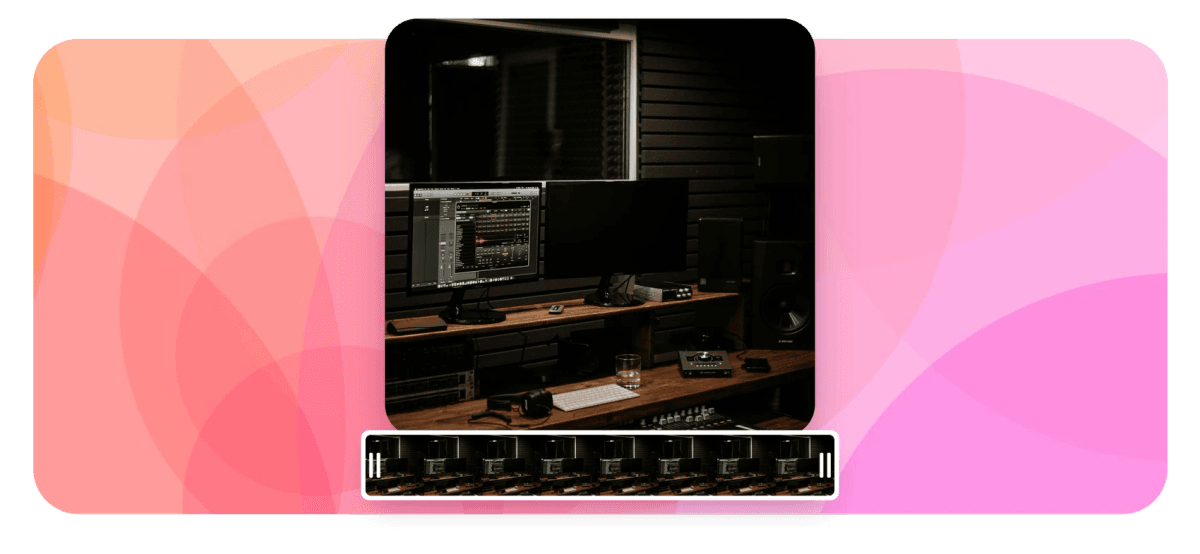
WebM Editor: Edit in the Browser, Export MP4 for Anywhere Features
EchoWave's video tools are used by screencasters, streamers and developers worldwide





Native WebM editing
Edit WebM natively, export MP4 that plays everywhere
EchoWave is a WebM editor that runs entirely in your browser, so you can edit WebM files without converting them first or installing anything. WebM is the open, royalty-free format that browsers, OBS and most screen recorders produce by default. Drop your file on the timeline to trim dead air, auto-caption the speech, fix the color and layer in music. The catch with WebM is playback: iPhones, many social platforms and plenty of apps still reject it, so the default export here is a clean H.264 MP4 that plays anywhere. You can re-export WebM too. Need a transparent-background clip? The background remover outputs alpha WebM.
-
Native
Opens VP8, VP9 and AV1 WebM with no conversion step
-
MP4 export
H.264 output for the platforms and phones that reject WebM
-
170+ presets
Caption styles to burn into your WebM edit
-
Up to 4K
Paid export resolution; free renders up to 720p
What you get
Everything a WebM file needs before it ships
Trim it, caption it, fix the color, then get it into a format every platform actually accepts.
-
Open WebM Without Converting
EchoWave loads WebM (VP8, VP9 and AV1) straight onto the timeline, with no conversion step and no codec pack to install. Your file opens at its native resolution and frame rate, ready to cut.
-
Export MP4 for Real Compatibility
The default export is H.264 MP4, the format iPhones, TVs and nearly every social platform accept. One render turns a browser-only WebM into a file that plays everywhere. Prefer WebM? Re-export it instead.
-
Trim and Split Long Captures
Drag clip handles to trim, or split at the playhead to cut mistakes out of a long screen recording. The magnetic timeline closes the gap with a ripple delete, so no black frame is left behind.
-
Auto-Caption the Narration
Transcribe the speech in your WebM across 50+ languages with word-level timing, then style it with 170+ caption presets. Ideal for narrated screen recordings and tutorials. See the caption generator.
-
Color-Correct Dull Captures
Fix a washed-out screen grab or webcam clip with brightness, contrast, gamma, saturation, temperature and hue, plus one-click looks. Screen recordings usually need a small gamma nudge to read cleanly.
-
Add Music, Effects and Voiceover
Layer background music, stock sound effects or an AI voiceover on separate audio lanes, then set levels and fades. Silent screen captures turn into watchable clips without leaving the editor.
-
Alpha WebM for Transparency
WebM's VP9 codec can carry an alpha channel for transparent backgrounds, which MP4 cannot. Create one with the background remover, which exports alpha WebM you can layer over other footage.
-
Reframe for Vertical Feeds
Switch the canvas between 16:9, 9:16, 1:1 and 4:5 in one click. A landscape screen recording becomes a vertical clip for Shorts or Reels, and tracks reposition instead of hard-cropping.
How it works
How to edit a WebM file
From a raw browser or OBS capture to a share-ready MP4, in four steps.
-
Upload Your WebM
Drag your .webm file into the editor or click to browse. EchoWave accepts it natively, whether it came from a browser screen recorder, OBS or a browser download. The clip lands on the timeline right away.
-
Trim and Arrange
Drag the clip edges to trim, split at the playhead to remove mistakes, and reorder segments. Ripple delete closes gaps automatically, so a long screencast tightens up fast.
-
Caption, Color and Add Music
Auto-caption the narration, correct the color on a dull capture, and drop in music or a voiceover on their own lanes. Resize the canvas to vertical if you need it for social.
-
Export MP4 or WebM
Render to H.264 MP4 for maximum compatibility, or keep it as WebM. EchoWave's cloud farm does the encoding and a download link arrives when it is finished.
Who uses it
From screen captures to shipped MP4
-
Screencasters and Tutorial Makers
Turn a raw browser screen recording into a captioned tutorial, then export MP4 for the course platforms and sites that reject WebM.
-
OBS Streamers
Clip highlights from an OBS WebM capture, add word-pop captions, and resize to vertical for Shorts, Reels and TikTok.
-
Developers and PMs
Trim a bug-repro or feature-demo screen capture, blur any sensitive fields, and share an MP4 that plays in any ticket or chat.
-
Support and SaaS Teams
Record a how-to in the browser, caption it in the customer's language, and deliver an MP4 that opens on any device.
-
Educators
Convert a lecture captured as WebM into a captioned, translated MP4 students can watch on phones that will not play WebM.
-
Web and Motion Designers
Remove a clip's background to alpha WebM, layer it over other footage, and export the finished composite as MP4.
Edit your WebM in the browser
Trim, caption, color and add music, then export the MP4 that plays where WebM will not. No install, no conversion, free to start.
What people are saying about EchoWave

About the EchoWave team
EchoWave is a browser-based video and audio editor built by Lemon Vault LLC since 2018. The people who build the editor write these guides and test every step in the production app before publishing.
WebM editor FAQ
How do I edit a WebM file?
Upload the .webm file to EchoWave in your browser, with no conversion or install required. It opens directly on a multi-track timeline where you can trim, split, caption, color-correct and add music. Your WebM loads at its native resolution. When you are done, export to MP4 for broad compatibility or re-export WebM. Everything runs in the browser, so it works the same on Windows, Mac, Chromebook and Linux.
Why do so many platforms and phones reject WebM uploads?
WebM is an open, royalty-free format built for the web, and browsers play it natively. But Apple never adopted it widely, so iPhones, the iOS Photos app and Safari handle it poorly, and many social platforms, messaging apps and TVs still expect MP4. That is why EchoWave defaults your export to H.264 MP4: it is the near-universal container. Edit in WebM, ship in MP4, and you sidestep every one of those rejections without touching a separate converter.
Can I edit a screen recording that was saved as WebM?
Yes, and it is one of the most common WebM workflows. Browser screen recorders and EchoWave's own screen recorder both output WebM. Upload the capture, trim the dead time at the start and end, split out any mistakes, and add captions for the narration. Screen recordings often look flat, so a quick color and contrast pass helps. Export MP4 and the recording is ready for YouTube, a course platform, a Slack thread or a support ticket.
WebM vs MP4: which format should I use?
Use WebM when the video only needs to play in web browsers: it is open, royalty-free and often smaller at the same quality thanks to VP9 and AV1. Use MP4 (H.264) for everything else, because it plays on iPhones, TVs, editing apps and virtually every social platform. The practical answer is to edit in whatever you have, including WebM, and export MP4 as your delivery format. EchoWave outputs either one, so you are never locked to a single container.
Does WebM support transparency?
Yes. The VP9 codec inside WebM can carry an alpha channel, which is how you get a video with a transparent background, unlike MP4/H.264, which cannot. To create one, run your clip through the background remover and pick the transparent backdrop; it exports an alpha WebM (VP9) you can layer over other footage. Inside the editor you can also remove a background so the tracks beneath show through, then flatten the composite to MP4 on export.
How do I convert a WebM to MP4?
Editing and converting happen in the same place. Upload your WebM, make any edits you want or none at all, then choose MP4 as the export format and render. EchoWave's cloud encodes an H.264 MP4 and hands you a download link. Because it is a full editor, you can trim, caption or resize in the same pass instead of running a separate converter first. If you only need the format change, just upload and export with no edits.
Will editing a WebM reduce the video quality?
Any format change re-encodes the video, so quality depends on the export settings you pick, not your source bitrate. EchoWave renders on its cloud farm: the free plan exports up to 720p, and paid plans go to 1080p, 4K and beyond with higher frame rates. Choose the highest resolution your plan allows to stay close to the original. Going from WebM (VP9) to MP4 (H.264) is a normal, well-supported transcode with no unusual quality loss.
Is the WebM editor free?
Yes. Editing is free with no signup to start, and you can trim, caption, color-correct and add music without paying. Free exports render up to 720p with a small EchoWave badge. Upgrading removes the badge and unlocks 1080p, 4K and higher frame rates. The standalone utilities like trim, convert and remove-background are free to use as well, so you can handle a quick WebM-to-MP4 job without an account.
Ready to edit your WebM?
Edit in the browser and export the MP4 that plays everywhere WebM does not. Free to start.
Get Started →























































