
YouTube to Shorts: Cut One Long Video Into Shorts That Point Back to It
Upload the video you already published, cut a moment that stands on its own, reframe it to 9:16 and caption it. One long upload becomes several Shorts, all on the same channel.


YouTube to Shorts: Cut One Long Video Into Shorts That Point Back to It Features
EchoWave's repurposing tools are used by long-form YouTubers, educators, and podcast channels worldwide





One channel, many Shorts
Your long videos are already full of Shorts
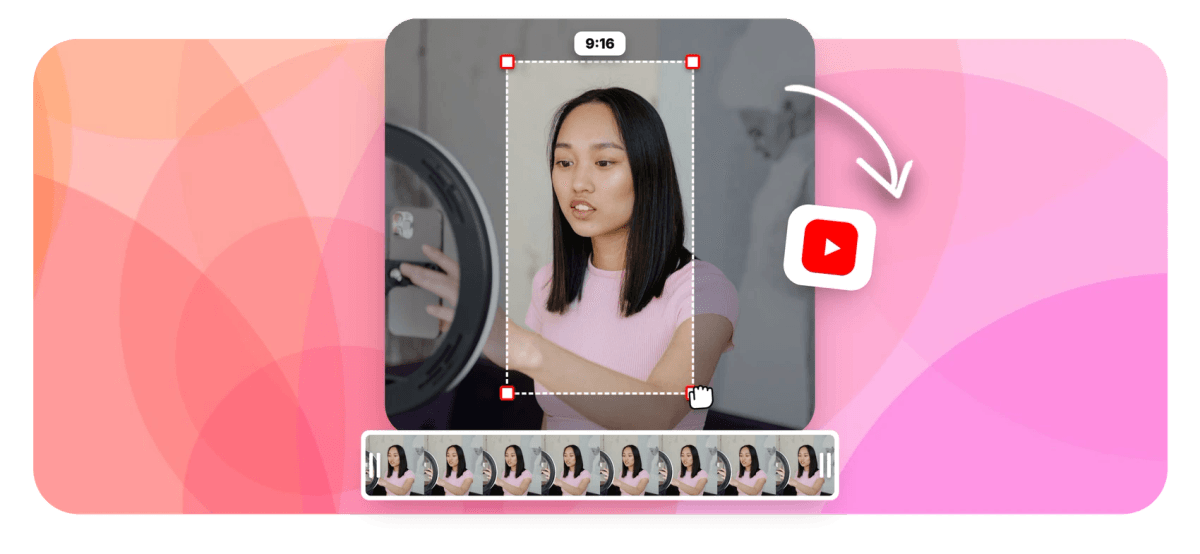
Going from YouTube to Shorts is a re-edit, not a re-upload: a horizontal long-form video has to become a self-contained 15 to 60 second vertical clip. EchoWave does the whole job in one browser tab, and the payoff is specific to YouTube. Upload your own export or source file (EchoWave edits footage you already have, it is not a YouTube downloader), scrub for a moment that lands without setup, and cut it out on the timeline. Flip the canvas to 9:16, filling and repositioning each shot or fitting it inside a styled caption zone, then add karaoke captions and a first-second hook. Moment picking can go either way now: run the upload through EchoWave's AI clip generator and it scores every moment 0-100, then hands back a ranked shortlist already reframed to 9:16, or stay hands-on with the YouTube video editor and pick each moment yourself. One long video usually holds several Shorts.
-
15-60 seconds
The self-contained moment length that carries a setup and a payoff without the rest of the video for context
-
9:16 canvas
One preset flips a 16:9 project vertical; fill and reposition each shot, or fit it inside a styled caption zone
-
45 word animations
Word-level karaoke wipes, active-word recolor and highlight pills from a library of 45 per-word caption animations
-
720p free, 4K paid
Free exports carry a small watermark at 720p; Basic unlocks 1080p and Pro reaches 4K at up to 60fps
What you get
From the long upload to a Short that links back
Timeline cutting, per-shot vertical reframing and captions built for silent autoplay, all in one project.
-
Find the Self-Contained Moment
Set in and out points around a segment that makes sense cold, then delete the range so the timeline closes the gap. Cutting is frame-accurate, so the Short opens on the first real word, not a stray breath or filler.
-
Reframe 16:9 to 9:16 Per Shot
Switch the canvas to vertical, scale each shot to fill and drag the subject to center. When the camera angle cuts, split and reposition again so nobody drifts out of frame. The vertical video converter walks through both modes.
-
A Styled Caption Zone for Screen Content
When the whole 16:9 frame carries information, slides, code, gameplay HUDs, fit it inside the vertical canvas instead of cropping, and use the space above and below for a title band and your captions.
-
Karaoke Captions for the Silent Feed
Auto-transcribe the clip with word-level timing, then apply a karaoke preset: progressive wipe fills, active-word recolor and highlight pills at 1 to 5 words per cue. Shorts autoplay muted in the feed, so the words have to carry it.
-
Open With a First-Second Hook
The long video leaned on its title and thumbnail to set up the payoff. A Short gets neither, so open with a bold text line in the first second that names the payoff, then let it clear once the moment lands.
-
Shorts That Point Back to the Long Video
The Short and its source sit on one channel, so every clip promotes the full upload. Copy text styles between Shorts to keep the set on-brand, then link back with a pinned comment or end screen. EchoWave does the edit; the link is your call.
-
Or Let the AI Clip Generator Pick First
Skip the scrubbing: EchoWave's AI clip generator watches the whole upload, scores every moment 0-100 for hook, clarity and reaction, and hands back a ranked shortlist of Shorts-length candidates you can open straight into this same timeline and finish by hand.
How it works
How to make Shorts from a long YouTube video
Four steps from a published long video to a posted Short, repeatable for every moment.
-
Upload Your Video
Drag in the source file or the export you uploaded to YouTube. EchoWave edits footage from your own drive; it is not a downloader, so bring the file rather than a watch link.
-
Trim the 15 to 60 Second Moment
Scrub the timeline for a segment that stands on its own, set in and out points around the strongest 15 to 60 seconds, and delete everything on either side.
-
Reframe to 9:16 and Caption
Switch the canvas to vertical. Fill and reposition each shot, or fit screen content inside a styled caption zone, then auto-transcribe, apply a karaoke preset and add a first-second hook line.
-
Export the Short
Export the 9:16 MP4 and upload it to YouTube. Then return to the same timeline and cut the next moment, since one long video usually gives you several Shorts.
Who uses it
Who turns long uploads into Shorts
-
Talking-Head YouTubers
Lift the sharpest 30 seconds from a long video essay, fill the frame on your face and caption every word.
-
Podcast Channels
Clip the quote everyone will screenshot, add an animated waveform and post it as a Short that plugs the full episode.
-
Tutorial and How-To Channels
Turn one step of a long walkthrough into a standalone tip, fitting the screen so on-screen text stays legible.
-
Faceless and Compilation Channels
Cut a self-contained beat from a long compilation, reframe the wide shots and caption it for silent autoplay.
-
Course Creators
Pull a single lesson or myth-bust from a full class and post it as a Short that points to the deep dive.
-
Product and Brand Channels
Slice a launch film or webinar into vertical teasers, reusing footage the team already shot and paid for.
Mine the videos you already have
The long uploads are done. Cut the moment, flip it vertical and caption it in one browser tab.
What people are saying about EchoWave

About the EchoWave team
EchoWave is a browser-based video and audio editor built by Lemon Vault LLC since 2018. The people who build the editor write these guides and test every step in the production app before publishing.
YouTube to Shorts FAQ
How do I make Shorts from a long YouTube video?
Upload your source file to EchoWave, scrub to a moment that works on its own, and set in and out points around the strongest 15 to 60 seconds. Switch the canvas to 9:16 and reframe: fill and reposition each shot for talking heads, or fit screen content inside a styled caption zone. Auto-transcribe, apply a karaoke caption preset, add a hook line in the first second, then export the 9:16 MP4 and upload it to YouTube. Come back to the same timeline for the next moment; most long videos hold several Shorts.
Do I need to download my YouTube video first?
You need the video file, and the cleanest source is the export you rendered before uploading, at full quality with no platform recompression. If you only have the version on YouTube, YouTube Studio lets you download your own uploads from the Content tab. EchoWave is not a YouTube downloader: you cannot paste a watch URL and pull the video, and the same goes for anyone else's uploads. Repurposing runs on footage you made and own, added from your drive like any other file.
How do I pick moments that stand on their own?
Look for segments that carry both a setup and a payoff inside the clip: a complete point, a demo, a punchy claim, a reaction, a before and after. If a moment only makes sense after everything that came before it, it will not hold up alone in the feed. EchoWave's AI clip generator can shortlist these for you: it reads a word-timed transcript alongside audio energy, reaction peaks, silences and scene cuts, then scores and ranks each candidate with reasons like "strong hook" or "big reactions". Or watch the upload yourself, mark the timestamps where you would have stopped scrolling, and cut each one on the timeline.
Can EchoWave pick the Shorts automatically?
Yes. The AI clip generator analyzes the upload and returns a ranked grid, each clip carrying a Viral Score from 0 to 100 with Hook, Clarity, Emotion, Value and Trend sub-scores and plain-English reasons. Ask for 1 to 30 clips, set a length range, and it reframes to 9:16 with seven camera layouts driven by on-screen speaker detection (lip movement matched to the voice), plus word-timed captions in any of 60+ styles. Every clip opens as an ordinary project in this same editor. Analysis covers 30 free source minutes a month; free exports carry a small watermark at 720p.
What does the AI clip generator not do?
It will not schedule or publish to YouTube, generate new footage to pad a clip, dub or clone voices, record multi-guest calls, watch an RSS feed for new episodes, or pull a video from a YouTube link; bring your own file. Speaker detection is on-screen only, lip movement matched to the voice, not a voice-print system. Analysis can run on-device in your browser, so the video never leaves your machine, or in the cloud so you can close the tab. It finds, scores, reframes and captions the moments; posting the Short and pinning the comment stay in your hands.
How should I reframe talking heads versus screen content?
Talking heads want fill: scale the 16:9 shot until it covers the vertical canvas and drag it so the face sits in the upper third, splitting and repositioning whenever the angle cuts. Screen recordings, slides and gameplay usually want fit: keep the whole frame visible so text and HUDs stay legible, and give the space above and below to a title and captions. The vertical video converter covers both, and you can switch modes shot by shot inside one Short.
Do Shorts need captions and a hook?
Both earn their place for reasons the long upload never faced. Shorts autoplay muted in the feed, so a clip that leans on audio loses people before they tap unmute; word-level karaoke captions keep the speech on screen at the pace of the feed. And the long video had a title and thumbnail to frame the moment, while the Short has neither, so a hook line in the first second has to do that job. EchoWave covers both with 176 caption presets and styled text overlays.
How many Shorts can I get from one long video?
It depends on how dense the source is, but one long video usually yields several Shorts. Podcasts and interviews tend to be richest, since every complete answer is a candidate; tutorials give roughly one Short per self-contained step; vlogs give one per story beat. EchoWave's AI clip generator can shortlist a batch of candidates in one pass, up to 30 ranked clips with the reframe and captions already applied, or the manual route is one watch-through noting timestamps, then a cut, reframe and caption pass for each moment you choose yourself. Spacing the exports out also turns a single long video into a week or more of Shorts.
How do I link my Shorts back to the long video?
This part is editorial, not automated: EchoWave edits the clip, and YouTube gives you the tools to connect it. The most reliable route is a pinned comment on the Short linking to the full video, since it stays visible and clickable. You can also add the long video as an end screen or mention it in the description. Because the Short and the source share one channel, viewers who like the clip are one tap from subscribing and watching the full upload, which is the whole point of repurposing on the same platform.
Is EchoWave free for making Shorts from long videos?
Free to start. Timeline cutting, 9:16 reframing, auto-transcription and the karaoke caption presets all work on the free plan, which exports 720p at 30fps with a small EchoWave watermark, enough to run the full workflow on a real clip. Paid plans remove the watermark: Basic exports 1080p, Pro reaches 4K at up to 60fps, and Business goes to 8K. Since Shorts play on phone screens, 1080p is plenty. Nothing installs, so the whole process runs in a browser tab.
One long video, a feed of Shorts
Free to start in your browser. Free exports include a small EchoWave watermark.
Get Started →























































