Screen to GIF Recorder
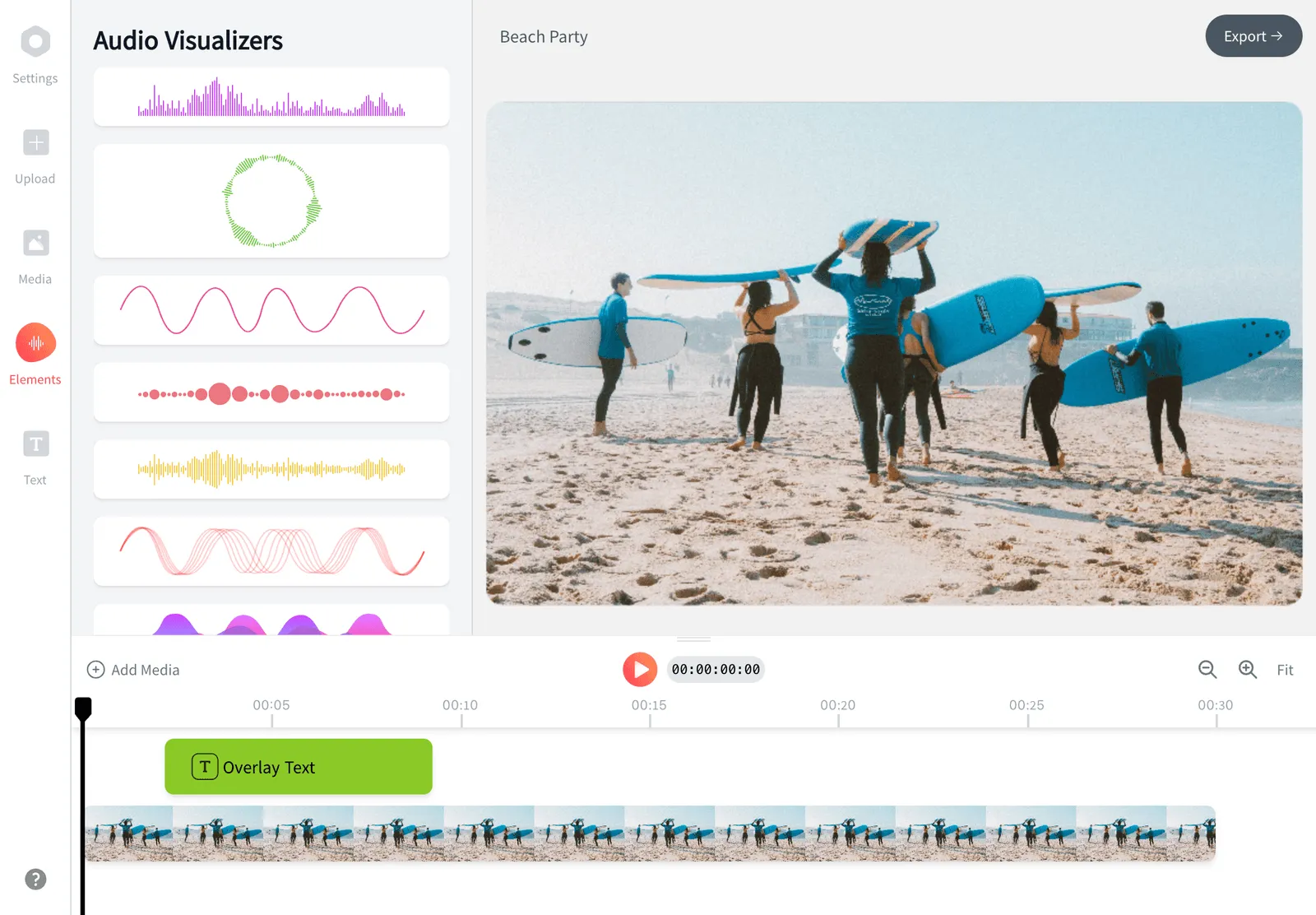
EchoWave takes you from screen to GIF without installing anything: record a browser tab, an app window or your full display, trim out the dead time, then export a looping GIF straight from the editor. Pick a frame rate of 8, 12, 15 or 24 fps and a width up to 1080 pixels so the file stays small enough for GitHub, Slack and email. Recording and editing are free, and the same capture can also export as MP4 for pages that prefer video.


Screen to GIF Recorder Features
EchoWave's screen to GIF recorder is used by developers, support teams and product managers around the world.





Capture to GIF
One browser tab from screen recording to finished GIF
Most screen to GIF tools stop at capture. EchoWave puts the recorder and the GIF engine in the same project, so you can cut mistakes, blur an email address and label every step before anything exports. Already have a recording? The video to GIF converter accepts MP4, MOV, WebM and 17 other formats, and the GIF maker covers everything beyond screen captures.
-
24 fps
top GIF frame rate, with 8, 12 and 15 below it
-
1080px
maximum GIF export width
-
60s
of footage per GIF export
-
176
caption presets for narrated demos
What you get
A recorder and a GIF engine in the same editor
Everything between pressing record and posting the GIF happens in one project.
-
Screen to GIF without the install
Runs in Chrome, Edge, Firefox or Safari on Mac, Windows, Linux and Chromebooks. There is nothing to download and no system extension to approve, just the browser's own screen share prompt. Desktop apps for Mac and Windows exist if you want a dock icon.
-
A real screen recorder built in
Capture a tab, a window or the whole display from the recorder studio, with microphone narration if you also want a video version. A webcam recorder and a teleprompter are in there too for longer walkthroughs. The full screen recorder has its own page.
-
Trim before you export
Good GIFs are short. Split the recording on the timeline, delete the fumbling at the start, and keep only the interaction itself. Chat apps reject GIFs past a few megabytes, so cutting to under ten seconds does more than any compression trick.
-
Frame rate and width controls
Export at 8, 12, 15 or 24 fps and set any width up to 1080 pixels. Most UI demos look smooth at 12 to 15 fps, and dropping from 24 to 12 roughly halves the frame count, which halves the file size.
-
Blur what should stay private
Screen captures leak API keys, emails and customer names with alarming regularity. Drop a blur or pixelate region over the sensitive area before export, and keyframe its position if the content scrolls.
-
Label each step
Add text callouts with any of 81 animations so a label appears exactly when the click happens, or keyframe a quick zoom onto the button that matters. You can also ask Echo, the built-in editing assistant, to add the zoom pop or blur region for you.
-
Loop control and a 60 second cap
Toggle looping on for a repeating demo or off for a one-shot clip. Each GIF export covers up to 60 seconds of footage, though most screen GIFs should run far shorter. Split a long demo into two or three chapter GIFs instead of one heavy file.
-
MP4 out of the same project, GIFs back in
The identical capture exports as MP4, free at 720p with a small removable badge, for docs platforms that prefer video. Existing GIFs work in the other direction: import one to the timeline to trim or caption it, or convert a GIF to MP4 when a site refuses large GIF uploads.
How it works
How to record your screen as a GIF
Four steps take you from a blank tab to a looping GIF in your downloads folder.
-
Start a screen recording
Open the EchoWave recorder and choose a tab, a window or the full screen. Turn the microphone on if you also want a narrated MP4 version. The GIF itself will always be silent.
-
Trim to the moment
The capture lands on the timeline when you stop recording. Cut the setup and the stray cursor wandering so only the interaction remains, and split separate steps apart if the demo runs long.
-
Add labels, zooms and blurs
Point at the important click with a text callout, keyframe a zoom onto the relevant corner of the screen, and blur anything private. Every layer burns into the final GIF.
-
Export as a looping GIF
Pick GIF as the export format, choose 8, 12, 15 or 24 fps, set a width up to 1080 pixels and toggle looping. Rendering happens on EchoWave's cloud servers, so an old laptop finishes as fast as a new one.
Where screen GIFs win
What people capture with it
-
Bug reports that reproduce themselves
A ten second GIF of the repro beats three paragraphs of steps. GitHub, Jira and Linear render GIFs inline, so the reviewer watches the exact clicks without opening a player.
-
README and docs demos
GIFs autoplay in a GitHub README while embedded videos wait for a click, which is why short GIFs remain the standard way to show a CLI or UI in action. Keep them near 12 fps so the repo stays light.
-
Support replies and help centers
One GIF shows the whole path through the settings instead of five numbered screenshots. Help desks and knowledge bases embed them without a video player.
-
Release notes and changelogs
A looping capture of the new feature says more than the bullet point above it. Product teams drop them into Notion, Confluence and announcement emails, where GIFs animate in most clients.
-
Pull request walkthroughs
Show the before and after of a UI change directly in the PR description. Reviewers scan the GIF first, then read the diff with the right context in their heads.
-
Landing pages and social posts
Short product loops work as GIFs in places where a video embed is clumsy. Past a few seconds, export the MP4 from the same project instead, since it is a fraction of the file size.
Compare
How EchoWave compares
| Feature | EchoWave | VEED | Kapwing | ScreenToGif |
|---|---|---|---|---|
| Works in the browser, no install | Yes | Yes | Yes | no (Windows app) |
| Mac, Windows, Linux and Chromebook | Yes | Yes | Yes | no (Windows only) |
| Records a tab, a window or the full screen | Yes | Yes | Yes | Yes |
| Mic narration recorded alongside the screen | Yes | Yes | Yes | No |
| GIF frame rate control | yes (8 to 24 fps) | Yes | Yes | Yes |
| Auto captions for narrated recordings | yes (176 presets) | Yes | Yes | No |
| Free GIF export | no (Pro plan) | yes (watermark) | yes (with limits) | Yes |
| Free video export | yes (720p, watermark badge) | yes (watermark) | yes (with limits) | Yes |
| Frame-by-frame GIF editing | No | No | No | Yes |
| Works offline | No | No | No | Yes |
| Open source and fully free | No | No | No | Yes |
| Cloud rendering, old laptops keep up | Yes | Yes | Yes | no (renders locally) |
Based on each tool's public pages as of July 2026. Plans and features change, so check current pricing before you commit to one.
Capture it once, share it everywhere
Record in the browser, trim on a real timeline, then export a GIF for the places that autoplay it and an MP4 for the places that do not. The editor is free to use, and there is nothing to install.
What people are saying about EchoWave

About the EchoWave team
EchoWave is a browser-based video and audio editor built by Lemon Vault LLC since 2018. The people who build the editor write these guides and test every step in the production app before publishing.
Screen to GIF Recorder FAQ
How do I record my screen to GIF without installing software?
Open EchoWave in any modern browser, start a recording from the recorder studio, and pick a tab, a window or the full screen. When you stop, the capture lands on the timeline where you can trim it, then export with GIF as the format. The browser's screen share prompt is the only permission involved.
How long can a screen recording GIF be?
EchoWave caps each GIF export at 60 seconds, but practical limits arrive much sooner. Many chat apps and forums reject GIFs above a few megabytes, and a wide 24 fps GIF hits that within seconds. Keep UI demos under ten seconds and split longer walkthroughs into separate GIFs.
What frame rate should I use for a screen GIF?
12 or 15 fps covers almost every UI demo, since interfaces mostly sit still between clicks. Use 8 fps for near-static content like a settings tour, and save 24 fps for fast cursor movement or scrolling. Each step up multiplies the frame count, and file size grows with it.
Why is my GIF file so huge?
The GIF format stores every frame as an image with a palette of at most 256 colors, so size scales directly with width, frame rate and length. Cut the clip shorter, drop to 12 fps, and bring the width down to 800 pixels or less. Flat UI compresses well, but video playing inside your capture will inflate any GIF.
How much does it cost to export a GIF from EchoWave?
Recording, editing and MP4 export are free; free MP4s render at up to 720p with a small removable watermark badge and a short end card. GIF export is part of the Pro plan, alongside MOV, WAV, FLAC and 4K video. Creator adds 1080p MP4 and WebM below that.
Does a GIF made from a screen recording have sound?
No. The GIF format has no audio track, so any microphone narration is dropped from the GIF. Export the same project as MP4 when the voice matters, and treat the GIF as the silent preview.
Can I turn an existing screen recording into a GIF?
Yes. Upload the file to EchoWave's video to GIF converter, trim it, and export with the same frame rate, width and loop controls. It accepts MP4, MOV, WebM, MKV and 16 other video formats, so captures from QuickTime, OBS or your phone all work.
How do I record a GIF on a Mac?
macOS's built-in screenshot toolbar records MOV video, not GIF, so you need a converter or a different recorder either way. EchoWave runs in Safari or Chrome with no install: record the screen there and export a GIF directly, or upload the MOV you already captured and convert it.
Can I add text or captions to a screen GIF?
Yes. Text layers with 81 animations burn into the exported GIF, which is how most people label clicks and steps. If you narrated the recording, auto captions can transcribe the speech and the caption text bakes into the GIF too, even though the GIF itself stays silent.
Ready to capture your next screen GIF?
Record and edit free in your browser; free MP4 exports carry a small removable badge, and GIF export comes with the Pro plan.
Get Started →