Find Moments in Video by Typing What You Want
Stop dragging the playhead through a two hour recording. Describe the moment, get timestamped matches from the transcript, and turn any of them into a clip.


Find Moments in Video by Typing What You Want Features
EchoWave's AI clip tools are used by podcast producers, researchers, and training teams worldwide



Prompt search
Ctrl+F for footage, finally
Find moments in video by describing them instead of scrubbing for them. Upload a podcast, webinar, meeting recording, or lecture and EchoWave transcribes it with word-level timing, auto-detecting around 99 languages. Then type a prompt into the Find moments about search, something like every moment about pricing, and get back matches with timestamps and transcript excerpts, even when the speaker actually said cost or how much. Add keyword boosts to weight the terms you care about, or scope analysis to a custom time range like the Q&A block. Each match becomes an editable project through the AI clip generator, framed and captioned, and you can grab the full transcript whenever you need the exact quote.
-
~99
Languages auto-detected during transcription, so prompt search works in the language your video was spoken in
-
Word-level
Timing on every transcript match, so each result lands on the exact second, not a vague chapter
-
1-30
Clips per run, set a fixed count or let the AI decide how many matching moments to return
-
30 min
Of free analysis every month, enough to search a full podcast episode before paying anything
What you get
A search bar for long recordings
Every result comes back with a timestamp, the transcript behind it, and a one-click path to a finished clip.
-
Find Moments About Anything
Type a plain-English prompt, every moment about onboarding, each time the guest disagreed, and the AI searches the full word-timed transcript for matches by topic, not exact text alone.
-
Transcript Excerpt Per Match
Each result shows the transcript text behind it plus start and end timestamps, so you can verify a quote is really what was said before you clip it or cite it.
-
Keyword Boosts
Already know the product name, feature, or phrase you are hunting for? Add keyword boosts and the ranking leans toward moments that mention those exact terms.
-
Search a Custom Time Range
Point the analysis at one slice of the file, the last 20 minutes of a webinar or a single agenda item in a meeting recording, and skip the rest entirely.
-
Add Your Own Ranges
Spotted something the search did not surface? Drag any start and end point on the source strip and that range becomes a clip, framed and captioned like the AI-found ones.
-
Smart Camera Reframe
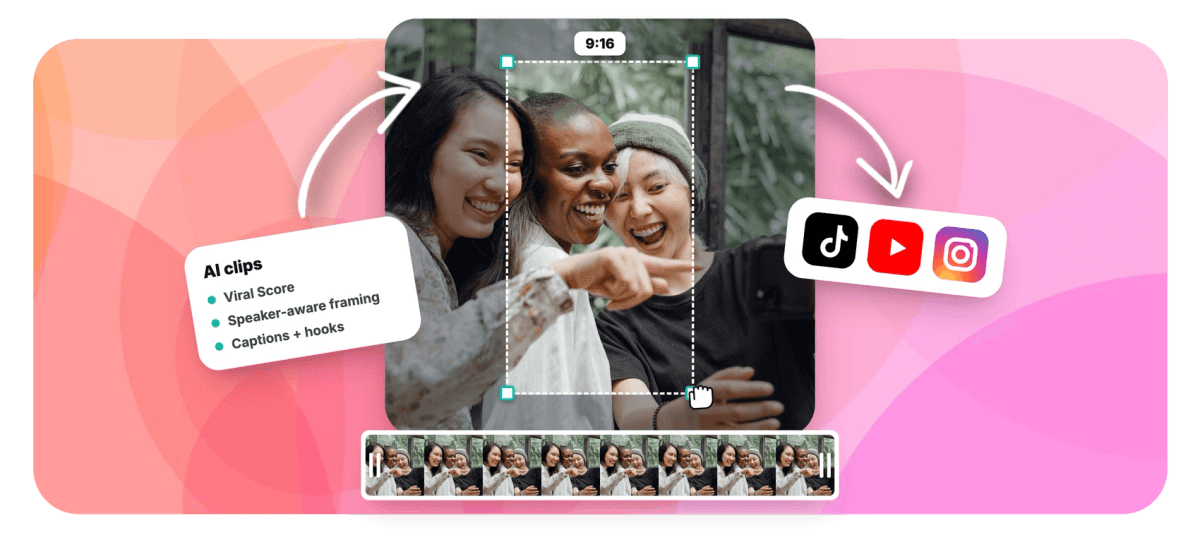
Found moments reframe to 9:16, 1:1, 4:5, or 16:9 with on-screen speaker detection (lip movement matched to the voice), cutting between people on their turns like a camera operator would.
-
Ranked, Scored Results
Every moment carries a 0-100 Viral Score with Hook, Clarity, Emotion, Value, and Trend sub-scores, handy when you want the strongest mention of a topic, not just any mention.
-
Ask Echo in Plain Words
On the results page, ask Echo, EchoWave's AI editor, for "the part about pricing" or "the story about the first hire" and it brings that moment in as a clip. Then polish it in the text-based video editor.
How it works
How to find moments in video
Four steps from a long recording to the exact seconds you were looking for.
-
Load the Recording
Upload a video or audio file, pick one from your library, paste a direct media link, or start from an existing project. Podcasts, interviews, meetings, webinars, and lectures all work.
-
Type Your Prompt
Enter what you are looking for in the Find moments about field. Add keyword boosts for terms that matter, choose a genre preset, and scope the search to a custom time range if you want.
-
Review the Matches
Scan the ranked grid of moments, each with timestamps, a transcript excerpt, a score, and plain-English reasons. Jump to any match and confirm it says what you need.
-
Clip and Export
Turn any match into an EchoWave project, adjust framing and word-timed captions in the editor, then export. Bulk select to create many clips and exports in one pass.
Who uses it
Anyone with a long recording and a deadline
-
Podcast producers
Pull every mention of a sponsor, guest story, or topic from a 90 minute episode without listening back through it.
-
Journalists and researchers
Locate the exact quote or claim inside an interview recording, verify it against the transcript, and cite the timestamp.
-
Support and community leads
Find every moment a customer question came up across recorded calls, then clip the best answers for the knowledge base.
-
L&D teams
Extract the three minutes that actually explain one compliance rule from a two hour training and ship a short refresher.
-
Sales enablement
Search webinar and demo recordings for pricing and objection moments, then package the strongest ones into shareable clips.
-
Streamers and lecturers
Search a multi-hour VOD or lecture for one topic instead of scrubbing, and clip it in the aspect ratio you need.
Search your first recording
Type what you are looking for and get timestamped moments back in minutes, with 30 free analysis minutes every month.
What people are saying about EchoWave

About the EchoWave team
EchoWave is a browser-based video and audio editor built by Lemon Vault LLC since 2018. The people who build the editor write these guides and test every step in the production app before publishing.
Find moments in video FAQ
How do I find moments in video?
Open the Clips tool in EchoWave and load your recording by upload, library, direct media link, or an existing project. EchoWave transcribes it with word-level timing, then you type what you are looking for into the Find moments about field, for example every moment about pricing. The AI searches the full transcript and returns matching moments in a ranked grid, each with timestamps, a transcript excerpt, and a score. Click any match to jump to that second, then turn it into an editable, captioned clip or keep searching with a different prompt.
Can AI find a specific moment in a video automatically?
Yes. Instead of highlight-only detection, EchoWave lets you steer the search with a prompt. Describe the moment, the part where the guest explains churn, every time someone asks about integrations, and the language model matches it against the word-timed transcript. It also weighs audio energy, silences, speaking turns, and scene cuts to shape moment boundaries, so results start and end where the thought does, not mid-sentence. You choose how many results to return, from a single clip up to 30 per run.
Does it match topics, or only exact keywords?
Prompt search works by meaning, so a query about pricing will surface moments where the speaker said cost, how much, or what it runs, not only the literal word pricing. That is the main difference from doing a Ctrl+F over an exported subtitle file, which finds exact text only and leaves you cross-referencing timestamps by hand. When you do care about an exact term, add it as a keyword boost and the ranking tilts toward moments that mention it directly.
Can I search only part of a long recording?
Yes. Set a custom time range before running the analysis and EchoWave only processes that slice, useful when you know the answer lives in the Q&A block of a webinar or one agenda item of a meeting recording. Scoping the range also saves analysis minutes, since plans meter by minutes analysed: 30 on Free, 180 on Creator, 600 on Pro, and 3,000 on Ultra each month. You can rerun different prompts over the same range without re-uploading anything.
How do I find a quote in an interview without watching the whole thing?
Load the interview, then type a prompt that paraphrases the quote or describes its topic. Matching moments come back with the transcript text behind each one, so you can read the excerpt and confirm the wording before you ever press play. Timestamps are word-level, so jumping to a match lands you on the exact second. If you want the surrounding context, drag a wider range on the source strip and that becomes a clip too, framed and captioned like the AI-found ones.
What languages does video search work in?
Transcription auto-detects around 99 languages, and the prompt search runs over whatever transcript comes back, so you can search a Spanish webinar, a German lecture, or a Japanese podcast without changing any settings. Generated clip titles are written in the video's own language as well. Word-timed captions are available in any of EchoWave's 60+ caption presets, including karaoke and word-punch styles sized for portrait, so a found moment is publish-ready in the original language.
Can I ask for a moment in chat instead of typing a search?
Yes. Once the clips are ready, Echo, EchoWave's AI editor, sits beside the results and inside the clip editor. Ask it in your own words, such as "find the part where she explains the refund policy", and it pulls that stretch in as a clip with captions and framing applied. You can keep the conversation going with "make it shorter" or "new title for this one", and ask Echo to undo anything you do not like. The Find moments about field and keyword boosts still work the same way when you prefer a structured search.
Is there a free way to find moments in a video?
Yes. The free plan includes 30 minutes of analysis per month, enough to search a full podcast episode or a long meeting recording and pull several moments from it. Free exports carry a small watermark and are capped at 720p; Creator removes the watermark and exports at 1080p with 180 analysis minutes, Pro exports at 4K with 600 minutes, and Ultra includes 3,000 minutes for teams. Searching, reviewing matches, and reading transcript excerpts all happen before you export anything.
Stop scrubbing. Start searching.
Type what you are looking for and jump straight to the moment, then clip it.
Get Started →