Split Screen Podcast Clips With Both Hosts in Frame
Upload a two-host episode and get vertical clips in a stacked two-up layout, both faces at eye level, captions burned in, and each exchange scored so you post the strongest one first.


Split Screen Podcast Clips With Both Hosts in Frame Features
EchoWave's podcast clip tools are used by two-host shows, interview podcasters, and podcast editors worldwide



Stacked two-up layout
Vertical crops built for one face fail two-host shows
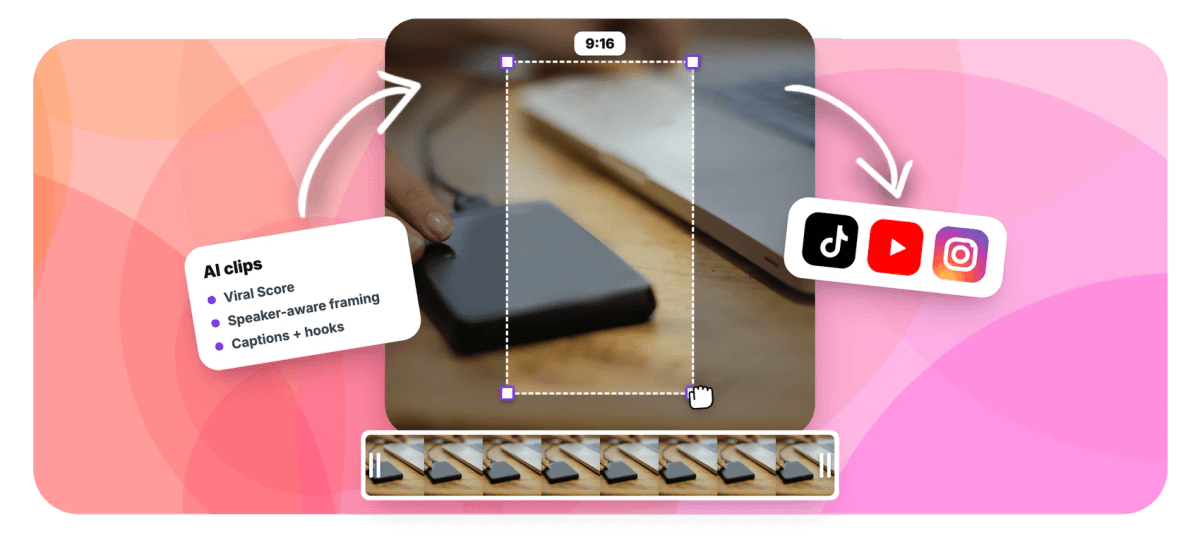
Split screen podcast clips fix the problem every two-host show hits: an auto-crop tuned for a single speaker either drops your co-host entirely or whips between faces mid sentence. EchoWave detects every face on screen, works out who is talking with on-screen speaker detection (lip movement matched to the voice), and applies a Split layout, a stacked two-up that holds both hosts in a 9:16 frame with each face at eye level. The engine reads the word-timed transcript first, finds the exchange worth posting, scores it 0-100, then frames and captions it. It fits alongside our podcast clip maker and podcast to Shorts workflows, and outputs standard vertical video sizes.
-
7 layouts
Split is one of seven camera layouts, alongside Follow speaker, Grid, Presenter + slides, and more
-
0-100
Viral Score per clip with Hook, Clarity, Emotion, Value, and Trend sub-scores plus plain-English reasons
-
~99 languages
Transcription auto-detects the episode's language, and AI titles arrive in that language
-
30 free min/mo
Analysis minutes on the free plan, with 180 on Creator, 600 on Pro, and 3,000 on Ultra
What you get
A camera engine that expects two people on screen
The Split layout lives inside speaker-aware auto-reframe, so framing decisions come from who is actually talking, not a fixed crop.
-
Stacked Two-Up Split
The Split layout stacks both hosts into their own tiles in one 9:16 frame, so a reaction, a laugh, or a raised eyebrow stays visible even while the other person carries the sentence.
-
Knows Who Is Talking
On-screen speaker detection matches lip movement to the voice to identify the active speaker on each turn. That signal drives framing decisions, so speaker switching lands on real conversational turns, not audio noise.
-
Eye Level in Both Tiles
Each tile crops its subject to eye level framing, so the split never looks mismatched with one face high and one low. The camera moves like an operator: dead zone, capped pan speed, smoothing.
-
Split or Cut, Your Call
Not every moment wants both faces. Switch to Follow speaker, adjust the cut-versus-pan behaviour, or use Focus on to pin framing to one host when they should dominate the frame.
-
One Wide Shot Works Too
Recorded both hosts in a single wide frame? The engine finds each face inside that shot and crops each host into their own tile, producing the same stacked two-up look without a second camera.
-
Exchanges Ranked, Not Guessed
Every candidate clip gets a Viral Score from 0-100 with reasons like "back-and-forth" or "strong hook", built from the transcript plus audio energy, reaction peaks, and speaking turns. You pick from a ranked grid.
-
Captions Built for Dialogue
Word-timed captions in any of 60+ presets, including karaoke, boxed, and word-punch styles, sized for portrait so fast two-person exchanges stay readable under both tiles. See animated captions.
-
Every Move Is a Keyframe
Camera moves are ordinary keyframes, editable shot by shot. Nudge a tile, swap Split for Follow speaker on one section, or reframe a moment by hand in the full editor.
How it works
How to make split screen podcast clips
From raw episode to stacked two-up clips in four steps, with nothing to composite by hand.
-
Upload the Episode
Add the recording from your device, library, a direct media link, or an existing project. Pick the podcast or interview genre preset so exchanges between hosts get weighted properly.
-
Set 9:16 and the Split Layout
Choose the 9:16 aspect, select the Split layout under Smart camera, then set clip length (Short 15-30 s, Medium 30-60 s, Long 60-90 s, or custom) and how many clips you want, up to 30.
-
Review the Ranked Grid
Scan clips by Viral Score, each with an AI title, hook line, hashtags, and timestamps. Type "Find moments about" a topic to search the transcript, or add a custom clip from any range on the source strip.
-
Fine-Tune and Export
Open any clip as a normal EchoWave project to adjust keyframes or captions, then export. Free exports carry a small watermark at 720p, Creator renders 1080p, Pro renders 4K. Bulk export the whole batch at once.
Who uses it
Every show with more than one face on camera
-
Two-host video podcasts
Keep both hosts visible in every vertical clip, so banter and reactions survive the crop instead of disappearing off frame.
-
Interview podcasters
Show the guest's answer and the host's reaction together, or let the engine cut to whoever is talking when that reads better.
-
Podcast editors
Replace the manual split-screen composite built per clip with a layout the engine applies automatically across a whole batch.
-
Remote co-host recordings
A side-by-side remote recording gets restacked into a vertical two-up, each caller cropped into their own eye-level tile.
-
Panel shows
Three or four people on camera? Switch to the Grid layout and every panelist gets a tile in the same vertical frame.
-
Solo-plus-guest formats
Run Follow speaker on monologue sections and Split on the interview segment, mixing layouts across clips from one episode.
Stop compositing splits by hand
Upload one episode and get ranked, captioned, stacked two-up clips with both hosts framed at eye level. The first 30 minutes of analysis each month are free.
What people are saying about EchoWave

About the EchoWave team
EchoWave is a browser-based video and audio editor built by Lemon Vault LLC since 2018. The people who build the editor write these guides and test every step in the production app before publishing.
Split screen podcast clips FAQ
How do I make split screen podcast clips?
Upload your episode to EchoWave's clip generator, choose the podcast or interview preset, set the aspect to 9:16, and pick the Split layout. The tool transcribes the audio, auto-detecting around 99 languages, finds the strongest exchanges using the transcript plus speaking turns and reaction peaks, then frames both hosts in a stacked two-up with each face at eye level. Clips arrive with word-timed captions, an AI title, and hashtags. Review the ranked grid, open any clip in the editor if you want to adjust it, and export.
Should a podcast clip split-screen both hosts or cut between them?
Split when the reaction matters: a disagreement, a shared laugh, a fast back-and-forth where seeing both faces adds tension. Cut to a single speaker when one person carries a long story and the other is just listening. EchoWave supports both approaches in the same tool: the Split layout holds a stacked two-up throughout, Follow speaker cuts to whoever is talking on their turns, and a cut-versus-pan control shapes how transitions behave. You can also mix them, running Split on some clips and Follow speaker on others from the same episode.
What is a stacked split screen video?
A stacked split screen is a vertical frame divided into two horizontal tiles, one speaker on top and one below, sometimes called a two-up layout. It is the standard treatment for two-host podcast clips on TikTok, Reels, and Shorts because a 9:16 crop cannot hold two side-by-side faces at a readable size. EchoWave builds this layout automatically: it detects both faces, crops each into its own tile at matching eye level, and keeps the composition steady while the conversation moves between speakers.
How do you keep two faces in frame at eye level for a vertical clip?
Doing it manually means cropping each speaker separately, aligning both crops so the eyes sit at the same height, and repeating that for every clip. EchoWave's camera engine does this automatically: it detects each face, holds it at eye level inside its tile, and moves like a camera operator with a dead zone, capped pan speed, and smoothing, so small head movements do not jitter the frame. It also never pans across a scene cut. If a shot needs a nudge, every camera move is an ordinary keyframe you can edit.
What size should a split screen podcast video be for TikTok or Reels?
Use 9:16 for TikTok, Reels, and YouTube Shorts, which is the full-screen vertical format all three favor. EchoWave generates split screen podcast clips at 9:16 by default and also offers 1:1, 4:5, and 16:9 if you want a square feed post or a widescreen version of the same moment. Captions and the AI title overlay are sized for portrait so they stay readable under both tiles. Free exports render at up to 720p with a small watermark, Creator renders 1080p, and Pro renders 4K.
Can AI automatically create a split screen layout from a podcast recording?
Yes. EchoWave analyzes the recording, scores the best moments 0-100 across Hook, Clarity, Emotion, Value, and Trend, then applies the Split layout without any manual compositing. Developers can trigger the same pipeline through the REST API, the hosted MCP server, or the Zapier action, and the "Clips ready" trigger fires when a batch finishes.
Is there a free tool to make split screen podcast clips?
EchoWave's free plan includes 30 minutes of analysis per month, enough to run a typical episode segment through the clip generator and test the Split layout on your own footage. Free exports carry a small watermark and render at up to 720p. Paid plans raise both limits: Creator covers 180 analysis minutes a month with 1080p exports, Pro covers 600 minutes with 4K exports, and Ultra covers 3,000 minutes for teams, with jobs scoped to a shared workspace and visible to every member.
Does split screen work if both hosts were recorded in one wide shot?
Yes. You do not need separate camera feeds. From a single wide shot with both hosts in it, the engine detects each face, crops each host into their own tile, and stacks them into the same two-up vertical layout a two-camera setup would produce. On-screen speaker detection still tracks who is talking through lip movement matched to the voice, so speaker-aware behaviour like Follow speaker and Focus on works from the one shot too. If a crop needs adjusting, open the clip in the editor and move the keyframes.
Both hosts, one frame
Upload an episode and get stacked, captioned, ranked split screen clips in minutes.
Get Started →