Sales Call Clips Your Team Will Actually Watch
Upload a recorded discovery call or demo. Ask for the pricing objection or the customer's best line, and get short, captioned clips ready to share with reps, managers or marketing.


Sales Call Clips Your Team Will Actually Watch Features
EchoWave's meeting tools are used by sales teams, enablement leads and founders worldwide





Call snippets
Nobody rewatches a 45-minute call. Everyone watches 40 seconds.
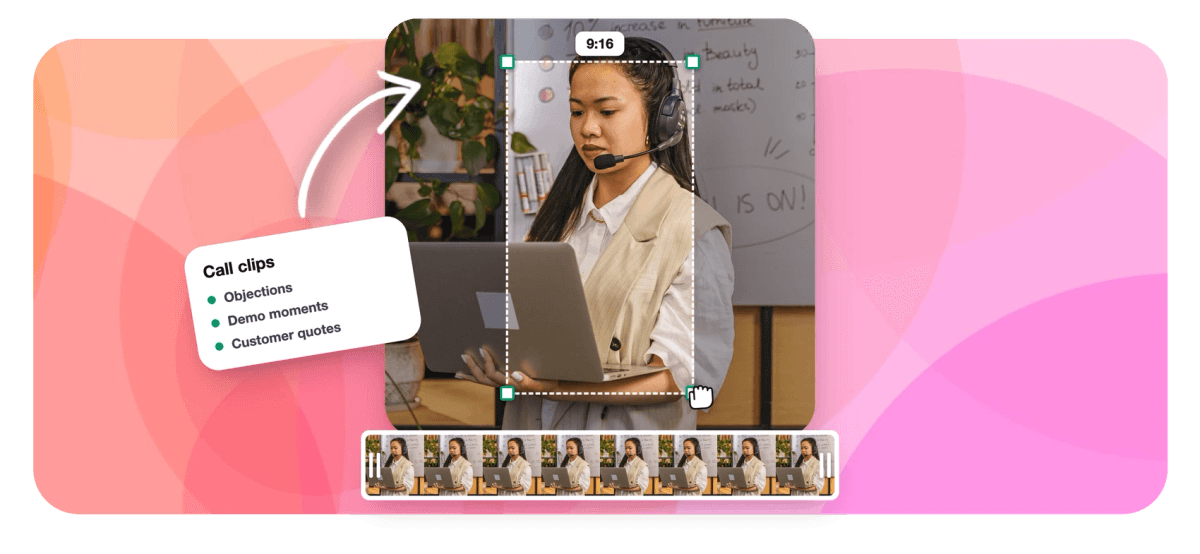
Sales call clips turn hour-long recordings into the moments a team learns from: how a rep handled the pricing pushback, the demo step that made the buyer lean in, the sentence a customer used to describe the problem. EchoWave works from the recording file you already have, so no bot joins the call and no CRM connection is needed. Ask for a moment in plain words, and the clip comes back framed on whoever is talking and captioned for viewing on mute in a team channel. For full call recaps, pair it with meeting transcription; for Zoom-specific layouts, see Zoom recording to clips; for internal reviews, see meeting highlights.
-
No bot
Works from the recording file, with no call joining or calendar access
-
1-30 clips
Clips per call, set exactly or chosen by score
-
~99 languages
Transcription auto-detects the language the call was held in
-
3,000 min
Monthly analysis minutes on Ultra, shared across the workspace
What you get
Built for the moments sales teams reuse
Find the exchange, frame it, caption it, share it, without scrubbing the recording.
-
Search Calls by Prompt
Type find moments about pricing objections, security review or implementation timeline, and the engine searches the word-timed transcript for matching exchanges. Add keyword boosts for a competitor or product name you track.
-
Ask Echo for the Exact Exchange
Remember the moment but not the minute? Ask Echo, EchoWave's AI editor, for "the part where they asked about SSO" and it brings that stretch in as a clip you can trim with "make it shorter".
-
Both Sides of the Conversation
On-screen speaker detection matches lip movement to the voice and cuts between rep and buyer on their turns, or stacks both in a split layout so the reaction stays visible.
-
Demos Keep the Screen
When a call includes screen share, the presenter plus slides layout puts the product on top and the speaker below, so a demo clip shows the feature instead of cropping it away.
-
Captions for Muted Channels
Clips posted in team chat often autoplay silently, so every clip carries word-timed captions in any of 60+ styles. A manager skimming between meetings still gets the point.
-
A Shared Clip Library
Clip jobs are scoped to your workspace and visible to its members, with analysis minutes pooled, so enablement, managers and reps all see the same ranked clips from each call.
-
Clip Just the Part That Matters
Limit analysis to a time range, such as the last 20 minutes where pricing came up, and every clip comes from that stretch rather than the small talk at the start.
-
Automate With Zapier or the API
When a new recording lands, a Zapier Generate clips action or the REST API can start a clip job, and the Clips ready trigger passes results to the next step.
How it works
How to make sales call clips
Four steps from a recorded call to a clip your team can learn from.
-
Upload the Call Recording
Add the file exported from Zoom, Google Meet, Teams or your dialer, a direct media link, or a recording already in your library.
-
Say What You Are Looking For
Choose the meeting or interview preset, set a clip length, and type a prompt such as find moments about pricing objections, or leave it open to rank the whole call.
-
Review the Clips
Watch the analysis run, then check each clip's transcript excerpt and timestamps. Ask Echo for an exchange you remember, or add a custom range from the source strip.
-
Export and Share
Export the clips and post them where your team learns. On the free plan exports are 720p and carry a small watermark; Creator removes it and exports 1080p.
Who uses it
Who clips sales calls
-
Sales enablement leads
Build a library of real objection-handling clips for onboarding instead of role-play scripts nobody believes.
-
Sales managers
Send a rep the 60 seconds that need coaching rather than a link to a full recording and a timestamp.
-
Product marketers
Collect how buyers describe their problem in their own words, with the customer's permission before anything goes public.
-
Founders selling solo
Share the demo moment that closed a deal with investors or new hires without editing software.
-
Customer success teams
Pass the handoff moment, what was promised and when, from sales to onboarding as a short clip.
-
Product teams
Pull every feature request mentioned in a call so the roadmap discussion hears the customer directly.
Your best sales coaching is already recorded
Upload a call, ask for the moment, and share a captioned clip. The free plan covers 30 minutes of calls each month.
What creators say after trying EchoWave

About the EchoWave team
EchoWave is a browser-based video and audio editor built by Lemon Vault LLC since 2018. The people who build the editor write these guides and test every step in the production app before publishing.
Sales call clips FAQ
How do I make sales call clips?
Export the call recording from your meeting tool or dialer and upload it to EchoWave's Clips tool. Pick the meeting or interview preset, choose a clip length, and either type a prompt such as find moments about pricing objections or let the engine rank the whole call. Clips come back with transcript excerpts, timestamps and word-timed captions, framed on whoever is talking. Review them, ask Echo for any exchange the ranking missed, then export and share the clips with your team.
Do I need a meeting bot or CRM integration to clip calls?
No. EchoWave works only from recordings you bring to it: an uploaded file, a direct media link, or media already in your library. Nothing joins your calls, there is no calendar access, and no CRM connection is required. That keeps prospects from seeing an unfamiliar bot in the meeting and avoids an IT review for a new integration. The tradeoff is that you export the recording yourself; teams that want this automated can start clip jobs from Zapier or the REST API when a new file appears.
Can I find every pricing objection in a call recording?
Within a single recording, yes. Type a prompt like find moments about pricing or budget and the engine searches the word-timed transcript for matching exchanges, ranking the results with timestamps and transcript excerpts so you can confirm each one before clipping. Keyword boosts help when buyers use a specific term, such as a competitor's name. Each call is its own clip job, so building a library across many calls means running each recording, and team members can see every job in the shared workspace.
Can we use customer clips from sales calls in marketing?
Only with the customer's permission, and it is worth getting that in writing. Internally, clips of real calls are a powerful coaching tool. Externally, a customer describing their problem in their own words makes strong marketing, but they agreed to a sales conversation, not a public video. A common approach is to share the clip with the customer, ask to use it, and then polish the approved version in EchoWave, or rerecord the quote as a proper testimonial with the testimonial video maker.
How do I share sales call clips with my team?
Export each clip as an MP4 and post it wherever your team already talks, such as a coaching channel or an enablement library. Because the clips carry burned-in captions, they make sense even when they autoplay on mute. Inside EchoWave, clip jobs are scoped to your workspace and visible to every member, so a manager can open the same ranked results an enablement lead created. EchoWave does not post to social or chat tools on your behalf; sharing is the exported file.
Does it work with Zoom, Google Meet and Teams recordings?
Yes, as uploaded files. Download the recording from Zoom, Google Meet, Microsoft Teams or your dialer and bring the video into EchoWave; audio-only call recordings work too. Gallery-view recordings can be framed as a grid, a two-person call can follow the speaker or use a stacked split, and screen-share demos get the presenter plus slides layout. EchoWave does not pull recordings from those platforms automatically, so export the file first or use a direct media link.
How long should a sales call clip be?
Long enough to hold one complete exchange: the buyer's question or objection and the rep's full answer. That usually lands between 30 and 90 seconds, which is why the Medium and Long presets suit sales calls better than the 15-second Short preset. For coaching, include a beat of context before the objection so the listener understands why it came up. For a customer quote destined for marketing, shorter is better: one or two sentences in the customer's own words.
Is there a free way to clip sales calls?
EchoWave is free to start with 30 minutes of call analysis every month, enough to clip a typical discovery call and judge the results. Free exports are 720p with a small watermark. Creator removes the watermark and includes 180 analysis minutes, Pro includes 600, and Ultra includes 3,000 minutes pooled across the workspace for teams clipping calls every week. Editing the clips afterward is not metered, so trimming or restyling never uses extra minutes.
Coach with clips not timestamps
Find the objection, frame both people, caption it and share it with your team.
Get Started →