
Online Teleprompter: Read the Script, Keep the Eye Contact
Paste your script into a floating prompter that scrolls while you record camera or screen, speed and text size under your control. Recorder and editor included. Free to start.


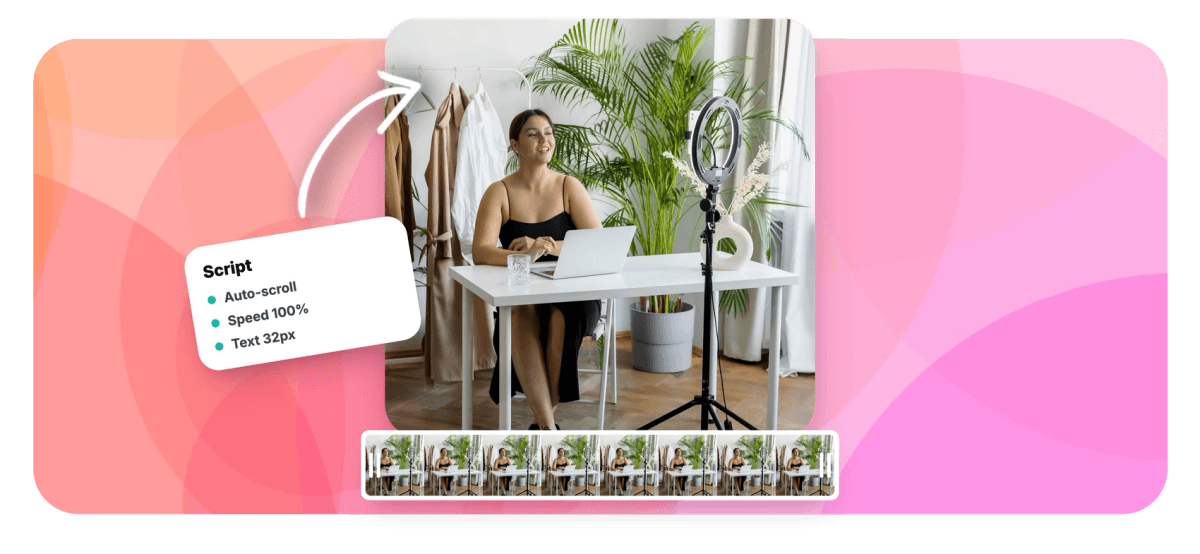
Online Teleprompter: Read the Script, Keep the Eye Contact Features
EchoWave's recorder is used by presenters, founders and creators worldwide





Scripted takes
A teleprompter that records, not just scrolls
Most online teleprompters are a scrolling text box you point a separate camera at. EchoWave's prompter lives inside the recorder: the script floats near the lens while the camera, screen or both record underneath it, so your eyes stay close to where viewers expect them. Adjust the scroll speed to your pace and the text size to your distance, pause the take when you lose the thread, and finish in the editor where captions and filler-word cleanup are waiting.
-
Floating overlay
The prompter sits near the lens, over the live preview
-
Your pace
Scroll speed adjustable live, from crawl to brisk
-
18 to 72px
Text size range for any reading distance
-
Records too
Camera, screen and mic capture built into the same tool
What you get
The parts of a prompter that actually matter
Readable text, controllable pace, and a recorder attached.
-
Paste and Go
Drop your script in as plain text. It renders large, high-contrast and centered in a floating panel you position over the preview.
-
Live Speed Control
Nudge the scroll speed up or down while recording until it matches how you actually talk, with the current speed shown as a percentage.
-
Text Size for Your Distance
From 18 to 72 pixels, so the script is readable whether the laptop is at arm's length or across the desk.
-
Works With Every Recording Mode
Prompt over a webcam take, a screen recording or a screen-plus-camera bubble. The overlay is never captured into the video, only you are.
-
Pause-Friendly
Lose your place? Pause the recording, reset your eyes, resume. Editing out the seam later takes one cut, and the prompter resets cleanly between takes.
-
The Script Becomes the Captions
After recording, auto-transcription turns your delivered script into perfectly timed captions, closing the loop from text to video to text.
How it works
How to use the online teleprompter
Four steps to a scripted take that does not sound scripted.
-
Open the Recorder
Choose camera, screen or both, and set up your devices and framing as usual.
-
Load Your Script
Open the teleprompter, paste the script and set the text size for your reading distance.
-
Dial the Speed
Start the scroll and adjust the pace until it matches your natural delivery.
-
Record and Finish
Record with the prompter floating near the lens, then edit, caption and export in the same browser tab.
Who uses it
For everyone whose words are written first
-
Founders and Executives
Investor updates and announcements delivered clean in one or two takes instead of eleven.
-
Marketing and Sales
Product scripts, launch videos and outreach messages that hit every approved line.
-
Educators
Lecture intros and course segments where precision matters and re-records are expensive.
-
YouTubers
Scripted essays and explainers with eye contact that survives paragraph three.
-
Non-Native Speakers
Deliver polished lines in a second language without memorizing them.
-
Anyone Nervous
A script you can see is a script you stop worrying about.
Read from the teleprompter now
Script, camera and editor in one browser tab. Free to start.
What creators say after trying EchoWave

About the EchoWave team
EchoWave is a browser-based video and audio editor built by Lemon Vault LLC since 2018. The people who build the editor write these guides and test every step in the production app before publishing.
Online teleprompter FAQ
How does the online teleprompter work?
Open EchoWave's recorder, load the teleprompter, paste your script and start recording. The script auto-scrolls in a floating overlay positioned over the live preview, near the lens, while the camera or screen records underneath. You control the scroll speed and the text size, and the overlay itself is never part of the recorded video.
Is the teleprompter free?
Yes. The prompter, the recorder and downloading your takes are free, with no account required to record. Editing and exporting follow the normal plan rules: free exports carry a small watermark, paid plans export clean.
Can I change the scrolling speed while recording?
Yes, the speed control is live. Nudge it up when the script drags behind your delivery or down when it runs ahead; the current speed shows as a percentage so a good setting is easy to find again next take.
Will people see my eyes reading?
Far less than with a script beside the keyboard. Because the prompter floats near the lens and the text is centered in a narrow column, your gaze stays close to the camera axis. Smaller text and a slightly greater viewing distance shrink eye movement further, which is exactly what the size control is for.
Does it work with screen recordings too?
Yes. The prompter overlays any recording mode, camera, screen, or screen with a camera bubble, so narrated demos and walkthroughs can be scripted as tightly as talking-head videos.
What happens to my script afterwards?
Two useful things: the recording lands in the editor where auto-transcription rebuilds your delivered words as timed captions, and the take can be cleaned of any remaining stumbles with the filler-word and silence tools.
Do I need to install anything or sign up?
No install, and no account to record and download. The recorder runs on the browser's own capture APIs; a guest session is created automatically only if you choose to save the take into the editor.
Ready to nail the script?
A teleprompter with a recorder attached, free in your browser.
Get Started →























































