
Subtitle Editor: Fix Text and Timing, Cue by Cue
Upload your video and SRT file, or auto-generate subtitles, then correct text and nudge timing cue by cue while watching playback. Export SRT or VTT, or burn captions in.


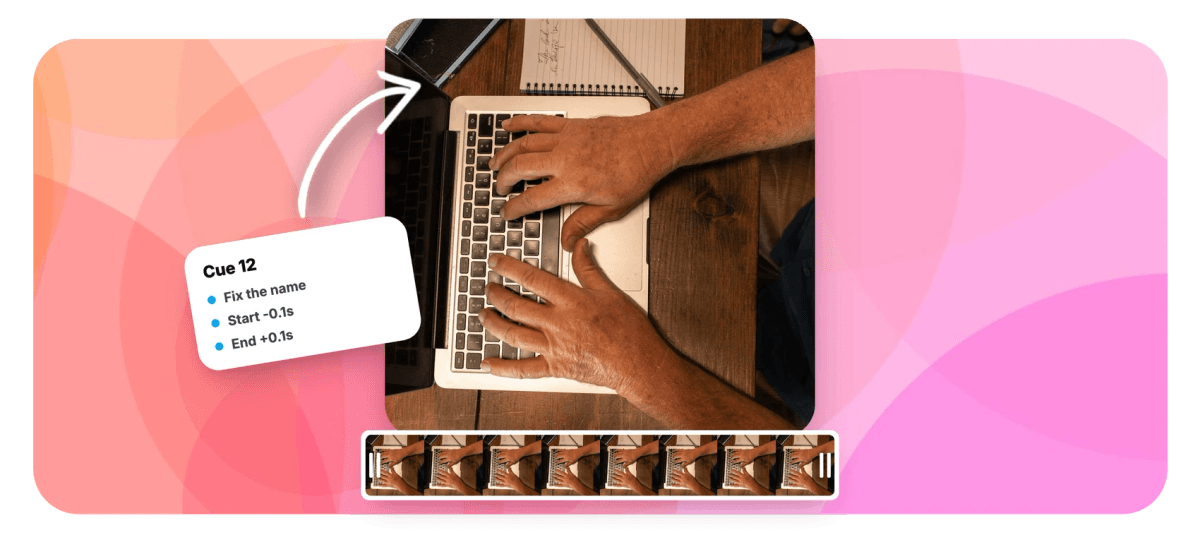
Subtitle Editor: Fix Text and Timing, Cue by Cue Features
EchoWave's subtitle tools are used by video editors, podcasters and localization teams worldwide





Fix, don't redo
The subtitles exist. They're just slightly wrong.
A good subtitle editor assumes the subtitles already exist and are almost right: a mis-heard name, cues drifting behind the audio, a line that breaks in an awkward place. EchoWave loads your SRT file against the actual video inside the video editor, tolerating malformed files on import, and turns every cue into an editable row with its own play button. Fix the text, nudge timing in 0.1s steps or snap a cue edge to the playhead, and mark words for emphasis. When every line reads right, export SRT, VTT, TXT or JSON, or burn styled captions into the video. Need subtitles from scratch instead? Start with the SRT generator.
-
0.1s
Timing nudge step for any cue's start or end point
-
4 formats
Export the corrected subtitles as SRT, VTT, TXT or JSON
-
50+ languages
Auto-transcription when you need subtitles generated first
-
170+ presets
Caption styles available when you burn the fixed track in
What you get
A fix-it kit for subtitle files
Precise, cue-level controls first, then every export path a subtitle file needs.
-
Cue-by-Cue Text Editing
Every subtitle cue appears as its own editable row with a play button beside it. Hear exactly what was said, fix mis-heard names and words in place, and move to the next line.
-
Timing Nudges in 0.1s Steps
Cue start and end times move in precise 0.1 second increments, small enough to kill the lag between voice and caption without overshooting into the next line.
-
Snap Edges to the Playhead
Scrub the video to the exact moment a line starts, then set the cue's start or end to the playhead position. No timestamp math, just line it up and snap.
-
Tolerant SRT Import
Real-world SRT files are often slightly broken. EchoWave tolerates malformed files on import, cleaning them up rather than rejecting them, so you can get on with fixing the text instead of hand-repairing the file first.
-
Per-Word Emphasis
Open the emphasis editor to mark individual words for highlighting inside a cue. Text editing works at the cue level, emphasis works at the word level, so key terms stand out in styled captions.
-
No File? Auto-Generate One
If there is no subtitle file yet, auto-transcribe the video: word-level timing, automatic language detection across 50+ languages, and the result lands in the same editable cue rows.
-
Export in Four Formats
Download the corrected track as SRT or VTT for players and platforms, TXT for a plain transcript, or JSON with full timing data for your own pipeline.
-
Burn In Styled Captions
Once the text is right, apply one of 170+ caption presets and render the video with the corrected captions burned in, so viewers see the fix even where caption files are not supported.
How it works
How to edit subtitles online
From wrong-ish to right in four steps.
-
Upload Video and Subtitles
Drag your video into the EchoWave editor and import the SRT file alongside it. No file yet? Auto-generate subtitles from the audio instead.
-
Play Each Cue and Fix the Text
Work down the cue list. Hit each row's play button, listen to the line, and correct mis-heard words, names and awkward line breaks in place.
-
Nudge the Timing
Move a cue's start or end in 0.1s steps, or scrub to the right moment and snap the cue edge to the playhead for exact sync.
-
Export or Burn In
Download the corrected subtitles as SRT, VTT, TXT or JSON, or apply a caption style and render the video with the fixed captions burned in.
Who uses it
For everyone who inherits imperfect subtitles
-
Freelance Video Editors
Fix the client's delivered SRT, correct brand names and jargon, and hand back a file that survives review.
-
Podcasters and Interview Shows
Auto-transcripts mis-hear guest names and niche terms. Play each cue, fix the spelling, re-export for every platform.
-
Course Creators
Lessons demand exact terminology. Correct technical terms cue by cue so learners read precisely what the instructor said.
-
Social Media Managers
Resync captions that drifted on a repurposed clip and repost with subtitles that land on the beat.
-
Accessibility Teams
Captions must match the audio word for word. Verify every cue against playback before publishing.
-
Localization Reviewers
Proof translated subtitle files against the original video, tighten timing where languages run long, and export clean SRT.
Fix your subtitles today
Load the file against the video, correct each cue and export in minutes. Free to start.
How creators use EchoWave in real projects

About the EchoWave team
EchoWave is a browser-based video and audio editor built by Lemon Vault LLC since 2018. The people who build the editor write these guides and test every step in the production app before publishing.
Subtitle editor FAQ
How do I edit an SRT file?
Open the EchoWave editor, upload your video and import the SRT file alongside it. Each cue becomes an editable row with its own play button: click play to hear the line, fix the text, and adjust the start or end time if it lands early or late. When you are done, download the corrected file as SRT or VTT, or render the video with the captions burned in. Import is tolerant, so files that other tools refuse will still load.
How do I fix subtitle timing that is out of sync?
Two controls handle almost every sync problem. For small drift, nudge a cue's start or end in 0.1 second steps until the caption lands with the voice. For a cue that is badly off, scrub the video to the exact moment the line begins and set the cue's edge to the playhead position. Because you are correcting against real playback rather than guessing at timestamp math, each fix takes seconds, and you can verify it immediately with the cue's own play button.
Can I open a malformed or broken SRT file?
Yes. EchoWave's SRT import is deliberately tolerant. Subtitle files that have passed through several tools or hand edits often pick up formatting problems, and strict parsers reject them outright. EchoWave loads what it can and cleans the file up on import, so your cues appear in the editor ready to fix. After editing, exporting produces a fresh, well-formed SRT or VTT file, which is often the fastest way to repair a broken subtitle file: import it, glance over the cues, export it again.
Can I edit auto-generated subtitles?
Yes, and it is the recommended workflow when you have no subtitle file. Auto-transcribe the video, with the spoken language detected automatically across 50+ languages, and the transcript appears as the same editable cue rows. Auto-generation gets the bulk right and word-level timing for free; your job is the handful of mis-heard names and technical terms. If you would rather type and position lines manually from the start, the add subtitles workflow covers manual captioning from a blank track.
Can I style the subtitles and burn them into the video?
Yes. The corrected caption track works with EchoWave's full styling system: fonts, colors, positioning and more than 170 caption presets, including per-word animations. Style it with the caption generator, then export the video with captions rendered permanently into the picture. Burned-in captions are the right choice for social feeds where platform caption support is unreliable, while SRT or VTT files are better where viewers should be able to toggle subtitles off.
Can I convert the subtitle format while I edit?
Yes. Whatever you import, you can export as SRT, VTT, TXT or JSON, so a fix session doubles as a format conversion. Import the SRT a client sent, correct the cues, and download VTT for a web player, or TXT when someone just needs the transcript. If you only need to switch formats without touching the content, the dedicated subtitle converter does that in one step.
Can I translate the subtitles after editing them?
Yes, and editing first is the smart order. Fix names, terminology and timing in the source language, then run the corrected track through the subtitle translator into any of 80+ languages. Because translation works from your cleaned-up text, every mistake you fix once stays fixed in every language, and the translated cues inherit the timing you already corrected. You can then export a subtitle file per language or burn a translated track into the video.
Is the subtitle editor free?
Editing is free: upload a video, import or generate subtitles, fix text and timing, and preview as much as you want. Downloading the corrected subtitle file as SRT, VTT, TXT or JSON is part of the same workflow. Video exports on the free plan carry a small watermark and are capped at 720p; paid plans remove the watermark and unlock 1080p up to 4K for burned-in caption renders.
Almost right? Make it right.
Fix text and timing against the real video, then export anywhere.
Get Started →























































