Hardcode Subtitles Into Video
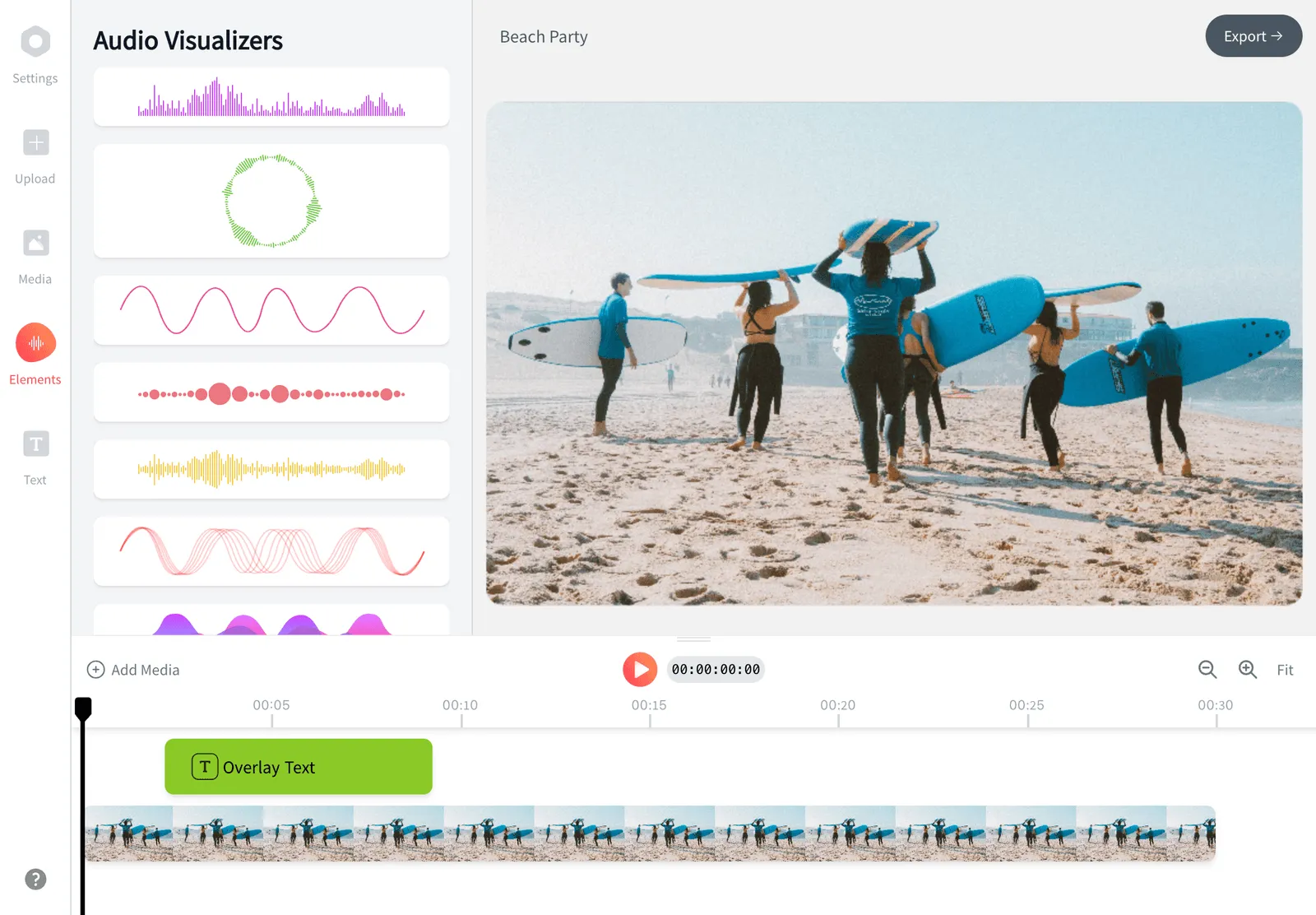
Hardcode subtitles into your video so they show up everywhere, on every player, with no separate file to lose. Auto-generate captions from speech or import an SRT or VTT, style the text with 176 presets, then export with the subtitles rendered straight into the pixels. EchoWave runs in your browser and renders on a cloud farm, so an old laptop burns subs into 4K footage as fast as a new machine does.


Hardcode Subtitles Into Video Features
EchoWave's subtitle burner is used by social media teams, course creators, and translators around the world.





Hardsub vs softsub
Why hardcode subtitles instead of shipping an SRT?
Soft subtitles live in a separate track the player can toggle. Hardcoded subtitles (hardsubs) are drawn onto every frame at export, so TikTok, Instagram, and embedded players cannot strip or ignore them. Generate cues with the caption generator, fix timing in the subtitle editor, then burn everything into one MP4 that plays identically everywhere.
-
176
caption style presets
-
86
subtitle translation languages
-
4
soft subtitle formats on paid plans (SRT, VTT, TXT, JSON)
-
8K
maximum export resolution on top plans
What you get
Everything you need to burn subtitles into video
EchoWave handles the whole hardsub job in one place: transcribe, style, translate, and render.
-
Hardcode subtitles in a single export
When you export, every cue is rendered into the video frames themselves. No sidecar file, no CC button, no player support required. The result is one MP4 where the captions are part of the picture, permanently, and the burn happens on a cloud render farm rather than your device.
-
Auto-generate the captions first
Skip typing. EchoWave transcribes speech in dozens of languages with word-level timestamps, so cues land exactly when words are spoken, and those same timestamps drive the karaoke highlight styles. If you would rather start from scratch or paste a script, add subtitles manually on the timeline instead.
-
Import an SRT you already have
Drop in an existing subtitle file and burn it. Every cue becomes editable on the timeline before you render, which is the difference between EchoWave and a blind ffmpeg pass. See add SRT to video for the file-first workflow, or add SRT to MP4 if that is your container.
-
Style the text before you burn it
Hardsubs are forever, so get the look right first. Pick from 176 caption presets including word-by-word karaoke styles with active-word fill, edit per-word color and emphasis, and load your own fonts through the brand kit. What you see in the preview is exactly what gets baked in.
-
Translate into 86 languages
Since a viewer cannot switch a burned-in language, you export one version per market. With Pro, EchoWave translates your subtitles into 86 languages, and it supports bilingual dual-language captions, so producing a Spanish and a Japanese hardsub of the same video takes minutes, not another editing session. Cue timing carries over, so every translated version stays in sync with the original cut.
-
Fix cues on the timeline
A typo in a hardsub means re-exporting, so proof everything first. Split long cues, nudge in and out points, and correct words inline before you commit. Word-level timestamps make it easy to spot a cue that fires early.
-
Keep a soft copy too
Burning subs in does not mean losing the text. On a paid plan, download the same cues as SRT, VTT, TXT, or JSON alongside the video, so you can hardsub the TikTok cut and still upload a proper closed-caption file to YouTube for accessibility and search indexing.
How it works
How to hardcode subtitles into a video
Four steps from raw footage to a video with the captions baked in.
-
Upload your video
Open echowave.io in any modern browser and drop in your file. MP4, MOV, WebM, and AVI all work, and there is nothing to install on Mac, Windows, Linux, or a Chromebook. The canvas auto-sizes to your first clip, so nothing gets letterboxed by accident.
-
Generate or import subtitles
Click auto-captions to transcribe the audio with word-level timing, or import an SRT you already have. Either way the cues appear on the timeline as editable segments.
-
Style and proof every cue
Choose a preset, set font, size, color, and position, and read through the transcript for typos. Keep text inside the safe area so platform UI like the TikTok like-bar does not cover it.
-
Export with subtitles burned in
Pick your resolution, bitrate, and format, then render. The cloud farm draws every cue into the frames, and you download one finished MP4 with the subtitles hardcoded.
Who burns subs in
When burned-in subtitles are the right call
-
TikTok, Reels, and Shorts
Feed posts on TikTok and Instagram do not accept a sidecar SRT, and most viewers watch muted. Burned-in captions are the only way to guarantee your words appear on screen.
-
Translated versions per market
Agencies and localization teams export one hardsub per language from a single project. Translation into 86 languages means the Spanish, German, and Korean cuts come from the same timeline.
-
Course lessons and tutorials
Embedded players and internal portals often lack a working CC toggle. Hardcoded subtitles make a lesson readable in any player a student happens to use.
-
Podcast clips and audiograms
A talking clip with karaoke-style captions holds attention far longer than a static waveform. Burn the words in so the clip works on every platform you post to.
-
Client deliverables and signage
Screens in shops, lobbies, and trade booths play video with no captions menu at all. A hardsubbed file is the only version that stays readable in those players.
-
Paid social ads
Ad managers frequently ignore caption files, and sound-off autoplay is the default. Advertisers hardcode captions so the hook lands in the first silent second.
Compare
How EchoWave compares
| Feature | EchoWave | HandBrake | VLC | Kapwing |
|---|---|---|---|---|
| Runs in the browser, nothing to install | Yes | No | No | Yes |
| Auto-generates captions from speech | Yes | No | No | Yes |
| Imports SRT for burning | Yes | Yes | Yes | Yes |
| Caption style presets | yes (176) | No | No | Yes |
| Word-by-word karaoke highlighting | Yes | No | No | Yes |
| Subtitle translation built in | yes (86 languages, Pro) | No | No | yes (paid) |
| Exports separate SRT and VTT subtitle files | yes (paid plans) | No | No | Yes |
| Full timeline editor (trim, text, layers) | Yes | No | No | Yes |
| Free downloads of finished videos | yes (720p, watermark badge) | Yes | Yes | yes (watermark) |
| Works offline | No | Yes | Yes | No |
| Batch queue for many files | No | Yes | yes (command line) | No |
| Bitrate and codec controls | Yes | Yes | Yes | limited |
Based on each tool's public pages as of July 2026. HandBrake and VLC are free desktop software, so features can shift between releases.
Burn your subtitles in once, post it everywhere
Upload, caption, style, and export the burn-in free in HD with a small removable EchoWave watermark badge. Paid plans remove the badge and add 1080p up to 4K, with 8K on Business, and every export is rendered on EchoWave's cloud farm so your own hardware never slows the burn.
What people are saying about EchoWave

About the EchoWave team
EchoWave is a browser-based video and audio editor built by Lemon Vault LLC since 2018. The people who build the editor write these guides and test every step in the production app before publishing.
Hardcode Subtitles Into Video FAQ
What are hardcoded subtitles?
Hardcoded subtitles, also called hardsubs or burned-in subtitles, are captions rendered directly into the video frames during export. They are part of the picture itself, so they display in every player, on every device, and viewers cannot turn them off. Soft subtitles, by contrast, live in a separate track or file that the player draws on demand.
Should I use hardcoded or soft subtitles?
Use hardsubs for social feeds, ads, embedded players, and signage, anywhere you cannot trust the player to show captions. Use soft subs (an SRT or VTT file) for YouTube and platforms with real closed-caption support, since viewers can toggle them and search engines can index the text. Many creators do both: EchoWave exports the burned-in MP4 free, and a paid plan adds the SRT download from the same project.
How do I hardcode subtitles into an MP4?
Upload the MP4 to EchoWave in your browser, then either auto-generate captions from the audio or import an SRT file. Style the cues with one of 176 presets, proof the text on the timeline, and export. The render burns every cue into the frames and you download a single MP4 with the subtitles fixed in place. MOV, WebM, and AVI sources work exactly the same way.
Does hardcoding subtitles reduce video quality?
Burning in subtitles requires a re-encode, and any re-encode is technically lossy. At a sensible bitrate the difference is invisible to viewers, and EchoWave exposes bitrate and codec controls if you want to push quality higher. Exports go up to 4K on Pro plans and 8K on Business, so you are never forced below your source resolution.
Can you remove hardcoded subtitles from a video later?
No. Once subtitles are burned in they are pixels, the same as a face or a background, and no tool can cleanly take them back out. Cropping or blurring the caption area is the only workaround and it damages the shot. Always keep your original file, and keep the EchoWave project too, so you can re-export a clean or corrected version anytime.
Do hardcoded subtitles increase the file size?
The text itself adds almost nothing. File size is set by the re-encode: resolution, bitrate, and codec decide the output size, not the captions. Sharp text edges can consume slightly more bitrate on very compressed exports, but at normal settings a hardsubbed export ends up close to the size of the same export without captions.
Can I burn subtitles from an SRT file I already have?
Yes. Import the SRT and every cue appears on the timeline, editable before you render. VTT files import the same way. After burning, a paid plan lets you download the cues as SRT, VTT, TXT, or JSON.
Why do TikTok and Instagram need burned-in captions?
Regular feed uploads on TikTok, Instagram Reels, and Snapchat do not take a separate subtitle file, and their auto-caption features give you little control over accuracy or styling. Since most feed viewing happens with sound off, creators burn styled captions in so the video reads the same for every viewer. Burning in also means your chosen preset, colors, and fonts survive the upload untouched.
Is EchoWave free to hardcode subtitles?
Yes. The free plan covers the full job: upload, auto-caption, style, and export an HD MP4 up to 720p with a small removable EchoWave watermark badge and a short branded end card. Paid plans remove the badge and end card, raise quality to 1080p and up to 4K, with 8K and 120fps on Business, and add more formats like WebM, MOV, and GIF.
Ready to burn your captions in?
Caption, style, and export the hardsub free with a small watermark badge; paid plans remove the badge and add exports up to 4K.
Get Started →