
Audio to Video Converter
Audio to video converter that turns any song, podcast or voice note into a shareable video with a moving waveform. Free, in your browser, no signup.


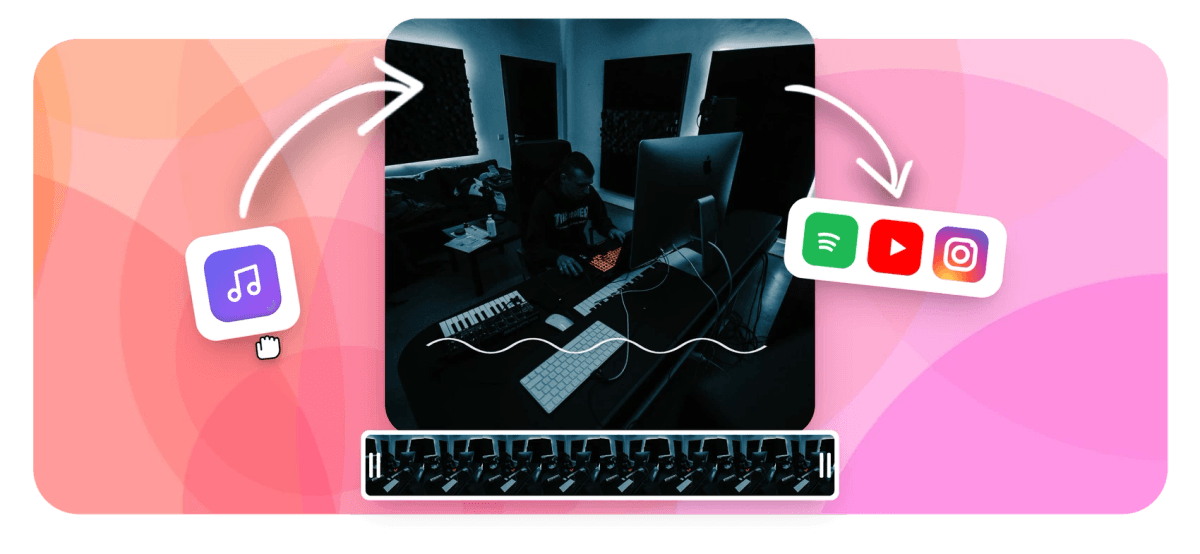
Audio to Video Converter Features
EchoWave's browser-based video tools are used by podcasters, musicians, and content creators around the world.





Audio Meets Video
Give your audio a visual presence
Audio alone gets skipped on YouTube and social feeds. EchoWave lets you pair your recording with an animated waveform, a static cover image, or a full music visualizer, then export a proper MP4 file in minutes. For more control, open the full editor to layer text, logos, and captions over your audiogram or build a music visualizer from scratch.
-
HD
export quality on the free plan
-
4K
maximum export on paid plans
-
6+
waveform and visualizer styles
-
0
software installs required
What You Can Do
What EchoWave's audio to video converter can do
EchoWave can build a static cover over an audio track or a fully animated waveform, all in the browser with no desktop app.
-
Animated waveform over your audio
Drop in any MP3, WAV, or AAC file and EchoWave generates a live waveform animation synced to the audio. Pick from bar, line, and mirror styles, then adjust color and height to match your brand. The audio waveform video generator in the full editor gives you even more control over the animation style.
-
Cover image or background art
Add a podcast cover, album art, or any JPG or PNG as the video background. Resize the canvas to 16:9 for YouTube, 1:1 for Instagram, or 9:16 for Reels and Shorts. The add image to MP3 tool offers a one-step shortcut if all you need is a static cover.
-
Music visualizer and FFT spectrum
Go beyond a plain waveform with the FFT spectrum and circular visualizer modes. These react to the frequency content of your audio in real time, creating animated visuals that work well for music tracks and DJ sets. See the dedicated music visualizer tool for preset styles.
-
Auto-captions and lyric overlays
EchoWave's AI transcribes speech automatically and drops captions onto the timeline. Choose from 160+ preset styles including word-level karaoke highlights. For podcast clips or song lyrics, captions keep the words readable on muted social feeds, where most viewers watch without sound.
-
Text, logos, and overlays
Place titles, episode numbers, a podcast logo, or a watermark over the video canvas. Animate any property with keyframes so text can fade in, slide, or scale in sync with the audio. All positioning and timing is handled on EchoWave's magnetic timeline editor.
-
Cloud render to MP4, MOV, or WebM
Exports run on EchoWave's cloud render farm, so your device's hardware does not limit quality. Free plan outputs HD MP4 with a small badge in the corner. Paid plans output up to 4K H.264 with the badge removed. You can also export to MOV or WebM if needed.
-
Aspect ratio for every platform
Switch the canvas between 16:9, 1:1, 4:5, and 9:16 at any point. The audio track stays on the timeline and the waveform rescales automatically. One recording can produce four platform-ready videos without re-uploading the source file.
-
Direct link share or download
Once the render completes, download the MP4 directly or share a link from your EchoWave project. You can return to the project later to swap the cover art or update captions without re-uploading the original audio file.
How it works
How to convert audio to video
The basic flow takes under five minutes from upload to exported MP4.
-
Upload your audio file
Drag an MP3, WAV, AAC, or other common audio format onto the EchoWave canvas. The file uploads to the secure cloud render farm. No account is required to start, but saving and exporting needs a free account.
-
Add a background and visual
Drop in a cover image or choose a waveform animation style. Adjust the waveform color, line thickness, and height using the settings panel. If you want multiple visual layers, switch to the full editor to add text, logos, or a music visualizer on top.
-
Choose your canvas size
Pick 16:9 for YouTube, 1:1 for Instagram, or 9:16 for vertical Reels and Shorts. The canvas resizes and the waveform rescales automatically. You can duplicate the project and export multiple sizes from the same audio without any extra work.
-
Export and download your MP4
Click Export and EchoWave's render farm processes the video in the cloud. HD is available on the free plan. Download the finished MP4 or share the link directly. Paid users get up to 4K output and no watermark badge.
Who Uses This
Common reasons to turn audio into video
-
Podcast clips for YouTube
YouTube indexes and surfaces video content far more than bare audio feeds. A waveform or a split-screen with guest photos gives podcast episodes a visual home without a camera setup.
-
Music releases on social media
Labels and independent artists pair a track with album art or an animated visualizer to create an official video for streaming previews and Instagram Reels. The audiogram creator gives music clips a clean, branded look.
-
Audiograms for social sharing
A short audiogram, typically 30 to 90 seconds of audio with a waveform and subtitle overlay, performs consistently well on Twitter and LinkedIn. Auto-captions make the words readable without sound.
-
Language learning and pronunciation guides
Teachers and course creators record pronunciation clips and export them as video files that students can watch on any device. Timestamped captions make the audio content searchable and easier to follow.
-
Voice-over demos and showreels
Voice actors and narrators build demo reels by combining their best takes with a simple graphic or their headshot. Exporting to MP4 means the reel can be embedded anywhere without a separate media player.
-
Sermon and talk archive videos
Churches and conference organizers often record audio only. Converting the recording to a branded video with the speaker's name, event logo, and auto-captions makes the content more accessible and shareable on YouTube.
Ready to turn your audio into a video?
Upload an MP3 or WAV file and have a shareable MP4 in under five minutes. Free to use in any browser, no software to install.
What people are saying about EchoWave

About the EchoWave team
EchoWave is a browser-based video and audio editor built by Lemon Vault LLC since 2018. The people who build the editor write these guides and test every step in the production app before publishing.
Audio to Video Converter FAQ
What is an audio to video converter and how does it work?
An audio to video converter takes an audio file (MP3, WAV, AAC) and pairs it with a visual layer, such as a waveform animation, a static cover image, or a music visualizer, then renders the result as a standard MP4 video. EchoWave runs this on a cloud render farm, so nothing is installed locally and output quality does not depend on your device.
Which audio formats can I upload?
EchoWave accepts common audio formats including MP3, WAV, AAC, and M4A. If your file is in a less common format, you can convert it to MP3 first using EchoWave's audio converter tools. File size limits depend on your plan.
Can I make a video from an audio file for free?
Yes. The free plan covers HD export and includes waveform animation, cover image upload, auto-captions, and canvas resize across multiple aspect ratios. Free exports include a small EchoWave badge in the corner of the video. Paid plans remove the badge and raise the export ceiling to 4K.
How do I add an image to an audio file to make a video?
Upload your audio file to EchoWave, then drag a JPG or PNG onto the canvas as the background layer. Position it to fill the frame, then click Export. EchoWave renders the image-and-audio together as one MP4. For a quicker path, try the dedicated add-image-to-MP3 tool.
What is the difference between an audiogram and a regular audio-to-video conversion?
An audiogram is a short clip, typically under two minutes, that combines audio with a waveform and caption overlay for social media where viewers often watch without sound. A standard audio-to-video conversion can be any length and may use a static image or a music visualizer rather than a waveform. EchoWave supports both formats.
Can I convert audio to video in 9:16 for Instagram Reels or TikTok?
Yes. After uploading your audio, switch the canvas to 9:16 from the aspect ratio menu. The waveform rescales automatically. You can also create a 1:1 version for Instagram feed posts from the same project without re-uploading the audio.
Does the video export have audio quality loss?
EchoWave re-encodes audio to AAC in the MP4 container at a high bitrate, so the export stays close to the source quality. No separate transcoding step is needed before uploading.
Can I add auto-captions to an audio-to-video file?
Yes. EchoWave's AI transcribes the speech in your audio track and places captions on the video timeline. You can pick from over 160 caption preset styles, including word-by-word karaoke highlights. Captions are baked into the exported MP4, so they appear on platforms that do not support external subtitle files.
Is there a video length limit for audio-to-video conversion?
Length limits depend on your plan. The free plan suits podcast clips and short audiograms. Paid plans raise the limit significantly, making them the practical option for full-length podcast episodes.
Turn your audio into a shareable video today
Free to start in any browser. HD export on the free plan with a small watermark badge; upgrade to remove it and go up to 4K.
Get Started →























































