
Add Photo to Video
Add a photo to any video as an overlay, intro or picture in picture. Position it, resize it and time it exactly. Free, in your browser, no watermark.


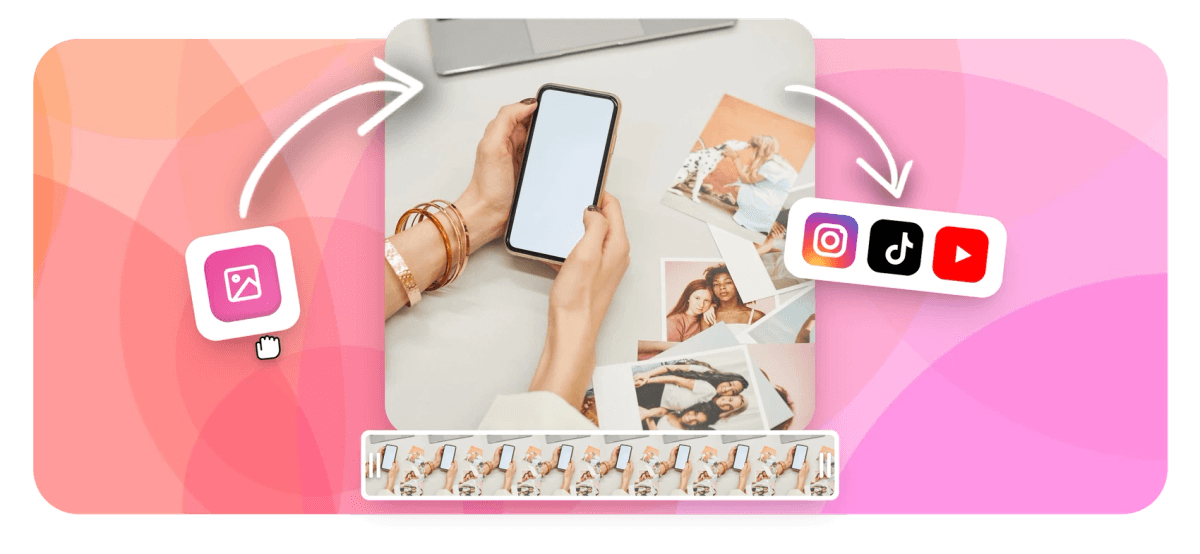
Add Photo to Video Features
EchoWave's browser-based video editor is used by content creators, marketers, and educators around the world.





Photo overlays
Layer a photo onto any video without software
EchoWave puts photos on a separate track above your video so you can resize, crop, reposition, and set opacity independently. Need the image to move? Add keyframes and it will slide, fade, or scale across the clip. This is a photo-overlay tool for existing footage. If you want images to become the video, see image-to-video. For the closely related image overlay workflow, see add image to video or photo video maker.
-
Free
HD export in the browser
-
4K
max export on paid plan
-
PNG, JPG
and WebP images supported
-
No app
runs in Chrome, Edge, Firefox, Safari
What you can do
Place, animate, and style a photo on any video
Upload, place, animate, and export a photo overlay without leaving the browser tab.
-
Multi-track photo overlay
Add a photo on its own track directly above the video track. Drag to trim how long it appears, and stack multiple images if you need more than one overlay at the same time. Each track is independent.
-
Resize and position with handles
Drag the corner handles in the preview to scale the image, then drag it to any position in the frame. Hold shift to keep proportions locked, or enter exact pixel coordinates in the properties panel.
-
Keyframe animation on any property
Set a keyframe at the start and end of the overlay clip to animate position, scale, or opacity. This lets a photo slide in from the side, zoom out to a corner, or fade in over two seconds. See also add image to video for the same workflow applied to static frame inserts.
-
Opacity and blend modes
Drop the photo's opacity below 100% for a ghost overlay or watermark effect. Switch blend modes to multiply, screen, or overlay for quick compositing.
-
Crop the photo before placing it
Use the in-editor crop tool to cut the photo down to just the part you need, a headshot, a logo, a product shot, before it lands on the video. No need to pre-edit in another app.
-
Auto-captions alongside your photo overlay
While your photo is on screen, AI auto-captions keep rolling on the video underneath. Choose from 160+ caption presets including word-level karaoke styles to keep the video accessible. Subtitles can be translated into dozens of languages for international audiences.
-
Resize the canvas for any platform
Switch the canvas between 16:9, 9:16, 1:1, and 4:5 after placing your photo. The overlay layer rescales with the canvas so you only have to reposition, not redo the whole layout.
-
Cloud render, no hardware limit
Exports run on EchoWave's cloud render farm, so the quality cap is the plan tier (HD free, 4K paid), not your laptop. Output formats include MP4, MOV, WebM, and GIF.
How it works
How to add a photo to a video
The whole process takes under two minutes from upload to export.
-
Upload your video
Click 'Add your photo now' and drag your video file into the editor. EchoWave accepts MP4, MOV, WebM, and AVI. The canvas auto-sizes to the first clip you drop in.
-
Add the photo as a new layer
Click the image or media button in the toolbar, then upload your PNG, JPG, or WebP photo. EchoWave places it on a new track above the video. Trim the clip handles to control exactly when the photo appears and disappears.
-
Resize, position, and animate
Drag the corner handles in the preview to scale the photo. Move it anywhere in the frame. To animate it, set a keyframe at the start point and another where you want the motion to end. EchoWave interpolates position, scale, and opacity between keyframes.
-
Export your finished video
Click Export when you're done. HD renders are free with a small EchoWave badge in the corner. Upgrade to remove the badge and export in 4K. The video processes in the cloud and downloads to your device.
Common uses
When to drop a photo onto a video
-
Picture-in-picture inserts
Place a talking-head photo or reaction image in the corner while the main video plays behind it. Keyframe the size so it shrinks to a small inset after a second or two.
-
Logo and brand watermark
Pin a transparent PNG logo to a corner of the frame for the full video duration. Set opacity to around 60% so it marks the video without covering the content. See add logo to video for a focused logo workflow.
-
Photo intro or title card
Start the video with a product photo or headshot for two to three seconds before cutting to the main footage. Fade the image out with an opacity keyframe for a clean transition.
-
Tutorial step illustrations
Overlay a screenshot or diagram at the exact moment in a tutorial where you reference it. Set it to appear for five seconds, then disappear, so viewers can see the step while they listen.
-
Social media content
Add a promotional graphic or a 'swipe up' call-to-action image over a background video for Instagram Stories or TikTok. Resize the canvas to 9:16 first, then position the overlay in the lower third.
-
Meme and reaction videos
Layer a cropped face photo, sticker, or emoji image over a video clip and animate it to bounce in at a specific moment. Add captions underneath for the full meme format.
Add a photo to your video right now
Open the editor, upload your video and image, and place the photo exactly where you want it. HD export is free. No account required to start.
What people are saying about EchoWave

About the EchoWave team
EchoWave is a browser-based video and audio editor built by Lemon Vault LLC since 2018. The people who build the editor write these guides and test every step in the production app before publishing.
Add Photo to Video FAQ
How do I add a photo to a video online for free?
Upload your video to EchoWave, then click the image button in the toolbar and upload your photo. The photo lands on a separate track above the video. Drag and resize it in the preview, then export in HD for free. EchoWave adds a small badge on the free plan; paying removes it.
What is the difference between adding a photo to a video and image-to-video?
Adding a photo to a video means placing an image as an overlay on existing footage, the video keeps playing while the photo sits on top. Image-to-video converts still images into the video itself, with no pre-existing footage involved. EchoWave covers both: use this tool for overlays and image-to-video to build a video from photos.
Can I make the photo move or animate across the screen?
Yes. Select the photo layer on the timeline and set a keyframe at the point where you want the motion to start. Move the playhead forward, reposition or rescale the photo in the preview, and set a second keyframe. EchoWave interpolates position, scale, and opacity between the two keyframes automatically.
What image formats does EchoWave accept for overlays?
PNG, JPG, and WebP are all supported. PNG is the best choice if your photo has a transparent background, such as a logo with no background, because the transparency is preserved in the overlay.
How do I add a logo as a permanent watermark to my video?
Upload a transparent PNG of your logo, add it as an overlay layer, then drag the trim handles so the clip spans the full length of the video. Drop the opacity to around 50-70% and pin it to a corner. For a step-by-step logo workflow, see add logo to video.
Can I add multiple photos to one video at the same time?
Yes. Each photo gets its own track on the timeline, so you can stack as many as you need. You can stagger them to appear at different times or show several simultaneously at different positions in the frame.
Does EchoWave add a watermark to my exported video?
The free plan adds a small EchoWave badge in the corner of the export. It does not cover your content or your overlay. Upgrading to a paid plan removes the badge and enables 4K export.
What is the difference between this page and the add-image-to-video tool?
The two tools are the same underlying feature in EchoWave, placing an image on a layer above a video. The add image to video page covers the same workflow and accepts all the same file types. Both pages link to photo video maker if you want to build a slideshow-style video from a collection of photos.
Does this work on mobile browsers?
EchoWave runs in any modern browser, including Safari on iPhone and Chrome on Android. Uploading and positioning images works on mobile, though a laptop or desktop gives you more precise control when setting keyframes on a tight timeline.
Ready to place a photo onto your video?
EchoWave is free to use in your browser, HD export included, with a small removable badge on the free plan.
Get Started →























































