
Video Messaging: Record It Once, Skip the Meeting
Record a video message with your camera, your screen or both, tidy it in the editor, and share the file in Slack, email or a doc. Free, no install, no account to record.


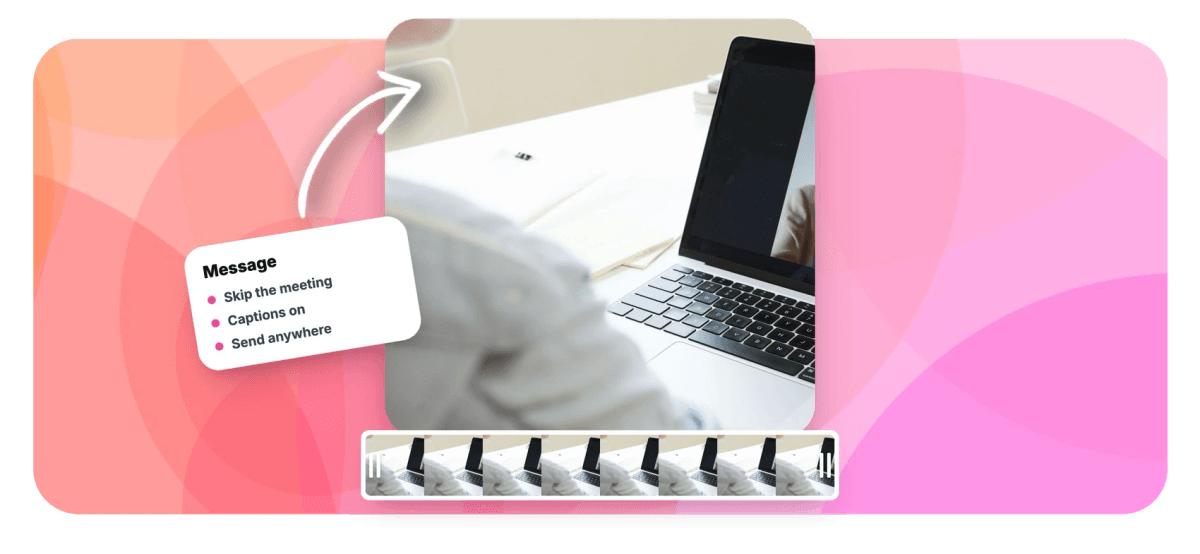
Video Messaging: Record It Once, Skip the Meeting Features
EchoWave's video messaging tools are used by remote teams, managers and agencies worldwide





Async video for work
This meeting could have been a video message.
Video messaging replaces the status meeting and the four-paragraph email with something faster to make and faster to absorb. Record your camera for a talking-head update with the webcam recorder, or capture your screen with a camera bubble for walkthroughs using the screen recorder; a countdown counts you in, a floating teleprompter keeps you on script, and pause and resume let you collect your thoughts mid-take. When you stop, the recording lands in a full editor: trim the ums, add captions for people watching on mute, then download the file and share it in Slack, email or a doc. Free to record, no account needed.
-
60 minutes
Longest single take, and time spent paused does not count
-
No account
Record and download a video message without signing up
-
1080p
Top camera capture quality, with 480p and 720p options
-
Up to 4K
Paid export ceiling; free exports are 720p with a small watermark
What you get
From hit record to hit send
Capture, cleanup and delivery, all in one browser tab.
-
Talking-Head Mode
Record your camera with a mirrored preview, backdrop fills around the camera card, and a countdown so the first word is not a false start. Capture quality up to 1080p.
-
Screen Plus Camera Bubble
Walk through a doc, a design or a bug with your face in a corner bubble, enlarged, or side by side. Screen and camera import as separate layers you can rearrange in the edit.
-
Teleprompter for Tight Updates
Paste your talking points and they scroll in a floating overlay near the lens, never captured in the recording, so a three-point update stays a three-point update.
-
Trim the Ums Before Sending
One take is rarely clean. The editor's filler-word cleanup finds the ums and long pauses from the transcript and cuts them in one pass, with every cut reviewable.
-
Captions for Sound-Off Viewing
Most work videos get watched on mute. Auto-transcribe the message in 50+ languages and add animated captions so the point lands even in a silent open-plan office.
-
A File That Goes Anywhere
Export an MP4 and share it wherever the conversation lives: a Slack thread, an email, a ticket, a shared doc. No special player, no viewer account, no expiring link.
How it works
How to record a video message
Less time than finding a slot on two calendars.
-
Pick Camera, Screen or Both
Open the recorder and choose camera for a talking head, or screen plus a camera bubble for a walkthrough, then check the mirrored preview.
-
Record With a Countdown
Count in, speak to the teleprompter if you loaded notes, and pause and resume as you go. Up to 60 minutes per take.
-
Tidy It in the Editor
Trim the ums and dead air, add captions for sound-off viewers, and cut anything you would not say twice.
-
Export and Share the File
Download the MP4 and drop it into Slack, email or your team's docs. Free exports are 720p with a small watermark; paid plans go up to 4K.
Who uses it
Who swaps meetings for messages
-
Remote Managers
Weekly updates and project kickoffs recorded once and watched on each report's own schedule, across every time zone.
-
Engineers and Designers
Bug reproductions and design walkthroughs with the screen recorded and a face in the corner explaining the why.
-
Sales and Success
Personal follow-ups and renewal check-ins that feel like a call without asking for thirty minutes of calendar.
-
Support Teams
Answer a tricky ticket once on video, with captions, and reuse the file every time the question returns.
-
Freelancers and Agencies
Client updates and deliverable walkthroughs that read as care, not another meeting request in the inbox.
-
HR and Onboarding
Welcome messages and how-we-work explainers that new hires can rewatch in week three without asking anyone.
Record your first video message
Camera or screen, a quick tidy in the editor, and a file that plays anywhere. Free to start.
What creators say after trying EchoWave

About the EchoWave team
EchoWave is a browser-based video and audio editor built by Lemon Vault LLC since 2018. The people who build the editor write these guides and test every step in the production app before publishing.
Video messaging FAQ
How do I record a video message?
Open EchoWave's recorder in your browser and pick a mode: camera for a talking-head message, or screen plus a camera bubble for a walkthrough. Allow camera and microphone access, set a countdown, and record with pause and resume for up to 60 minutes. When you stop, download the file immediately or continue into the editor to trim it, add captions and export. Nothing installs, and you do not need an account to record.
When should I send a video message instead of booking a meeting?
When information flows one way, a recording beats a calendar slot: status updates, project kickoffs, design and code walkthroughs, feedback on a draft, announcements. You explain once, at your best, and each viewer watches at their own speed, rewinds the confusing part and skips the rest. Keep live meetings for genuine back-and-forth, negotiation and decisions, and send a video message for everything that only needed to be said, not discussed.
Can I record my screen and my face at the same time?
Yes. Screen plus camera mode captures your display, window or tab with your camera in a bubble: tucked in a corner, enlarged, or side by side. You can include tab or system audio for anything playing on screen. The screen and camera arrive in the editor as separate layers, so you can resize or move the bubble, or remove it entirely for the detailed part of a walkthrough.
Why add captions to a video message?
Because most work videos are watched on mute: in an open office, on a train, in a meeting people should be listening to instead. The editor auto-transcribes your message with word-level timing, with 50+ languages supported, and you can style the captions or keep them plain. Burned-in captions travel with the file, so they work in Slack, in email attachments and anywhere else the MP4 goes.
How long can a video message be?
A single take can run up to 60 minutes, and time spent paused does not count against the limit. That said, the best video messages are short: a two-minute update gets watched, a twenty-minute one gets saved for later and forgotten. If a topic genuinely needs more time, record it in parts and join the takes on the editor timeline, or send separate messages per decision.
Where is my video message stored?
On your device while you record: takes are chunked locally in the browser, which also means a crashed tab does not lose the recording. Nothing uploads until you choose. Downloading keeps the file entirely on your machine, while saving into the editor uploads the take to your EchoWave project library so you can edit and export it from anywhere.
Do I need an account to send video messages?
No account is needed to record or to download the raw take. If you continue into the editor to trim and caption the message, a guest session is created automatically so the edit can start straight away. Free-plan exports are 720p with a small EchoWave watermark; paid plans remove the watermark and export up to 4K.
How do I share a video message on Slack, email or a doc?
Export the message as an MP4 and share the file itself: drag it into a Slack thread, attach it to an email, or upload it wherever your team keeps documents and link it from there. Because it is a standard video file, viewers just press play, with no account, app or special player on their side. You stay in control of where the video lives and who can reach it.
Skip the meeting, send a video.
Record, tidy, caption and share a video message from one browser tab. Free to start.
Get Started →























































