
MP4 Editor Online
MP4 editor to trim, cut, caption and add music to your video. Full editing in your browser with no download, then export up to 4K. Free, no watermark.


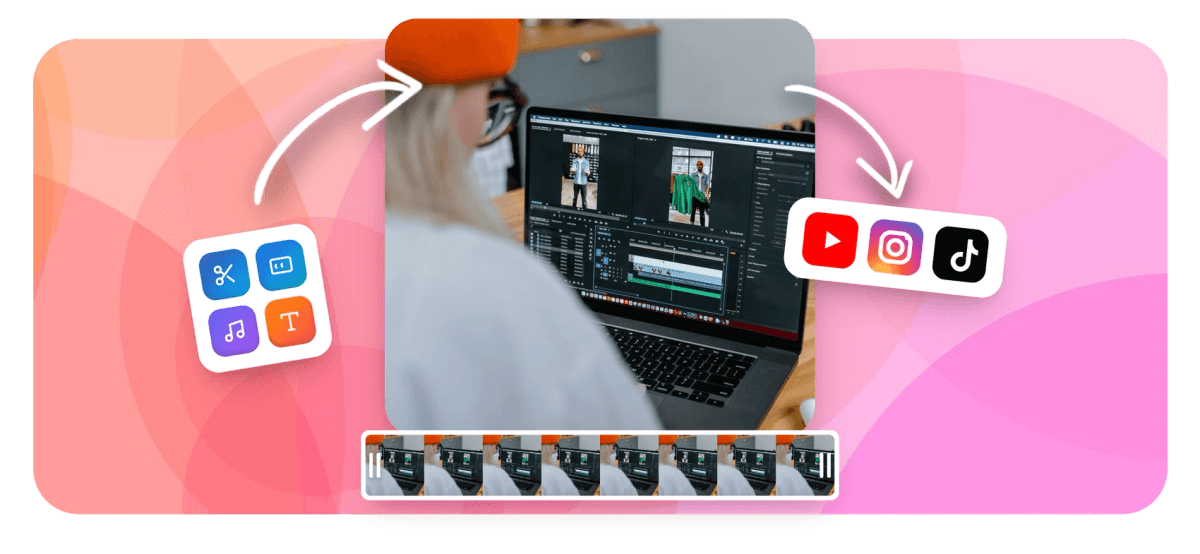
MP4 Editor Online Features
Creators, marketers, and video teams use EchoWave to edit MP4s without installing anything.





Native MP4 support
Open, edit, and export MP4 without converting first
Many online editors force you to convert your MP4 before the timeline even loads. EchoWave accepts MP4 directly and keeps it as the output format by default. Trim dead air, burn in captions, switch aspect ratios, and send the finished file back as a clean MP4. For broader editing workflows, see the online video editor or the full video editor page. Need to shrink the file size first? The MP4 compressor is one click away.
-
HD
free plan MP4 export
-
4K
max resolution on paid plan
-
160+
caption style presets
-
63
AI text-to-speech voices
What you can do
A full MP4 editing toolkit in the browser
EchoWave covers the tasks people reach for an MP4 editor to do: trim, caption, resize, add audio, and export back to MP4 without juggling separate apps.
-
Trim and cut MP4 files in the online MP4 editor
Drag clip handles on the magnetic multi-track timeline to remove unwanted sections. Use the split tool to cut at the playhead, then delete or rearrange segments. For quick single cuts on a long recording, the video cutter page walks through the fastest path.
-
AI auto-captions burned into your MP4
Drop your MP4 and EchoWave transcribes speech automatically. Choose from 160+ caption style presets including word-level karaoke formats modeled on MrBeast, TikTok, and Kendrick Lamar styles. Translate captions into dozens of languages and burn them into the exported MP4 without leaving the editor.
-
Resize MP4 for TikTok, Reels, YouTube, and Instagram
Switch between 9:16, 1:1, 4:5, 16:9, and custom canvas dimensions in one click. The canvas auto-sizes to your first uploaded clip. Switching ratio repositions tracks rather than blindly cropping, so you keep control of framing. Need to resize without re-editing? See the resize video tool.
-
Export back to MP4 in HD or 4K
Every export runs on EchoWave's cloud render farm, not your device. The free plan produces HD H.264 MP4 with a small EchoWave badge. The paid plan renders up to 4K H.264 and removes the badge. Output options also include MOV, WebM, and GIF if you need a different container.
-
Speed remap, reverse, and loop clips
Speed up a clip to 4x, slow it to 0.25x, or play it in reverse all without re-uploading. Loop a short clip to fill a longer audio bed. Keyframe the speed property over time for ramp effects. All remapping happens non-destructively on the timeline.
-
Overlays, chroma key, and blend modes
Place logo images, watermarks, stickers, emoji, or blur layers over your MP4 footage. Remove a solid-color background with the chroma key tool. Blend modes let you composite graphics without flattening the source. Note that AI background removal is not available; chroma key works with a green or solid backdrop.
-
AI text-to-speech and audio editing
Generate a voiceover from a script using 63 natural-sounding voices with streaming playback. Voice cloning is a paid feature. The AI audio track lands on its own timeline lane so you can trim, fade, or nudge it independently of the MP4 video track. For a focus on AI-driven editing, see the AI video editor.
-
Compress and re-encode MP4 inside the editor
Adjust bitrate and resolution settings at export time to shrink file size without opening a separate tool. EchoWave's cloud encoder handles the re-encode and delivers a download link when done. For a dedicated compression workflow, the MP4 compressor offers single-step compression with no full edit session required.
How it works
How to edit an MP4 online
From upload to finished MP4, the whole process runs in the browser and takes a few minutes.
-
Upload your MP4
Drag your MP4 file into the editor or click to browse. EchoWave accepts the file natively with no conversion prompt. The clip lands on the timeline and the canvas auto-sizes to match the video dimensions.
-
Trim, caption, and arrange
Drag clip edges to trim, hit the split button to cut at the playhead, and delete or reorder segments. Add AI captions with one click, pick a style preset, and adjust timing if needed. Drag in a logo, music track, or voiceover on separate lanes.
-
Choose your output format and ratio
Pick 9:16 for vertical social, 1:1 for square feed posts, or 16:9 for YouTube. Select HD for the free plan or 4K on paid. The export settings panel also lets you set a target file size if you need the MP4 under a specific limit.
-
Export and download your MP4
Click export and EchoWave's cloud farm renders the file. A download link arrives when the render completes. Free exports include a small EchoWave badge; paid exports are clean. The whole process is device-independent, so a budget laptop gets the same output quality as a workstation.
Sized to post
The right shape for every platform
-
9:16 Vertical
- TikTok
- Reels
- Shorts
-
1:1 Square
- Threads
-
16:9 Landscape
- YouTube
Who uses it
MP4 editing for every type of project
-
YouTubers trimming long recordings
Upload a raw screen recording or camera file, cut out dead air and mistakes on the multi-track timeline, add word-level captions, and export a 4K MP4 ready for upload. The cloud renderer keeps quality consistent regardless of your computer.
-
Short-form creators resizing for social
Take a 16:9 MP4, switch the canvas to 9:16 in one click, reframe the subject, drop in animated captions from 160+ presets, and download a vertical MP4 for TikTok or Reels. No app install and no conversion to a different format first.
-
Educators adding translated captions
Record a lesson as MP4, let EchoWave transcribe speech automatically, then translate the captions into a second language for international students. Burn the translated subtitles into the exported MP4 so the file plays with captions on any device.
-
Small businesses editing promo clips
Load a product demo MP4, trim to the key moments, place a logo overlay in the corner, and export a clean file for paid ads. The template system lets you swap footage across multiple versions for different markets without rebuilding the project each time.
-
Podcasters building audiogram MP4s
Pair an audio recording with a waveform or FFT spectrum visualizer, add a caption track synced to speech, set the canvas to 1:1 or 9:16, and export a share-ready MP4 for Instagram or LinkedIn. No third-party tool needed.
-
Freelancers delivering edited MP4 files
Manage client video edits entirely in the browser, apply captions and overlays, and export a finished MP4 without installing editing software on every machine. Paid exports have no EchoWave badge, so client deliverables look fully professional.
Edit your MP4 in the browser right now
No download, no conversion, no account required to start. Upload your MP4, make your edits, and export back to MP4 in HD free. Upgrade any time for 4K output and a clean badge-free file.
What creators say after trying EchoWave

About the EchoWave team
EchoWave is a browser-based video and audio editor built by Lemon Vault LLC since 2018. The people who build the editor write these guides and test every step in the production app before publishing.
MP4 Editor Online FAQ
Can I edit an MP4 file online without downloading software?
Yes. EchoWave runs entirely in the browser and accepts MP4 files directly. Upload your clip, edit on the multi-track timeline, and export back to MP4. Chrome, Edge, Firefox, and Safari on Mac, Windows, and Linux all work with no plugin or install required.
Does the MP4 editor keep the original video quality?
EchoWave re-encodes the video on its cloud render farm when you export, so the output quality depends on the settings you choose at export time, not your source file's exact bitrate. Free exports render at HD H.264; paid exports go up to 4K H.264. Choose the highest resolution your plan allows to keep quality close to the original.
Can I add subtitles or captions to an MP4 online?
EchoWave transcribes speech from your MP4 automatically and lets you pick from 160+ caption style presets including word-level karaoke styles. You can also translate captions into dozens of languages. Captions are burned into the exported MP4 so they play on any device without a separate subtitle file.
Is EchoWave's MP4 editor free to use?
The core editor is free with no time limit on editing sessions. The free plan exports HD MP4 with a small EchoWave badge on the output file. The paid plan removes the badge and raises the export resolution to 4K. Features like AI captions, trimming, and aspect ratio resizing are available on the free plan.
What is the difference between trimming and cutting an MP4?
Trimming shortens a clip from its start or end by dragging the handles on the timeline. Cutting splits a clip at a specific point so you can remove a middle section or rearrange segments. EchoWave supports both: drag clip edges to trim, or use the split tool to cut at the playhead and delete the unwanted piece.
Can I resize an MP4 from 16:9 to 9:16 for TikTok or Reels?
Yes. Switch the canvas from 16:9 to 9:16 in one click and EchoWave repositions the tracks. Adjust framing on individual clips as needed, then export a vertical MP4. The same project can be exported in multiple ratios without duplicating your work.
Does EchoWave add a watermark to exported MP4 files?
The free plan adds a small EchoWave badge to the exported file. It does not stamp any mark on your footage or design layers while you edit. The paid plan removes the badge from all exports. The badge is in the output video frames, not a separate overlay, so removing it requires upgrading before you export.
How is EchoWave's MP4 editor different from Descript or VEED.io?
Descript's main differentiator is text-based editing, where you edit the transcript to cut video. EchoWave uses a traditional timeline approach with 160+ caption presets and cloud rendering, but does not offer text-based editing. VEED.io has a similar browser-based timeline but puts auto-captions and AI features behind its paid plan. EchoWave offers auto-captions and AI text-to-speech (63 voices) on the free tier. Note that EchoWave does not include a royalty-free music library, whereas Descript, VEED.io, and Clipchamp do, so bring your own audio or add it on a separate track.
What formats can I export after editing my MP4?
The default export format is MP4 (H.264). EchoWave also exports MOV, WebM, and GIF. All rendering happens on the cloud farm, so format and resolution choices are independent of your device. If you need to convert your MP4 to a specific format without a full edit session, the video editor convert library handles dozens of containers.
Ready to edit your MP4 in the browser?
EchoWave is free to start with no download. The free plan exports HD MP4 with a small EchoWave badge; the paid plan removes it and renders up to 4K.
Get Started →























































