
Video to Audio Converter
Video to audio converter that saves any clip as clean MP3 or WAV. Pull the sound from interviews, music or lectures in seconds. Free, in your browser.


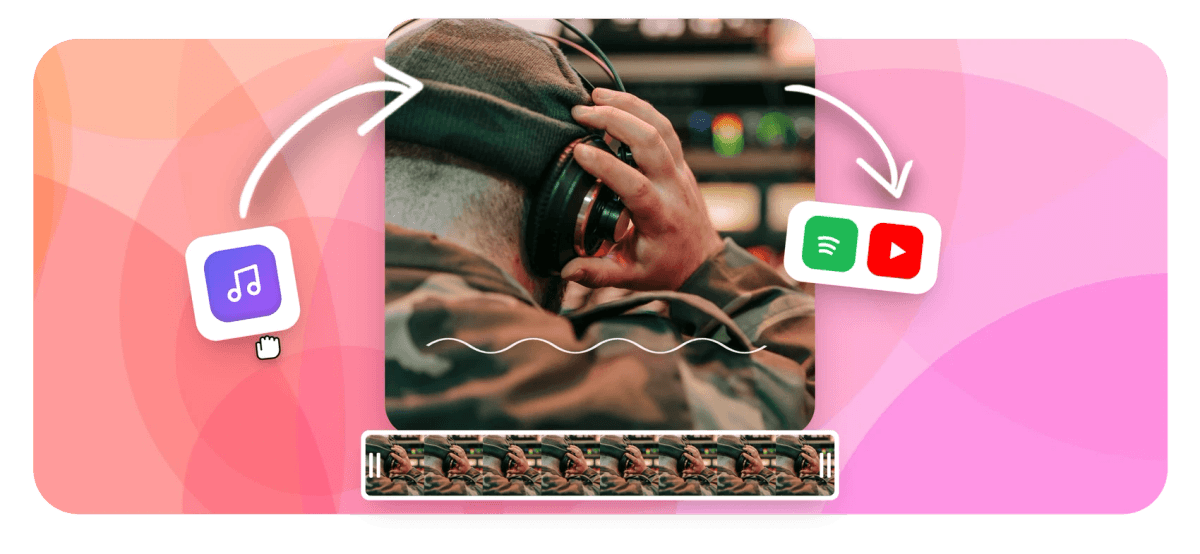
Video to Audio Converter Features
Built for podcasters, musicians, educators, and creators who need clean audio out of a video fast.





Pick your format
A video to audio converter that lets you pick the format
Most tools default to MP3 and stop there. This video to audio converter gives you five output choices: MP3 for sharing, WAV for lossless editing, M4A for Apple devices, AAC for streaming, or OGG for web projects. Need only MP3? Try convert/video-to-mp3. Working inside a bigger project? See tools/extract-audio-from-video.
-
5
audio output formats: MP3, WAV, M4A, AAC, OGG
-
4
video input formats: MP4, MOV, WebM, AVI
-
HD
audio quality, cloud-rendered, free
-
0
software downloads required
Format control
More than a strip-and-download converter
EchoWave gives you format choice, quality settings, and a full editor if you need one.
-
Choose your audio format
Select MP3, WAV, M4A, AAC, or OGG before you export. MP3 balances size and compatibility. WAV preserves every sample for lossless editing. M4A suits Apple device libraries. AAC is the standard for streaming platforms. OGG keeps file sizes low for web use. You pick the format, not the tool.
-
Works with the video formats you already have
Drop in MP4, MOV, WebM, or AVI files. You do not need to pre-convert or re-encode before uploading. The cloud render farm handles the heavy lifting, so a large MOV file from a camera processes the same way a small WebM clip does.
-
Trim before you extract
If you only want a section of the audio, use the built-in trim tool to cut the clip first. Then convert. This skips the manual step of trimming an audio file after export and saves you from carrying a multi-hour soundtrack when you only need two minutes. See also convert/mp4-to-wav for WAV-specific workflows.
-
Waveform preview before download
A visual waveform lets you confirm the audio extracted correctly before you commit to the download. If the source video had no audio track, EchoWave tells you upfront rather than delivering a silent file.
-
Cloud render, no device cap
All conversion runs on EchoWave's cloud render farm. Encoding happens on the server, not your device, so a two-hour concert video processes just as cleanly on a phone as on a desktop.
-
Full editor when you need more
After extracting audio, you can open the file directly in EchoWave's multi-track timeline editor. From there you can apply volume keyframes, speed remap, add AI captions, or build an audiogram for social media. The video tool and the editor share the same project, so nothing needs to be re-uploaded.
-
Secure file handling
Files are transferred over encrypted connections and processed on EchoWave's secure cloud farm, operated by Lemon Vault LLC. Temporary files are not shared with third parties. No account is required for a basic conversion.
-
Works on any device, any OS
EchoWave runs in Chrome, Edge, Firefox, and Safari on Mac, Windows, Linux, iOS, and Android. There is no app to install and no OS-specific version to track. Open the page, upload, convert, done.
How it works
How to convert video to audio
Four steps from upload to finished audio file.
-
Upload your video
Click the upload area or drag your MP4, MOV, WebM, or AVI file in. Files are sent directly to the cloud render farm over an encrypted connection. No account is required to start.
-
Pick your audio format
Choose MP3, WAV, M4A, AAC, or OGG from the format selector. If you need the widest device compatibility, MP3 is a safe default. If you plan to edit the audio further in a DAW, WAV avoids re-encoding quality loss.
-
Trim if needed
Use the trim handles to crop the video to just the section you want before extracting audio. This is optional. If you want the full audio track, skip straight to the next step.
-
Convert and download
Hit Convert. The cloud farm extracts and encodes the audio, then presents a download link. The free plan includes a small EchoWave badge on video exports, but audio-only downloads do not carry a watermark.
Who uses this
Common reasons to convert video to audio
-
Podcast producers
Record an interview over video call, then extract the audio track as WAV for editing in a DAW. You skip the re-recording step entirely and start editing clean dialogue right away.
-
Musicians and composers
Pull a reference track from a music video or live performance recording. WAV output keeps the full dynamic range so the reference is accurate when you compare it to your own mix.
-
Online course creators
Convert lecture or tutorial videos to MP3 so students can listen during commutes or workouts. MP3 at 192 kbps keeps voice audio clear while keeping file sizes small for email or LMS uploads.
-
Transcription and captioning teams
Extract audio from raw video footage before sending it to a transcription service. Many services accept MP3 or WAV and charge by the audio minute, not by the video file, so sending audio alone keeps costs predictable.
-
Audiogram creators
Extract the audio, then use EchoWave's waveform visualizer to build an animated audiogram for social media. The audio and the visual are handled in one tool without switching apps.
-
Localization and dubbing teams
Extract the original language audio as WAV to use as a timing reference while recording a dubbed version. Lossless WAV preserves the original nuances that guide pacing and emotion in the new recording.
Convert any video to audio, free
Upload your video, pick the format you need, and download clean audio in seconds. No account required to start.
What people are saying about EchoWave

About the EchoWave team
EchoWave is a browser-based video and audio editor built by Lemon Vault LLC since 2018. The people who build the editor write these guides and test every step in the production app before publishing.
Video to Audio Converter FAQ
Which audio format should I choose when converting video to audio?
MP3 is the most compatible format and works on every device and platform. Choose WAV if you plan to edit the audio in a DAW, since it is lossless and does not degrade through re-encoding. M4A is a good pick for Apple devices and iTunes libraries. AAC is the default for streaming platforms like Spotify and YouTube Music. OGG is a royalty-free format that keeps file sizes compact, useful for web games or browser apps.
Does a free video to audio converter reduce audio quality?
Quality loss depends on the output format and bitrate, not on whether the tool is free. EchoWave runs conversion on a cloud render farm and does not apply additional compression beyond what the chosen format requires. If you want to preserve the original quality exactly, choose WAV output since it is lossless. MP3 at 192 kbps or higher is transparent to most listeners for speech and music.
Can I extract audio from an MP4 file without losing sync?
Yes. For M4A or AAC output, the audio codec from an MP4 is often already compatible and can be copied with minimal processing. WAV and MP3 are re-encoded. Either way, EchoWave keeps timestamps accurate so audio stays in sync with any other tracks you are working with.
What is the difference between this page and the video to MP3 converter?
The video to MP3 converter is optimized for a single output format: MP3. Use it if MP3 is the only format you need. This page, the video to audio converter, covers all five output formats: MP3, WAV, M4A, AAC, and OGG. Use it when you need to choose the right format for your workflow rather than defaulting to MP3 every time.
What video formats can I upload?
EchoWave accepts MP4, MOV, WebM, and AVI. These cover the vast majority of files from cameras, screen recorders, phones, and video editing software. MKV and FLV are not currently supported as direct upload formats.
Is there a file size or length limit on the free plan?
EchoWave's free plan includes HD cloud rendering and does not require a paid subscription for a basic conversion. Longer or larger files may take more time to process on the cloud farm. The free export includes a small EchoWave badge on video outputs, but audio-only downloads do not carry a watermark.
Can I convert video to audio on my phone?
Yes. EchoWave runs in Safari on iOS and Chrome on Android without any app installation. Upload from your phone's camera roll, pick the format, and download the audio file. Processing happens on the cloud server, so your phone battery and RAM are not strained by the conversion work.
What is the difference between extracting audio and converting video to audio?
They describe the same operation from different angles. Extracting audio focuses on removing the audio track from the video container. Converting video to audio focuses on producing a new audio file in a specific format. Some tools just remux the existing audio codec into an audio container, which is fast. Others decode and re-encode to reach the target format, which takes slightly longer but gives you format flexibility. EchoWave does the latter, which is why you can choose from five different output formats.
Can I edit the audio after extracting it from the video?
Yes. After conversion, you can open the audio file directly in EchoWave's multi-track timeline editor. From there you can trim, adjust volume with keyframes, apply speed remap, or add a waveform visualization for social media. If you want to export the result as a WAV for further editing in an external DAW, that option is available without re-uploading anything.
Ready to convert your video to audio?
EchoWave is free to use in any browser. The free plan includes HD audio output with no watermark on audio downloads. A paid plan removes the small badge from video exports and adds 4K video output.
Get Started →























































