
Explainer Video Maker: Screen, Narration and Emphasis in One Tab
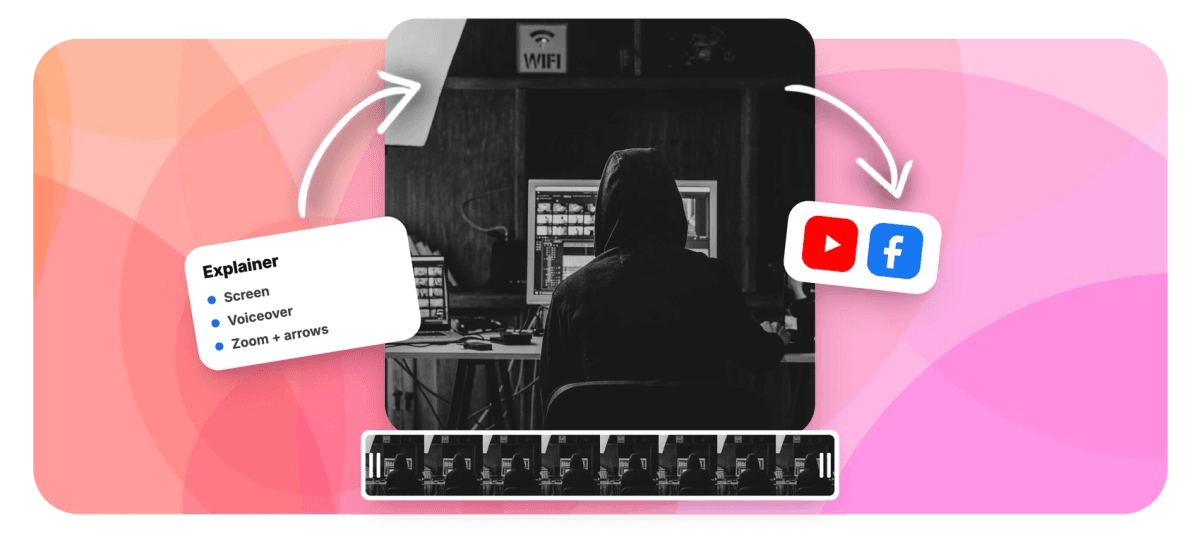
An explainer is a screen, a voice and a few emphasis moments. Record your screen, narrate it live or with AI, zoom and annotate the key steps, then caption and export. Free to start.


Explainer Video Maker: Screen, Narration and Emphasis in One Tab Features
EchoWave's explainer video tools are used by product teams, support crews and course creators worldwide





The full explainer chain
An explainer is a screen, a voice and a few emphasis moments.
A good explainer video maker is not one feature, it is a chain, and EchoWave carries the whole thing in one browser tab. An explainer is a screen someone can follow, a voice that walks them through it, and emphasis that says look here. So you record your screen, with a facecam bubble in the corner if you want a face on it. You narrate live, or type a script and let AI text-to-speech read it. You zoom and punch in on the button that matters, add text callouts, caption it for muted viewers, and export. Real footage you record or upload, assembled by hand: no cartoon avatar reading a script it never understood.
-
60 minutes
Longest single screen take, and pauses do not count against it
-
4 record modes
Screen, camera, screen with a camera bubble, or mic only
-
Separate layers
Screen and camera import as individual clips you can zoom and move
-
50+ languages
Auto-transcription turns your narration into word-timed captions
What you get
Every step of an explainer, one browser tab
Screen capture, narration, emphasis and captions, none of it in a separate app.
-
Record Your Screen, Face Optional
Capture a display, a window or a single tab straight from the browser, no install. Add a webcam bubble in any corner so viewers get a face with the walkthrough, or keep it screen only.
-
Or Upload Footage You Already Have
Not every explainer starts on screen. Drag in phone clips, camera footage or an old recording, and it lands on the same timeline as anything you capture, ready to trim, zoom and caption.
-
Narrate in Your Own Voice
Talk through the steps as you record, with a built-in teleprompter scrolling your script near the lens. Or record a clean voiceover afterward while you watch the project play back in sync.
-
Or Let AI Read Your Script
No mic, or no wish to hear your own voice? Type the script and AI text-to-speech narrates it in a natural voice, streamed onto the timeline in seconds and trimmed like any other clip.
-
Zoom and Punch In on What Matters
A full-frame screen recording hides the point. Keyframe a zoom onto the button, the field or the line of code, hold, then pull back, so the eye lands exactly where the narration is pointing.
-
Annotate With Text and Callouts
Ring the menu, arrow the setting, drop a label on the step. Text and callouts sit on their own layers with start and end times, so each note appears only while you are talking about it.
-
Caption It for Silent Viewers
Most how-to videos are watched muted. One click auto-captions your narration with word-level timing across 50-plus languages, then pick from 170-plus styles to burn in, so the steps read even with the sound off.
-
Export and Ship
Render to MP4 and post it, embed it in a help doc, or drop it in an onboarding email. Free exports are 720p with a small watermark; paid plans remove it and go up to 4K.
How it works
How to make an explainer video
Four steps from a blank tab to a finished explainer.
-
Record or Upload Your Footage
Open the recorder, pick screen, camera or screen with a camera bubble, and capture the walkthrough. Already have footage? Drag your clips onto the timeline instead.
-
Add Your Narration
Talk through it live with the teleprompter, record a voiceover against the playback, or type a script and let AI text-to-speech read it. The audio lands on its own track.
-
Emphasize the Key Steps
Zoom and punch in on the exact control you are describing, then add text labels, arrows and callouts that appear only while each step is on screen.
-
Caption and Export
Auto-caption your narration for muted viewers, tidy any wording, then render to MP4 and share it. Export up to 4K on a paid plan.
Who uses it
The explainers people actually need to make
-
Product How-Tos
Show a new user exactly where to click, zoomed in on the real interface, narrated step by step and captioned for the feed.
-
Customer Onboarding
Turn the getting-started guide into a two-minute walkthrough new signups can follow on their first day, no support ticket required.
-
Support Answers
Answer the ticket with a 60-second recording of the fix instead of a wall of text, and reuse it forever.
-
Course Lessons
Record the lesson, punch in on the detail that matters, and caption it so students can study with the sound off.
-
Release Notes and Feature Walkthroughs
Ship every release with a short clip that shows the new feature working, not a changelog nobody opens.
-
Internal SOPs and Handovers
Document the process once by recording yourself doing it, so the next person watches instead of guessing from notes.
Show it, do not type it
Record your screen, narrate the steps and caption it, all in one browser tab. Free to start, no install.
What creators say after trying EchoWave

About the EchoWave team
EchoWave is a browser-based video and audio editor built by Lemon Vault LLC since 2018. The people who build the editor write these guides and test every step in the production app before publishing.
Explainer video maker FAQ
How do I make an explainer video?
Break it into a chain. First capture the thing you are explaining: record your screen, a window or a tab in the browser, with a facecam bubble if you want a face on it, or upload footage you already have. Next add narration, either talking through it live or typing a script for an AI voice. Then emphasize the key moments with zooms and text callouts so the viewer's eye follows along. Finally, caption it for muted viewers and export to MP4. EchoWave keeps all four stages in one browser tab, so you never round-trip through a separate recorder, editor and captioner.
Can I record my screen with narration at the same time?
Yes. In the recorder, choose the screen mode and leave your microphone on, and the narration is captured on the same take as the screen. Add a camera bubble if you want your face in the corner. For scripted delivery, the built-in teleprompter scrolls your lines near the lens so you can read without staring at another window. If you would rather narrate afterward, record a voiceover while the project plays back in sync, so your words land on the visuals they describe. Either way, the audio arrives on its own track and stays fully editable.
Should I use an AI voice or record my own narration?
Both work, and the honest answer is it depends on the video. Your own voice sounds warmer and builds trust, which suits customer-facing explainers and course lessons; record it live or lay it down afterward. An AI voice from text-to-speech is faster to iterate, consistent across a whole series, and a relief if you dislike hearing yourself or have no quiet room. Many teams draft with a synthetic voice, then re-record the final in their own once the script is locked. You can mix both across a project, since every narration clip sits on its own audio track.
How do I highlight the important part of the screen?
Two tools do most of the work. Zooms and punch-ins magnify the exact button, field or line you are talking about, so a full-frame recording stops burying the point; keyframes animate the push and hold it there, then pull back out. On top of that, add text labels, arrows and callout shapes that ring the control or name the step. Because every annotation has its own start and end time, a callout shows only while you are narrating that step, then disappears before it clutters the next one. Together they turn a flat screen capture into a guided tour.
Do explainer videos need captions?
For most explainers, yes. A large share of how-to and social video is watched with the sound off, on phones, in offices and on feeds that autoplay muted, so captions are often the difference between a step landing and a viewer scrolling past. They also make the video accessible to deaf and hard-of-hearing viewers and to anyone learning in a second language. EchoWave auto-transcribes your narration with word-level timing across more than 50 languages, then lets you burn the captions in with one of 170-plus styles. You can edit any word before export, so a mistranscribed product name never ships.
How long should an explainer video be?
Shorter than you think. A single how-to or support answer is usually strongest between 30 and 90 seconds: long enough to show the steps, short enough to hold attention. Onboarding and course lessons can run longer, but the rule holds, cover one task per video rather than cramming a whole product into ten minutes. Script the narration first so you say only what the screen needs, then use the editor to cut dead air, remove the ums and tighten pauses. If a topic genuinely needs more, split it into a short series of focused clips instead of one sprawling video.
Can EchoWave make an animated explainer with characters?
No, and it is worth being clear about what EchoWave is. There is no library of auto-generated animated characters and no AI that invents scenes from a text prompt. What you get instead is a maker for explainers built from real footage: you record your actual screen or camera, or upload clips you already have, and assemble them by hand with zooms, callouts, narration and captions. For product how-tos, onboarding, support and lessons, showing the real interface is usually clearer and more trustworthy than a cartoon anyway. If you specifically need mascot animation, an explainer built on real screens is a different, and often better, tool.
Is the explainer video maker free?
Yes, free to start with no software to install. Recording your screen, adding narration or an AI voice, zooming, annotating and auto-captioning are all available on the free plan, and you can record and download without an account. Free exports are capped at 720p and carry a small EchoWave watermark. Paid plans remove the watermark and raise the ceiling to 1080p, 4K and beyond, plus higher frame rates for smoother screen motion. Most people build the whole explainer free first, then upgrade only when they need a clean, higher-resolution file to ship.
Ready to make an explainer?
Record the screen, narrate the steps, caption it and export, all in one browser tab. Free to start.
Get Started →























































