Reverse Video Online: Free Video Reverser, No Watermark
Play any clip backwards right in your browser. Upload, reverse, and export with no signup, no watermark, and no quality loss. Need more than a reverse? Open the full video editor.

Reverse Video Online: Free Video Reverser, No Watermark Features
To reverse a video online, upload your clip to EchoWave's free video reverser, apply the reverse effect so the footage plays backwards, then export. It runs entirely in your browser with no signup and no watermark. You can reverse MP4, MOV and WebM files, and decide whether to reverse the audio, mute it, or keep your own soundtrack playing forward.
Trusted by thousands of creators worldwide





How to reverse a video
EchoWave makes reversing video quick. In a few steps you can flip any clip so it plays backwards:
-
1. Upload Your Video
Drag in your clip or pick a file from your device. The reverser works with almost every video file type, so whatever footage you have, we can play it backwards.
-
2. Apply the Reverse Effect
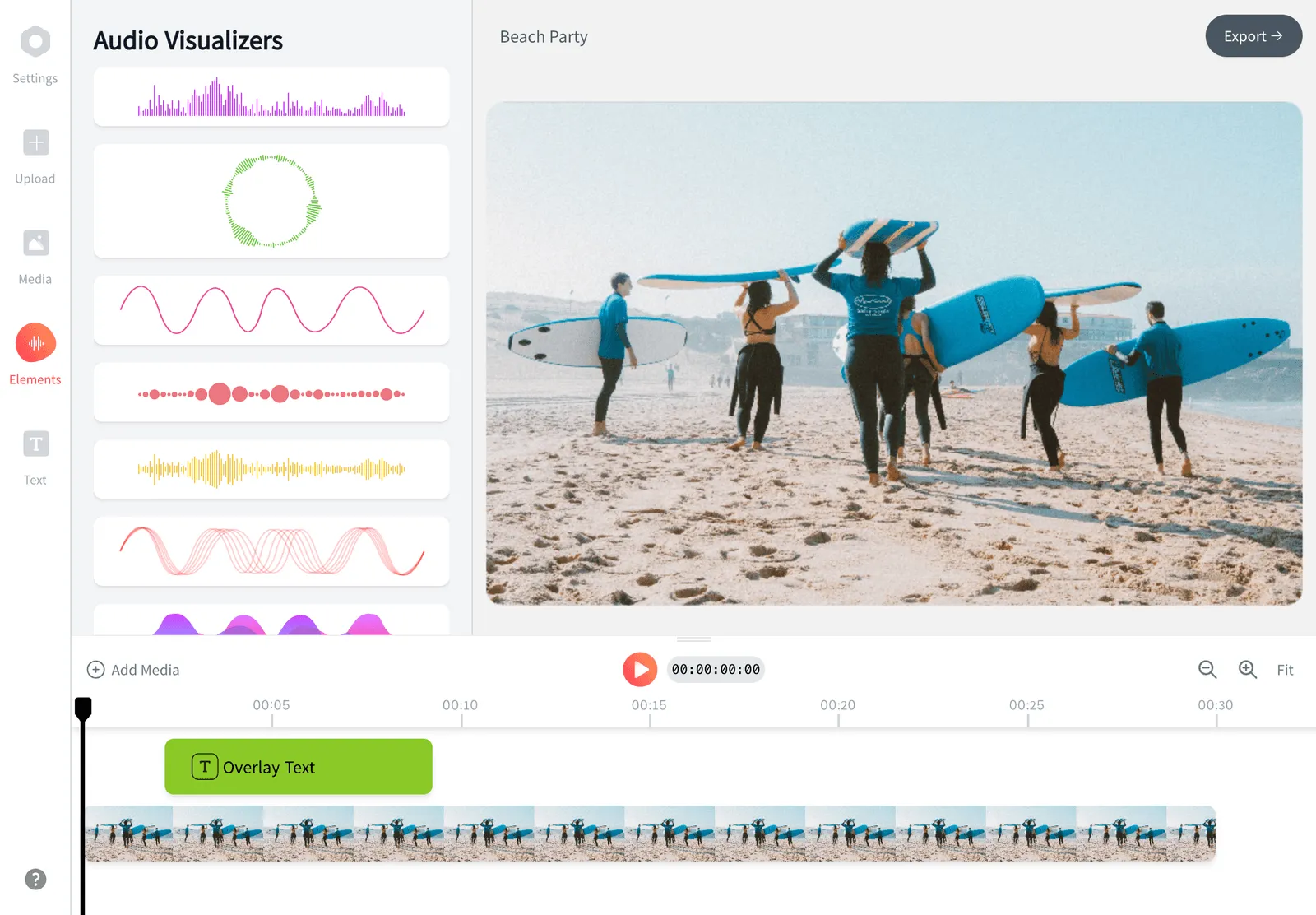
Select your clip and hit reverse. The last frame becomes the first, so the whole video plays backwards. Choose whether to reverse, mute, or keep the audio.
-
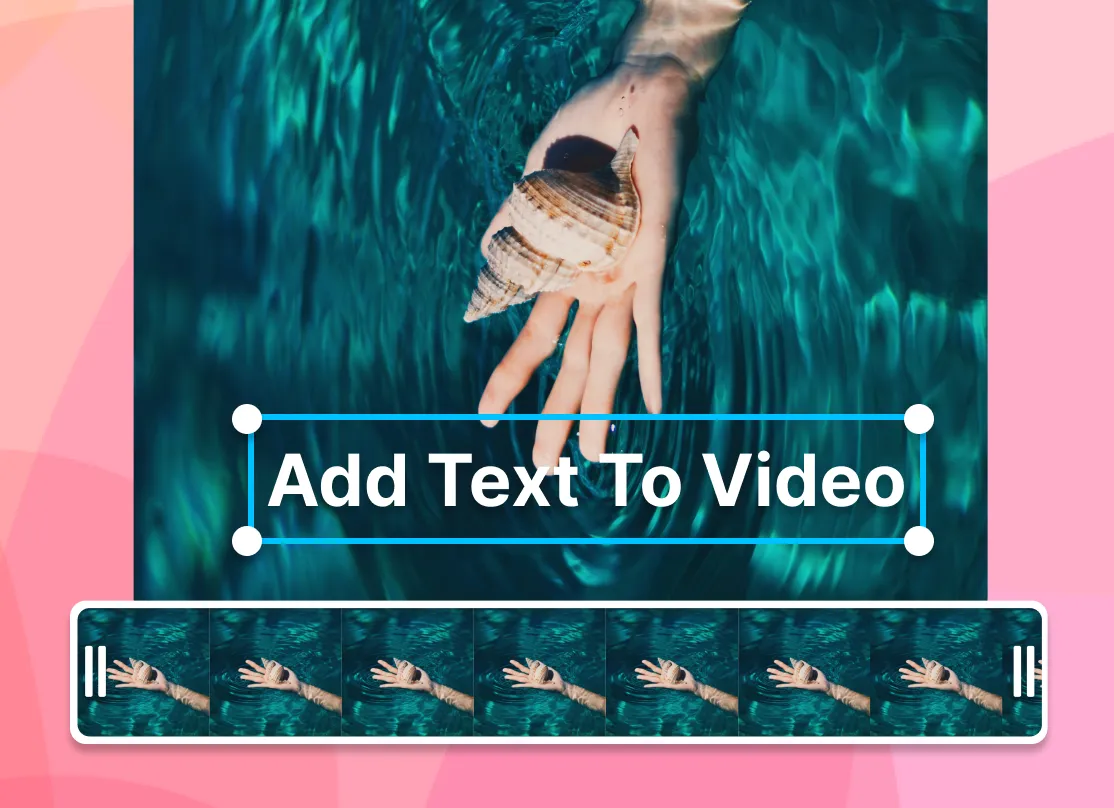
3. Download Reversed Video
Preview the backwards playback, then export. Your reversed video is ready to download and share with no watermark and no quality loss.
How creators use EchoWave in real projects
What a video reverser actually does
Reversing a video plays its frames in the opposite order: the last frame you shot becomes the first one viewers see, and time appears to run backwards. Water flows upward, a jump turns into a landing, scattered pieces snap back together. EchoWave reads every frame of your upload, flips the order, and re-encodes the clip so the backwards playback is smooth at the video's native frame rate.
That is different from a reverse video search or reverse image search, which tries to find where a clip came from. This tool changes the footage itself. Upload a clip, apply the effect, and you get a new file that plays from end to beginning.
Reverse a video in your browser, no app, no signup
Most reverse video editors ask you to install software or create an account first. EchoWave does not. Open the video reverser in any modern browser, upload your clip, apply the reverse effect, and export. That is the whole flow.
Because everything happens online, there is nothing to download and nothing to sign up for. It works the same on Windows, Mac, Chromebook, iPhone and Android, so you can rewind a clip from whatever device is in front of you. And there is never a watermark stamped across your footage. The reversed video you download is yours, clean.
Reverse, mute, or keep the audio
When you reverse a video, the soundtrack would normally run backwards too, which is great for some effects and unwanted for others. EchoWave puts that choice in your hands:
- Reverse the audio with the video for the classic backwards-talking, glitchy rewind sound that suits trick shots and transitions.
- Mute the audio to flip the visuals while dropping the sound entirely, ready for a fresh music track.
- Keep forward audio to reverse only the picture and lay your own song or voiceover over the top.
Keep in mind that real speech played backwards is not intelligible, so if you want viewers to follow what is said, mute the reversed clip and add a new track instead. If you want a different soundtrack after reversing, you can add audio to your video or remove the original audio first, then export the finished clip.
Reverse video without losing quality
Reversing footage should not cost you sharpness. EchoWave processes your clip at its original resolution and frame rate and avoids needless re-compression, so the backwards version looks as crisp as the file you uploaded. Export in the same resolution as your source, whether that is 720p, 1080p or 4K, and the detail stays intact.
There is no forced downscaling and no watermark eating into the frame. You upload a clean clip, reverse it, and download a clean clip: the quality you put in is close to the quality you get back. For the smoothest result, start with the highest-quality source you have rather than a clip that has already been compressed several times.
Reverse MP4, MOV, WebM and more
Whatever your camera, phone, or screen recorder produced, EchoWave can reverse it. Use it as an MP4 reverser for the most common web format, or reverse MOV files straight from an iPhone or Mac.
| Format | Common source | Reversible |
|---|---|---|
| MP4 (H.264 / H.265) | Phones, cameras, social downloads | Yes |
| MOV | iPhone, iPad, QuickTime | Yes |
| WebM | Web and browser recordings | Yes |
| MKV / AVI / M4V | Older containers and downloads | Yes |
Upload your file, reverse it, and export. You can keep the output as MP4 for the widest compatibility, which every social platform accepts. If your file is very large, run it through the video compressor first so the upload finishes faster.
Make a boomerang or ping-pong loop
A boomerang plays a clip forward and then immediately backward, so the action bounces on a loop. To build one, reverse a copy of your clip, place it after the original, and loop the result so it runs forward, backward, forward, backward without a visible cut. It is the same ping-pong effect you see in countless Instagram and TikTok posts, only here you control the exact frames and the length.
For a clean bounce, trim the clip to a short, self-contained moment first so the forward and reversed halves meet at a matching frame.
What you can make with a reversed video
Playing a clip backwards is one of the most eye-catching effects on social media. A few ways creators use the reverse tool:
- Rewind reveals. Pour, splash, or unwrap something, then reverse it so the action magically undoes itself.
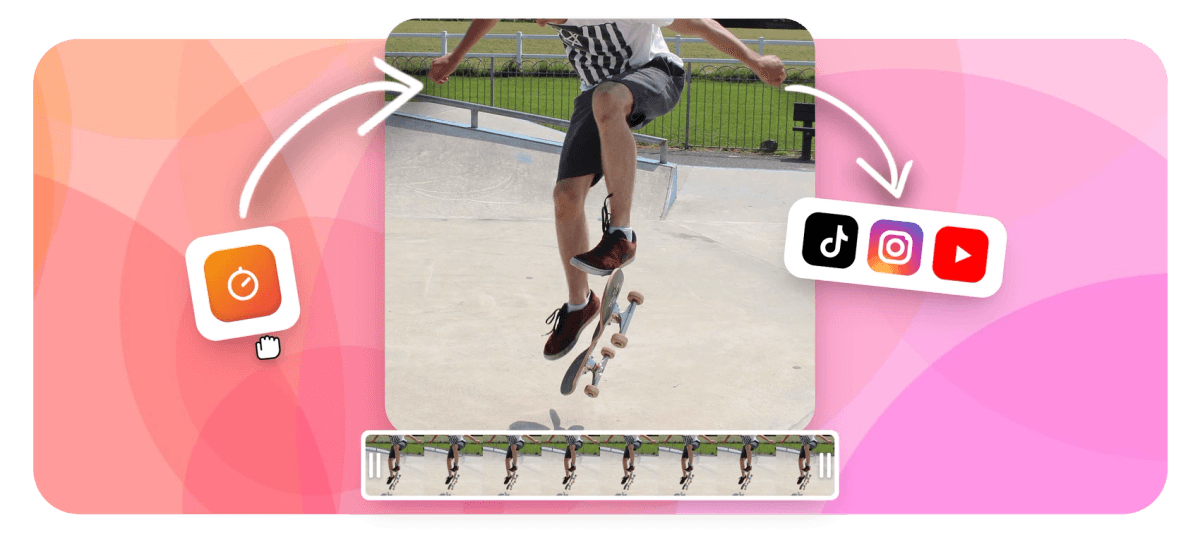
- Trick shots. Make objects fly back into your hand or turn a fall into a perfect landing.
- Music edits. Sync a reversed visual to a beat drop for TikTok, Reels, or Shorts.
- Boomerang loops. Pair a reversed copy with the original for a satisfying back-and-forth.
Need to tidy the clip up first? Trim it down to the exact moment you want reversed, then apply the effect to that segment.
Reverse video on iPhone, Android, or desktop
You do not need CapCut, iMovie, or any app install to play a video backwards. EchoWave runs in the browser, so reversing a clip on your phone is the same as on a laptop:
- Open EchoWave in Safari or Chrome on your iPhone or Android phone.
- Upload the video straight from your camera roll.
- Apply the reverse effect and choose what to do with the audio.
- Export and save the reversed clip back to your device.
That means no App Store download, no account, and no watermark: upload, reverse, and share. It is also handy when a built-in app falls short. TikTok's own reverse effect, for example, flips the picture but leaves the sound playing forward, so reversing the clip here first gives you full control over both.

About the EchoWave team
EchoWave is a browser-based video and audio editor built by Lemon Vault LLC since 2018. The people who build the editor write these guides and test every step in the production app before publishing.
Frequently Asked Questions
How do I reverse a video for free?
Upload your clip to EchoWave's video reverser, apply the reverse effect so it plays backwards, then export. It is free with no signup and no watermark.
How do I reverse a video online without losing quality?
EchoWave reverses your clip at its original resolution and frame rate and avoids needless re-compression, so the backwards version stays sharp. Export in the same resolution you uploaded to keep the detail.
Does reversing a video also reverse the audio?
It can, but the choice is yours. You can reverse the audio along with the video for a backwards-sound effect, mute it entirely, or keep your own forward soundtrack over the reversed visuals.
Can I reverse a video that has background music?
Yes. You can reverse the music with the picture, or mute the original track and add a new song that plays forward over the reversed footage.
How do I reverse a video on iPhone?
Open EchoWave in Safari or Chrome on your iPhone, upload the clip from your camera roll, apply the reverse effect, and export. No App Store download or account is needed.
How do I reverse a video without CapCut?
You do not need CapCut or any app. EchoWave runs in your browser, so you can reverse a clip on phone or desktop without installing anything, then download it watermark-free.
What video formats can I reverse?
MP4, MOV, WebM, MKV, AVI, M4V and more. EchoWave handles the common containers, so you can reverse whatever your camera, phone, or screen recorder produced.
Can I reverse only part of a video?
Yes. Trim the clip down to the exact moment first, then apply the reverse effect to that segment so only that part plays backwards.
How do I make a boomerang or ping-pong loop?
Reverse a copy of your clip, place it after the original, and loop it so the action plays forward and then backward on repeat. That is the classic boomerang effect, made in your browser.
Can I preview the reversed video before downloading?
Yes. EchoWave plays the backwards version in the preview so you can check the timing and the audio choice before you export the final file.
Is my video uploaded somewhere or kept private?
Your clip is processed for the reverse and is not shared or made public. You simply upload, reverse, and download the result, with no watermark on the export.
Can I reverse an Instagram, TikTok, or YouTube video?
Download or export the clip you own first, then upload it to EchoWave to reverse it and re-share the backwards version. This also gives you control over the audio, which the TikTok reverse effect does not flip.