
Video Speed Changer, Free Online
Change video speed from slow motion to fast forward, anywhere from 0.25x to 4x. Set the exact rate, keep it smooth and export. Free, in your browser.


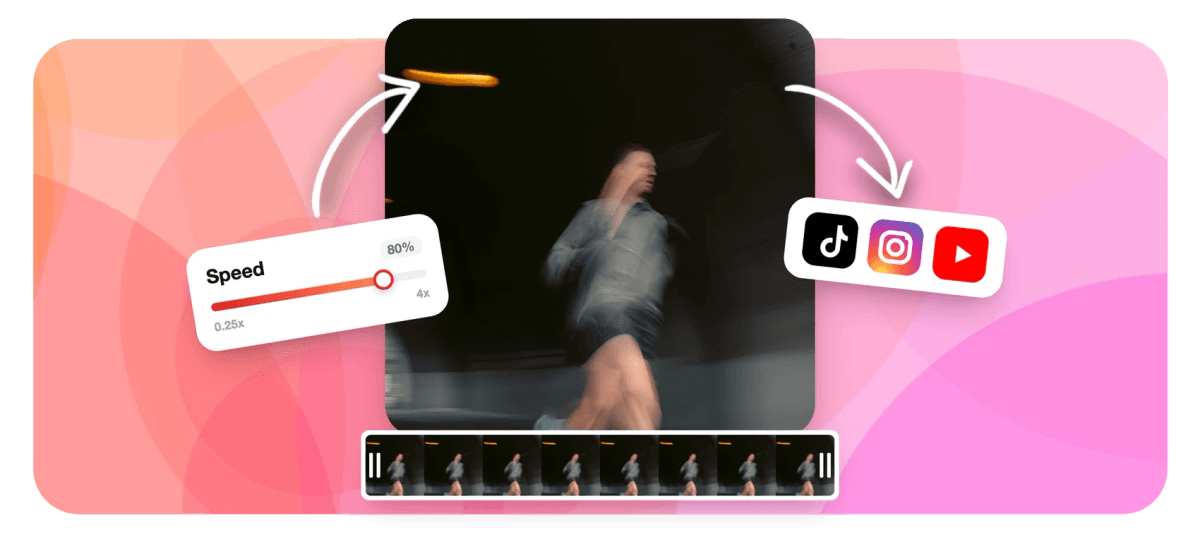
Video Speed Changer, Free Online Features
EchoWave's browser-based video editor is used by creators, marketers, educators, and small teams around the world.





Speed control
Set any playback rate, with or without speed ramps
A uniform rate change takes one click. For a gradual build into slow motion, add keyframes on the speed property and draw the curve. This page covers the full range of speed changes. If you only need to speed footage up, see Speed Up Video. For pure slow-motion work, Slow Motion Video goes deeper on frame interpolation and cinematic techniques.
-
0.25x
minimum playback rate (quarter speed slow motion)
-
4x
maximum playback rate (fast-forward time-lapse)
-
HD
export quality on the free plan
-
0
software installs required, runs in any modern browser
What you get
Speed controls built for the full range of use cases
From a quick 2x speedup to a fully keyframed speed ramp, all the controls are in one timeline.
-
Set any video speed from 0.25x to 4x
Type an exact multiplier or drag the rate slider to any value between quarter speed and 4x fast-forward. The video speed changer applies the change to the whole clip or to a selected range. Cloud rendering handles the re-encode so output frame timing is accurate regardless of the original frame rate.
-
Keyframed speed ramps for smooth transitions
Place keyframes on the speed property at any point on the timeline and EchoWave interpolates between them. Start at 1x, ease down to 0.5x during the impact moment, then ramp back up. This is the technique behind the speed ramps in action sports and music video edits. For a dedicated slow-motion workflow, see Slow Motion Video.
-
Audio and video speed adjusted together
Adjust the speed of the video and audio track together on the multi-track timeline. For extreme rate changes (very slow motion or high-speed time-lapse) the audio becomes unusable; muting the clip and adding a separate music or narration track is a clean solution in those cases.
-
Apply speed to the full clip or a range
Select the whole clip for a uniform rate change, or mark an in-point and out-point to speed up only one section while the rest plays at 1x. Combine this with trim and split tools to build a sequence where different segments run at different speeds without any manual re-assembly.
-
Multi-track timeline keeps everything in sync
When you change the speed of a video clip, the timeline shifts surrounding clips and the linked audio track together. Music, captions, and overlays all stay in their relative positions. The magnetic timeline snaps adjusted clips into place so gaps don't appear after a speed change.
-
Auto-captions that follow the new timing
AI auto-captions read the speech, not the original timestamps, so they generate correctly even after a speed change. With 160+ caption presets including word-level karaoke styles, you can caption a sped-up tutorial or a slow-motion highlight without any manual timing correction.
-
Export to MP4, WebM, or MOV after any speed change
Cloud rendering re-encodes the output at the correct frame timing rather than relying on metadata playback tricks. Download as MP4 for broad compatibility, WebM for smaller web files, or MOV for delivery into a desktop editor. Free plan exports HD with a small EchoWave badge; paid removes it and opens 4K.
-
Combine speed changes with other edits in one pass
Speed ramp, add captions, drop in a music track, overlay a logo, then export once. Everything goes through a single cloud render so you're not re-encoding multiple times and losing quality. For looping at variable speed, pair with the Loop Video tool after export.
How it works
How to change video speed in EchoWave
Four steps from upload to a speed-adjusted export, all in the browser.
-
Upload your video
Drag an MP4, MOV, WebM, or AVI file onto the EchoWave editor. The file goes to the cloud render farm immediately. No local processing happens on your device, so older laptops handle large files without slowing down.
-
Set the playback rate or add keyframes
Select the clip on the timeline and open the Speed panel. For a uniform rate change, type a value such as 0.5 or 2 and the clip length adjusts automatically. To build a speed ramp, switch to keyframe mode, place points along the timeline, and drag the curve between them.
-
Trim, caption, or add audio if needed
While the speed is set, trim dead air from the ends, burn in auto-captions, or swap the audio track for music. All edits happen in the same timeline so the final render is one clean pass, not a chain of re-encodes.
-
Export and download
Click Export, choose your format and resolution, and EchoWave renders in the cloud. HD is available on the free plan with a small removable badge. Paid removes the badge and opens 4K H.264 export. Download the finished file or share a direct link.
Use cases
When you'd reach for a video speed changer
-
Action sports highlights
Ramp from full speed into 0.25x slow motion at the moment of impact, then back up. Speed ramps are a staple of action-sports edits. Keyframe curves make the transition feel smooth rather than jarring.
-
Tutorial and screen recording compression
Speed up the slow parts of a screen recording at 2x or 3x so viewers don't drop off during repetitive steps. Keep the important moments at 1x for clarity. For sections with narration, keep those at 1x so speech stays intelligible.
-
Time-lapse from regular footage
A 4x speed change on a 20-minute clip produces a five-minute time-lapse without any additional recording setup. Great for construction walkthroughs, cooking videos, or art-process footage where you filmed at normal speed but want to show the whole process fast.
-
Music video speed effects
Match energy shifts in a song by ramping clip speed up or down at beat drops. Pair with Boomerang Maker for forward-reverse loops at varying speeds. The multi-track timeline keeps music and video locked together through every rate change.
-
Cinematic slow motion from standard video
Slow a 60fps clip to 0.5x for smooth 30fps-equivalent slow motion, or push to 0.25x for a more dramatic effect. For footage shot at 120fps or 240fps and true frame interpolation techniques, see Slow Motion Video.
-
Social clips cut to fit time limits
Instagram Reels cap at 90 seconds and TikTok has its own limits. Speed up a longer cut at 1.25x or 1.5x to fit the format without cutting content. For voiceover sections, keep those segments at 1x so speech remains clear.
Change the speed of any video, free
Upload your footage, set the rate or draw a speed ramp, and export in HD. No download, no account required to start.
What people are saying about EchoWave

About the EchoWave team
EchoWave is a browser-based video and audio editor built by Lemon Vault LLC since 2018. The people who build the editor write these guides and test every step in the production app before publishing.
Video Speed Changer, Free Online FAQ
Does a video speed changer affect audio quality?
Yes, changing playback rate alters audio timing and can make speech sound unnatural. For moderate speed changes the audio is often still usable. At extreme rates (very slow motion or high-speed time-lapse) the audio becomes difficult to follow; muting and adding a separate music or narration track is a clean solution for those cases.
What is a speed ramp and how do I make one?
A speed ramp is a gradual change in playback rate over time rather than a fixed multiplier. You place keyframes on the speed property at two or more points on the timeline and EchoWave interpolates between them. For example, place a keyframe at 1x on frame 30, another at 0.25x on frame 60, and the clip eases from normal speed into slow motion across those 30 frames. This is how action sports editors create the dramatic slow-down effect.
What is the difference between this page and the Speed Up Video or Slow Motion Video tools?
This video speed changer covers the full range in both directions, including keyframed speed ramps that mix fast and slow within a single clip. Speed Up Video focuses specifically on rates above 1x (2x, 3x, time-lapse). Slow Motion Video focuses on rates below 1x and covers frame interpolation techniques for footage shot at high frame rates.
Can I change speed on only part of a video clip?
Yes. Select an in-point and out-point on the clip to apply a rate change to that range only. The surrounding footage stays at its original speed. This is useful for highlighting a specific moment in a longer clip without cutting and re-assembling separate segments.
What video formats can I use with EchoWave's speed changer?
You can upload MP4, MOV, WebM, and AVI files. After changing speed, you can export as MP4 (H.264), WebM, or MOV. MP4 is the safest choice for sharing and social uploads; WebM produces smaller files for web delivery.
Does changing video speed affect captions or subtitles?
EchoWave's AI auto-captions generate from the speech content, not from fixed timestamps, so they stay correctly timed after a speed change. If you're working with an imported SRT file, you would need to adjust timestamps manually or regenerate captions after the speed change.
Is there a file size or length limit for the free plan?
EchoWave processes files on its cloud render farm rather than in the browser, so your device hardware is not a bottleneck. The free plan supports standard video files and exports HD resolution. Paid plans extend to 4K export and remove the small removable badge that appears on free exports.
Will the output video look choppy if I slow it down a lot?
At 0.5x on footage originally shot at 60fps, the output is smooth because there are enough source frames. At 0.25x on standard 30fps footage, you may see some motion stutter because the source doesn't have frames to fill the slower rate. For the smoothest ultra-slow motion, shoot at 60fps, 120fps, or 240fps where your camera allows, and see Slow Motion Video for frame interpolation options.
Do I need to create an account to use the video speed changer?
You can open EchoWave in any modern browser and start editing without creating an account. An account is required to save projects and to access the paid plan, which removes the export badge and enables 4K output. There is no software to install on Mac, Windows, or Linux.
Ready to ramp your video speed?
Upload any video, set a uniform rate or draw a keyframed speed curve, and export HD free with a small removable badge (paid removes it).
Get Started →























































